


 视频转换大师
 屏幕录影大师
 视频修复
视频修复
 安全下载
安全下载在 Mac 和 Windows 上录制 MXF 视频的最佳方法
MXF 文件,也称为素材交换格式(Material Exchange Format),是一组在专业领域中使用的容器格式,特别常见于像 SMPTE(电影与电视工程师协会,Society of Motion Picture and Television Engineers)这样的数字公司。准确来说,它是传统录像带的数字化替代品。这类视频文件支持元数据和时间码,而元数据在观看视频内容时非常关键。大多数广播电台、大型电影制作公司或传媒机构经常使用这种文件格式,这也是它在诸多方面表现出色的原因。很多人在录制或导出视频时都希望能使用这种文件格式。好消息是,现在你可以借助MXF 录制工具来获得这种格式的文件。继续阅读本文,了解更多相关内容。

第 1 部分。 适用于 Windows 和 Mac 计算机的专业 MXF 记录器
FVC Screen Recorder 是为您的视频录制提供基本功能的最受欢迎和可用的工具之一。您将在 FVC Screen Recorder 中看到的一件值得注意的事情是界面。它组织良好且易于理解。它是 100% 免受恶意软件攻击,最重要的是,您的文件受到保护,并且工具开发人员会考虑其机密性。当然,此工具在生成 MXF 视频格式方面是可靠的。可以肯定地说,这是最好的 MXF 记录器。
步骤 1. 在电脑上下载并安装该工具。
步骤 2. 按照安装流程完成安装后,启动程序。
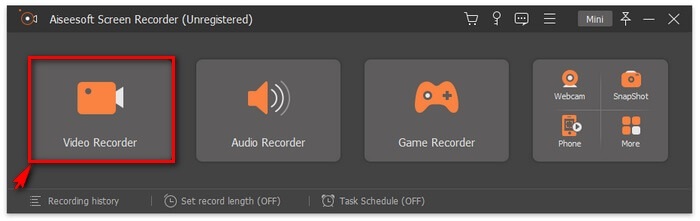
步骤 3. 要开始录制,请选择视频录制选项卡,并选择你要录制视频的画面尺寸。
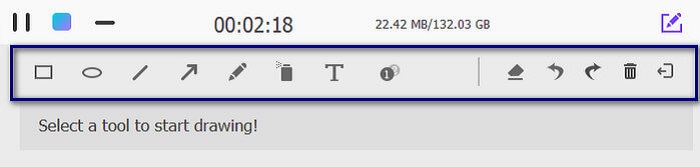
注意:你也可以在录制的同时进行标注。只需点击画笔图标,即可调出悬浮工具栏。
步骤 4. 录制完成后,点击截图中所示的停止按钮。它看起来是一个红色的方块按钮,位于悬浮工具栏左侧。

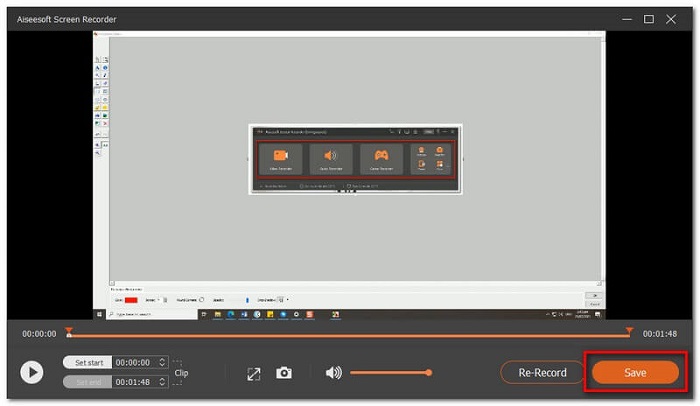
步骤 5. 此时你可以在“保存”和重新录制之间进行选择。若想预览刚录制的视频,点击“录制历史”按钮。
优点
- 100% 保险柜。安装过程中没有第三方硬件。
- 保证隐私保护。
- 支持大量视频格式。
缺点
- 需要注册。
第 2 部分。 值得一试的 4 大最佳 MXF 录音机
接下来我们将为你介绍一些也可以作为上面推荐的优秀MXF 录制工具替代方案的其他工具。
1. FVC 免费屏幕录制-适用于 Windows 和 Mac 的 MXF 录制器
这款工具和第一款一样好,只是在功能上稍有局限。它实际上是上面那款工具的免费版本。与你需要下载安装的桌面程序不同,这款只需浏览器和稳定的网络连接即可使用。与其他在线工具相比,这款应用的功能组合非常出色,其中一些功能在其他免费工具中几乎找不到。即便用户没有使用类似工具(例如这款 FVC 免费屏幕录制工具)的经验,也不用担心。简洁直观的界面和清晰的布局可以帮助新手快速上手。要开始使用,请先通过下方入口启动应用,然后继续按照下方的使用指南进行操作。
步骤 1. 点击开始录制按钮,并授予必要的权限,直到成功启动工具。
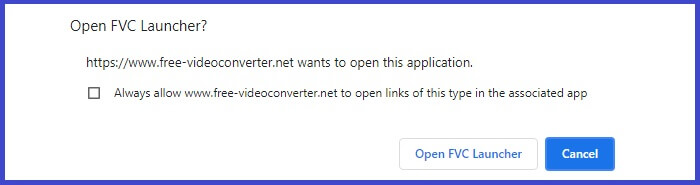
步骤 2. 工具启动后,点击REC按钮开始录制。在录制过程中,你也可以使用标注功能。
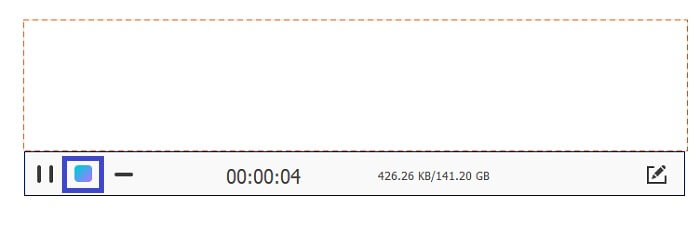
步骤 3. 要停止录制,点击蓝色方块按钮结束录制。
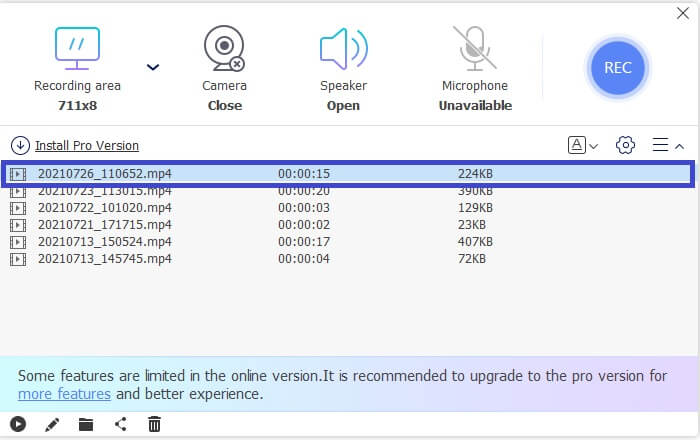
步骤 4. 最后,如果你想预览已经录制的视频,可以查看悬浮工具栏底部列表中的记录。
优点
- 100% 保险柜。安装过程中没有第三方硬件。
- 保证隐私保护。
- 支持大量视频格式。
缺点
- 需要注册
2. Tiny Take - 适用于 Windows 的 MXF 记录器
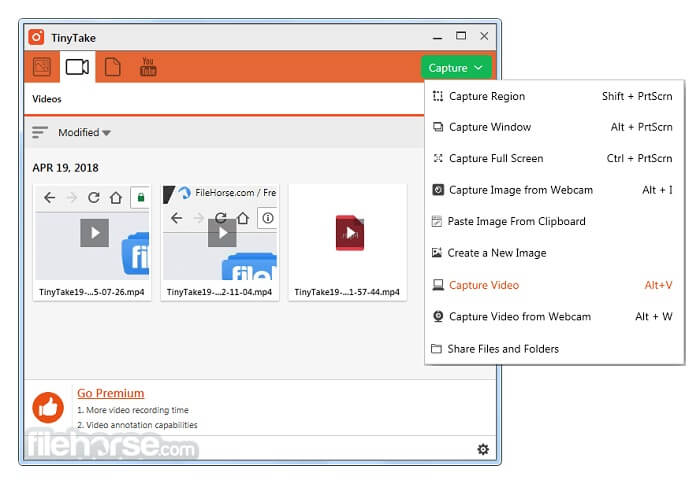
TinyTake 是另一个 .mxf 记录器,可在可调整区域、特定窗口、全屏、网络摄像头,尤其是视频中捕获您的计算机屏幕。还有一个免费商店,您可以在其中存储您录制的视频。保存或直接分享到您的社交媒体帐户。另一方面,该工具有两个版本,免费版和付费版。免费和高级之间的唯一区别是功能集和访问权限。免费版只允许您录制至少 5 分钟的时间。忽略这些缺点,它仍然是一个不错的选择。
3.截屏
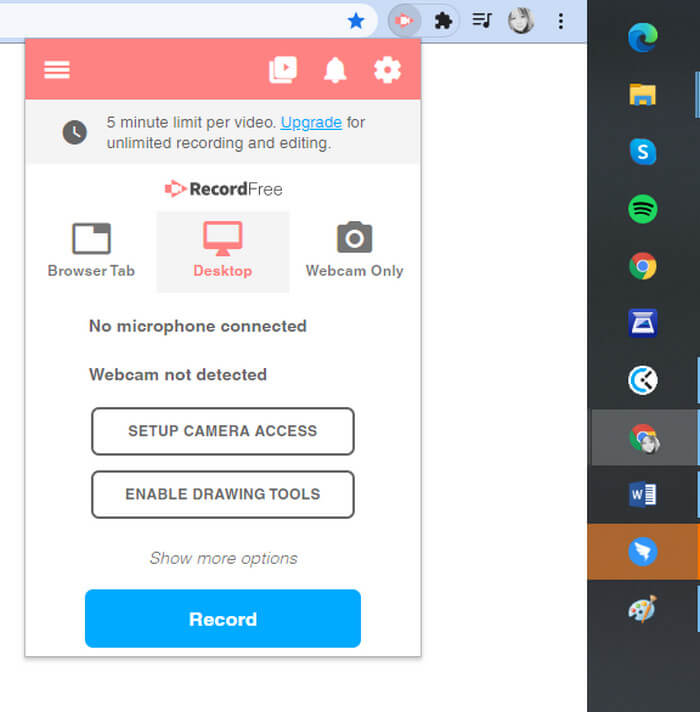
Screencastify 更易于访问且非常简单。它是一个专门为谷歌浏览器制作的依赖于网络的工具。这非常适合那些害怕下载应用程序并希望保护计算机免受恶意软件侵害的人。这个给你。使用 Screencastify,您无需担心导出后的月费和水印。如果您是这种类型的用户,您可以将其保留在您的待使用应用程序列表中。您可能在不久的将来需要它。
4. 艾兹维德
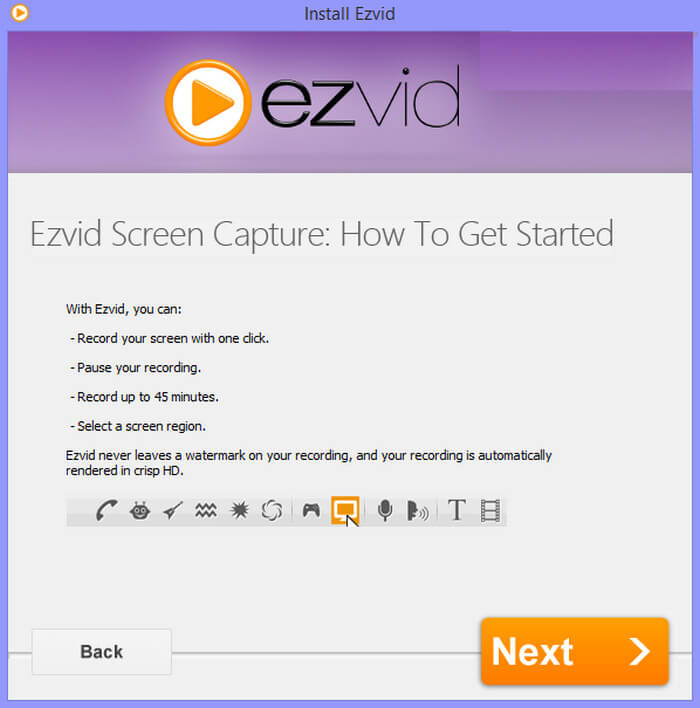
我们现在是最佳 MXF 记录器列表的最后一个工具。了解 Ezvid,视频制作者、屏幕录像机和幻灯片制作者。您发现 Ezvid 的一个显着特点是在您录制时显示在屏幕上的小部件。该小部件将允许您启用、禁用、暂停或为您的演练视频添加一些注释。这是您在大多数屏幕录像机上找不到的东西。此外,该工具用户印象深刻的另一件事是能够进行多个录音并自动剪切它们。也就是说,它值得在我们最好的 MXF 录音机列表中占有一席之地。
延伸阅读
第 3 部分。 比较图表
| 特征 | FVC 屏幕录像机高级版 | FVC 屏幕录像机免费 | TinyTake | ScreenCastify | 埃兹维德 |
| 音频和视频录制 |  | | | | |
| 视频编辑功能 | | |  | | |
| 锁定窗口功能 | | | | | |
| 注释特征 | | | | | |
| 支持 MXF | | | | | |
| 恶意软件安全 | | | | | |
| 可调比特率和纵横比 | | | | | |
| 支持的视频格式 | WMV、MP4、MOV、F4V、TS、AVI、WMA、MP3、M4A、AAC、PNG、JPG/JPEG、BMP、GIF、TIFF、MXF | BMP、GIF、TIFF、MXF、MP4 | MP4 M4A、AAC、PNG、JPG/JPEG、WMV、MP4、MOV | NG、JPG/JPEG、BMP、GIF、TIFF、MXF | WMV、MP4、MOV、F4V、PNG、JPG/JPEG、BMP、GIF、TIFF、MXF |
| 系统要求 | 操作系统:Windows 10、Windows 8、Windows 7、Windows Vista、Windows XP(SP2或更高版本)macOS 10.7或更高版本处理器:1GHz Intel/AMD CPU或更高版本内存:1G RAM | 网络依赖 | 操作系统:Windows 10、Windows 8、Windows 7、Windows Vista、Windows XP macOS 10.7 或更高版本 | macOS 10.7 或以上 | Windows XP(SP2 或更高版本) macOS 10.7 或更高版本 |
第 4 部分。 有关 MXF 记录器的常见问题解答
我在导入 MXF 文件时使用的是 Premier Pro,但它给出了错误消息 Unsupported File。我该如何解决?
关闭您的 Premier Pro。然后重命名 MXF 媒体文件所在的顶级文件夹。然后再次尝试重新上传。这应该可以解决问题。如果仍未修复,请尝试使用编解码器解决。
页脚数据损坏错误。由于此错误,MXF 文件将无法播放。
MXF 文件无法播放的原因之一当然可能是由于页眉或页脚部分中的元数据损坏。如果录制中断,这很可能是原因。通过从头开始重建或使用修复工具来修复原因。
我不断收到一条错误消息,指出进口商报告了一般错误。这是什么意思?
这意味着该文件没有视频或音频流,即使您能够成功将此文件上传到 Premiere Pro,也会出现播放错误和在此过程中崩溃等相关问题。如果是这种情况,请将素材转码为不同的编解码器。
结论
有了它,了解有关 MXF 格式的更多信息将帮助您解决在播放此类格式的视频时可能遇到的一些问题。您始终可以依靠在这些文章中看到的常见问题解答来获取一些故障排除技巧。如果在任何情况下您仍然不清楚 MXF 格式,请抓取互联网并访问 FVC 屏幕录像机页面。
-
 4个最佳的免费网络启动记录器,以捕获屏幕视频
 是否在寻找无需花一分钱就能在桌面上录制屏幕上活动的最佳方法?这是4种最常用的免费网络启动记录器。
-
 公正的Cinch评论录音机和最佳选择
 Cinch Audio Recorder是从流媒体网站下载音乐的最佳方法。只需从本文中了解有关公正评论和最佳替代方法的更多信息即可。
-
 适用于Windows和Mac的5大最佳鼠标和键盘记录器
 这是可以保存鼠标移动和键盘单击并重复事件的前五名最佳鼠标和键盘记录器程序。
