


 视频转换大师
 屏幕录影大师
 视频修复
视频修复
 安全下载
安全下载VLC 在所有操作系统上刻录 DVD 的分步过程
VLC 是一款享誉全球的知名媒体播放器,全球有数以百万计的用户在使用它。它不仅仅用于播放视频或音频。也许你还是第一次听说,但其实这个播放器还有其他用途。例如,它可以对视频进行简单编辑、录制带有音视频的 DVD、读取加密 DVD 并进行抓取(rip)。不过,如果 DVD 带有复制保护,VLC 就无法对其进行抓取。此外,抓取 DVD 会占用你大量时间,你需要等待抓取完成而不是直接观看视频。出于种种原因,用户往往倾向于在观看时使用 VLC 来录制 DVD 电影,或者放着让它自己录制,而不是从 DVD 中提取(rip)视频内容后再与他人分享。阅读本文后,你会明白,其实你并不需要从 DVD 中抓取视频和音频输出;相反,你可以一边观看一边录制,并且保持相同的画质与音质。继续阅读,了解每款工具的价值。

第 1 部分。 如何使用 VLC 媒体播放器录制 DVD 电影
VLC媒体播放器
这个媒体播放器是一个开源的多平台,支持几乎所有你能想到的媒体格式。它也可以从 DVD 中翻录视频,但 VLC 翻录文件需要时间。翻录过程将需要 15 到 45 分钟以上,具体取决于媒体格式的长度、数量和大小。与其翻录磁盘,不如借助 VLC 进行录制。
随着我们的继续,这里有一些关于如何将视频音频录制到 VLC 的步骤。
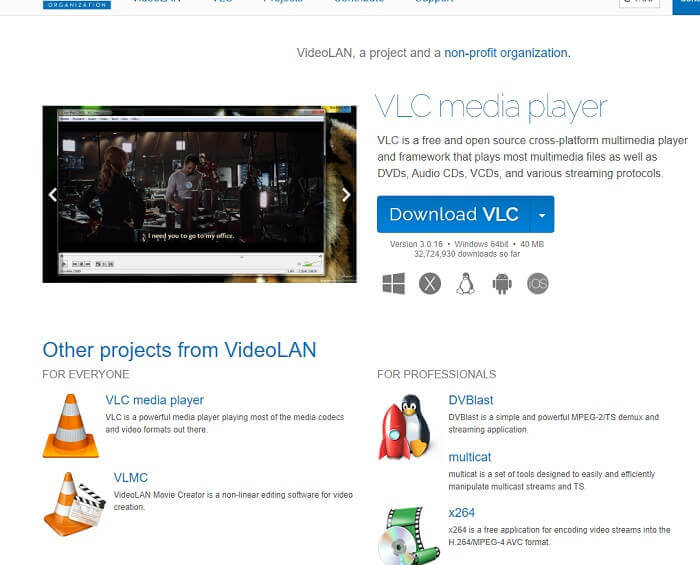
步骤1: 在浏览器中下载 VLC 媒体播放器并安装。根据自己喜好设置参数后,点击“完成”继续。如果你不知道它长什么样,可以参考下图(界面示意)。
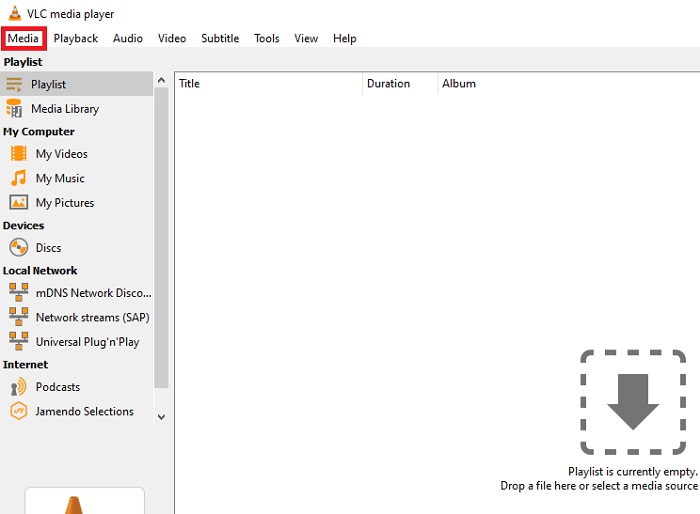
步骤2: 点击界面左上角的 “媒体”。选择 “打开文件” 并选中你的视频文件。你也可以直接将媒体文件拖放到界面中。
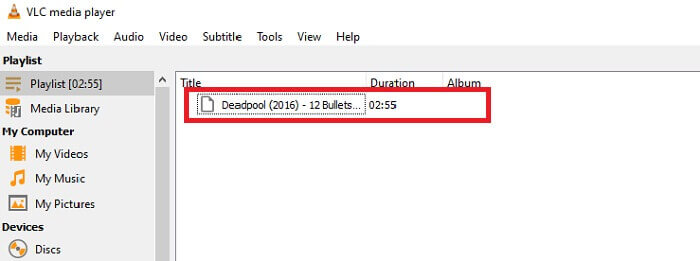
步骤3: 在界面中点击你导入的视频文件开始播放。
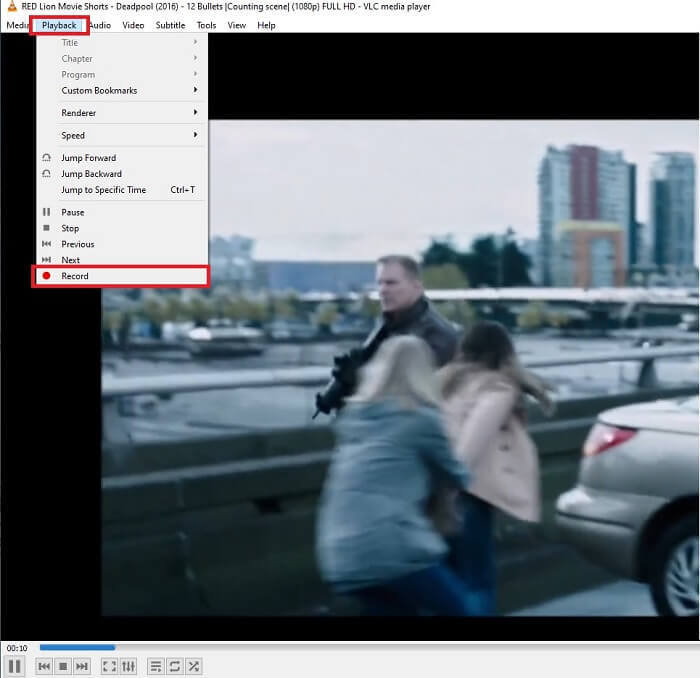
步骤4: 点击界面顶部、紧挨“媒体”的 “播放” 菜单。然后在下拉菜单中点击下面的 “录制” 开始录制。注意,一旦点击“录制”,录制就已经开始了。等待视频播放结束后再停止录制。
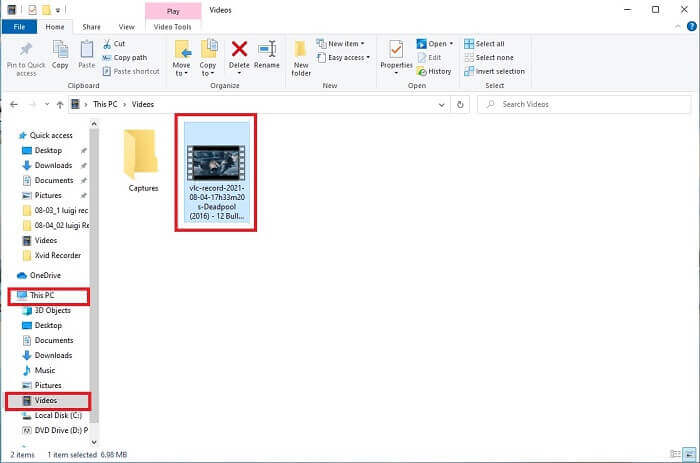
步骤5: 视频播放结束后,你可以在文件资源管理器(文件管理器)中查看录制文件。依次点击 “此电脑”,再找到“视频”文件夹,你就会看到刚刚录制的 VLC 视频文件。
优点
- 支持任何类型的音视频格式、编解码器和其他加密文件。
- 它是其官方网站上的免费开源工具。
- 随时随地观看。无需互联网即可播放视频。
缺点
- 录制完成后没有自己的历史记录列表。
- 用户很难知道录音是否已经开始。没有使用 fps、视频长度、存储空间以及屏幕记录应具有的其他几个功能。
第 2 部分。 使用 FVC 免费屏幕录像机捕获 DVD 的在线方式
VLC 可以记录其界面中的内容。如果您不想下载 VLC 而是想在不下载任何工具的情况下进行录制怎么办?只想在在线平台上录制 DVD 电影。一个免费的在线工具,任何人和任何地方都可以通过互联网连接访问。
如果你更想使用在线工具,那么这款在线工具——FVC Screen Recorder 就很适合你,无需下载,直接在线启动。相比用 VLC 录制 DVD,这款依赖网络的工具能更轻松地录制,并输出高质量的视频和音频,而且没有任何隐藏费用。它适用于所有平台。借助悬浮工具栏,操作更加友好、易于上手。
现在让我们继续了解如何使用此工具的步骤。
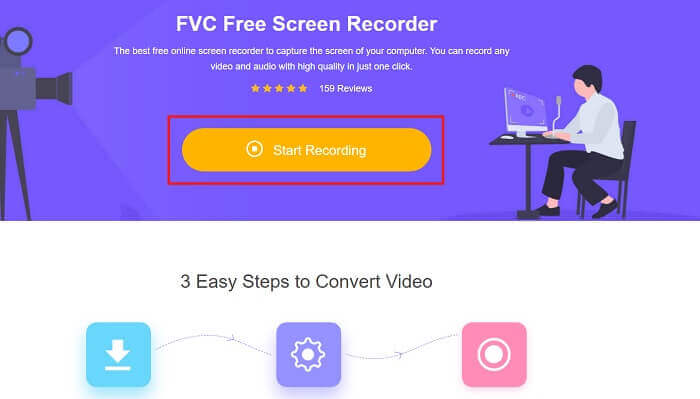
步骤1: 点击此链接进入工具页面。点击 “开始录制” 启动软件。
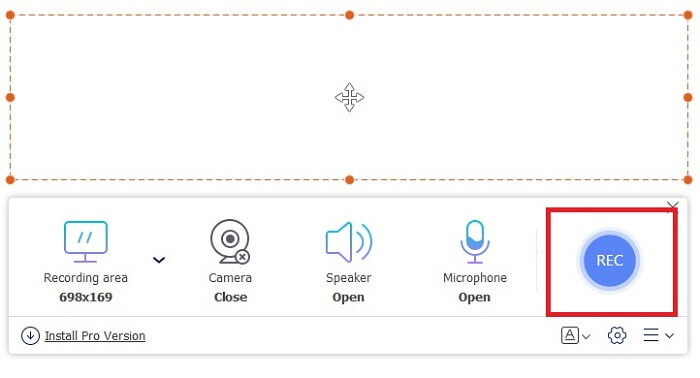
步骤2: 你的屏幕上会出现一个悬浮工具栏。选择你想录制的区域,打开 “扬声器” 以开启系统声音,然后点击圆形按钮开始录制。你可以让屏幕录制工具在后台自行录制视频,或者一边录制一边观看。
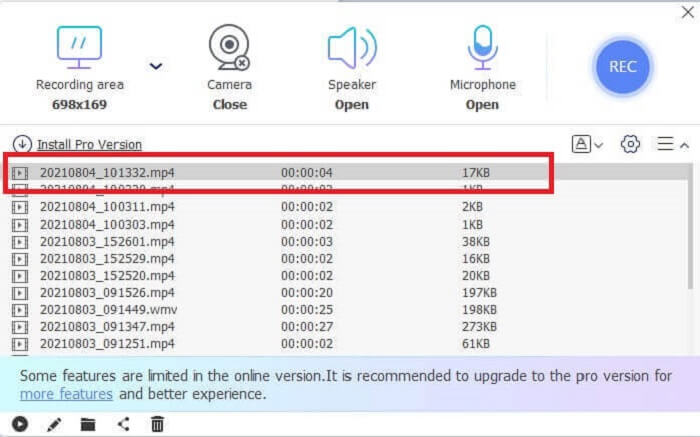
步骤3: 点击方形按钮停止录制。随后会弹出“历史记录”列表,点击最上面的文件即可观看录制的视频版本,画质音质与原视频保持一致。
优点
- 免费在线工具。不会激活任何隐藏费用,也无需注册。
- 使用前程序中没有烦人的广告。
- 记录无限制。
缺点
- 依赖互联网。
- 没有锁屏功能。
第 3 部分。 如何使用最佳 VLC 替代品捕获 DVD
VLC 可以进行录制,但如果您需要录制具有水晶般清晰音频的更高质量视频,该怎么办?此外,您还可以选择 VLC 录制 DVD 无法提供的格式、质量和编解码器。
FVC 屏幕录像机
介绍这个非凡的工具,它可以帮助用户制作其他工具无法提供的任何类型的视频音频格式。这个 FVC 屏幕录像机为屏幕录像机做了繁重的工作;锁定屏幕功能与其他工具不同。借助此工具,您可以随时随地录制您的 DVD 内容,无论是在线还是离线平台。同样,您可以在录制时在屏幕上进行注释,它还具有降噪功能,可实现更清晰的音频输出。此处提供了有关如何使用该工具的步骤,以了解有关此工具的更多信息。
步骤1: 点击与你系统匹配的下载按钮。下载完成后进行安装并启动程序。
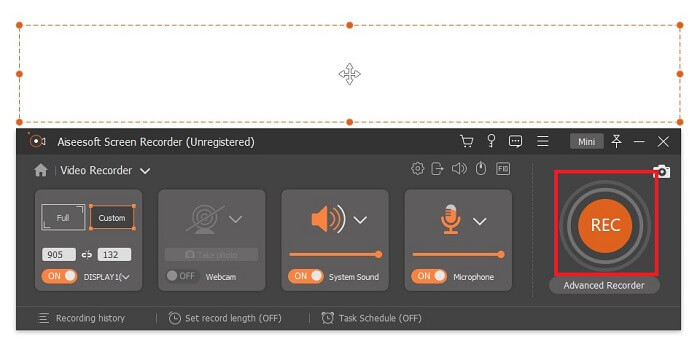
步骤2: 在悬浮工具栏中点击 “视频录制”,系统会切换到另一个悬浮工具栏。调节画面框选范围,开启 “系统声音” 以录制系统内部音频。然后点击圆形 “REC” 按钮开始录制。
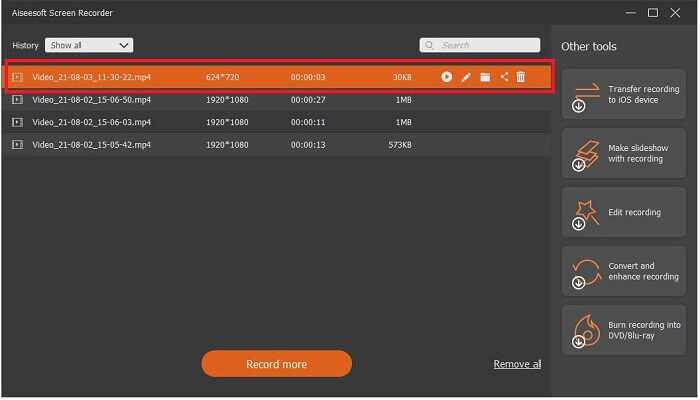
步骤3: 录制结束后,点击方形按钮停止。历史记录列表中的第一段视频就是最新录制的,点击“播放”按钮即可观看录制版本,尽情享受。
优点
- 锁屏功能,避免对视频录制的干扰。
- 易于访问,因为它可以用于在线和离线录制。
- 支持所有类型的具有硬件加速的格式,以快速处理媒体输出。
缺点
- 使用工具前付款。
- 需要下载才能访问。
第 4 部分。 使用 VLC 和结论录制 DVD 的常见问题
VLC 媒体播放器支持哪些格式?
以下是 VLC 媒体播放器支持的一部分视频格式:MPEG(ES、PS、TS、PVA、MP3)、AVI、ASF / WMV / WMA、MP4 / MOV / 3GP、OGG / OGM / Annodex、Matroska(MKV)、Real、WAV(含 DTS)、原始音频:DTS、AAC、AC3/A52、Raw DV、FLAC、FLV(Flash)、MXF、Nut、标准 MIDI / SMF、Creative™ Voice。
音频方面:MPEG Layer 1/2、MP3 - MPEG Layer 3、AAC - MPEG-4 part3、Vorbis、AC3 - A/52、E-AC-3、MLP / TrueHD>3、DTS、WMA 1/2、WMA 3、FLAC、ALAC、Speex、Musepack / MPC、ATRAC 3、Wavpack、Mod、TrueAudio、APE、Real Audio、A-law/µ-law、AMR(3GPP)、MIDI、LPCM、ADPCM、QCELP、DV Audio、QDM2/QDMC、MACE。除此之外,它还支持上述之外的许多其他格式。
VLC 仍然是免费的媒体播放器吗?
是的,它仍然是免费的,因为它受到借用的 GNU GPL 许可证的保护,但您也可以通过 PayPal 进行捐赠,没有最低捐赠额。
下载 VLC 安全吗?
如果你是从官方网站下载 VLC,那一般是没有问题的。它不含恶意软件、病毒、蠕虫、间谍软件等。同时也有防护机制,避免文件遭受恶意破坏。如果你仍然有顾虑,可以试试这些VLC 媒体播放器的替代方案。
结论
总结上面的所有细节。最好录制视频而不是翻录它。因为并非所有 DVD 都可以翻录,因为有些 DVD 受版权保护。 VLC 可以进行翻录,但在此过程中会花费您很多时间。因此,为了减少麻烦,您必须录制视频以享受观看的乐趣,然后您可以与他人分享。
但归根结底,您必须仍在思考屏幕录制的最佳选择是在不损害媒体内容质量的情况下录制 DVD 输出。那么正确的选择仍在您手中,给您的细节让您觉得FVC Screen Record是必备工具。您不仅可以将它用于从 DVD 录制电影,而且还有许多其他用途。这是一个多合一的截屏录像机。所以,你还在等什么,而不是等待魔法发生?你为什么不施展你的咒语并使用 FVC Screen Recorder 做你的第一个技巧。
-
 Snagit 2021评论–优点,缺点和最佳选择
 什么是Snagit的最佳替代品?有像Snagit这样的屏幕捕获工具吗?这篇文章将回顾Snagit,并分享Snagit捕获屏幕的最佳替代方法。
-
 QuickTime屏幕录制–在Mac和PC上录制带有音频的视频
 在Mac上带有音频的录制屏幕会派上用场。内置播放器QuickTime Player可以做到。阅读他的文章,并了解如何在Mac和PC上用声音捕获屏幕。
-
 VLC中的屏幕截图–如何在VLC Media Player中拍摄快照
 如何在VLC Media Player中拍摄快照? VLC快照保存在哪里?只需从本文中了解有关VLC快照功能和最佳替代方法的更多信息即可。
