


 视频转换大师
 屏幕录影大师
 视频修复
视频修复
 安全下载
安全下载如何在计算机上截取 GIF 屏幕的教程
不可否认,网络空间已经让我们的大部分活动转移到虚拟环境中进行。无论你是在准备会议、制作演示文稿,还是想通过教学视频向成千上万的人展示如何烹饪一顿饭,录制屏幕都是捕捉一切要点的高效方案。然而,使用设备自带的屏幕录制工具(如 Xbox 游戏栏、QuickTime 屏幕录制)在满足更高阶的录屏需求时会受到不少限制。本文精心挑选了多款顶级软件,将屏幕录制为 GIF 的体验提升到全新水平。

第 1 部分:如何在 Windows/Mac 上免费将屏幕录制为 GIF
1. FVC 免费屏幕录像机
只需点击几下,你就可以通过FVC Free Screen Recorder来录制屏幕。这款在线工具能满足多种基础屏幕录制需求,深受用户好评。FVC Free Screen Recorder 可以抓取你的屏幕活动,如游戏、视频和线上会议,而且不会在输出视频中添加任何水印。此外,它还能同时录制电脑屏幕画面以及系统声和麦克风声音。这样,你可以让设备自动录制,在需要时回放使用。下面我们整理了在 Mac 和 Windows 上使用 FVC Free Screen Recorder 录制 GIF 的操作指南。
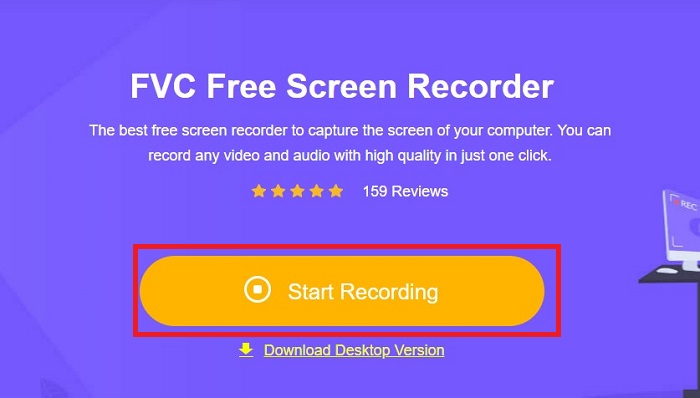
步骤 1. 进入最佳在线屏幕录制工具
打开设备上的浏览器,在搜索栏输入 FVC Free Screen Recorder。工具加载完成后,点击中间的Start Recording按钮进入录制功能界面。
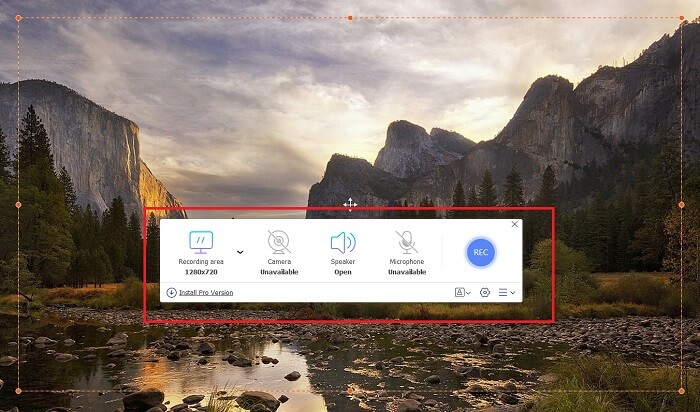
步骤 2. 设置录制参数
在Recording Area、System Sound和Camera中根据需要设置录制参数。完成全部设置后,点击REC按钮开始屏幕录制。
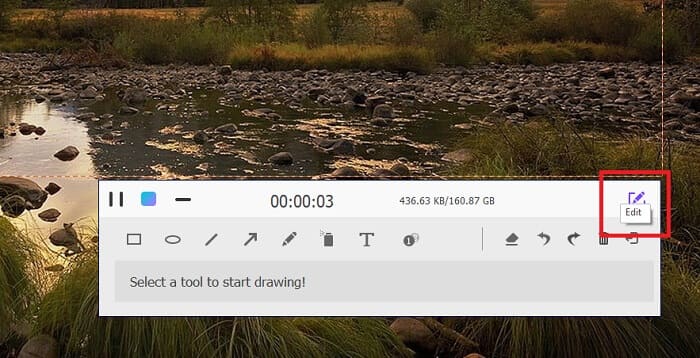
步骤 3. 录制过程中添加标注
3 秒倒计时后,您现在正在录制屏幕。如果需要添加文本、形状、高亮、笔等注释,请单击录制框左下角的编辑按钮。
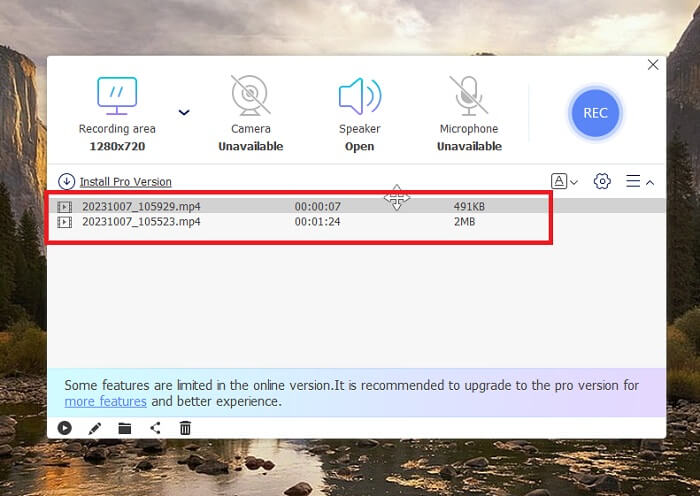
步骤 4. 保存输出
要保存录制的视频,点击 FVC Free Screen Recorder 的Stop按钮。保存完成后,你会被带到工具的Recorded面板。你也可以勾选Folder按钮,进入本地文件夹查看输出文件。
功能特色:
◆ 该程序是在截屏时添加实时注释的一流工具。
◆ FVC Free Screen Recorder 提供高度兼容的输出格式,包括MP4 和WMV。
◆ 此工具提供画中画效果,将网络摄像头覆盖在屏幕上。
◆ 本工具是一款无时间限制的投屏软件。
2. Chrome Capture - 截图和gif工具
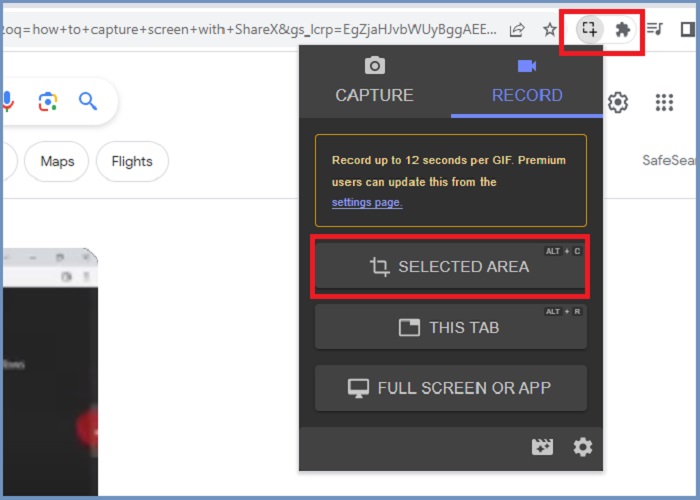
Chrome Capture 是一款 Google 扩展工具,可将屏幕录制转换为 GIF。此 Web 浏览器应用程序可让您捕获选定区域、选项卡或全屏活动的屏幕。除此之外,Chrome Capture 是抓取全页网页屏幕截图的最佳选择,因此您将获得所需的所有信息。许多用户因其易于使用的界面和直观的功能(例如裁剪和注释工具)而迷上了这个工具。 ChromeCapture 提供用于截取屏幕截图或停止录制的快捷键,从而减少屏幕录制的麻烦。按照下面的指南,使用 Chrome Capture 从屏幕录制中创建 GIF。
步骤 1. 首先,在 Google Chrome 中打开你想要录制的页面。然后,点击浏览器右上角扩展工具中的Chrome Capture图标。
步骤 2. 接着,进入 Chrome Capture 的录制标签页,选择你偏好的录制类型,例如“选定区域”、“标签页”或“全屏”。选择完成后,录制将自动开始。录制结束时,点击Stop按钮进入保存流程。
步骤 3. 若要将这段屏幕录制生成 GIF,点击Save按钮,并选择 GIF 作为输出文件格式。你也可以修改文件名,以便日后更快查找。
功能特色:
◆ Chrome Capture 提供WebM 和GIF 等输出格式。
◆ 此工具使您录制的视频的在线共享变得更加容易。
◆ 该程序的编辑工具允许您添加文本、绘制箭头、更改录音速度等等。
第 2 部分:如何在 Mac 和 Windows 上录制和编辑 GIF 录音
1.分享X
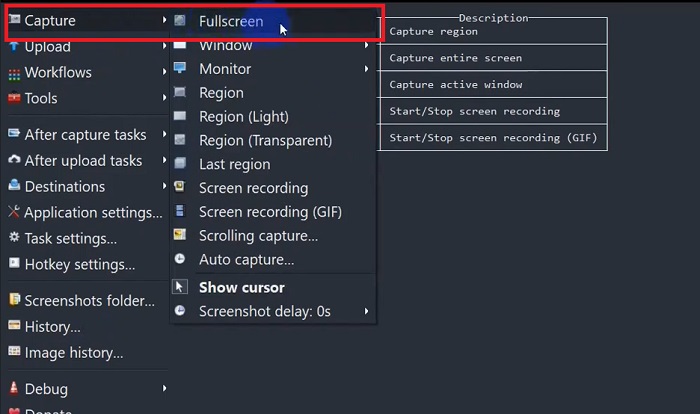
就拥有高效且免费的屏幕抓取器而言,ShareX 仍然名列前茅。该工具是一款适用于Windows操作系统的开源屏幕录制工具。最重要的是,它提供了自定义区域录制,您可以在其中选择屏幕的特定区域进行捕获。除此之外,ShareX 还具有滚动捕获工具,允许用户一次截取内容的屏幕截图,而不是多个屏幕截图。如果您想了解 ShareX 如何录制 GIF 窗口,这里有一个分步教程。
步骤 1. 首先,在 Windows 设备上打开 ShareX。然后进入Capture,选择你需要的录制类型。
步骤 2. 当选择框出现后,拖动光标来框选你想录制的屏幕区域。随后点击Start开始录制。
步骤 3. 录制完成后,点击Stop按钮。之后会重新出现屏幕录制选项,供你选择Video和Audio的输出格式。最后点击Download按钮,将录制文件保存到电脑上并查看其位置。
功能特色:
◆ 它提供特殊的热键来轻松控制您的屏幕录制活动。
◆ ShareX 允许用户将屏幕录制转换为GIF。
◆ 该工具具有三种类型的任意区域截取屏幕的功能:矩形、椭圆形或徒手截取。
2.记录
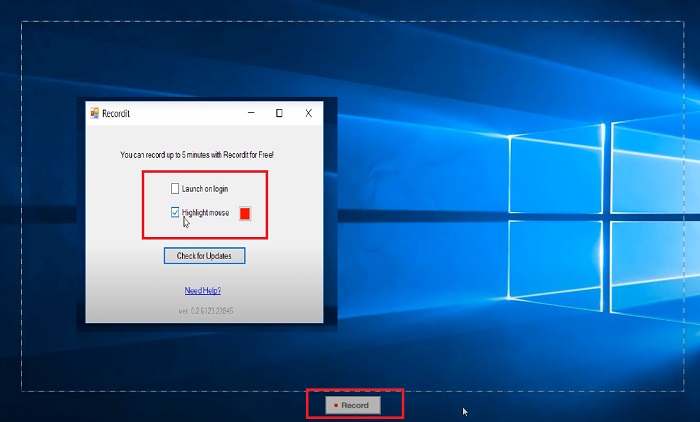
Recordit 是另一个可以让您抓取屏幕活动的示例性软件。该工具是一款基于GIF的录制工具,兼容Windows和Mac设备。然而,该程序的免费试用版最多只能录制五分钟,您必须升级到该软件的高级版本才能超越此限制。现在,让我们学习如何使用该程序进行 GIF 屏幕截图。
步骤 1. 在设备上安装 Recordit 后,你会在系统托盘(System Tray)中看到它的图标。
步骤 2. 然后,等待工具界面显示在屏幕上。拖动以选取要录制的区域,设置完成后点击Start开始录制。
步骤 3. 录制结束后,点击Stop按钮。随后在设置中选择 GIF,即可找到带有 GIF 文件扩展名的输出文件。
功能特色:
◆ Recordit 提供您最近和过去的屏幕录制的历史日志。
◆ 该工具允许用户自定义不同地区的屏幕录制活动。
3.屏幕转GIF
另一个你不应该放弃的屏幕抓取工具是 ScreentoGIF 工具。顾名思义,该软件可以让用户直接从屏幕录制中创建 GIF。另外,它被认为是一个开源工具,这意味着您不需要花任何钱来拥有它。 ScreenToGIF 可以屏幕截图并将输出导出为 PNG、PSD 和视频。当然,如果您想在线分享您的 GIF 文件,ScreenToGIF 可以轻松地将它们上传到 Imgur 和 Gfycat。
步骤 1. 在设备上打开 ScreenToGIF,用于在 Mac 或 Windows 上录制 GIF。
步骤 2. 若要开始捕捉屏幕,在工具的Toolbox中选择Recorder。然后移动十字准星图标到你想要录制的具体区域。
步骤 3. 接着,在键盘上按下F8键停止录制。
功能特色:
◆ 它允许网络摄像头覆盖同时记录您自己和您的屏幕。
◆ 使用画板,您可以实时记录您的绘图。
延伸阅读:
第 3 部分:屏幕录制到 GIF 的常见问题解答
Mac 有内置工具可以将屏幕录制转为 GIF 吗?
就内置屏幕录像机而言,Mac 设备在 QuickTime 应用程序中提供了一个。但是,录制的输出默认设置为 MOV,您可能需要第三方软件将其转换为 GIF。
有没有可以在 iPhone 和 Android 上录制 GIF 的工具?
绝对是的! iPhone 和 Android 移动设备配有本机屏幕录像机。他们还可以通过麦克风捕获系统声音和您的声音。
ScreentoGIF 安全吗?
绝对,ScreenToGIF 是 Windows 设备上的免费软件,并且不含恶意软件。
可以为 Mac 的主屏幕设置 GIF 吗?
无需额外安装应用,你就可以把 GIF 文件设置为 Mac 的桌面背景。只需打开设置 > 系统偏好设置 > 桌面与屏幕保护程序,再从中选择可用的 GIF 即可。
Windows 锁屏可以是 GIF 吗?
与 Mac 设备不同,大多数 Windows 壁纸是静态的。您可能需要第三方应用程序(例如动态壁纸)才能在 Windows 设备上启动 GIF 壁纸。
结论
无论你想录制屏幕为 GIF,还是只生成静态画面,抑或在录屏中加入标注和摄像头画面,借助上述这些工具都可以轻松实现。若是日常临时录制,在线方案非常适合随时备用;但如果你想最大程度避免网络不稳定带来的中断与卡顿,更推荐使用离线软件。
-
 修剪 GIF:修剪 GIF 的最佳在线、桌面和移动工具
 您想捕捉 GIF 的一部分来准确表达您的情绪和反应吗?在这里,让我们发现并优化各种用于修剪动画 GIF 的工具。
-
 2023 年 iPhone 上最出色的 6 个 GIF 应用程序(评论)
 这篇文章将引导您了解适用于 iPhone 和计算机的最佳 GIF 创建应用程序。查看它们并了解它们所提供的服务。
-
 您不想错过的顶级 3D GIF 制作程序
 必须查找并评估您看到的每个 3D GIF Maker 应用程序可能非常耗时。幸运的是,我们已经编制了一份您可以阅读的列表。
