


 视频转换大师
 屏幕录影大师
 视频修复
视频修复
 安全下载
安全下载Web Launch Recorder –无需下载即可捕获屏幕上活动的4种免费方法
有没有一种简单的方法可以录制热门游戏视频、视频通话记录、会议视频等视频,并将它们保存为您的收藏?免费的网络启动记录器始终是捕获屏幕视频的首选,这是用于捕获屏幕活动的基于网络的服务。只需了解有关出色网络启动记录器的更多信息,即可在线启动屏幕录制功能。

第1部分:前4个免费的在线网络启动记录器
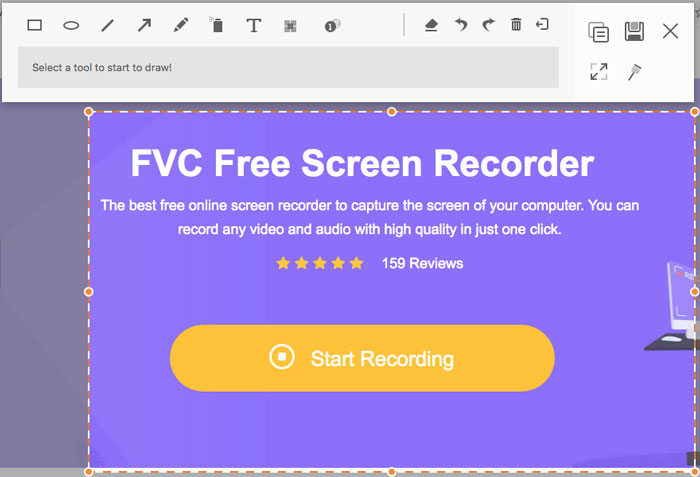
顶部1:FVC免费屏幕录像机
FVC Free Screen Recorder 是一款可以在任意网页浏览器中使用的免费网页版录屏工具。它允许你录制任意视频和音频且不会添加水印。你可以自定义录制区域,比如全屏或屏幕的部分区域用于录制视频。此外,它还能将录制内容导出为多种文件格式,如 MP4、WMV 等。
1.免费的在线屏幕录像机,无需注册或其他限制。
2.添加实时行和文本以注释屏幕记录。
3.将网络摄像头和麦克风音频放入您的截屏视频中。
4.从记录历史记录列表中查看所有先前的记录文件。
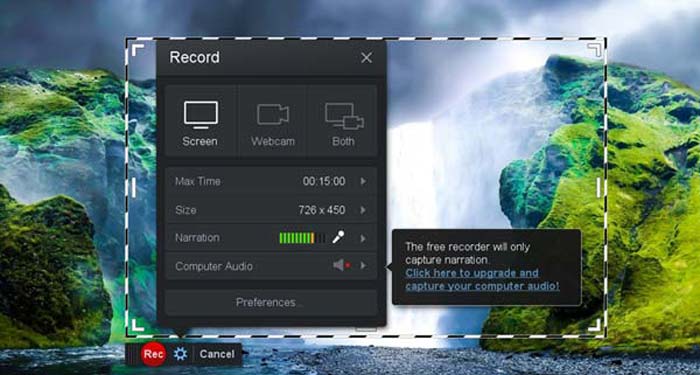
前2名:Screencast-O-Matic
Screencast-O-Matic 是一款基于网页的屏幕录像工具,可以轻松录制屏幕上的任意区域。它支持将视频直接上传到视频托管平台。此外,你还可以使用脚本工具、自动字幕等更多功能。
优点
- 1.自定义记录区域,例如整个屏幕或其中的一部分。
- 2.将录音上传到Screencast-O-Matic,Google云端硬盘等。
- 3.更轻松地添加音频旁白,股票音乐和字幕。
缺点
- 1.录制质量不够好。
- 2.此在线屏幕录像机有时间限制。
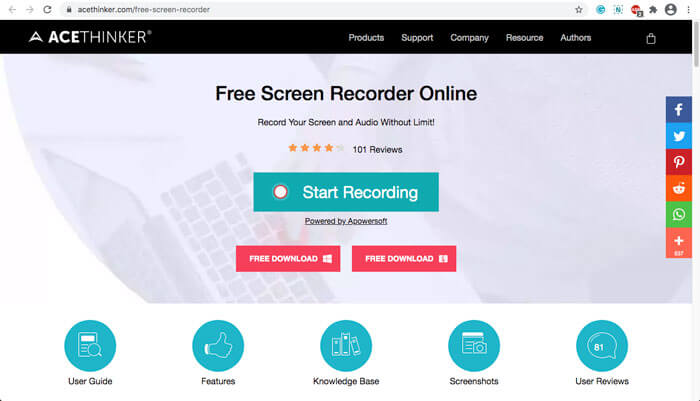
前三名:Clipchamp
Clipchamp 是一款非常方便的免费在线网页录屏工具。你可以使用它来录制并上传视频,还可以压缩视频而不损失原始画质。它还配备了许多功能,例如外接麦克风、不同分辨率选项等。
优点
- 1.记录整个屏幕,一个预设的记录区域或一个自定义的区域。
- 2.使您能够将录制的视频转换为其他流行的视频格式。
- 3.它可以通过麦克风从旁白和旁白中捕获视频。
缺点
- 1.必须升级到Pro版本才能具有全部功能。
- 2.无法直接在在线媒体库中编辑录像。
第2部分:如何使用Web Launch Recorder捕获屏幕
说到如何使用网页录屏工具来捕获屏幕视频,这里就以 FVC Free Screen Recorder 为例。你可以按照下面的详细步骤进行操作。
步骤 1: 当你需要免费录制屏幕时,可以先进入网页录屏工具页面,在首页点击 Start Recording(开始录制)按钮。此时会下载一个用于网页录屏的启动器。下载安装完成后,在电脑上启动该程序。
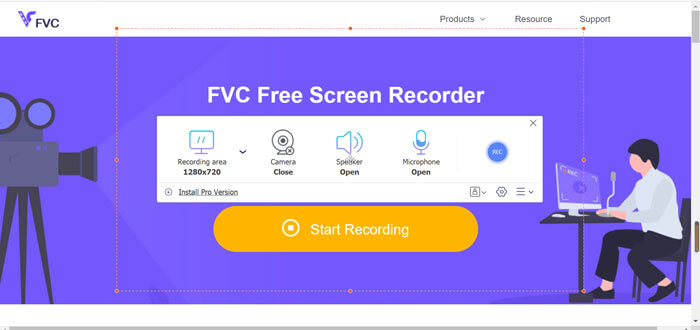
步骤 2: 启动应用程序后,你就可以看到录制相关的设置。在这里,你可以点击 Recording area(录制区域)选项来选择全屏或部分区域录制,或者打开 Speaker(扬声器)菜单来录制系统声音。若要录制带解说的视频,只需开启 Webcam(摄像头)选项。
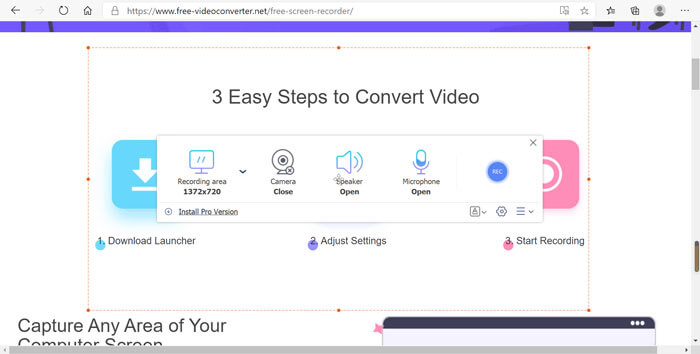
步骤 3: 如果你需要进一步调整文件设置,只需在网页录屏工具右下角找到 Gear(齿轮)图标,自定义相关选项。你可以在弹出的设置窗口中更改录制文件的存储位置以及输出文件的格式。
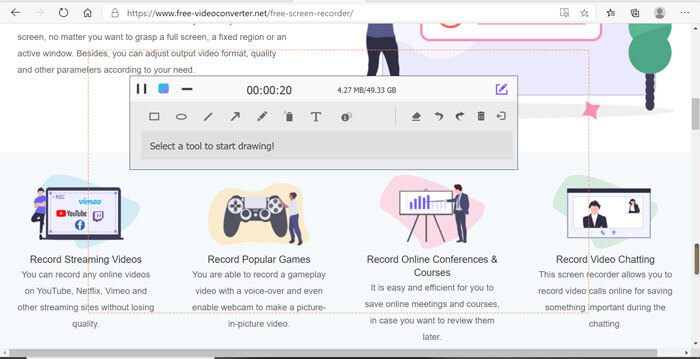
步骤 4: 然后点击 REC 按钮开始录制。录制完成后,点击 Stop(停止)按钮结束整个过程。接着,点击网页录屏工具底部的三横线图标即可打开并管理已录制视频的列表。
第3部分:关于Web Launch Recorder的常见问题解答
1.如何使用网络摄像头录制屏幕?
当网页录屏工具启动后,你可以在界面中找到并开启摄像头功能,然后调整摄像头窗口的大小,返回主界面并点击 REC 图标,即可通过内置摄像头开始录制画面。
2.为什么我的屏幕录像没有声音?
程序主界面上有系统声音和麦克风选项。您可能会忘记在录制之前将它们打开。录制之前,请确保已启用此选项,以便您可以获取带有声音的录制视频。
3.如何将我的视频上传到YouTube?
启动免费的网页启动记录器,找到并点击界面右下角的三行图标。然后从弹出的录制列表中找到您要上传的视频,然后单击下面的共享图标。最后,从媒体平台选择视频,录制的视频可以轻松分享到任何平台。
结论
作为总结,本文介绍了市场上最流行的4种免费在线Web启动记录器,并详细介绍了FVC Free Screen Recorder(最好的在线应用程序之一)的视频记录方法。它可以帮助您免费录制视频和音频,而不会影响质量。
-
 在桌面和在线上不容错过的 6 款最佳 WAV 录音机
 我们在本文中分享的最好的 WAV 录音软件具有多种实用功能,可帮助您像专业人士一样捕捉音频和语音。
-
 QuickTime屏幕录制–在Mac和PC上录制带有音频的视频
 在Mac上带有音频的录制屏幕会派上用场。内置播放器QuickTime Player可以做到。阅读他的文章,并了解如何在Mac和PC上用声音捕获屏幕。
-
 DU Recorder Review 2021:安全性,价格,功能,用途和等级
 DU Recorder是适用于iPhone和Android的屏幕和音频记录器。值得下载吗?安全吗?阅读完整的评论,看看该应用程序是否适合您。
