


 视频转换大师
 屏幕录影大师
 视频修复
视频修复了解如何在 Mac OS 上将 AVI 文件导入 iMovie
众所周知,iMovie 是 Mac 上非常出名的视频编辑工具。使用过之后,你就会明白它为何被认为是最优秀的剪辑软件之一。不过,在赞叹 iMovie 强大功能的同时,有时你会遇到无法导入视频进行编辑的情况。最常见的就是导入 AVI 格式文件时出现问题。由于 AVI 采用的编码种类广泛,因此这种格式曾经深受用户欢迎。但正因为如此,当你所用工具不支持其中的某种编码时,使用 AVI 就会变得非常棘手。所以,你现在一定在想,如何把 AVI 转换为 iMovie 可用的格式,以便后续编辑。下面的列表中将介绍一些可以转换 AVI 格式的工具,并说明你为什么无法在 iMovie 中加载视频文件。

第 1 部分。 为什么 iMovie 无法导入 AVI 文件格式
虽然,iMovie 仅在 Mac 上有效,因此希望 Windows 提供的编解码器优先级较低。但是有一些原因导致您无法导入视频。在列表中,我们将讨论无法将其他格式导入 iMovie 的 2 个原因。
原因一:iMovie 仅支持少量编码格式。这很可能就是你无法在 iMovie 中进行编辑的原因——编码兼容性问题。以 AVI 为例,它必须被编码为 MJPEG 数据,否则文件将无法被导入。
原因二:你的 iMovie 或 Mac OS 没有更新到最新版本。这个原因比较容易理解:如果你的软件或操作系统不是最新版本,那么它可能无法支持最新的视频格式。
以上就是无法在 iMovie 中编辑视频的最常见原因,但凡事总有解决办法。为此,下面将介绍几种修复该问题的方法,你需要学习如何将 AVI 文件转换为 iMovie 支持的格式和编码。
第 2 部分。 在最佳 AVI 转换器的帮助下将 AVI 转换为 iMovie 兼容格式
1. FVC免费在线视频转换器
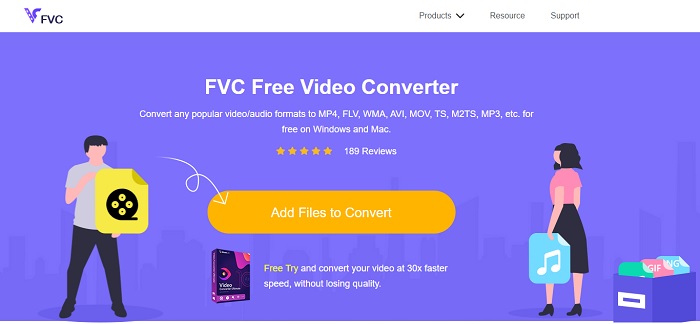
这款免费的 AVI 转 iMovie 工具可以完成转换任务。和下面那款工具不同,FVC Free Video Converter 完全免费且无需下载。这款在线工具其实是下文将要介绍的桌面版工具的免费版本。正如前面所说,它也能提供不错的压缩效果,但两者的差别在于:该在线工具不具备付费版中的那些主要功能,可选格式也较少。尽管如此,相比其他同类转换器,它依然是你最值得信赖的在线工具之一。那么,在详细介绍之前,我们先来看一下它的使用方法,请按照下列简单步骤操作。
步骤 1. 点击此链接,进入该工具的主页面。
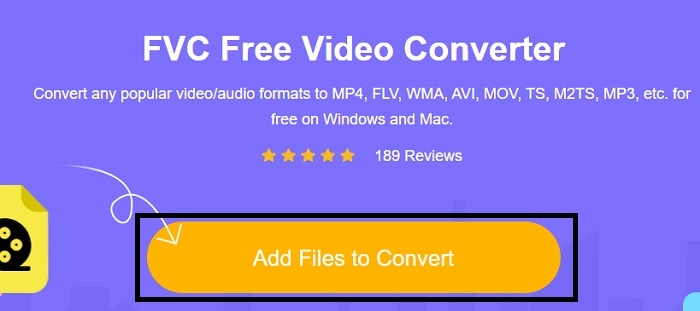
步骤 2. 点击添加文件进行转换,以启动在线转换器。
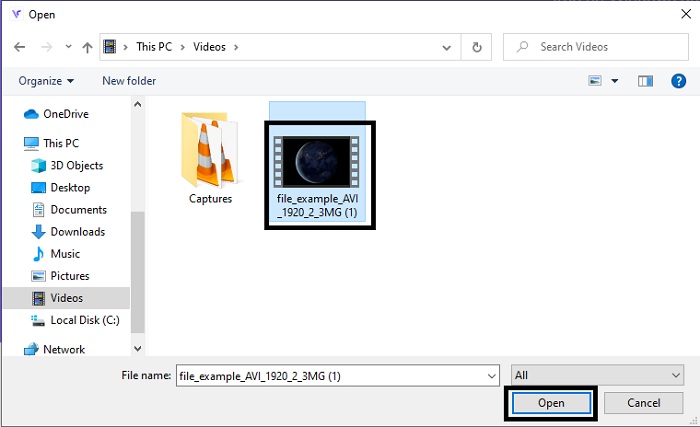
步骤 3. 接着,选择需要转换的 AVI 文件,并点击打开,将其导入到界面中。
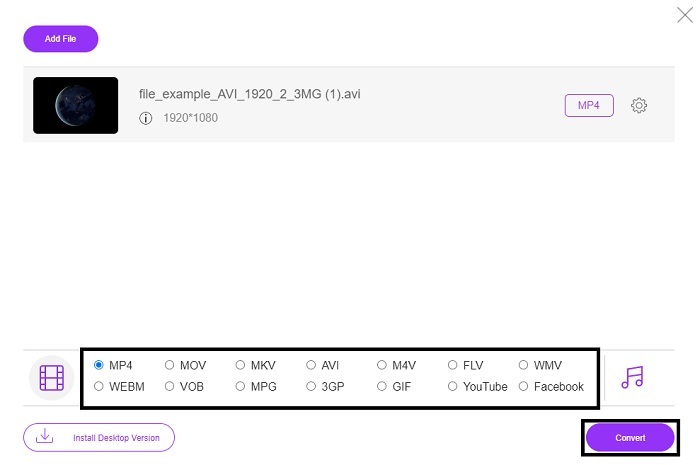
步骤 4. 选择你希望转换成的 iMovie 格式。选定后,点击转换开始转换过程。
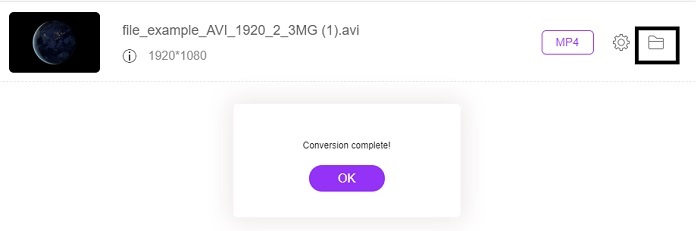
步骤 5. 转换完成后,到文件管理器中查找生成的文件。
2. FVC 视频转换器终极版
正如我们之前所说,在线工具不会为您提供编辑功能和其他格式。 FVC Video Converter Ultimate 可用作 iMovie 的替代品,尤其是在编辑方面。它使用户和客户能够操作每个媒体文件并增强、编辑或创建更新版本。但是这个工具需要付费,但它并不昂贵,所以不用担心,因为你为这个工具支付的每一分钱仍然是值得的。
在你将 AVI 转换为 iMovie 格式之后,可以先对其做进一步优化,再导入 iMovie,也可以直接在这里完成编辑,而不必再导入 iMovie。若要全面说明这款工具的优点,可能需要两篇甚至更多文章才能讲清楚。所以话不多说,接下来按照下面的步骤,一起成功地将 AVI 转换为新格式。
步骤 1. 在使用该工具之前,需要先将其下载到电脑上。请选择与你电脑系统匹配的版本。下载完成后按照提示完成安装,然后点击“完成”启动工具。
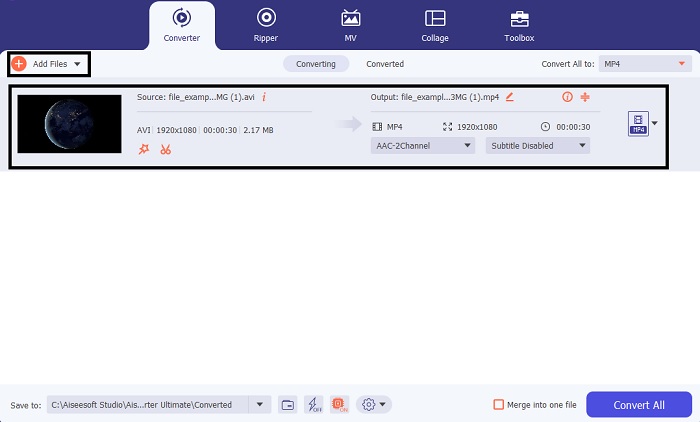
步骤 2. 要导入需要转换的 AVI 文件,点击添加文件或加号按钮,两者皆可。选择你想要转换的文件后,点击打开继续。
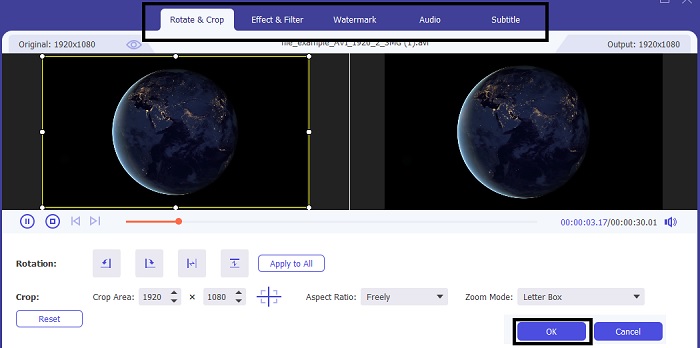
步骤 3. 在 FVC 工具的界面中,你会看到一个魔棒形状的按钮,点击它。此时会弹出一个新界面,你可以在这里对视频进行编辑,使其效果更出色。需要提醒的是,这一步只是额外功能,供你在转换前进行简单编辑使用。如果你愿意,之后就不一定非要再用 iMovie 编辑了。编辑完成后点击“OK”保存。
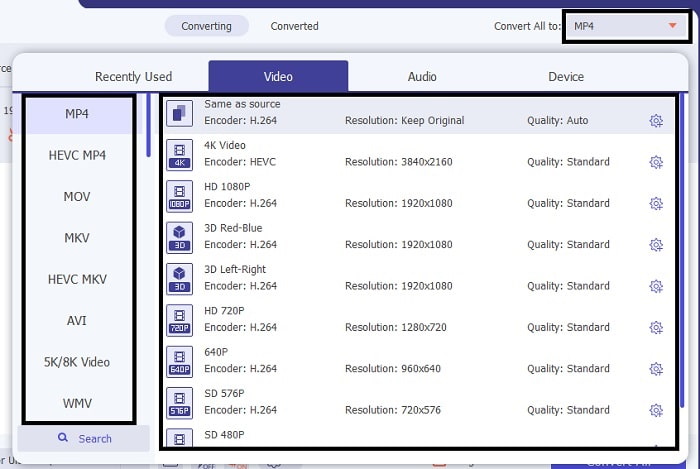
步骤 4. 完成以上操作后,点击下拉按钮,选择你希望输出成哪一种 iMovie 支持的格式。选好新格式后,点击全部转换,让工具开始进行转换。
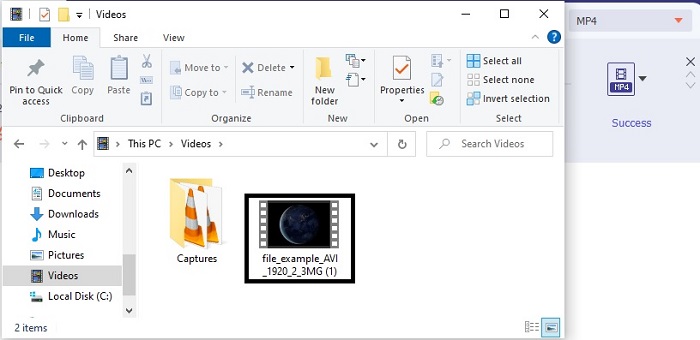
步骤 5. 转换过程通常只需几秒钟。完成后,系统会弹出一个包含新格式文件的文件夹。点击该文件即可进行观看,恭喜你,现在就可以在 iMovie 中对其进行编辑了。
第 3 部分。 关于 AVI 到 iMovie 的常见问题解答
谁是 iMovie 的创造者?
iMovie 由 Apple Inc. 创建,是他们的专有编辑工具。关于 Apple Inc. 的其他事实,他们还开发了 QuickTime 播放器和 MOV 格式作为其原生媒体播放器和 Mac 用户格式。
Mac 上 AVI 格式的最佳替代品是什么?
在大多数情况下,推荐的格式是 MOV,因为它本身就是为 Mac 平台设计的。想了解如何将 AVI 文件转换为 MOV 格式吗?那就点击此链接,进一步了解 AVI 转 MOV 的相关转换工具。
使用 AVI 格式的缺点是什么?
上面说过这种格式可以包含不同的编解码器,这是很好的。但 AVI 格式未压缩,因此 2 到 3 分钟的视频需要一个巨大的文件大小。不过,如果您想了解有关 AVI 的更多信息,请单击此处了解 AVI 是什么。
结论
之前,我们之所以束手无策、感到困惑,是因为完全不知道该如何处理这个问题。而现在,一切都变得清晰:要在 iMovie 中编辑 AVI 文件,必须先进行格式转换。所以,以后就不用再问如何将 AVI 文件导入 iMovie 并进行编辑了。如果你选择了FVC Video Converter Ultimate,那你确实值得为自己鼓掌,因为你选中了一个几乎能解决所有问题的工具——不论是格式转换、合并、增强画质,还是压缩,以及未来可能遇到的更多需求。为自己做出最好的选择,而那个“最好”,就是 FVC Video Converter Ultimate。
-
 帮助您免费将 AVI 转换为 FLV 的具体指南
 为了将 AVI 转换为 FLV,您需要一个功能强大的视频转换器。幸运的是,您可以从这篇文章中学习两个及其分步指南。
-
 如何在 Windows/Mac 上将 AVI 视频转换为动画 GIF 文件
 想要选择有趣的 AVI 片段来创建 GIF 模因吗?本文将告诉您剪辑 AVI 视频和免费将 AVI 转换为动画 GIF 文件的 2 种最佳方法。
-
 [2 最佳解决方案] 如何在 iPhone/iPad 上轻松播放 AVI 电影
 无法在您的 iPhone/iPad 上播放 AVI 电影并且不想下载第三方视频播放器?您可以学习 2 种将 AVI 视频转换为在 iPhone 上播放的有效方法。
