


 视频转换大师
 屏幕录影大师
 视频修复
视频修复
 安全下载
安全下载在 Audacity 中合并曲目的最简单方法 [2025 指南]
合并其他声音、音乐或音轨等元素对于使音频项目富有创意和独特至关重要。此过程通常使用专用的音频编辑器应用程序完成,该应用程序具有将音轨合并为一个的功能。如今,一种通常用于合并多个音轨的工具是 Audacity。
许多人之所以熟知这款工具,是因为它免费且开源,但同样吸引用户的还有它非常出色的编辑功能。因此,如果你正在寻找一份关于如何在 Audacity 中合并音轨的指南,或是想要一种更轻松的替代方法,请继续阅读本文。

第 1 部分。如何在 Audacity 中合并曲目
Audacity 是一款广泛使用的免费音频编辑软件,提供许多编辑功能,包括著名的 Audacity 合并音轨。
借助此功能,用户可以轻松地将各种声音元素导入编辑时间线。然后,从编辑时间线中,他们可以通过手动将音轨移动到所需的顺序来将音轨对齐为单个音轨。除此之外,此工具还具有出色的编辑功能,这些功能对于完善组合音轨至关重要。淡入淡出功能可以在音轨之间创建平滑的过渡。同时,音量调节功能将使所有音轨在合并时听起来平衡。
那么,为什么音频编辑器要合并音轨呢?
为了创造无缝衔接。合并多条音轨可以让用户在不同音频之间实现更平滑的过渡,不会出现明显的剪切或空档。
为了简化工作流程。将多条音轨合并,可以把多层音频整合为单一轨道。这样就无需在多个独立文件之间来回切换,更便于管理和编辑。
为了营造均衡的声音。将各种音频元素合并后,音频编辑者就可以更好地调整音量、同步时间,并把不同音轨自然地融合在一起。
以下是在 Audacity 上合并曲目的方法:
步骤 1: 首先,在你的电脑设备上下载并安装 Audacity。
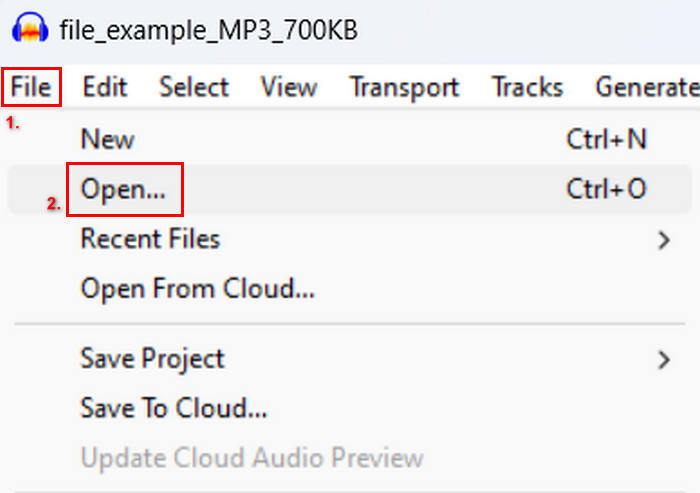
步骤 2: 打开工具,进入 File(文件) 选项卡,点击 Open(打开),导入你要合并的音轨。
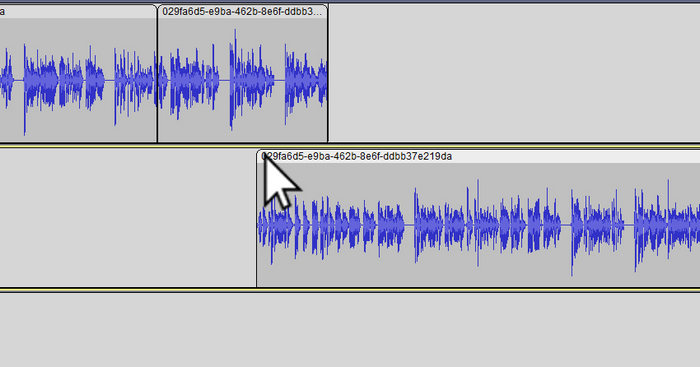
步骤 3: 当所有音轨都已经导入到时间轴后,你需要点击各音轨的片段头(Clip head),将它们拖动并排布成你想要的顺序。
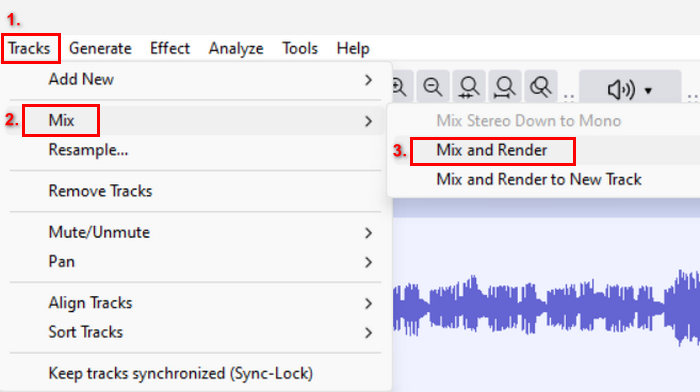
步骤 4: 当你把各音轨排好位置后,就可以将它们混合成一个完整的合成轨。要选择想要合并的音轨时,按住 Ctrl 键并逐个点击它们。之后,想把选中的音轨合并为一条音轨,前往 Tracks(轨道) 菜单,点击 Mix(混合),再选择 Mix and Render(混合并渲染)。
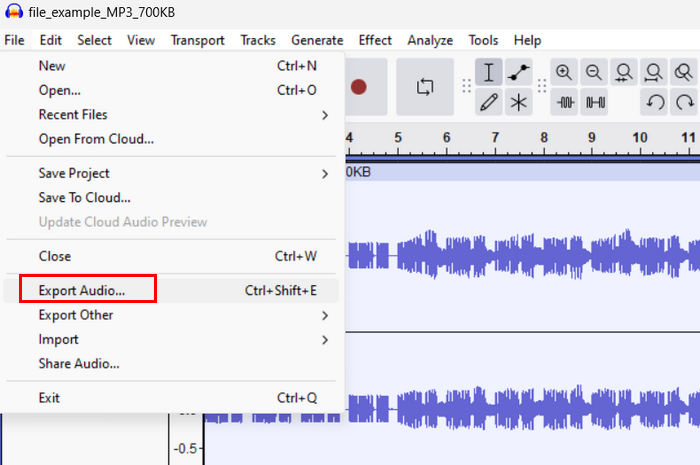
步骤 5: 若要导出文件,请前往 File(文件) 选项卡并选择 Export(导出) Audio(音频)。
为了确保合并后的音轨过渡顺滑、声音均衡,你可以在工具中使用 Amplify(放大)或 Normalize(标准化)等效果。此外,借助淡入淡出可以在音轨之间营造更平滑的过渡,使成品听起来更专业、更有质感。点击此处了解如何在 Audacity 中设置音频淡入淡出。
第 2 部分。使用 Audacity 替代方案合并曲目
如果你觉得 Audacity 的音轨合并功能不太好上手,想寻找一个优秀的替代方案,那么你可以试试由 FVC 精选推荐的 Video Converter Ultimate。这是一款功能完整的工具,提供多种音视频相关功能,其中就包括音频合并。它的工作方式是:在导入需要合并的音频后,你可以轻松调整各音轨的先后顺序,并在一键合并之前立刻对它们进行编辑。
主要功能:
• 它可以合并 1,000 种格式的多个音频文件,如 MP3、AAC、WAV、FLAC、OGG 等。
• 包含基本编辑功能,如修剪、快速分割、淡入和淡出效果。
• 允许编辑音频输出,如编码器、采样率、比特率、通道等。
• 快速合并过程。
• 适用于 Windows 和 MacOS。
以下是使用 FVC 精选的 Video Converter Ultimate 合并曲目的方法:
步骤 1: 首先,你需要在设备上下载并安装这款工具。
步骤 2: 打开工具,进入 Toolbox(工具箱) 选项卡,选择 Video Merger(视频合并)。之后,点击加号图标即可轻松导入你要合并的音频文件。
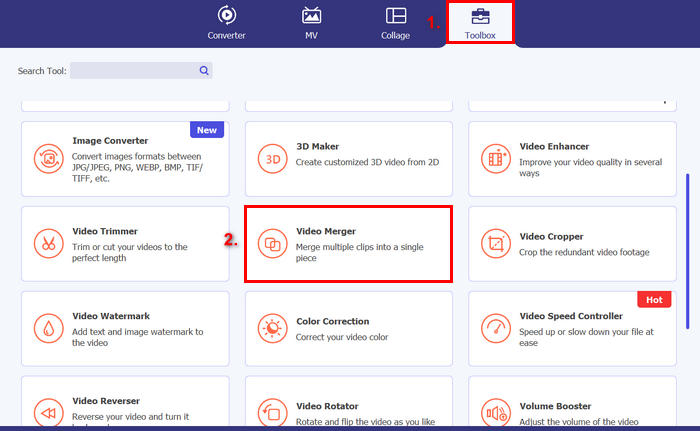
步骤 3: 现在,你导入的所有音轨都会显示在底部。如果需要调整它们的顺序,只需拖动音频片段到合适的位置;或者也可以选中片段后,点击 Forward(前移) 或 Backward(后移) 按钮。完成后,点击 Export(导出) 按钮保存你的项目。
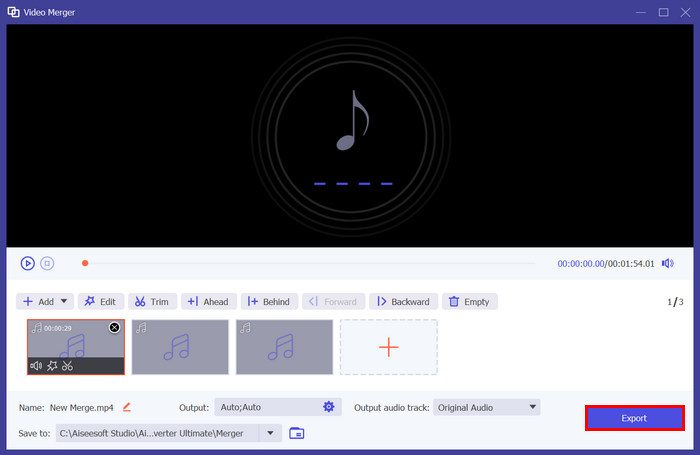
注意:如果你需要更改音频格式或自定义一些音频参数,可以前往 Output(输出) 设置。在那里,你可以更改音轨的格式、编码器、采样率、声道以及比特率。设置完成后,点击 Export(导出) 按钮即可。
就是这样。FVC 选择的 Video Converter Ultimate 确实是 Audacity 的绝佳替代品。凭借其非常用户友好且直观的界面,即使是初学者也可以轻松地在合并多个音轨时使用该工具。
第 3 部分。有关在 Audacity 中合并曲目的常见问题
如何在 Audacity 中将多个音频文件导入到一个音轨?
要在 Audacity 中导入多个音频文件,请前往 File(文件) 选项卡,点击 Open(打开),然后选择你想合并的音频文件。每个文件都会在时间轴上显示为一条单独的音轨。之后,你可以在时间轴上手动对齐这些音轨,并通过 Tracks(轨道)菜单下的 Mix and Render(混合并渲染)选项将它们合并。
如何在 Audacity 中将音频从一个轨道移动到另一个轨道?
在 Audacity 中合并多条音轨时,有两种方法可以移动一条音轨。要移动一条音轨,请单击并拖动该音轨的剪辑手柄,然后将其放置在您想要的顺序。同时,要移动多条音轨,请使用选择工具选择您想要移动的所有音轨。然后,拖动选定区域内的任意剪辑手柄以同时移动所有选定的剪辑。
Audacity 有多少个曲目?
Audacity 对您可以编辑的曲目数量没有固定限制。有了它,您可以根据需要创建和导入任意数量的曲目。但是,当处理多个曲目时,您必须考虑计算机的容量,因为性能可能取决于系统的处理能力和内存。
结论
现在你已经了解了如何在 Audacity 中合并音轨,就可以轻松为你的项目制作平滑过渡和声音均衡的音频了。此外,你还可以继续探索它的其他功能,比如淡入、淡出以及音量调整等,以进一步优化整体音效。与此同时,如果你想要一个更简单或更进阶的工具,不妨试试由 FVC 精选的 Video Converter Ultimate。它上手容易,并且为你的音频文件提供更多自定义选项。
-
 如何使用 Audacity 在 Windows 10/11 上反转音频
 如果您正在 Audacity 中编辑音频文件,并且想知道如何反转全部或部分内容,请阅读此处并了解如何在 Audacity 中轻松反转音频。
-
 如何在 Audacity 中淡入淡出音频:4 种不同的方法 [2025]
 了解如何在 Audacity 中有效地淡化音频的步骤以及有关 Audacity 淡入/淡出效果的一些额外知识。现在系好安全带,让我们开始吧。
-
 如何在 Audacity 中精确分割音频 [指南]
 想要了解如何在 Audacity 中分割音轨?您来对地方了!在本文中,您将了解如何轻松将一个音轨分成两个。
