


 视频转换大师
 屏幕录影大师
 视频修复
视频修复
 安全下载
安全下载如何使用 5 个最佳必备工具进行色彩校正
颜色校正是视频剪辑中的基础流程,它可以提升并融合视频中的色彩,使画面更加美观醒目。颜色校正包括调整视频的对比度、饱和度、亮度和色相,以营造理想的视觉氛围。无论你是专业摄像师,还是有志成为内容创作者,掌握如何进行颜色校正,都是打造沉浸式视觉效果的关键一步。整个流程首先要识别并分析素材中的现有色彩平衡、高光、阴影和中间调。随后,再通过专业软件对这些色彩元素进行精细调整,从而实现真实、可控的色彩表现。接下来,让我们深入阅读本文,了解如何使用可靠的工具来修复视频颜色问题。

第 1 部分:如何校正视频颜色的五种方法
在线查找各种免费的视频编辑器色彩校正来提升视频的视觉吸引力可能就像您想象的那么容易。然而,寻找更先进、更可靠的方法来为您的视频营造合适的氛围是一件很棘手的事情。探索五种有效的方法,使用各种多功能软件来完善视频色彩,增强故事讲述效果并吸引观众。
1. Video Converter Ultimate
Video Converter Ultimate 是一款多合一的视频解决方案,它可以通过调整亮度、对比度、饱和度等关键参数来提升视频画质。这个实用的颜色校正工具还支持剪辑、裁剪、合并等编辑操作。除此之外,它还提供丰富的视频格式转换功能,可将视频转换为成千上万种格式,并针对多种设备进行适配,如 MP4、MKV、MOV、MP3、AAC、GIF、iPhone、Samsung 和 Apple TV,确保你能在不同平台上流畅播放。同时,用户还可以添加字幕和水印,让视频更加个性化。得益于简洁明了的界面,无论你是新手还是有经验的用户,都能轻松上手。按照下面的步骤学习如何使用 Video Converter Ultimate 成功完成视频颜色校正。
步骤 1:下载并安装颜色校正工具
首先,点击下方任意一个免费下载按钮获取该工具。根据你电脑所使用的操作系统,选择并下载适合的 Video Converter Ultimate 版本。然后按照提示完成安装。
步骤二:启动 Video Converter Ultimate
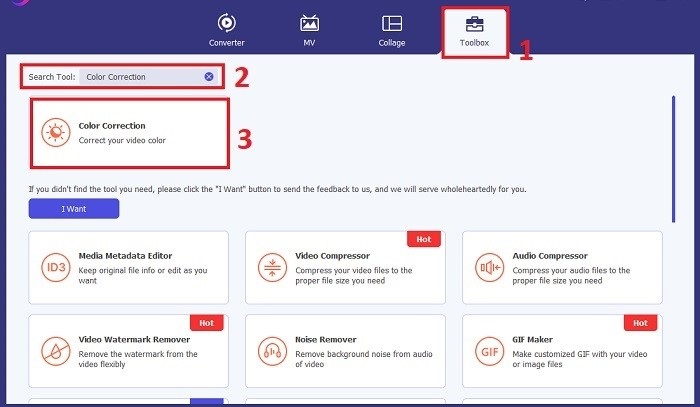
安装完成后,打开 Video Converter Ultimate。在主界面中进入工具箱,找到颜色校正功能,点击进入。
步骤 3:导入需进行颜色校正的视频
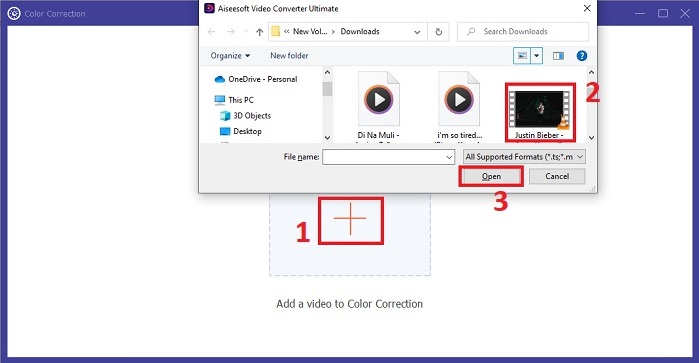
现在,点击加号按钮,导入你想要进行颜色校正的视频。在电脑中找到该视频文件,然后选择打开,将其添加到软件中。
步骤 4:调整视频颜色参数并保存
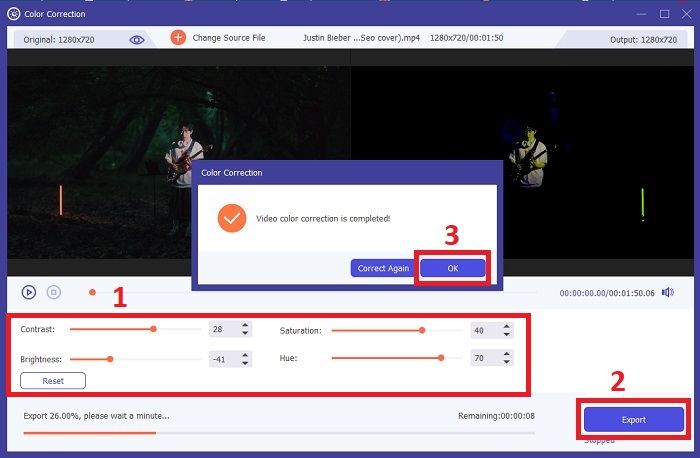
导入视频后,微调亮度、对比度、饱和度和色相等颜色参数,使其达到理想的颜色效果。当你对调整结果满意时,点击导出。等待工具处理完成,并将校正后的视频保存到你指定的位置。
2. 色彩校正Premiere Pro
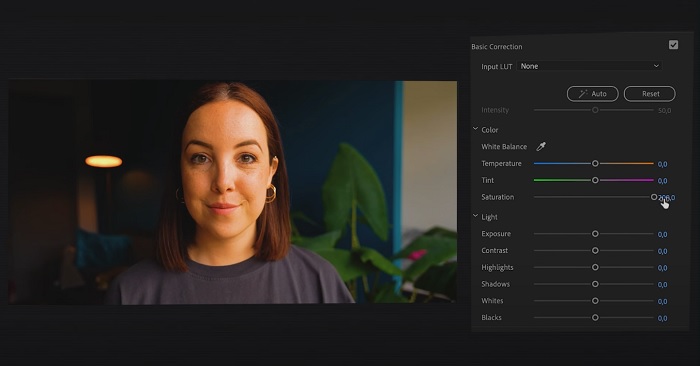
Premiere Pro 以其高质量的视频编辑软件和全面的色彩校正功能而闻名。它提供了多种颜色分级工具和效果来进行精确的调整。色彩校正 Premiere Pro 使您能够调整色彩平衡和曝光或应用创意外观以实现所需的视觉风格。您还可以从数百种内置视频效果和过渡中进行选择,或者从专业设计的模板开始并修改它们以创建您想要的输出。此外,它还具有协作功能,并与其他 Adobe 软件顺利集成,这使其成为专业人士的首选。
步骤 1。 先打开 Premiere Pro 并导入你的视频,然后切换到颜色工作区(Color workspace)。
步骤 2。 在颜色工作区中,使用 Lumetri Color 面板调整曝光、色彩平衡以及创意风格。
步骤 3。 使用示波器(Scopes)来确保颜色调整准确并符合你的预期效果。最后,预览并导出已校正的视频。
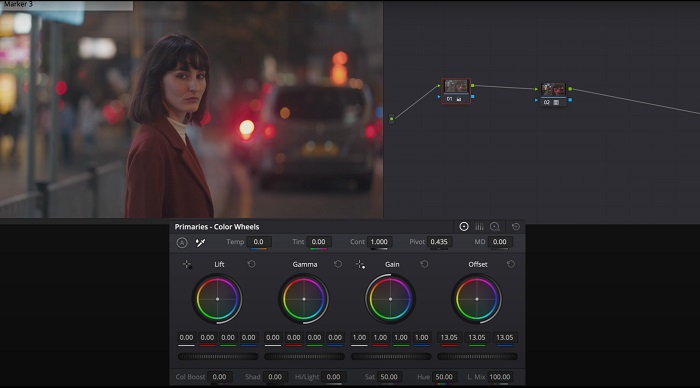
3.DaVinci Resolve色彩校正
探索卓越的颜色分级能力。这款一体化软件集专业编辑、色彩校正、视觉效果和音频后期制作于一体。借助该工具的用户友好界面和全面的功能集,您可以精确而时尚地将您的创意愿景变为现实。 Davinci Resolve Color Correction 的高级色彩分级工具使您的视频脱颖而出。无论您是在制作前沿的好莱坞电影还是个人项目,该工具都可以让专业人士和爱好者以无与伦比的质量创作引人入胜的故事。
步骤 1。 打开 Davinci Resolve 并导入你的视频。导入完成后,切换到 Color(调色)标签页。
步骤 2。 在Color标签页中,使用色轮(Color Wheels)、曲线(Curves)和节点(Nodes)来校正视频颜色,并可配合示波器进行精细调整。
步骤 3。 完成必要的颜色调整后,预览校正后的视频,确认其效果符合你的预期。满意后导出视频,即可投入使用。
4. Final Cut Pro 色彩校正
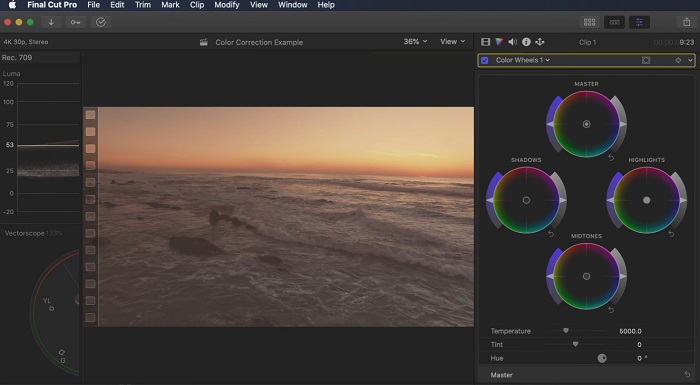
如果您是正在寻找一流视频编辑应用程序的 Mac 用户,Final Cut Pro 是一个不错的选择。它拥有用户友好的界面和强大的功能,使编辑变得轻而易举。在色彩校正方面,Final Cut Pro 提供了用于调整曝光、饱和度和色调的色板和色轮。您可以应用实时色彩效果并使用高级分级工具来增强您的素材。此外,它还可以顺利导出到 Apple 设备和流行的在线平台。如果您是寻求效率和创造力的专业人士,Final Cut Pro 是您的最佳选择。确保您拥有 macOS 13.4 或更高版本以及配备 Apple 芯片的 Mac 电脑,以获得最佳性能。
步骤 1。 先将视频导入 Final Cut Pro,然后进入颜色工作区(Color workspace)。
步骤 2。 使用颜色面板(Color Board)或颜色轮(Color Wheels)对曝光、饱和度和色相进行基础调整。
步骤 3。 利用更多进阶的调色工具进一步优化视频色彩,确保获得最佳效果。完成后,预览并导出校正后的视频。
5. 色彩校正后效果
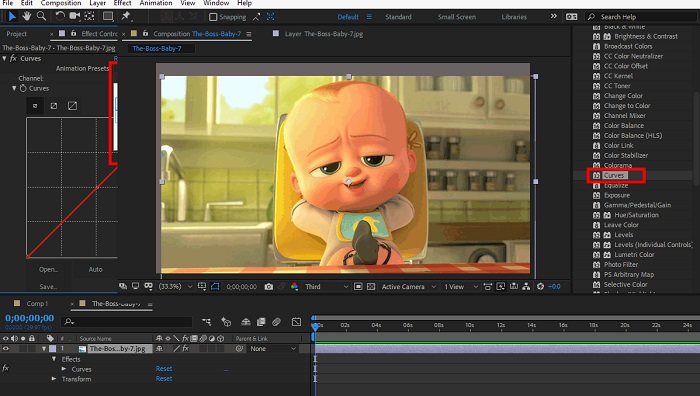
After Effects 是著名的运动图形和视觉效果软件,具有强大的色彩校正功能。除了基本的色彩校正效果外,它还提供各种调整图层和效果来增强和修改颜色。您可以快速制作文本和图形动画,通过迷人的动作让它们栩栩如生。颜色校正 After Effects 使您能够利用级别、曲线和混合模式来实现所需的颜色分级。由于它与不同的 Adobe 产品集成以及提供教程和插件的大型社区,它是一种多功能的色彩校正选项。此外,该软件不断发展,引入了直观的属性面板、透明的图层控制和高效的多帧渲染等功能,可简化工作流程并使创作保持在创造力的前沿。
步骤 1。 将视频片段导入该工具的工程中。然后在Effects & Presets(效果与预设)面板中,选择合适的颜色校正工具,如Curves(曲线)、Levels(色阶)或Color Balance(色彩平衡),并应用到视频上。
步骤 2。 点击已应用的颜色校正效果进入其参数设置界面,然后调整曝光、对比度、饱和度和色相等选项,以修正并强化视频的色彩。
步骤 3。 在Composition(合成)面板中预览视频,观察颜色校正带来的变化。根据预览结果进一步微调,直至达到满意的颜色效果,然后进行渲染或导出校正后的视频。
延伸阅读:
免费适用于 Android 与 iOS 的顶级照片色彩增强应用
在 Windows 和 macOS 上为视频添加滤镜的 4 种绝佳方法
第 2 部分。有关视频颜色校正器的常见问题解答
如何在 iMovie 上执行色彩校正?
在 iMovie 中进行颜色校正时,先导入视频片段并选中,然后点击颜色校正按钮(魔棒图标)。通过调整曝光、饱和度和色彩的滑块,直到获得你想要的画面效果。
如何访问 OpenShot 中的色彩校正工具?
在 OpenShot 视频编辑器中进行颜色校正时,先选中片段,进入效果(Effects)标签页并点击颜色校正(Color Correction)。通过调节亮度、对比度、色相和饱和度的滑块,获得理想的颜色校正效果。
如何访问 Sony Vegas 中的色彩校正工具?
在 Sony Vegas 中进行颜色校正时,先选中需要校正的片段,进入Video FX标签页并搜索Color Corrector。将该效果拖拽到片段上,然后在Effect Controls窗口中调整相关颜色属性。
结论
掌握颜色校正,对提升视频的视觉吸引力和打造引人入胜的观感体验至关重要。本指南介绍了五款强大的颜色校正工具,帮助你实现出色的颜色校正。如果你正在寻找高质量的视频编辑软件,可以考虑使用 Video Converter Ultimate、Premiere Pro、Final Cut Pro、DaVinci Resolve 或 After Effects。这些程序都提供丰富而强大的功能,助你创作出专业水准的视频。每款软件都有各自的特色功能和操作方式,可满足不同偏好和不同经验水平用户的需求。
-
 如何在发布图像和视频之前添加和制作 Instagram 过滤器
 Instagram 上的过滤器是什么?如何应用它?如何制作一个?这些问题将在这篇文章中得到直截了当的答案,所以请阅读它们。
-
 将图像转换为黑白的无故障方法
 你想让你的照片看起来怀旧吗?我们有一个答案给你。这篇文章将提供将彩色图像转换为黑白图像的著名方法。
-
 6 最受欢迎的选择 Snapchat 上的 Snapchat 动画 Snapchat 过滤器
 想知道在 Snapchat 视频上添加过滤器的最佳方法吗?好吧,您可以单击它并了解可用于应用于 Snapchat 视频的不同过滤器。
