视频转换大师 大盒

多合一视频工具箱,能够以超快的速度将视频/音频转换为 1000 多种格式。

免费下载

Login Security安全下载

免费下载

Login Security安全下载

使用 Windows Movie Maker 从视频中删除徽标的最简单方法

How to remove the logo from videos using Windows Movie Maker? This is the most asked question by the people who love watching their favorite movies, video clips, slideshows, and more. It is not satisfying to watch the video while seeing a logo. But you don’t need to worry about it anymore. We have effective methods for removing the logo from your videos using Windows Movie Maker. Also, there is another tool you can use to remove the logo besides Windows Movie Maker. If you want to know about this other application and these easy methods, keep reading this article.

从视频 Windows Movie Maker 中删除徽标

第 1 部分:如何使用 Windows Movie Maker 从视频中删除徽标

If you are a Windows user, you must try Windows Movie Maker to remove a logo from your videos. Also, this tool can use various methods to remove elements from your videos, like logos, watermarks, texts, stamps, and more. In addition, Windows Movie Maker is a video editing software that helps users to create and enhance videos. Moreover, it has a simple interface, making the process more straightforward, which is perfect for non-professional users. In removing the logo, you can replace it using other elements like pictures or text. Furthermore, this application has many editing tools you can enjoy, like cutting, joining, rotating, and cropping your videos. You can also add transitions, texts, effects, and more. If you want to know this easy way, follow the steps below.

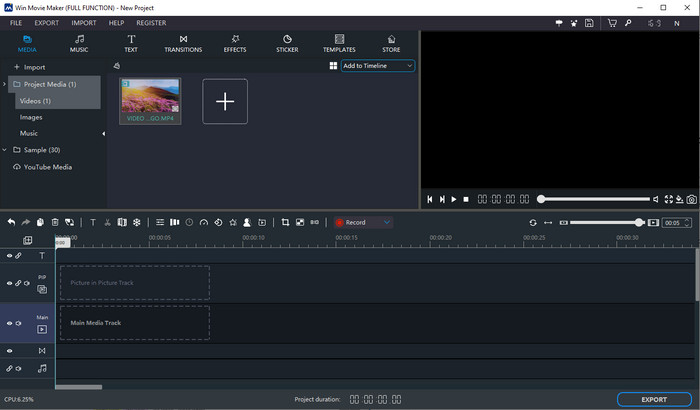
Step 1: First step, download the Windows Movie Maker on your Windows. Wait for the installation process, then open the application.

视窗电影制作

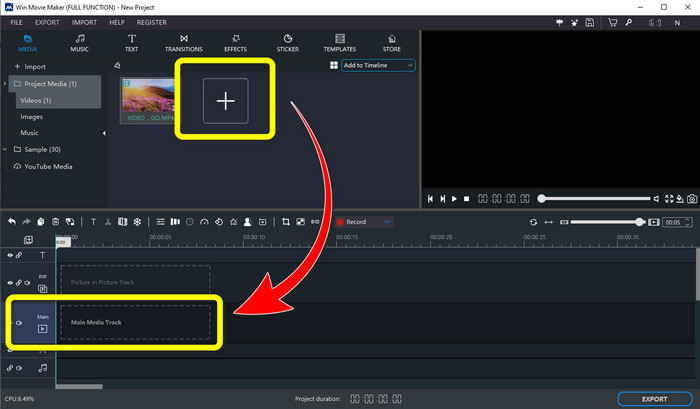
Step 2: Click the Plus sign icon to add your video with a logo. Then, when your video is already attached, put it on the Main Media Track by dragging it.

加上主媒体轨道

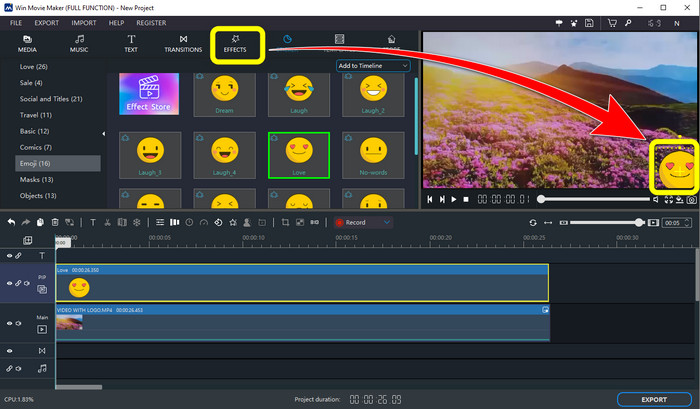
Step 3: To replace the logo, click the Sticker button. Then, choose your desired sticker or any other elements, and put it on the area of the logo to cover it.

贴纸封面标志

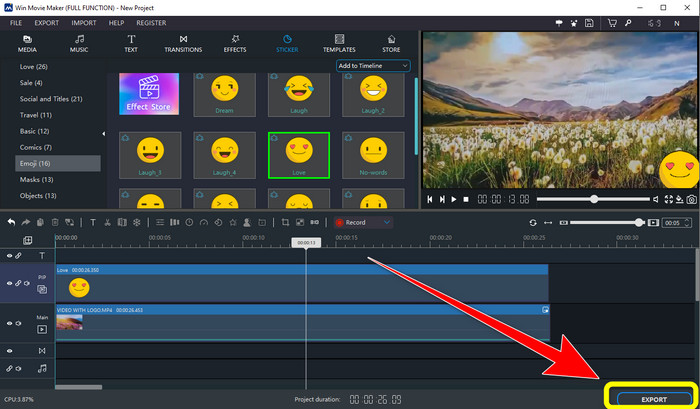
Step 4: For the final step, if you are done covering the logo from your video, select the Export button to save your final output.

导出最终输出

第 2 部分:从视频中删除徽标的最佳替代方法

Video Converter Ultimate is one of the best alternatives to Windows Movie Maker to remove logos from your videos easily. This application enables you to remove unnecessary elements like watermarks, logos, signatures, stamps, and more. In addition, you can use the cropping tool to remove the logos placed at the edge or corner of your video. Video Converter Ultimate offers a straightforward and intuitive interface suitable for non-professional users. Aside from removing logos from your videos, this software can provide you with various editing tools you can enjoy. It has a video compressor, video speed controller, GIF maker, collage maker, adding and removing watermarks, video rotator, and many more. It also supports different file formats, like MP4, MKV, FLV, MOV, XVID, DIVX, TRP, MTS, etc. Lastly, Video Converter Ultimate is available on both Windows and Mac, which is convenient for users. Follow these detailed guides to remove logos from your videos using Video Watermark Remover and Video Cropping.

使用视频水印去除功能

Step 1: First, download Video Converter Ultimate and install it on your Windows or Mac.

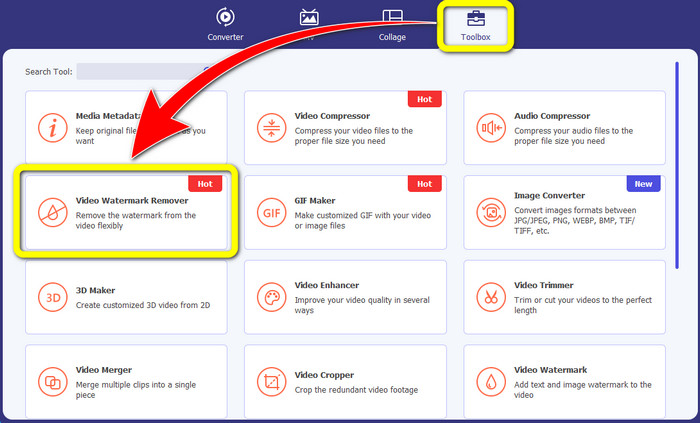
Step 2: After launching the application, go to the Toolbox panel, look for Video Watermark Remover, and select it.

工具箱视频水印去除器

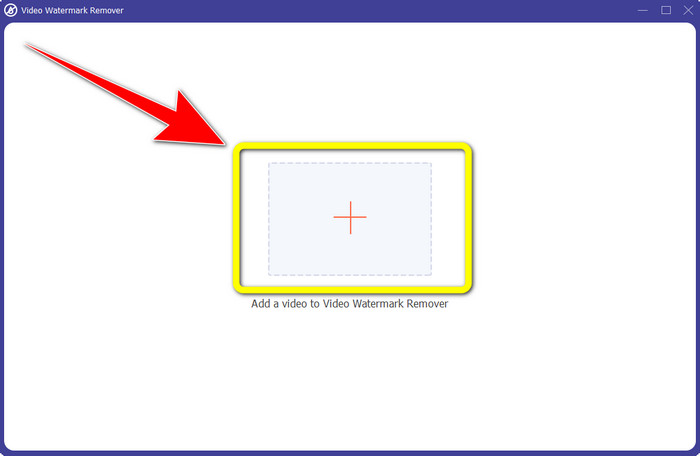
Step 3: After that, another interface will appear. Click the plus sign icon to add your video you want to remove the logo.

加号图标

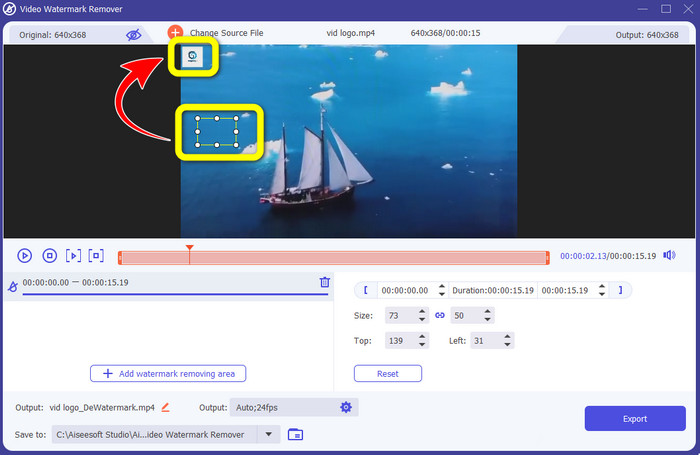
Step 4: A mini box will appear on the screen if you have already attached your file. Drag the box to cover the logo.

迷你盒盖标志

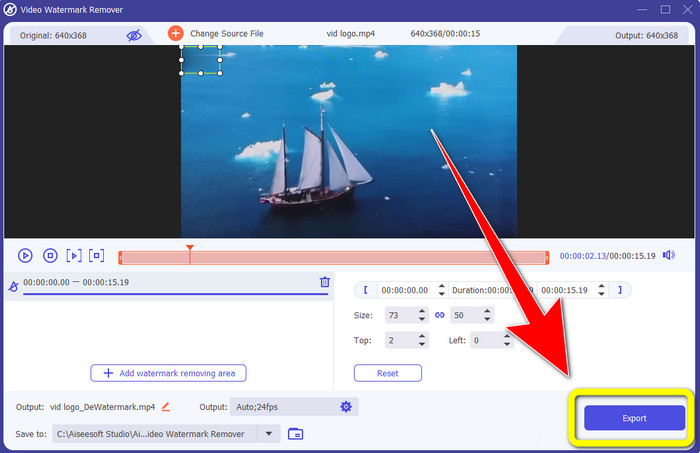
Step 5: If you are done removing the logo from your videos, select the Export button to export and save your video without a logo.

导出以保存视频

使用视频裁剪器功能

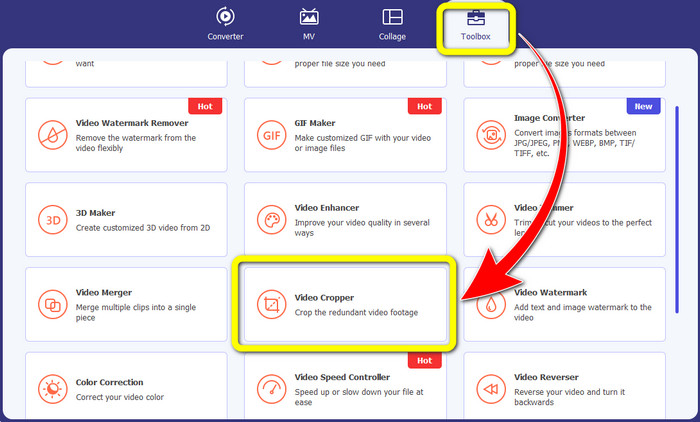
Step 1: The first thing is to click the Toolbox panel. After that, find the Video Cropper tool and select it.

工具箱视频裁剪器

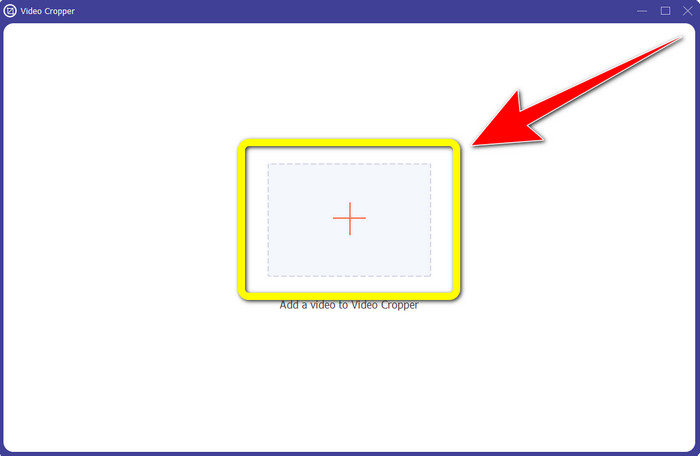
Step 2: Then, you can click the Plus sign button to import the video with a logo now.

加号按钮

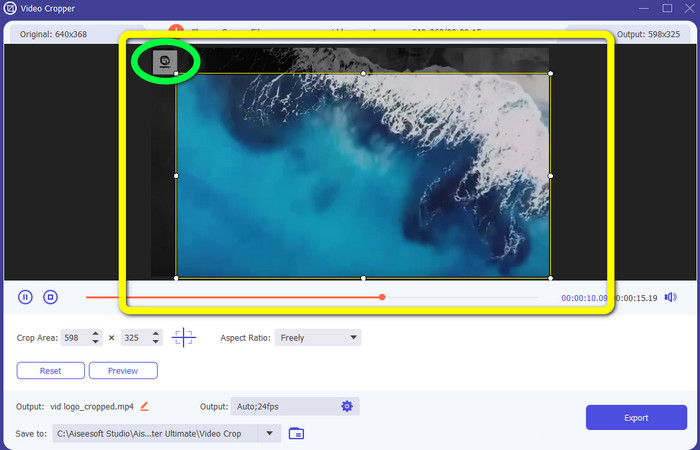
Step 3: In this function, you can cut both sides, or the upper and lower part of the video to remove the logo from your video.

裁剪以删除徽标

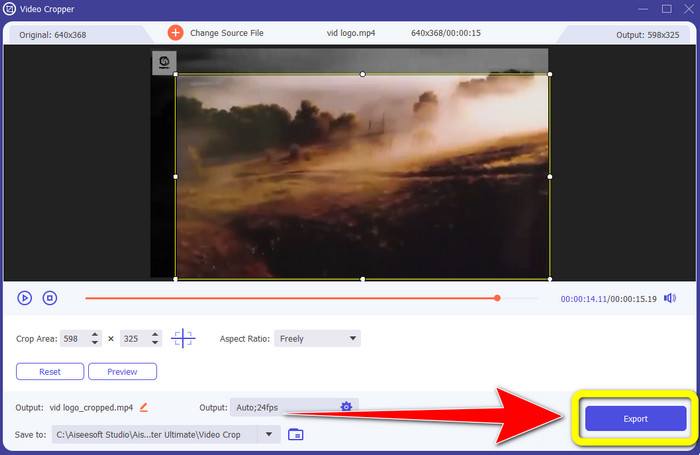
Step 4: For the final step, click the Export button and save your video to your computer.

导出不带徽标的视频

第 3 部分:有关使用 Windows Movie Maker 从视频中删除徽标的常见问题解答

删除徽标后,在 Windows Movie Maker 中导出我的视频需要多长时间?

在使用 Windows Movie Maker 时,您可以在移除徽标后一分钟内导出您的视频。

从视频中删除徽标时哪个应用程序最好?

If you are looking for the best and most reliable application with a logo remover, you can use Video Converter Ultimate. This application can let you enjoy your video after you remove the logos from your videos.

有没有一个有用的应用程序可以让我使用手机从视频中删除徽标?

Yes, of course, there is! You can use the PicLab application. It is available on both Android and iPhone. Here is a general guide:
1. Download the PicLab on your phone and open it.
2. Attach your file and select the marker tool.
3. Choose which part to remove, then press erase and save.

是否可以在不损失质量的情况下从视频中删除徽标?

Yes, it is! The most recommended application you can use is the Video Converter Ultimate.

是否有可用于从视频中删除徽标的在线工具?

Definitely, Yes! You can use many online tools to remove a logo from your videos. You can use the Apowersoft Online Watermark Remover. And here simple steps of using this tool:
1. Go to the Apowersoft Online Watermark Remover website and click the remove watermark from video button.
2. Attach your file. Use the box to cover the logo.
3. Click Erase and download your video.

结论

This article provided excellent methods on how to remove a logo from a video using Windows Movie Maker on your computer. Also, aside from using Windows Movie Maker, this article offers you one of the best alternatives to remove a logo from your videos. This reliable application is Video Converter Ultimate. This software can help you to remove the logo in two easy methods. The first is the Video Watermark Remover tool, and the other is the Video Cropper tool.

优秀的

Rating: 4.9 / 5 (based on 315 votes)