


 视频转换大师
 屏幕录影大师
 视频修复
视频修复
 安全下载
安全下载有效删除视频上 Picsart 过滤器水印的完整方法
如今,在桌面上拥有一款可靠的视觉媒体编辑软件(如 Picsart)已成为必不可少的利器。借助它,你只需调整几个选项,就能把普通图片变成前所未有的摄影大片!通过自己创作的吸睛图片,你可以吸引更多客户或观众。不过,使用 Picsart 有一个问题,那就是导出后会自动添加水印。这个水印相当烦人,如果不去掉,还会在画面上造成干扰。所以,如果你既想要这款软件,又想要一份去除 Picsart 滤镜水印的教程,那就继续往下看这篇文章,了解更多内容吧!

第 1 部分。如何使用桌面上的免费软件删除 Picsart 过滤器水印
FVC Video Converter Ultimate - Windows 和 Mac 上的第一水印去除剂
先从我们的第一推荐软件开始介绍,它可以帮助并教你如何移除 Picsart 的水印。FVC Video Converter Ultimate 是你工具库中必不可少的武器,它能帮助你轻松去除视频上的水印,同时输出专业级的效果。凭借出色的性能和无可比拟的功能,已经有许多用户试用过这款工具,而且它并没有让他们失望。如果你需要帮助来去除视频上的水印,不妨参考下面的步骤,并按步骤操作。
步骤 1. 点击下方相应的下载按钮,将这款终极软件下载到你的设备上。之后在电脑上安装该软件,并点击“立即开始”(Start Now)打开程序。
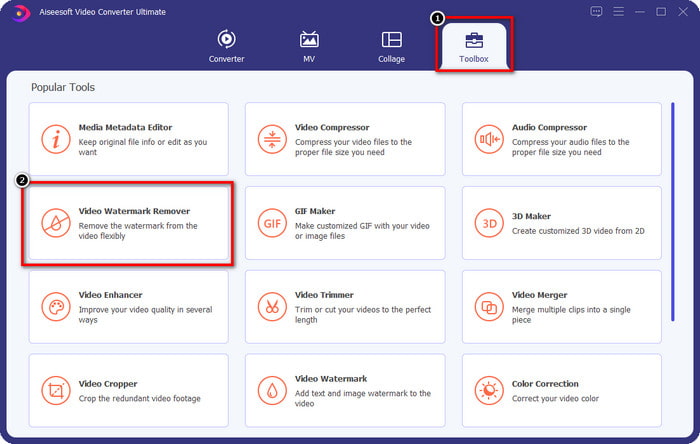
步骤 2. 在 工具箱(Toolbox) 中,你会看到其他功能,可以帮助你为视频增添更出色的效果。但今天,请点击 视频水印移除器(Video Watermark Remover)。
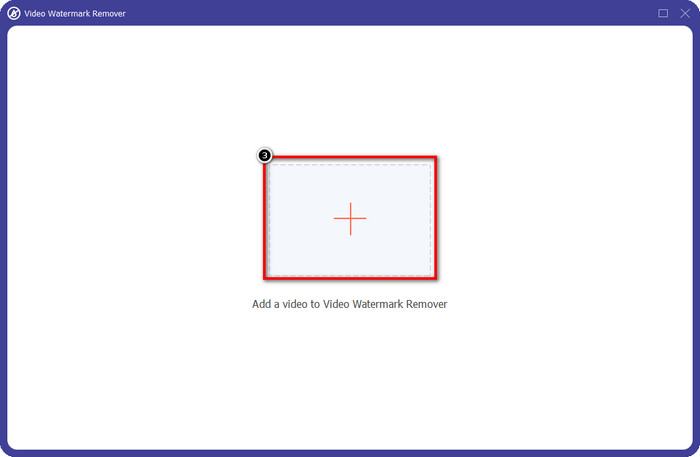
步骤 3. 点击 + 图标,上传你在 Picsart 中编辑过的视频。在弹出的文件夹中找到该文件,然后点击打开(Open)。
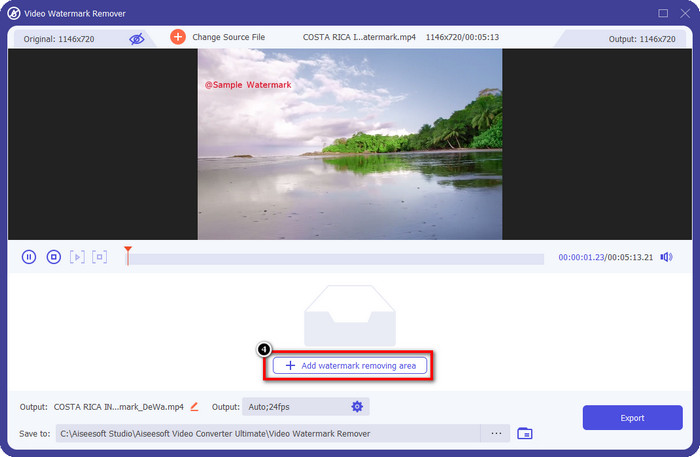
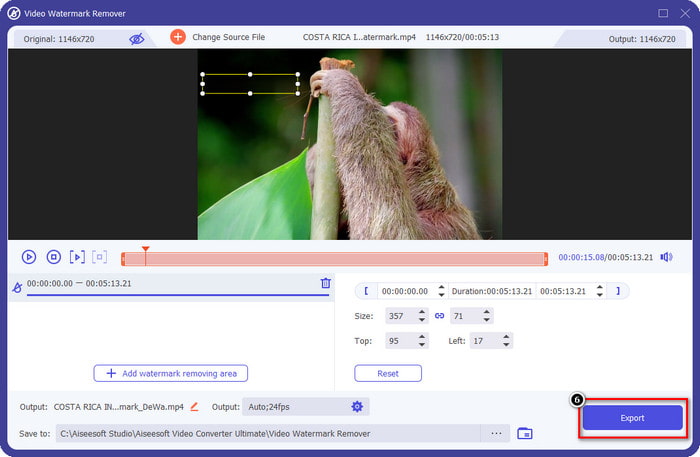
步骤 4. 点击添加水印移除区域(Add Watermark Removing Area),以移除你上传视频中嵌入的水印。
步骤 5. 拖动并放置选框到水印位置,将其完全覆盖。你可以根据需要放大或缩小该框。
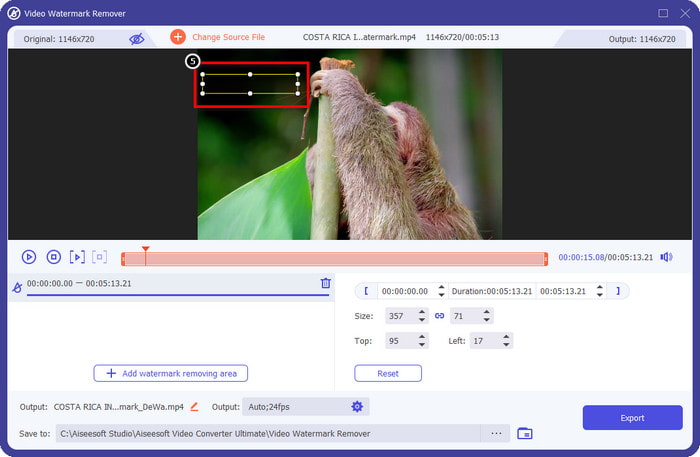
步骤 6. 当你用选框成功遮住水印后,点击导出(Export),即可将最终成品保存到本地磁盘。
Windows 上的照片 - 带有 3D 设计的封面水印
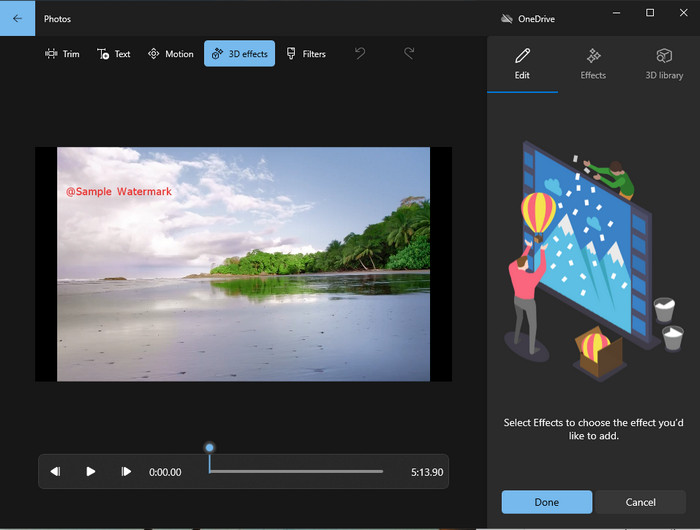
如果你不擅长下载软件,而且是 Windows 用户,那就可以尝试使用“照片”(Photos)来编辑视频中的水印。使用这个工具学习如何去除 Picsart 水印会更快,因为你无需经历下载安装应用的步骤。严格来说,这个工具并不会真正“删除”视频上的水印,但你可以用 3D 设计元素把水印遮住。尽管如此,这款默认的图片与视频查看和编辑工具整体表现还是不错的。还拿不准?那就看看下面的步骤,如果有兴趣可以跟着做。
步骤 1. 点击任务栏上的 Windows 按钮,在搜索框中输入“Photos(照片)”并打开它。
步骤 2. 打开内置编辑器后,点击 + 号,上传你想在此编辑的视频。
步骤 3. 前往3D 效果(3D Effects),点击3D 库(3D Library),搜索你想用来遮盖水印的设计元素。将选中的设计放在带有水印的区域。
步骤 4. 点击完成视频(Finish Video),将最终输出保存到 Windows 本地磁盘。
PickFrom 在线模糊视频

PickFrom Blur Video Online 可以帮助你在线去除网页视频中的 PicsArt 水印。这款工具并不为多数人所熟知,但今天我们就来介绍一下。之所以将它纳入推荐列表,是因为它在去除上传视频水印方面的效率很高。其界面(GUI)简洁明了,即使是初次使用也不会迷路。如果你想去除水印,那就按照下面的流程来操作吧。
步骤 1. 打开你的网页浏览器,搜索该工具名称,并点击第一个搜索结果进入在线水印移除页面。
步骤 2. 点击“Click to Add File”(点击添加文件)以上传你的视频。
步骤 3. 勾选模糊视频部分(Blur Part of the Video),然后将选框移动到水印区域。
步骤 4. 点击开始(Start),即可下载已去除水印的视频。
第 2 部分。如何通过购买高级版删除 Picsart 水印
如果您不想在删除 Picsart 金色水印时遇到麻烦,您必须购买该软件。这将花费您一定的费用,因为您需要先付费才能使用它,然后导出没有任何嵌入水印的视频。因此,如果您想要购买 Picsart 的分步教程,您必须按照我们添加的下一个教程进行操作。
步骤 1. 打开 Picsart 官方网站并登录你的账号。如果你还没有账号,就需要在此处注册(Sign up)。
步骤 2. 在官网主页面点击“Pricing(价格)”,查看各个产品对应的价格。
步骤 3. 选择你想要的套餐(按月或按年),然后点击前往支付(Go to Payment)。
步骤 4. 根据提示填写账单信息,完成后点击立即购买(Purchase Now)。
相关内容:
第 3 部分。有关如何删除 Picsart 水印的常见问题解答
我可以永久购买 Picsart Gold 吗?
它不支持一次性付款方式或计划,因此如果您想使用 Picsart Gold,您需要使用月度或年度计划。通过访问其官方网站查看每个计划的价格。
我可以在 Picsart 上创建自定义订阅吗?
是的,您可以在 Picsart 上为团队创建订阅。您可以设置将使用该应用程序的人数。
我在哪里可以访问 Picsart?
您可以在 Windows、Android 和 iOS 上下载 Picsart。不幸的是,该应用程序目前没有 Mac 版本,但不要难过,因为您可以使用系统上可用的其他媒体编辑软件。
结论
我们之前教过的教程让您了解使用 PicsArt 去除水印以及您可以使用的最佳水印去除器。您现在可以欣赏您在 Picsart 上编辑的视频,而无需担心它添加到最终输出中的产品水印。因此,如果您仍然不相信我们提供的工具,则必须先尝试它们,尤其是 FVC Video Converter Ultimate。单击下载按钮并将其免费安装在您的 Windows 和 Mac 上,然后享受它提供的您可以利用的特性和功能。
-
 如何使用终极工具去除 Pond5 水印
 按照以下简单步骤了解如何删除 Pond5 水印。您可以使用这些令人印象深刻的工具轻松删除图像上的 Pond5 水印。
-
 2 如何删除 Dxtory 水印的强大方法
 通过以下两种最佳方法了解如何删除 Dxtory 水印。如果您正在寻找最合适的工具来删除 Dxtory 水印,请阅读此处。
-
 你不能错过的杰出的阿诺德玛雅水印去除剂
 许多水印去除器可以去除 Arnold Maya 水印。但是,如果您想知道什么是最好的 Arnold Maya 水印去除剂,请阅读此页面。
