


 视频转换大师
 屏幕录影大师
 视频修复
视频修复
 安全下载
安全下载从您必须尝试的 Camtasia 9 中删除水印的好方法
如果你正在寻找一种简单又有效的方法来去除 Camtasia 9 的水印,这里就是最佳选择。我们有很多优秀的视频想要观看,但其中有些带有大大的水印,不仅让人心烦,还影响我们欣赏视频本身的内容。而且由于这些多余的遮挡,有些画面根本看不清,让观众更加失望。好在有一些带有水印去除功能的软件,可以帮助你把视频中的水印去掉,这样你就能无干扰地观看自己喜爱的影片。如果你想了解如何快速去除视频中的水印,请从头到尾读完这篇文章。

第 1 部分:从 Camtasia 中删除水印的最佳方法
使用 Video Converter Ultimate
如果你正在寻找一款优秀又可靠、带有水印去除工具的应用程序,Video Converter Ultimate 是你可以使用的一款出色软件。你可以用它来去除视频中的水印。如果你的视频水印来自 Camtasia 等其他应用程序,也同样可以用这款软件处理。此外,它操作简单、界面友好,非常适合初学者使用。除此之外,它还提供多种你可以尽情使用的编辑工具,比如视频压缩器、视频增强器、视频剪辑器、音频压缩器、视频倒放、视频旋转等。本文将介绍两种使用 Video Converter Ultimate 去除视频水印的方法。
1.使用视频水印去除器
步骤 1: 在桌面上下载 Video Converter Ultimate,然后进行安装。
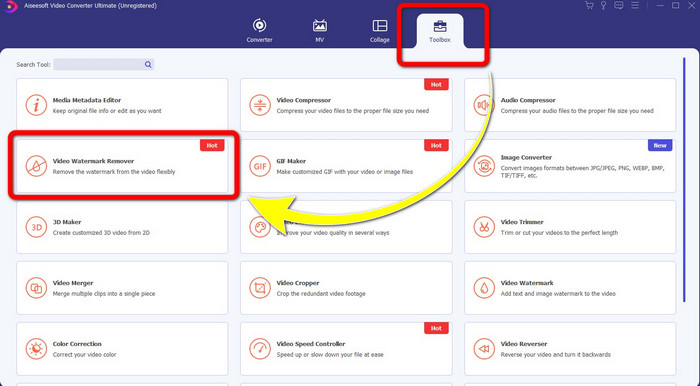
步骤 2: 安装完成后,打开程序,进入 Toolbox(工具箱)> Video Watermark Remover(水印去除)。随后会弹出一个新的界面。
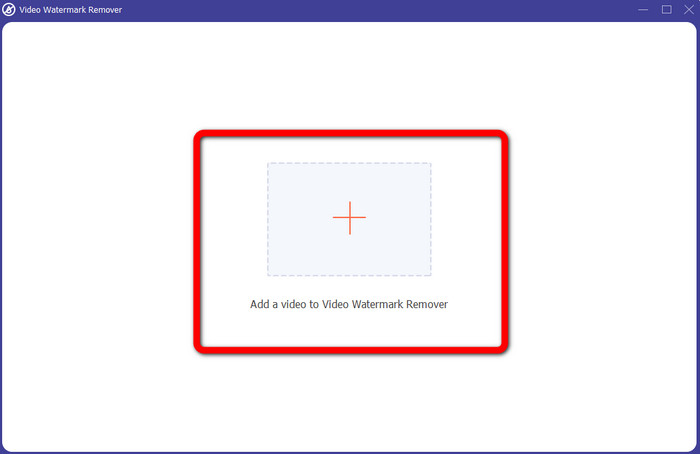
步骤 3: 当新的界面出现后,点击加号按钮,导入带有水印的视频。
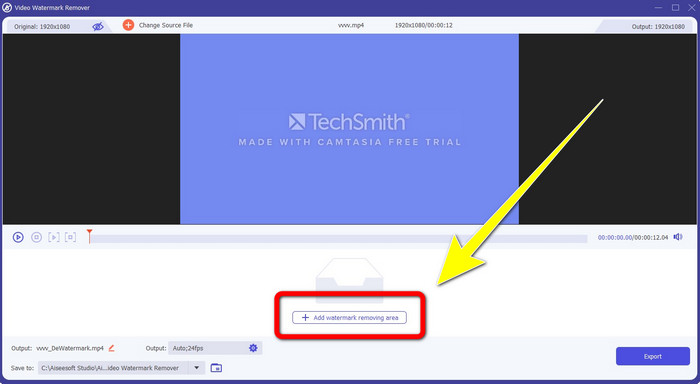
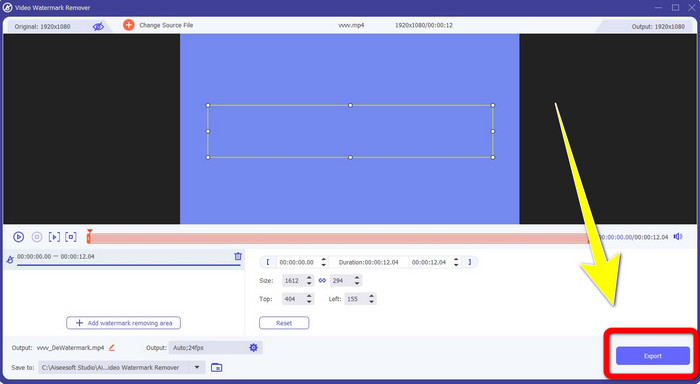
步骤 4: 添加好带水印的视频后,点击Add Watermark Removing Area(添加去水印区域)。
步骤 5: 屏幕上会出现一个方框。拖动并调整这个方框,将其覆盖在视频的水印位置上。
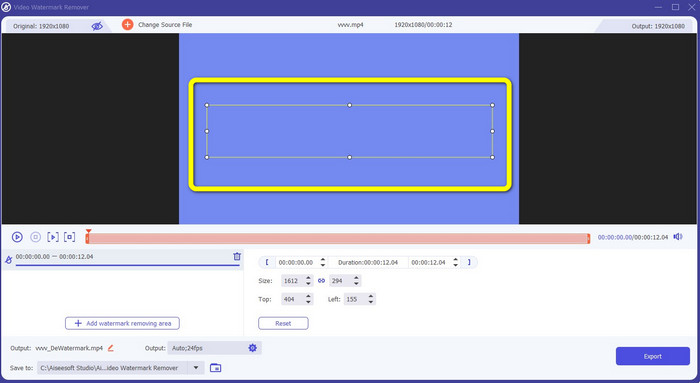
步骤 6:当水印完全被方框覆盖后,视频中的水印就会被去除。点击Export(导出)以保存你的视频。通过这种方式,你就可以去除来自 Camtasia 的视频水印。
2.使用裁剪功能
你还可以尝试使用 Video Converter Ultimate 的裁剪功能。这是去除水印最简单的方法之一,尤其适合水印只出现在视频的角落或边缘时。通过裁剪视频,你可以快速去掉画面中多余的遮挡物。按照以下简单步骤使用裁剪工具去除水印。
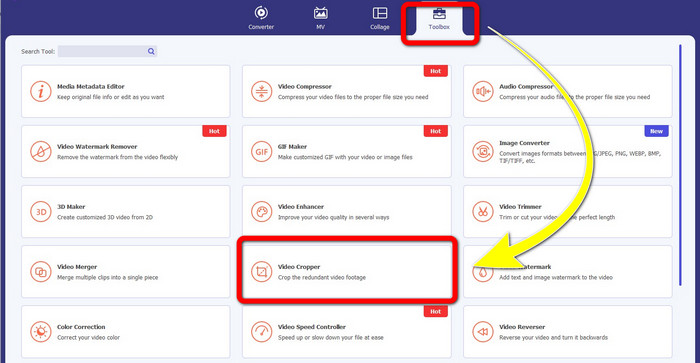
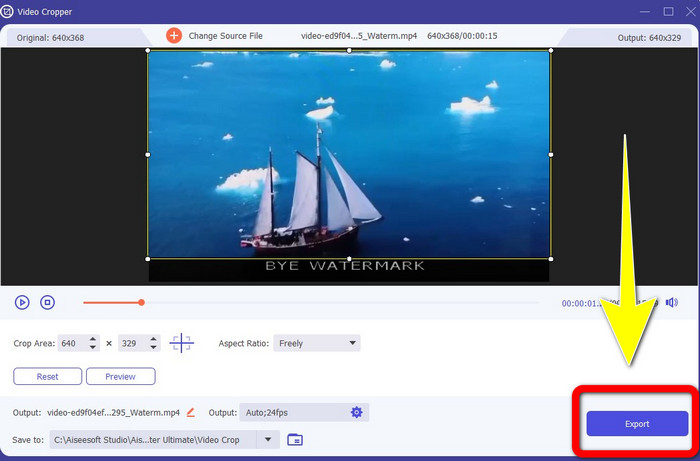
步骤 1: 打开 Video Converter Ultimate。点击Toolbox(工具箱)> Video Cropper(视频裁剪),然后会出现一个新界面。
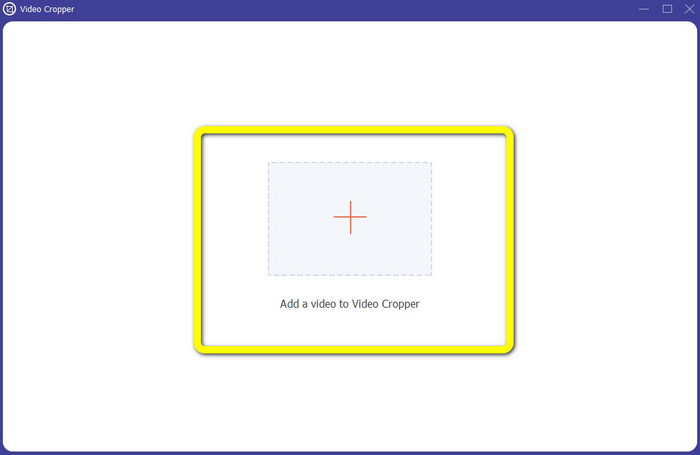
步骤 2: 点击加号按钮,添加你想要去除水印的视频。
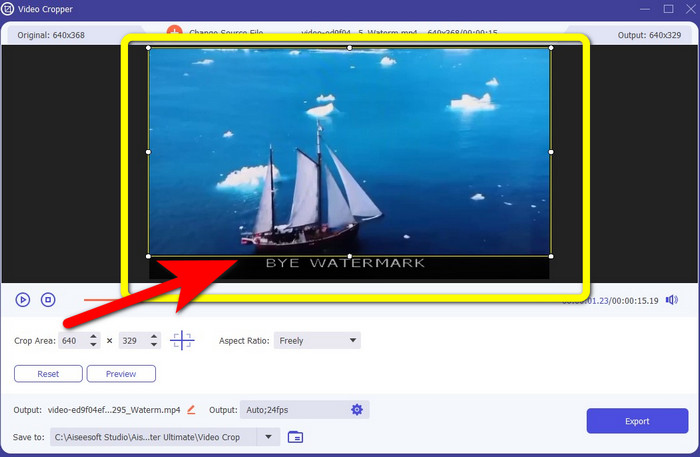
步骤 3: 当你已经导入带水印的视频后,就可以裁剪视频边缘,将画面裁剪到包含水印的区域之外。这样就能把水印去掉。
步骤 4: 如果你已经完成裁剪,并确认水印已经消失,点击Export(导出)保存已编辑的视频。现在,你就可以在屏幕上无水印地欣赏视频了。
第 2 部分:如何在没有水印的 Camtasia 中制作视频
你是否想学习如何制作没有水印的 Camtasia 视频?首先,我们来了解一下什么是Camtasia。Camtasia 是一款简单又实用的编辑工具,同时也是一款屏幕录制软件。此外,它还提供多种编辑功能可供使用,例如注释、转场、动画、音频特效、视频特效等。你还可以使用这个程序制作幻灯片。
借助此应用程序,您可以使您的视频对观众更具吸引力和独特性。在 Camtasia 中,您可以制作可以欣赏的精美视频。但是,除非您购买该应用程序,否则该应用程序在您导出视频后会有水印。按照这些简单的步骤学习此应用程序中的许多内容,尤其是在 Camtasia 中创建视频。
借助此应用程序,您可以使您的视频对观众更具吸引力和独特性。在 Camtasia 中,您可以制作可以欣赏的精美视频。但是,除非您购买该应用程序,否则该应用程序在您导出视频后会有水印。按照这些简单的步骤学习此应用程序中的许多内容,尤其是在 Camtasia 中创建视频。
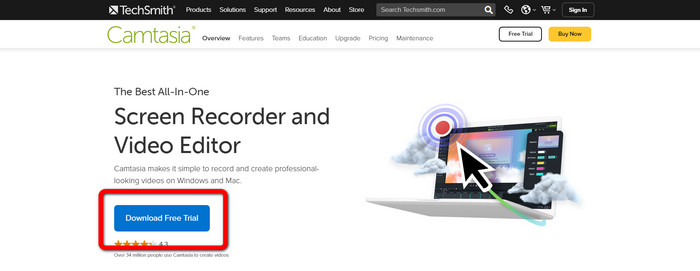
步骤 1: 在 Windows 上下载安装 Camtasia。点击Download Free Trial(免费下载试用版)按钮获取程序,然后在安装完成后打开它。
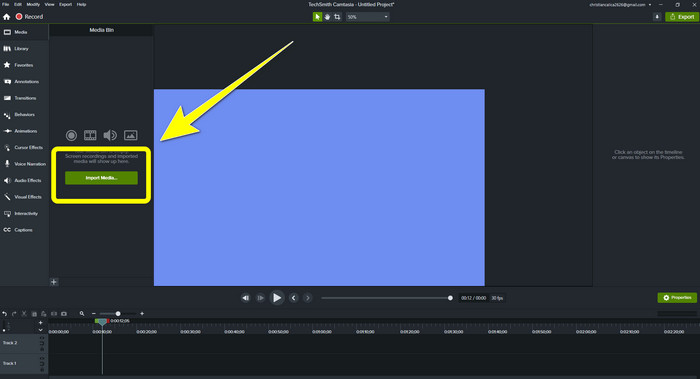
步骤 2: 启动程序后,点击Import Media(导入媒体)按钮,添加你想要编辑的文件。
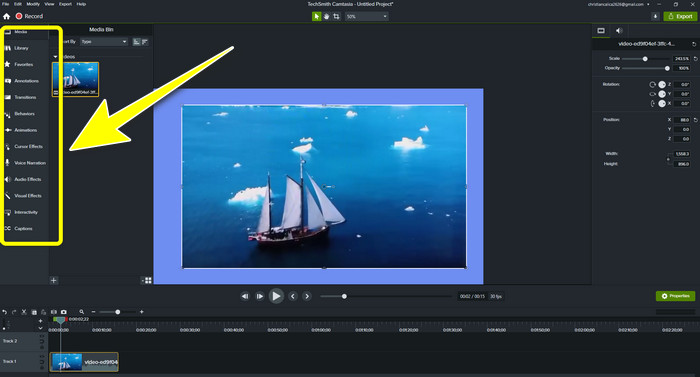
步骤 3: 现在你就可以在该程序中使用各种编辑工具对文件进行编辑,比如添加字幕、转场、动画、注释、行为等。
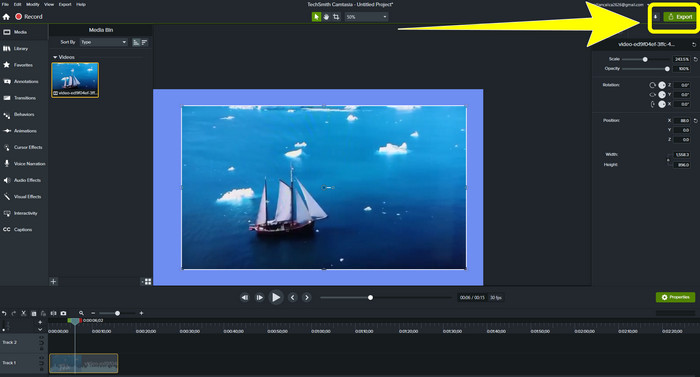
步骤 4: 当你完成编辑并对视频效果感到满意后,就可以点击Export(导出)> Local File(本地文件)按钮保存成品。
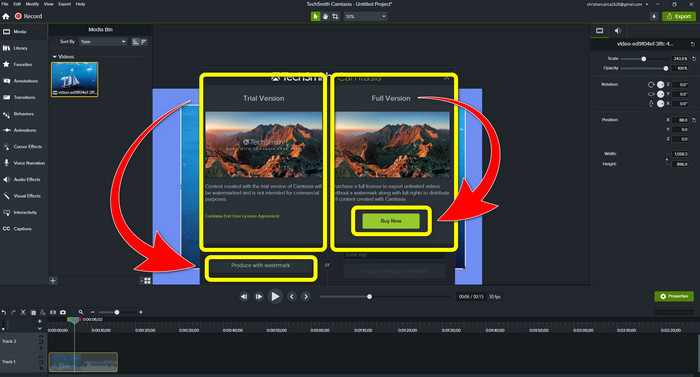
步骤 5: 点击Export(导出)> Local File(本地文件)按钮后,会出现另一个界面。如果你打算购买这款软件,点击“Buy(购买)”按钮,就可以输出没有水印的 Camtasia 视频。但是如果你只使用免费试用版,那么在导出并保存视频后,成品中会带有水印。
相关内容:
最快速的去除视频中 Adobe Stock 水印的小技巧【教程】
第 3 部分:关于去除水印的常见问题解答
我可以在我的 Mac 上使用出色的水印去除器吗?
当然可以!你可以使用像 Video Converter Ultimate 这样的水印去除类应用程序。它能够有效去除视频中的水印。此外,该软件同时支持 Windows 和 Mac 平台,使用起来更加方便。
有什么方法可以去除照片上的水印吗?
绝对没错!您可以使用设备上的许多应用程序来删除照片中的水印。您需要做的最好的事情是在浏览器上搜索水印去除工具,并在结果页面上查找前 10 个结果。
我可以使用手机去除水印吗?
是的你可以!一些带有水印去除器的应用程序现在可以在 Mac 和 Windows 以及 Android 手机和 iPhone 等手机上访问。
如何使用裁剪工具去除水印?
使用裁剪工具去除照片或视频上的水印是小菜一碟,尤其是当水印位于图片边缘时。您需要做的就是裁剪它,消除水印,然后就完成了。
结论
综上所述,本文介绍了几种去除 Camtasia 9 水印的最佳方法,同时还推荐了一款功能优秀、可靠的软件,并提供了两种去除视频中多余遮挡物的具体方案。这款软件就是 Video Converter Ultimate。
-
 以专业方式从视频中删除水印的 5 种方法
 需要从视频中删除水印以使其看起来更专业吗?好吧,阅读这篇文章,因为我们添加了一个关于如何做到这一点的教程!
-
 您将需要的 3 个最新的 Shutterstock 水印去除剂
 不喜欢附加到导出视频的 Shutterstock 水印?您可以使用 Shutterstock 水印去除器来有效地擦除它。
-
 关于如何从照片中删除水印的最简单方法
 你对照片上的水印感到恼火吗?不用担心!本文将提供简单易用的方法来去除照片中的水印
