如何加速在线视频:Internet 上可用的广泛方法

The online class is another teaching method used for blended curriculum, especially this pandemic, and giving video presentations as an alternative for synchronous courses. However, most of the video presentations that take an hour to finish are so dull to watch. Some students have no choice but to speed up or fast forward the video presentation to pick up essential details about the lesson. This article is perfect for mending this kind of issue most of the students have. Here are the given examples of how to speed up a video online.

加速在线视频

第 1 部分。 提高视频播放速度的不同方法

Speeding up videos may sound unusual because all videos play at average speed. But some people want to watch a video clip 2x faster than the average. For instance, for other people, their reason was to skip those not essential details of a video that can make a movie boring to watch, for example, if you're rewatching a movie. You only want to skip the conversation scene and forward it to the action or climax part. In comparison, some want to watch videos in a fast manner. There are editing applications that most need to purchase before using can help you with this dilemma. However, the following software and web tool below will help you speed up a video online for free.

方法 1. 使用 Clideo

Video marketing software Clideo includes creating, editing, compressing, and packaging video for distribution to virtually any online audience. It has many features, including an editing toolbox, customizing engine, and various formats available. One of the tools can fast forward and speed up the video. And if you're wondering how are you going to use it, here are the steps provided on how to use Clideo:

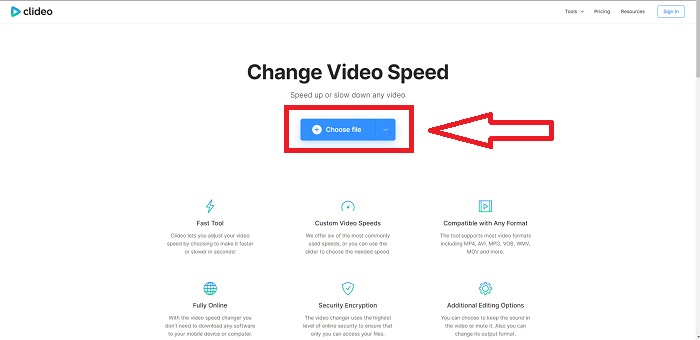
Step 1: Click Choose File in the interface of Clideo and upload the video clip you want to speed up.

选择文件

Step 2: After you upload your video, select your desired speed to apply it to your video file at the right corner of the interface. You can choose if you want to make a video faster or make a video slower than the actual speed of your video clip. You will have a choice to mute your entire video too.

选择速度文件

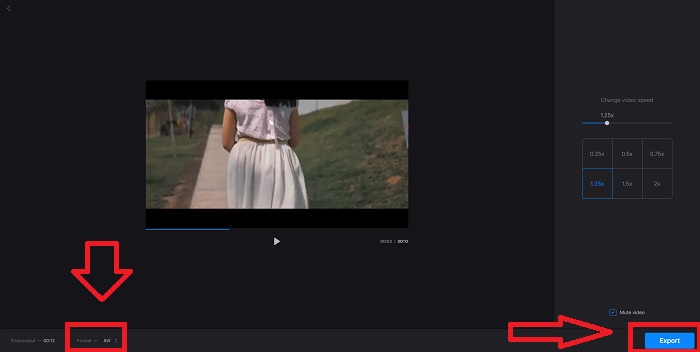
Step 3: If you are already satisfied with your desired speed in your video, select which compatible format for your video. The formats available are AVI, 3G2, 3GP, F4V, ASF, FLV, and M2TS. Then, if everything is ready to upload, upload your file by clicking Export and press Download to transport the file to your desktop.

导出文件

方法 2. 使用 Fastreel

Video editing tool Fastreel allows you to create short clips, edit videos, and use premade templates to make the process go faster and more efficiently. One of the companies behind this service is Movavi, also known for its video editing and video conversion software. Because it works in any browser – Firefox, Google Chrome, Opera, and Safari – Fastreel is an excellent alternative to desktop software for both Windows and Mac users. Same with the first webtool, Fastreel has features that can help you to speed up a video online. Follow the steps given below:

Step 1: At the interface of Fastreel, click the Use Online Tools to open all its featured tools available.

打开在线工具

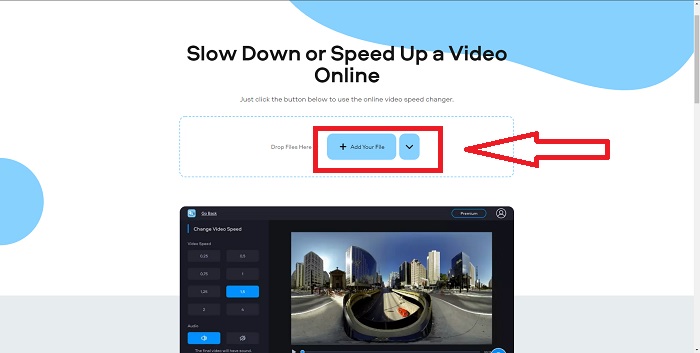
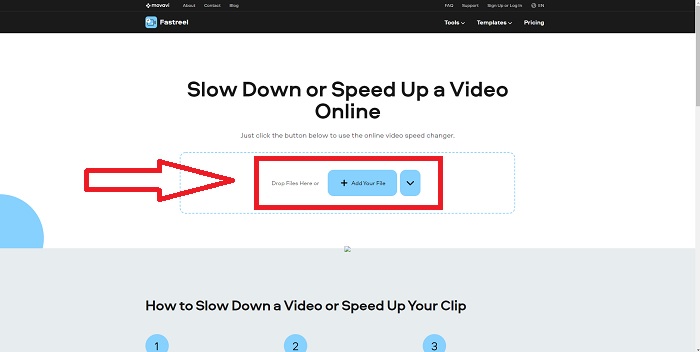
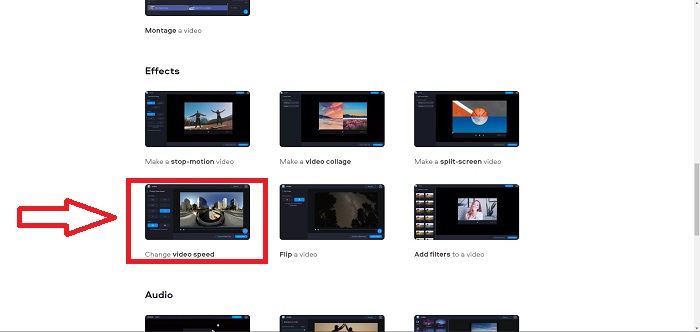
Step 2: After that, you will see the overview of all the features of Fastreel. Scroll down and locate the Effects section and click Change Video Speed to start editing the video clip. Proceed by clicking Add file and continue editing

单击更改视频速度

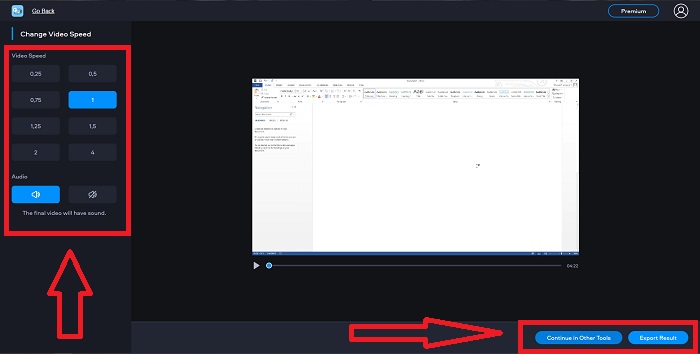
Step 3: Lastly, adjust the playback speed, either increasing or decreasing. You will have the choice if you will export your file or use another tool of Fastreel. However, you can unlock all the other features if you click Premium.

调整速度和导出

方法 3. 使用 Flixier

The following web tool doesn't have any limitation in file size when editing the playback speed because it can speed up a large video online. Try using Flixier, our online video editor that makes videos right in your browser in the simplest way possible. Adding text to videos and images is as easy as dragging and dropping it into the editor. You don't need to download or install any software to trim, cut, or crop videos in a matter of minutes. Regardless of your level of experience, you can quickly produce high-quality content. Introducing the steps below:

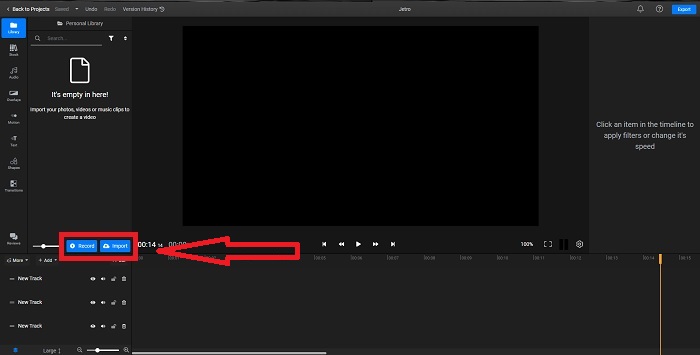
Step 1: Open the Flixier in another tab, and start importing your video clip from your desktop by clicking Import or start recording by clicking Record. Drag the imported video to the track and start editing.

导出或录制文件

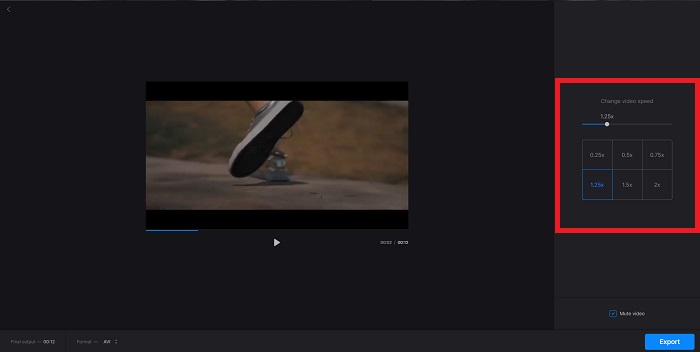
Step 2: At the right corner, you will see the Video tab in editing tools. Scroll down and click Video Speed to adjust the playback speed of the imported video clip. Select if you want to decrease your video in .5x, 1.5x, 2x speed, or you can drag the Slider if you want a specific amount of playback speed you want to apply in your video clip.

选择速度格式

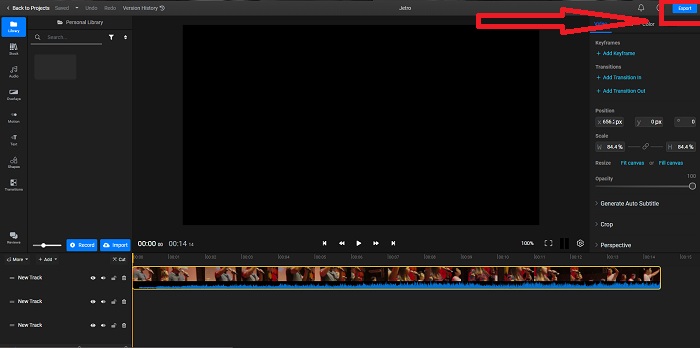
Step 3: Export the clip by clicking the export at the top right corner of the interface. After that, another interface will appear. In this interface, you can rename the exported file and choose different social media and cloud storage.

导出和发布文件

方法 4. 使用 Video Converter Ultimate - 最简单的方法

If you're torn between choosing the best to make the video faster, don't want to use an online web tool editor anymore, and use downloadable software. Try using the Video Converter Ultimate in editing your video and even customizing the playback speed.

Step 1: Click the Free Download option to save the software to your computer's hard drive. After that, you can customize your system by installing and configuring the software.

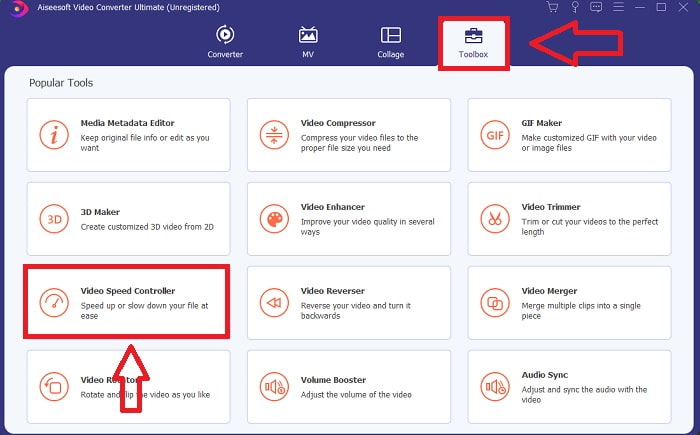
步骤 2: 软件安装完成后,运行它,在菜单栏中选择工具箱(Toolbox),然后在出现的列表中选择视频变速器(Video Speed Controller)

单击工具箱

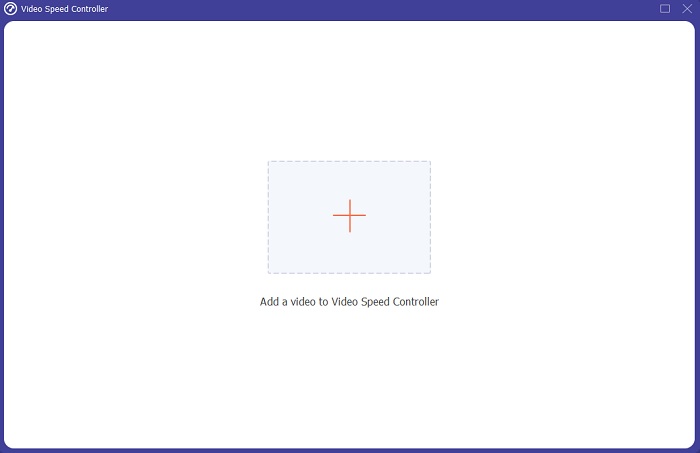
Step 3: Click the + button in your preference to add a file and then continue modifying the video.

在速度控制器中添加文件

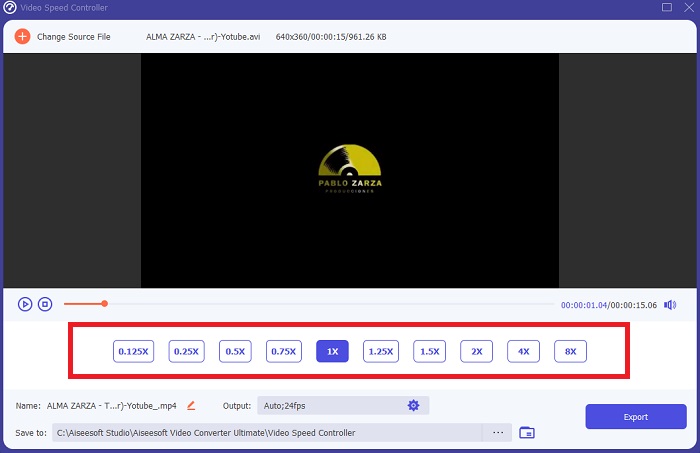
Step 4: Adjust the playback speed by choosing how many times the video speed increases or decreases.

选择播放速度

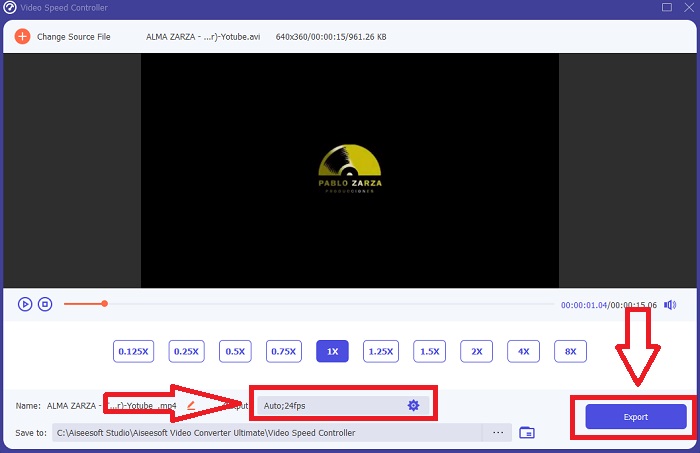
Step 5: If you finish editing the playback speed of your video clip, you can choose what output you want by editing the format, resolution, quality, etc. Click Export and determine where your file is going to save.

编辑格式和导出

相关内容:

Best VOB Player for Android

Best Video Player for iPhone

第 2 部分。 有关如何加速在线视频的常见问题解答

如果提高播放速度,视频的文件大小是否会变小?

每次提高或降低视频的播放速度时,只会分割帧。如果将其提高 0.5 倍,则该帧将是每 1/120 秒 60 帧。简而言之,除非视频已经具有低帧率,否则它不会影响视频。

哪个工具更容易用于制作更快的视频?

所有工具均可免费使用或免费下载。但是,Video Converter Ultimate 是本文前面部分讨论过的每个 Web 工具的最佳替代品。此工具还具有许多可用功能,它可以帮助您以可访问的方式改进视频。

该工具是否接受所有格式?

不,提供的某些工具只能支持有限数量的格式。其中一些可以将输出转换为不同的格式。但是,Video Converter Ultimate 可以支持各种格式,并且也适用于所有设备。它还可以加快在线 mp4 视频的速度,因为大多数媒体播放器都可以支持 mp4 格式。

结论

对于大多数人来说,加速视频可能是一个奇怪的想法,它只会导致一些不寻常的目的。但是,它仍然有利于想要快速转换视频的人。对于在探索编辑视频和回答有关加速视频剪辑的所有问题方面很少见的人来说,这篇文章可能是一篇有用的文章。

优秀的

Rating: 4.5 / 5 (based on 123 votes)