


 視頻轉換大師
 屏幕錄影大師
 影片修復
影片修復
 安全下載
安全下載使用 6 個有效的軟件從照片中刪除對象 [免費]
Millions of photographers, even those who are aspiring, took multiple shots of the scenery of a sunset, beach, tourist spots, moon, and many more. With images, we can express who we indeed are. In a simple snap, you can spark everyone's creativity and their artistic beasts inside themselves. Not every time we capture, we will have a picture-perfect image; sometimes, we need to eliminate a particular object that isn't included in the photo you took. Do you need a tool to remove the object from photos? Here, we will introduce different ways and tools that you can use to remove the unnecessary object on the image you snap instantly.

第 1 部分。使用最佳對象移除器 [Web 服務] 從照片中移除對象
FVC Free Watermark Remover is our first choice to remove objects from photos online for free. With it, you can erase anything that is bothering your perfect image instantly without downloading the software on your desktop, even though you don't have any experience in doing this type of editing. Then you can depend on this tool because you will only need to highlight the object, and it will remove the objects on the image without residues being left. We find this tool amusing and effective in removing unnecessary things on the image; if you want to use this tool, then copy the steps we add below.
Step 1. To open the object and remove the FVC development, you can click this link to the official website.
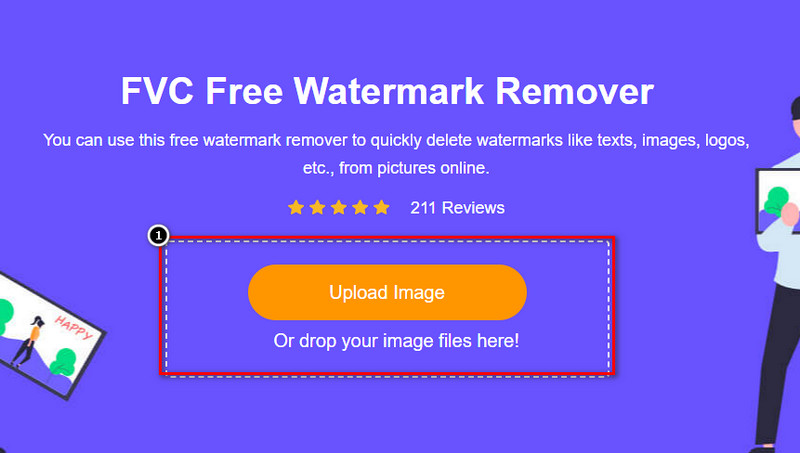
Step 2. Hit the Upload Image to import the photo you capture that has an unnecessary object on it.
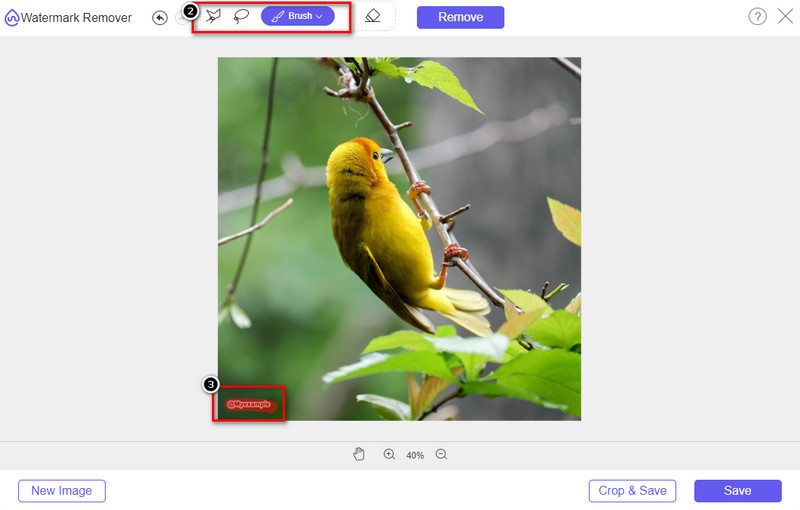
Step 3. With the tools available here, you will need to highlight the object.
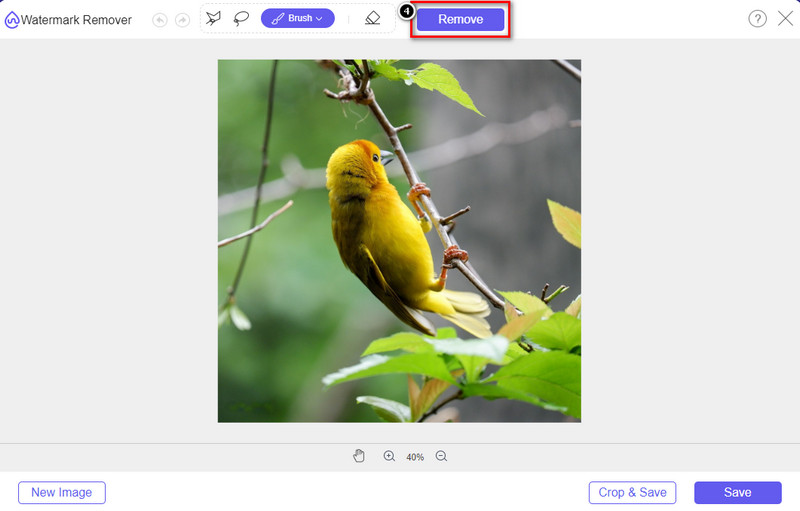
Step 4. Press the Remove button to eliminate the object with the help of the AI tech this tool supports.
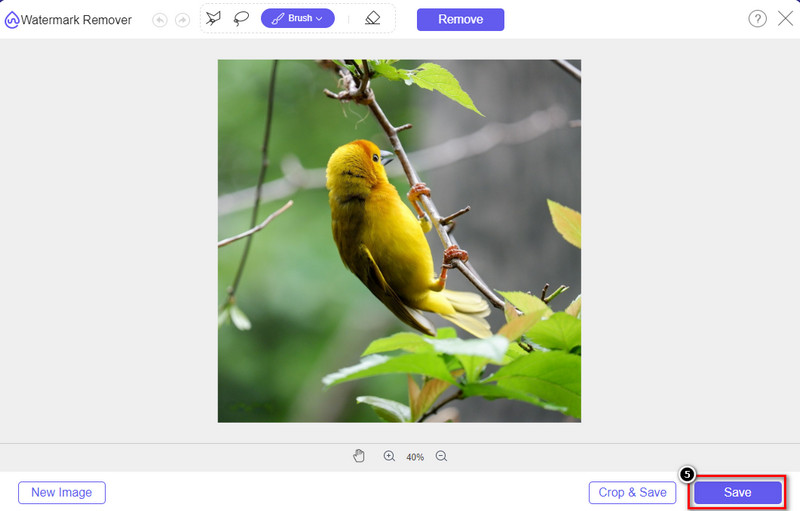
Step 5. To download the perfect image you edited here, click Save.
第 2 部分。使用桌面程序專業地從照片中刪除對象 [Windows 和 Mac]
Photoshop
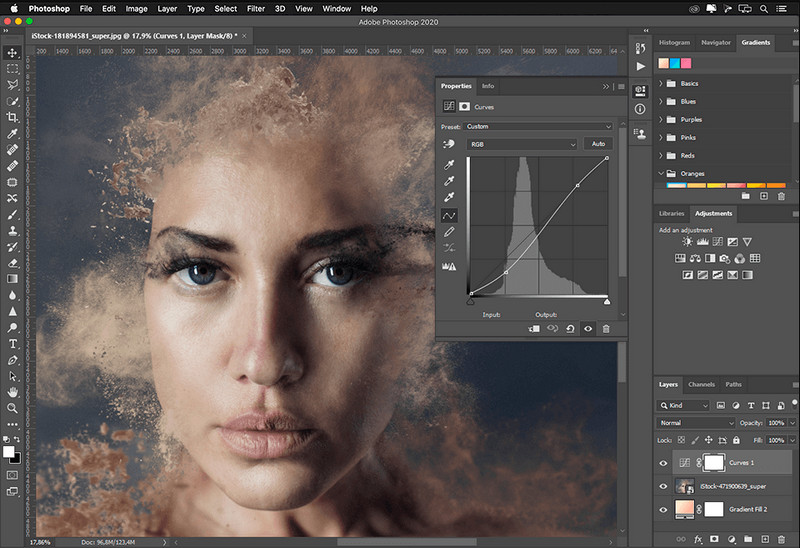
如果您需要專業的工具從照片中刪除對象,那麼 Photoshop 就是您的最佳選擇!該工具是 Adobe 自豪地向我們展示的完整圖像編輯器。沒有什麼能阻止您通過其特性和功能使圖像看起來令人難以置信。由於它在專業人士中的流行,許多初學者嘗試使用該軟件來編輯和創建他們的圖像。因此,如果您想知道如何使用這個專業工具,那麼您可以按照我們在下面添加的教程進行操作。
Step 1. Open the official website of Adobe, then download Photoshop on your desktop.
Step 2. Click the File and press Open to upload the image you need to edit here.
Step 3. On the left section, select the Magic Wand Tool to automatically trace the object you upload on the image.
Step 4. Go to the Edit section and select under it the Content-Aware Fill.
Step 5. After you open it, it will automatically remove the watermark, then click OK.
GIMP
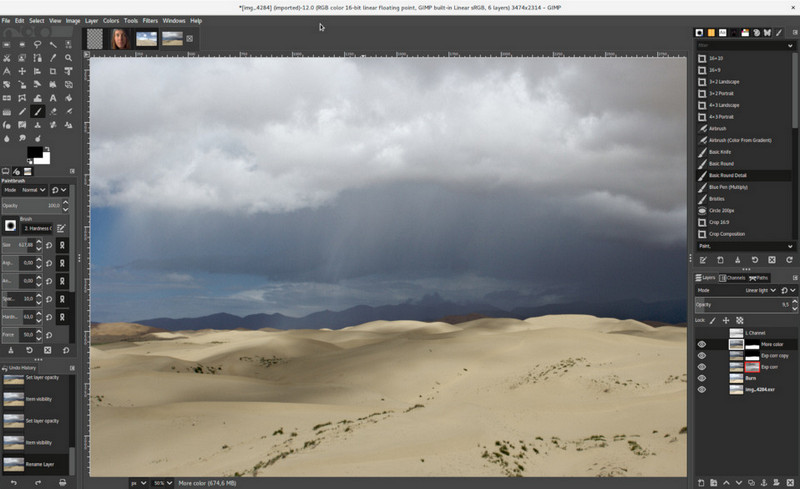
GIMP is a complete image editor you can use to remove objects from photos on Mac, Linux, and Windows for free. It is a reliable tool like Photoshop. Though the tool became the top when discussing alternatives for Adobe Photoshop, this tool is still under active development. With this tool, you can edit your images heavily to make them eye appealing to the audience. Also, you can customize its interface if you want to make the work easier. If you think about downloading this tool for professional editing, we can assure you that you will achieve it. Though it is an open-source editor, the tool must be finalized because its GUI is still under development. So if you want to use this, the steps below will guide you through teaching you to remove an object from the photo on GIMP. The provided steps below will guide you.
Step 1. Download then launch the software so that you can upload the image you need to edit. Also, download its plug-in, the Resythesizer plug-in.
Step 2. On the tool on the left part, select the Free Select and change the mode to Add Current Selection.
Step 3. Draw now to the object you want to remove; after successfully tracing the object, hit Enter on your keyboard.
Step 4. To use the plug-in you've downloaded, go to the Filter, then Enhance, and click Heal Selection.
Step 5. Then a dialogue box will pop up, change the sampling width if necessary, set the sample to all-around, and Filling the Order to random. Press OK to start synthesizing the object inside the image.
Mac 上的照片應用程序
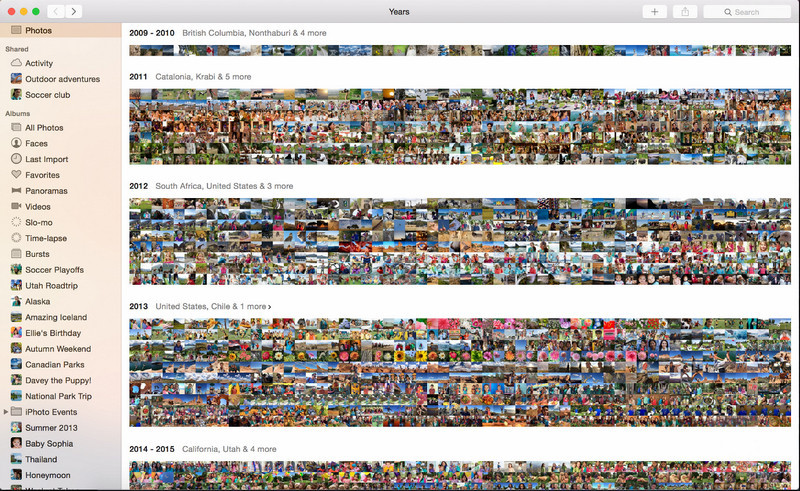
Photo App is a built-in feature on updated Apple products like the Mac. This application is pre-installed, so you can skip the downloading part and use this tool immediately. The software is not an image editor because its purpose is to be a library and a viewer of photos on Mac or iOS devices. Even though you don't have a professional image editor on Mac, you can take advantage of these features to have a professional output with a single click. So, if you want to remove the object from Photo App, you can go to the steps we add and follow them accordingly.
Step 1. Open the Photos App on your Mac and select the image that has an unnecessary object.
Step 2. In the upper right section, click the Edit button to start editing the image.
Step 3. In the right part, you will see the Retouch option; click it to use the function.
Step 4. Click and drag your mouse to the area that you want to remove.
Step 5. Press the Done button to save the changes you apply to the image.
第 3 部分。使用 Android 和 iOS 上的應用程序從照片中刪除對象
Photoshop 修復
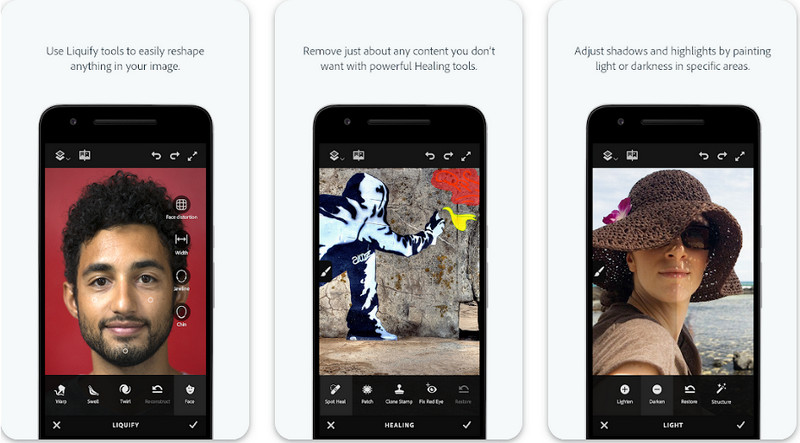
Photoshop FIX is an effective Android app that removes objects from photos that work professionally yet is easy to use. It is an open-source app you can download on your device once you open your PlayStore. Even though the tool is open-source, you can see that its feature on object removal is excellent without a doubt. It is one of the downloaded apps you can find on Android devices to do this job. So, if you want to know how to use this app, proceed by reading the below.
Step 1. Download the app on your Android device.
Step 2. Press the On My Phone to show you all the images in your library. Choose the image you want to edit.
Step 3. To use the object removal of this app, click Healing.
Step 4. Here, you can use two options to remove it. To brush off the object, choose the Spot Heal. But if you want to clone a pixel, you must choose the Clone Stamp. Highlight the watermark with your choice.
Step 5. Save the image to your camera roll, and that's all!
照片潤飾

Photo Retouch is a reliable app to remove the object from the photo on iPhone without trouble. Even though you aren't a veteran at removing the objects on your images, you can remove them effectively. You can download this app on AppStore for free if you want to try using the app. Also, you can remove the background and watermark on the photo you have if you need one to use. If you are ready to use this app to eliminate the object on your image, you can follow the steps we add.
Step 1. Download the official app, then launch it.
Step 2. Click the Photo Eraser, then Photo. Select the image with an unnecessary background you want to remove, and ensure that the image is on the Photos of your iPhone.
Step 3. On the lower part, select the Object Removal option.
Step 4. HUse the brush this app support to trace the object you want to remove and click GO to remove the object.
相關閱讀:
Remove the Dreamstime Watermark
Remove the Picsart Filter Watermark
第 4 部分。有關如何從照片中刪除對象的常見問題解答
為什麼我需要從照片中刪除對象?
有很多次我們捕捉到了一些東西,並且有 Photobombers。對於大多數專業人士來說,這個對像是一個問題,因為它不會突出顯示您捕獲的圖像。因此,您可以閱讀以下理想方法來移除照片上的對象,而不是重新拍攝圖像。
我可以裁剪圖像以刪除對象嗎?
是的你可以。如果您要在照片一側刪除它的對象,那麼您可以嘗試使用內置編輯器裁剪圖像。但是,此選項不是一個選項,尤其是當對象位於您捕獲的圖像的中間部分或附近時。裁剪圖像會剪掉照片,因此如果您想嘗試此選項,最好三思而後行。
為什麼我不能上傳圖片來移除對象?
不能上傳圖片;圖像已損壞,或者圖像擴展名不受支持。如果您的圖像已損壞,有辦法修復它。如果您搜索它們,您可以在網絡上找到它們。通常,它可能是圖像的文件擴展名;要解決此問題,您需要對其進行轉換。
結論
由於我們在本文中使用的工具和應用程序,從照片中刪除對像很容易。那麼,您最喜歡哪種工具呢?我們希望我們添加的本指南可以幫助您輕鬆解決問題。
-
 如何在線將低分辨率圖像轉換為高分辨率圖像
 如果您想學習如何在線將低分辨率圖像轉換為高分辨率圖像,那麼本文適合您。完整閱讀以了解如何操作。
-
 如何去除防拍水印的簡單方法
 按照這些簡單的方法刪除防拍水印。使用這些神奇的水印去除劑輕鬆從圖像中去除防拍水印。
-
 如何輕鬆去除 Bandicam 水印【3 種有效方法】
 如何去除 Bandicam 水印?使用這些工具,我們在這裡添加您將知道如何有效地處理它!
