視頻轉換大師 大盒

多合一視訊工具箱,能夠以超快的速度將視訊/音訊轉換為 1000 多種格式。

免費下載

Login Security安全下載

免費下載

Login Security安全下載

如何免費和付費提高桌面圖像的分辨率

Do you have an interest in capturing high-quality images? Well, you must know that you will need a high PPI or pixels per inch to have fine detail on the image you capture. It can be frustrating if you find that the image you capture doesn't have a high PPI, which could lead to a poor quality image when you print or share on the web. Luckily, there are ways you can do to make the image have a higher PPI. The tools we include here prove that they can increase the pixels of your image to turn them into a high-quality output. Keep on reading this post as we introduce and show a tutorial on how to increase the resolution of images to achieve the best image output.

提高圖像分辨率

第 1 部分。如何免費在線提高圖像的分辨率 [可在任何 Web 瀏覽器上訪問]

FVC 免費圖像放大

FVC Free Image Upscaler can be the one you'll need to know how to increase the photo resolution easily and for free. This online tool doesn't upscale your image thru the resampling method. Still, it uses an automatic enhancer to detect the blurred parts of your images. If the image you upload lost pixels, this tool could aid the problem by producing new pixels for the image to make them high quality. After upscaling the image, you can see the difference between the before and after. So, if you want to know how to aid this problem with this tool, you can copy the easy steps we add to upscale the image.

How to Upscale an Image with the FVC Free Image Upscaler:

Step 1. You can tick this link to open the main website of the FVC, where you can start upscaling the image.

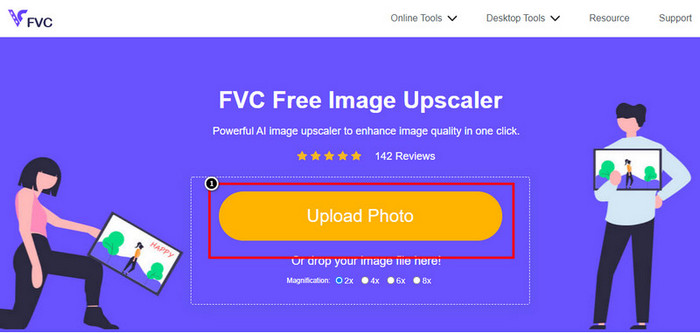
Step 2. On the main website, click the Upload Image to import the image you want to increase the resolution.

將照片上傳到高檔

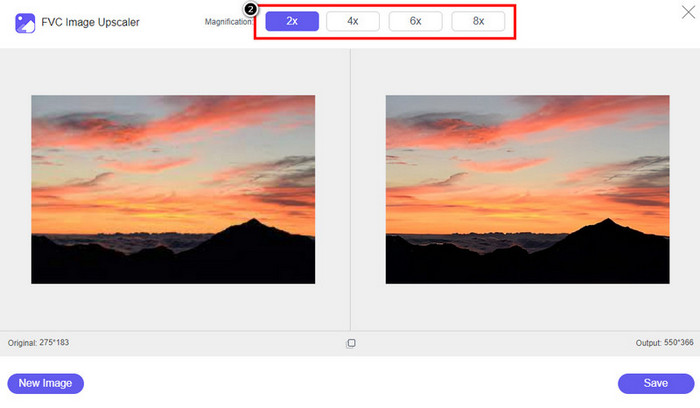
Step 3. After uploading, two columns will show on your screen: the original image and the upscaled version. Choose what Magnification you want to apply to the image to upscale it.

選擇高檔申請

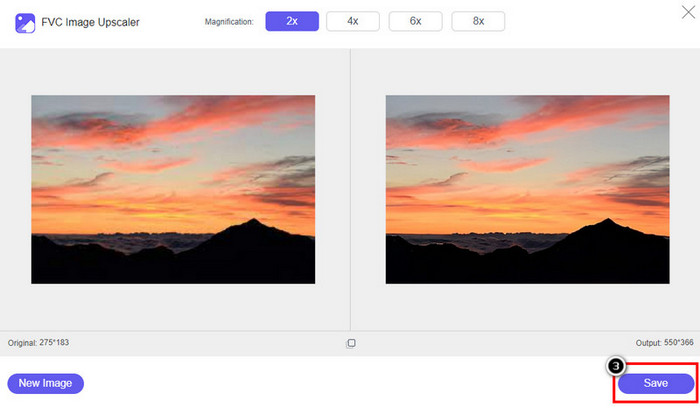
Step 4. Press Save to download the final output on your local drive; as easy as that, you have finished upscaling the image.

下載高檔圖片

圖像放大

圖像放大

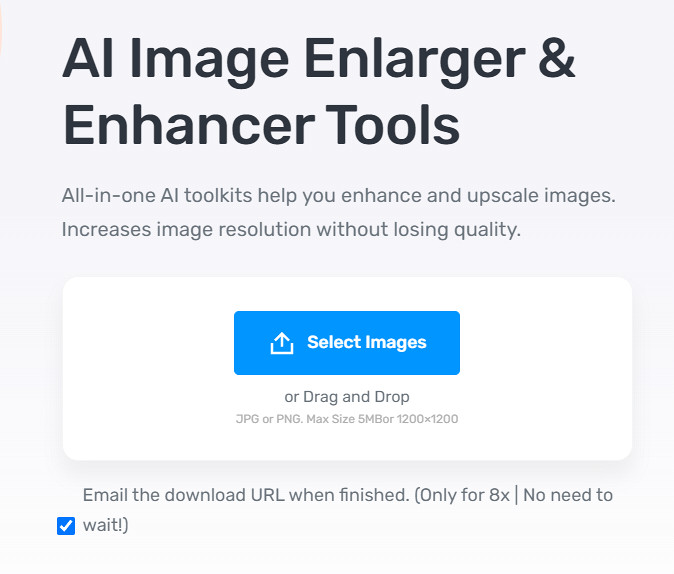
Image Enlarger can lead you on how to increase the resolution of an image on the web. This tool still uses the traditional resampling method, which works well for multiple images. Here, you can upload images in JPG, PNG, GIF, and BMP format with a max dimension of 4100 x 4100 with a 5 MB file size or lesser. However, there is no preview here to see the image's appearance after you increase the resolution. Though it could be a problem for many because we wonder what the image would look like. Nevertheless, this online tool has already proven itself to other users. Now is the right time to prove that it can be a good choice for upscaling by following the included steps.

How to Enhance a Photo with the Image Enlarger:

Step 1. Open the official website of this image enhancer on your browser.

Step 2. Click Choose File to upload the image you want to upscale; you can also enter the URL here to upload the image if you want.

Step 3. Change the target width and height number according to your preference to upscale the image. Add the correct measurement you want to achieve to get the perfect dimension for the image.

Step 4. Press the Start button to upscale the image you upload earlier.

Picverse

PICVERSE

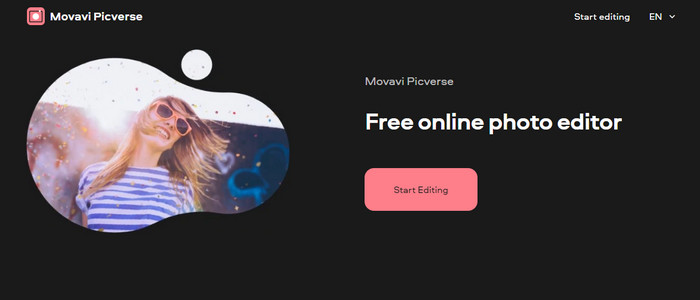
Picverse is a Movavi-supported tool you can use to increase photo resolution online for free. This tool uses an essential image editing feature that can correct the color of the images to make them look better. However, this tool doesn't reproduce new pixels to increase the resolution of the image you upload here. But the impact you can make to your image if you edit it here is excellent compared to other image editors you can use on the web. Overall, you can experience a mini-professional editor if you try to use this software. Want to know how to do it? You can follow the steps we add with this tool.

How to Make High-Resolution Images with the Picverse:

Step 1. Visit the official website, and click the Upload Image to load up the image you want to enhance the quality.

Step 2. Now that the images you want to improve are here, you can start improving the image by adjusting these settings.

Additional: If you want to apply an effect to your image, you can select the effects option and choose the effect you want that is available here. Also, you can adjust the strength of each effect according to your preference.

Step 3. To apply all the changes to the image, click the Save button.

第 2 部分。 如何在 Windows 和 macOS 上離線製作高分辨率圖像 [付費和免費版]

Adobe Photoshop
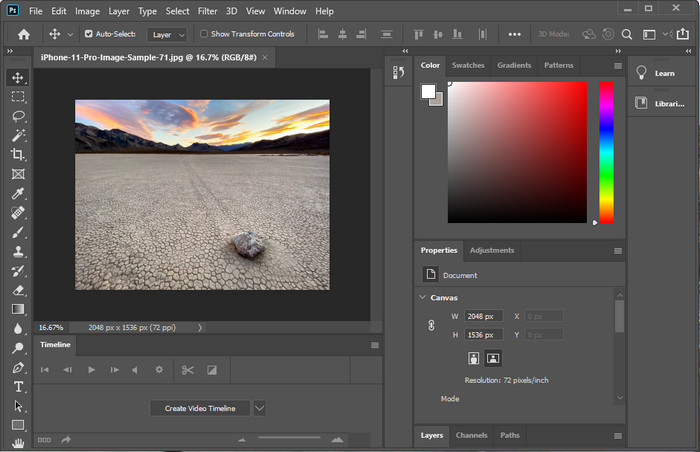
Adobe Photoshop FVC

我們不應該忘記 Adobe Photo,因為它是專業工具;你必須知道如何製作更高分辨率的照片。該軟件可以為圖像添加像素,因此其分辨率將成為最佳,這對我們來說並不新鮮。借助其自動化功能,您可以在增強圖像後為圖像添加更多像素。即使您在此處調整圖像大小,它也有一個功能可以幫助您放大圖像而不會拉伸它們。但在使用這款專業工具之前,您需要在 Adobe 官網購買。假設你沒有錢購買它。在這種情況下,您可以嘗試使用免費試用版來體驗這個工具的專業程度。如果您已在桌面上下載了此軟件,則可以按照我們在下面添加的步驟在此處升級圖像。

How to Make a Picture Higher Resolution with the Adobe Photoshop:

Step 1. Upload the image you want to increase the resolution here by clicking the File.

Step 2. On the upper toolbar, click Image and press Image Size to increase your image's resolution.

Step 3. In the dialog box, input the measurement you want to achieve and press OK to apply it.

Step 4. Open the File and click Save. Another dialog box will show where you can manipulate the image quality and save it.

GIMP

GIMP

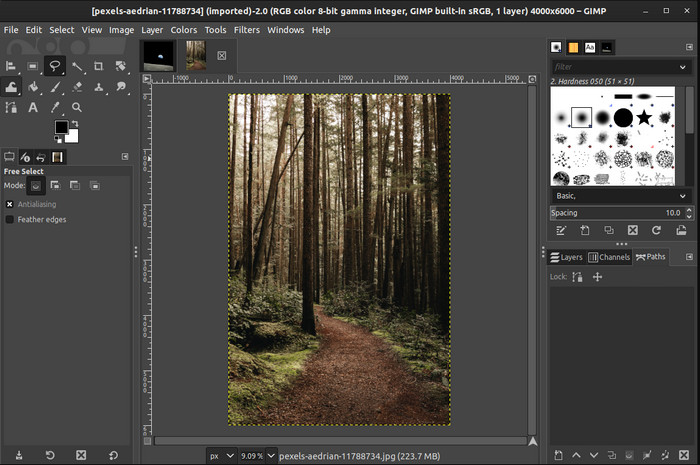
GIMP is an alternative to Photoshop you can download and help you convert low-resolution photos to high. It became a known alternative to Photoshop because of how good this editor does to the image you have, but Photoshop has more tools. With it, you can easily handle increasing the resolution of the image on Windows or Mac by downloading it. As we said, the tool is similar to the Adobe image editor; its complexity is far beyond what a newbie can handle. But if you follow the guideline we add here; you can use the software and then adjust the image you have with GIMP.

How to Increase Resolution of a Photo with GIMP:

Step 1. Download the software on your device, follow the installation process, and launch it if everything is settled.

Step 2. Go to File and click Open to upload the image you want to increase the resolution.

Step 3. Open the Image menu and select Scale Image to start scaling the image with the GIMP.

Step 4. After clicking the Scale Image, a set of options will show where you can manipulate the image resolution. Adjust the value of each to increase the image’s resolution.

Step 5. Press the Scale button to save the value you add on each.

第 3 部分。關於如何提高圖像分辨率的常見問題解答

GIMP 或 Photoshop 哪個更好,可以提高圖像分辨率?

GIMP 和 Adobe Photoshop 是一流的軟件,它們具有幾乎可以在設備上下載的水平圖像編輯器。但是,在提高圖像分辨率方面,Photoshop 要好得多。

是否下載提高圖像分辨率所需的軟件?

當您沒有互聯網並想要提高分辨率時,下載軟件會變得很方便,但如果您有良好的互聯網,我們強烈建議您使用網絡工具。與 FVC Free Image Upscaler 一樣,此工具是一款可靠的圖像升級器,您無需下載任何文件即可在 Web 上訪問。

升級圖像是否具有挑戰性?

有些人因為他們的工具而覺得這個挑戰很麻煩,但在這裡我們為您提供一切更方便。閱讀本文後,您現在對如何更直接地處理此問題有了廣泛的了解。

結論

那麼,由於它的好處,您認為您會使用哪個軟件?要在線或離線提高照片分辨率,您需要軟件和如何使用它們的教程;這就是我們在本文中添加的內容。您可以選擇您認為最適合您的選項,然後按照我們添加的步驟輕鬆處理此問題。

優秀的

評分:4.9 / 5(基於 199 票)