


 視頻轉換大師
 屏幕錄影大師
 影片修復
影片修復
 安全下載
安全下載如何使用 3 種有效方法在 iPhone 上調整圖像大小 [免費]
並非你在網路上儲存在 iPhone 裡的所有圖片,都能因為長寬比例與尺寸的關係,而完美符合當作桌布或主畫面。有時候當你使用尺寸不合的照片作為桌布或主畫面時,畫面會變得模糊,兩側還會出現黑邊,而不是剛好填滿螢幕,很麻煩對吧?幸好,你可以在 App Store 下載照片調整工具、使用「捷徑」App,或善用內建的圖片編輯器。若想要快速在 iPhone 上調整照片尺寸,不妨花幾分鐘讀完這篇文章,更了解操作方式,順利解決裝置上的尺寸問題。

第 1 部分。如何在 iPhone 上調整圖像大小的 3 種有效方法 [可下載和內置]
使用快捷方式[內置]
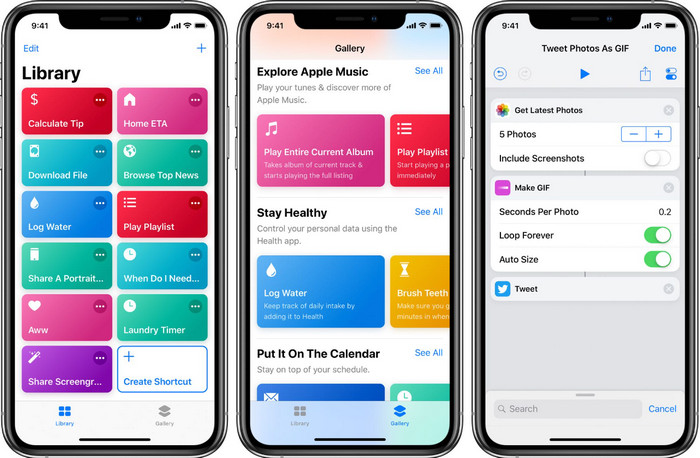
捷徑(Shortcut)讓 iOS 使用者可以建立許多進階功能可供使用,例如調整本機檔案中圖片的尺寸。所有 iOS 13 以上版本都預先安裝了這款 App。由於這款應用程式推出時間較新,舊版 iOS 並沒有這類功能完整的 App,但你可以在 iPhone 或 iPad 的 App Store 免費下載。要教你如何用它來在 iPhone 上調整圖片大小,可以依照下列步驟操作。
步驟一: 在 iPhone 上打開捷徑 App,然後點選上方的加號按鈕,新增一個用來調整尺寸的捷徑。
步驟二: 點選三條線的點點圖示,接著替這個捷徑命名;例如你可以命名為「Resizing Photo」。開啟 顯示於分享表單,日後只要你分享圖片,若選擇這個捷徑,就會自動幫你調整尺寸。
步驟三: 在分享表單的類型中,將「Anything」取消勾選,只保留圖片(Images)。然後點選完成以儲存你設定好的內容。
步驟四: 在使用這個功能之前,你需要先按加號圖示,選擇媒體(Media),再按調整圖片大小(Resize Image)。你可以依需求設定長邊或短邊的數值,設定好後按「完成」儲存。往後每次分享圖片時,你都可以選擇使用這個捷徑來自動調整尺寸。
使用照片應用程序 [內置]
另一個在任何 iPhone 版本上都能免費使用的內建 App 是相片 App。多年來,它一直是每位 iPhone 使用者可靠的影像編輯與強化工具,如果不提到它就不算完整。有些人知道這個 App 如何調整尺寸,有些人則不清楚。因此,對於還不知道如何在 iPhone 上調整照片尺寸的使用者,這份教學可以幫上忙。
步驟一: 打開相片 App,點選你想要調整尺寸的照片。
步驟二: 選好要調整的圖片後,點選編輯。
步驟三: 點選右上角的裁切圖示,再點選方格狀按鈕。
步驟四: 畫面中會出現多種不同的長寬比預設供你選擇,選好後點選完成以儲存變更。
使用圖像尺寸 [可下載]
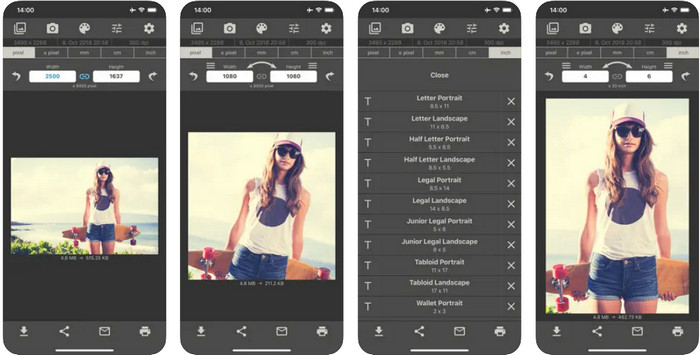
Image Size 是一款第三方 App,你可以在 iOS 上下載並使用它,輕鬆調整適合 iPhone 桌布的照片尺寸。和前面介紹的兩種方式不同,你必須先在 App Store 下載這款 App 才能使用。它並不是 iOS 內建程式,但大多數 iOS 版本都可立即下載。由於這款 App 免費下載與使用,在操作過程中會出現多個彈出式廣告。如果你不介意廣告,就可以繼續閱讀以下步驟,學習如何在 iPhone 上使用這款照片尺寸調整 App。
步驟一: 在你的 iOS 裝置上安裝這款照片調整工具,然後打開它。
步驟二: 點選圖片圖示,匯入你想要由此 App 調整尺寸的圖片。
步驟三: 在上方你會看到目前套用在圖片上的尺寸數值,將其修改為你偏好的高度與寬度。
步驟四: 點選下載按鈕,即可儲存你調整過尺寸的圖片。
第 2 部分。在線調整圖像大小的最佳方法,無需廣告或安裝過程
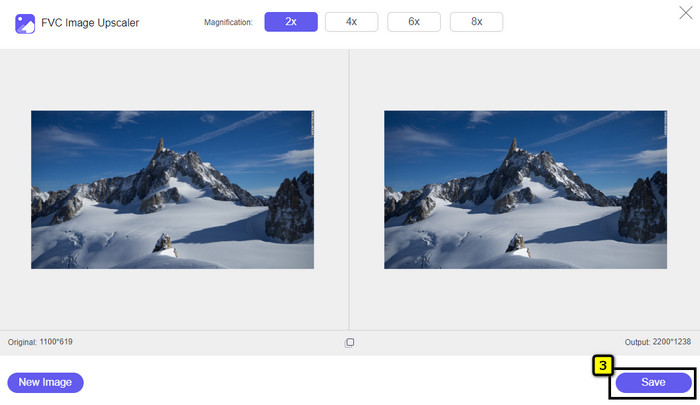
使用FVC 免費圖片放大器(Free Image Upscaler),你可以在 AI 的協助下,自動輕鬆變更每張圖片的尺寸。你不需要具備長期的尺寸調整經驗,也能透過這個工具完成。數百萬使用者藉由此工具一次調整尺寸、放大、增強與提升圖片品質。更棒的是,這個工具完全免費使用。是不是很令人驚艷?的確如此。這款工具為你提供一個多合一的編輯器。若想用它來調整照片尺寸,可依照下方步驟操作。
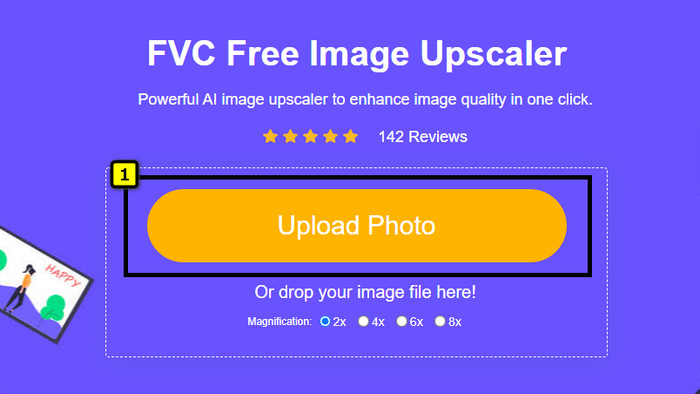
步驟一: 點擊這個連結開啟網頁工具,畫面上會跳出一個新分頁。
步驟二: 若要加入你想調整尺寸的圖片,請點選新增圖片(Add Image)。在隨即顯示的檔案夾中尋找圖片,接著按開啟(Open)將它匯入。
步驟三: 這個工具會載入你上傳的圖片,然後選擇你想套用在圖片上的放大倍率。系統會自動將你的照片調整成新的尺寸。
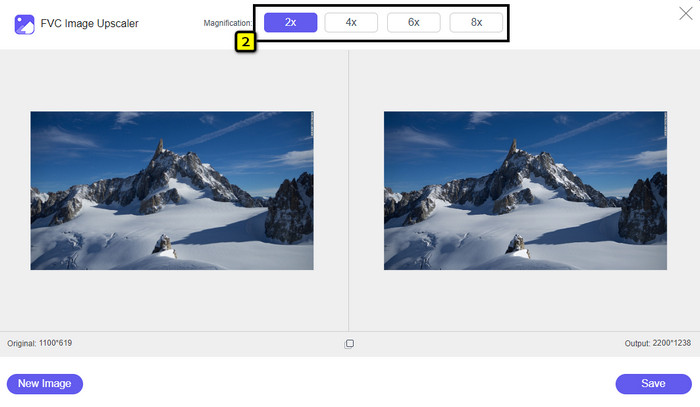
步驟四: 當你完成所有調整後,按下儲存(Save),即可將調整後的版本下載到本機。
第 3 部分。有關如何在 iPhone 上調整圖像大小的常見問題解答
在 iPhone 上用作壁紙的最佳尺寸是多少?
對於 iPhone SE、6、6 plus、7、7 plus、8、8 plus 的用戶,用作壁紙的圖像的標準尺寸必須介於 1136 x 640 和 1920 x 1080 像素之間。它是您想在 iPhone 設備上用作牆紙的圖像的標準長度和高度。但對於使用 iPhone XR、11 和 13 的用戶,您現在可以使用 828 x 1792 或大至 3073 x 1420 像素作為顯示尺寸。
在 iPhone 上裁剪而不是調整圖像大小的缺點是什麼?
裁剪圖像時,您會看到它會切掉它的尺寸。是的,圖像大小會改變,但它的整體外觀與調整大小不同。在調整大小時,您可以自由更改圖像的高度和長度,而無需削減邊緣或某種形式。因此,如果您想將照片用作壁紙並使其適合,您最好調整它的大小而不是在 iPhone 上裁剪它。
為什麼在 iPhone 上調整大小後圖像變大變得模糊?
因為我們在本文中介紹的這些應用程序和方法不會創建 PPI,它們會在您的 iPhone 上拉伸調整大小的圖像。因此,如果您不喜歡遇到此類問題,那麼當您在 iPhone 上調整圖像大小時,您必須使用我們在此處提供的在線工具來創建 PPI。
結論
你可以依賴我們在 iPhone 上所找到、能幫助你輕鬆在 iPhone 上調整照片尺寸的這些工具。即使不下載額外 App,你也能使用裝置內建的應用程式。如果你想調整得更精準,可以安裝並使用我們上面提到的 App;若你希望在調整尺寸的同時不影響畫質,則可以使用我們推薦的線上工具。請繼續閱讀第 2 部分,我們還有更詳細的使用教學。
-
 5 個可在所有平台上使用的最佳 GIF Resizer [2022]
 想知道您可以使用的 GIF 大小調整器嗎?在這種情況下,下面提供的信息將討論您可以在所有平台上的 GIF 上使用的大小調整器。
-
 如何調整圖像大小 - Adobe 調整圖像大小 [在線和離線]
 如果您正在搜索 Adobe 調整圖像大小,那麼我們可以為您提供解決方案。徹底查看這篇文章,了解如何在您的 PC 上使用 Adobe 調整圖像大小。
-
 如何為 Facebook 調整照片大小 [快速簡單的步驟]
 如果您在 Facebook 上傳大尺寸圖片時遇到問題,我們可以為您提供解決方案。完成本文以了解如何為 Facebook 調整照片大小。
