視頻轉換大師 大盒

多合一視訊工具箱,能夠以超快的速度將視訊/音訊轉換為 1000 多種格式。

免費下載

Login Security安全下載

免費下載

Login Security安全下載

從您必須嘗試的 Camtasia 9 中刪除水印的好方法

If you are looking for the simple and best way to remove the watermark in Camtasia 9, this is the best place. There are many excellent videos that we want to watch. However, some of them have a large watermark, making them more irritating and unable to appreciate the content of the video itself. Moreover, with these unnecessary objects, there are some parts of the video that you can’t see, which makes the viewers more disappointed. Luckily, there are some software applications with watermark removers you can use to remove watermarks on your videos so you can enjoy watching your favorite movies without disturbance. If you want to learn more about quickly removing watermarks on your videos, read this article from beginning to end.

從 Camastasia 去除水印

第 1 部分:從 Camtasia 中刪除水印的最佳方法

使用 Video Converter Ultimate

If you are looking for a great and reliable application with watermark remover tools, Video Converter Ultimate is an excellent software you can utilize. You can remove watermarks on your videos using this application. You can also use this application if your video has watermarks from other apps like Camtasia. Furthermore, it is easy to use and simple, which is suitable for beginners. In addition, it has different editing tools you can enjoy, like Video Compressor, Video Enhancer, Video Trimmer, Audio Compressor, Video Reverser, Video Rotator, and more. This article will show two ways to remove watermarks on your videos using Video Converter Ultimate.

1.使用視頻水印去除器

Step 1: Download the Video Converter Ultimate on your desktop. Then proceed to the installation process.

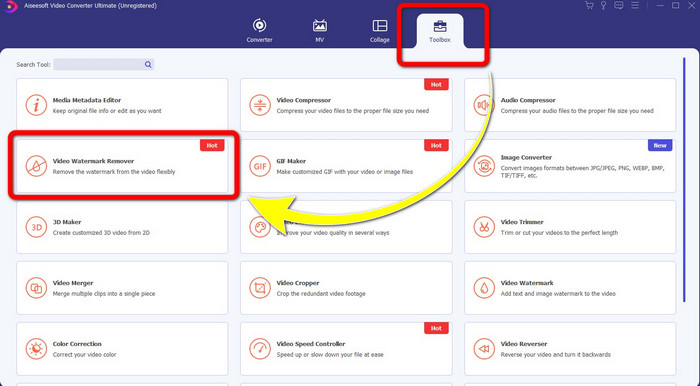
Step 2: When the installation is done. Open the application and go to Toolbox > Video Watermark Remover. Then, another interface will appear on your screen.

工具箱

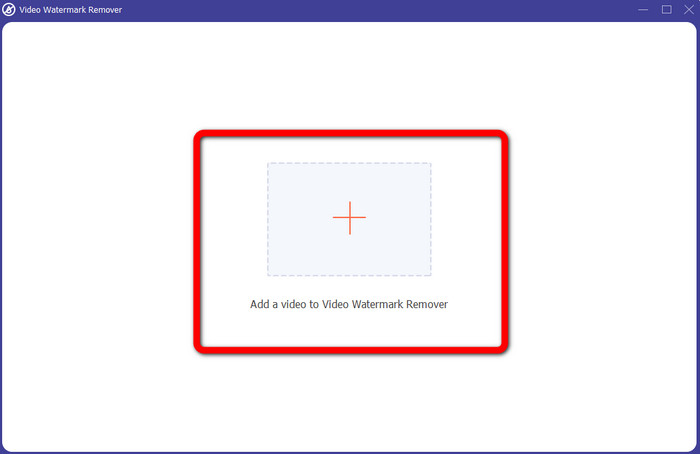
Step 3: When another interface has already shown up, click the Plus sign button and add the video with the watermark.

加號

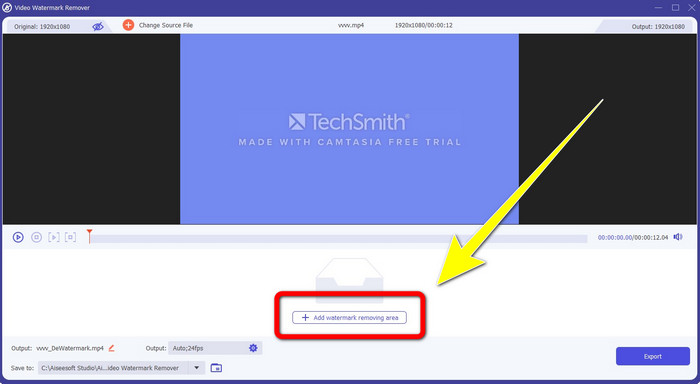
Step 4: After adding your video with a watermark, click Add Watermark Removing Area.

添加去水印區域

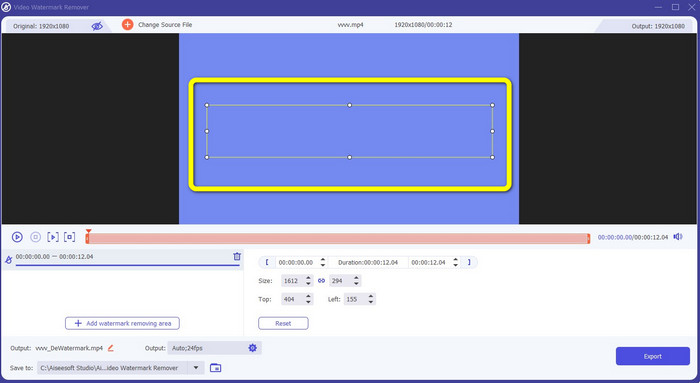
Step 5: There will be a box-shaped screen that will show on your screen. Use the box to cover the watermark on your video.

盒子

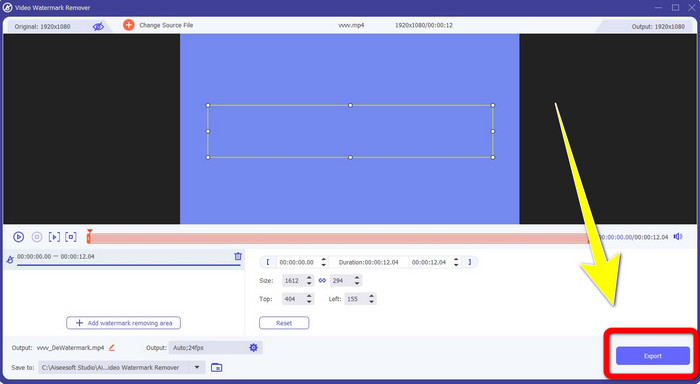
Step 6: When the watermark has been covered, the watermarks will be gone on your video. Click Export to save your video. This way, you can now remove the video with a watermark from Camtasia.

出口

2.使用裁剪功能

Another way you can try is the cropping features of Video Converter Ultimate. It is one of the easiest ways to remove watermarks on your videos, especially if the watermark is only at the corner or edge of your videos. By cropping your videos, you can instantly efface the unnecessary objects on your video. Follow these simple steps to remove watermarks using a cropping tool.

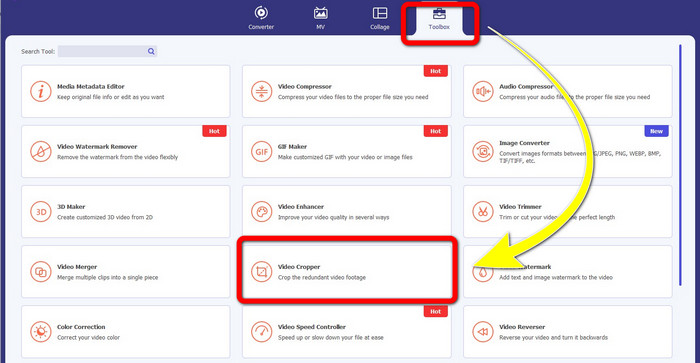
Step 1: Open the Video Converter Ultimate. Click Toolbox > Video Cropper. Then, another interface will appear on your screen.

工具箱裁剪器

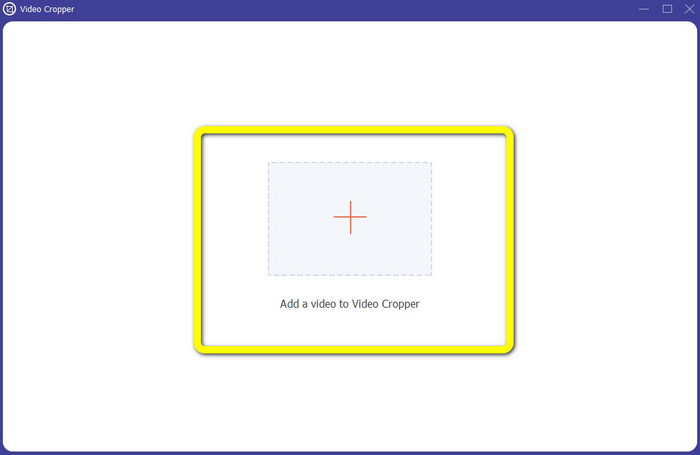
Step 2: Click the Plus sign button and add your video with a watermark you want to remove.

加號按鈕

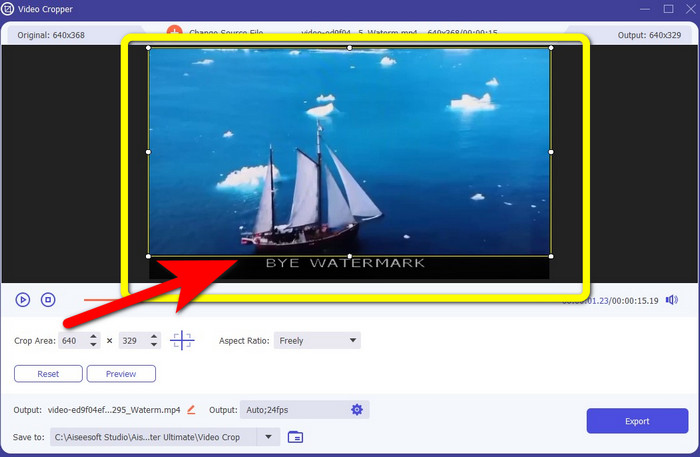
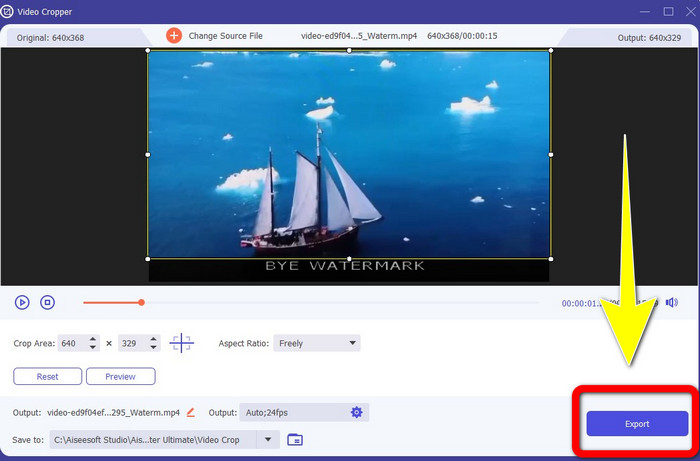
Step 3: When you have already attached your video with a watermark, you can now crop the edge of your video to the area of watermarks. This way, you can remove the watermarks.

莊稼

Step 4: If you have already cropped your video and saw that the watermark is gone, click Export to save your edited video. Now, you can enjoy watching your video without any watermarks on your screen.

導出保存

第 2 部分:如何在 Camtasia 中製作無水印視頻

Do you desire to learn how to produce a Camtasia video without watermarks? First, let’s define what Camtasia is. Camtasia is a simple and helpful editing tool you can use. Moreover, it is also a screen recording software you can have. In addition, it has various editing features that you can enjoy, such as annotations, transitions, animations, audio effects, video effects, and more. Also, you can make a slideshow on this application.

借助此應用程序,您可以使您的視頻對觀眾更具吸引力和獨特性。在 Camtasia 中,您可以製作您可以欣賞的精美視頻。但是,除非您購買該應用程序,否則該應用程序在您導出視頻後會有水印。按照這些簡單的步驟學習此應用程序中的許多東西,尤其是在 Camtasia 中創建視頻。

借助此應用程序,您可以使您的視頻對觀眾更具吸引力和獨特性。在 Camtasia 中,您可以製作您可以欣賞的精美視頻。但是,除非您購買該應用程序,否則該應用程序在您導出視頻後會有水印。按照這些簡單的步驟學習此應用程序中的許多東西,尤其是在 Camtasia 中創建視頻。

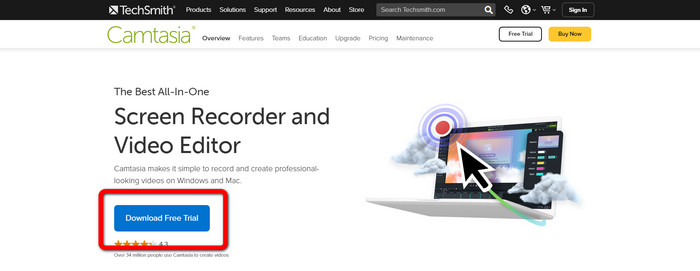
Step 1: You have to download Camtasia on your Windows. Click the Download Free Trial button to get the application. Then, open the application after the installation process.

免費下載

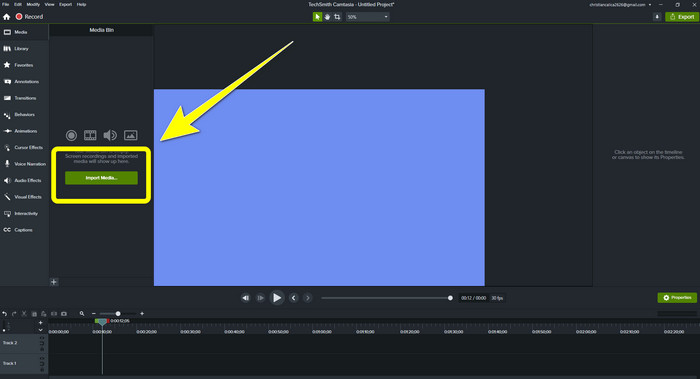
Step 2: After launching the application, click the Import Media button to add the file you want to edit.

進口

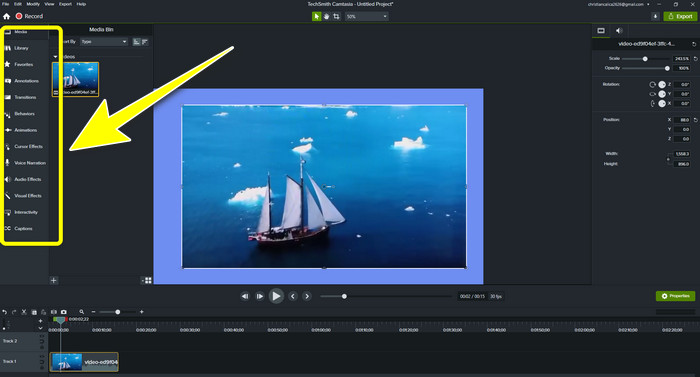
Step 3: You can now edit your files in this application using editing tools, such as adding captions, transitions, animations, annotations, behaviors, and more.

編輯工具

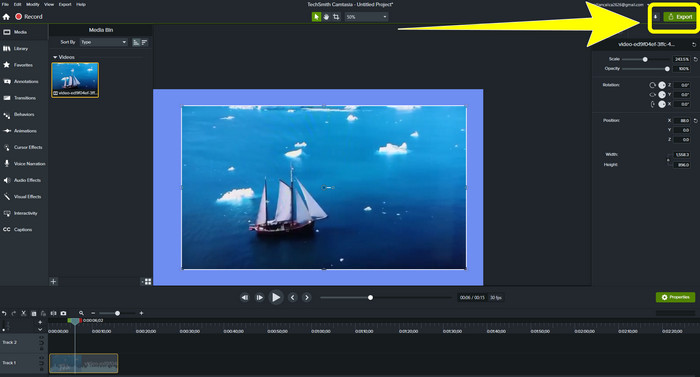
Step 4: If you are done and satisfied with editing your videos, you can now click the Export > Local File button to save your output.

導出按鈕

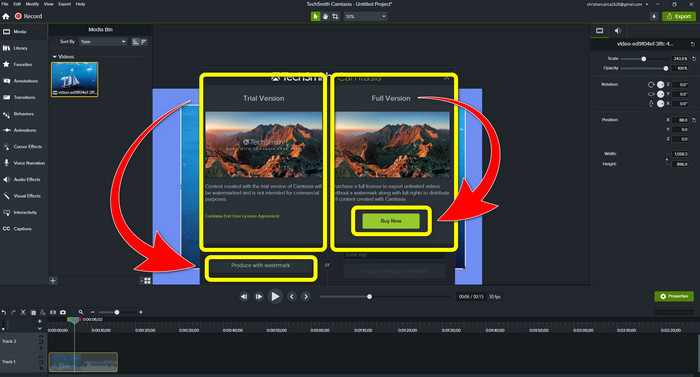
Step 5: After clicking Export > Local File Button, another interface will appear. If you want to purchase the application, click the Buy button to produce a video in Camtasia without a watermark. However, if you only use a free trial version, your video will have a watermark after exporting and saving.

試用版

相關內容:

如何免費從你的影片或專案中移除 Filmora 浮水印

Quickest Trick to Remove the Adobe Stock Watermark From a Video [ Tutorial ]

第 3 部分:有關去除水印的常見問題解答

我可以在我的 Mac 上使用出色的水印去除器嗎?

Definitely, Yes! You can use applications with watermark removers like Video Converter Ultimate. It is capable of removing watermarks on your videos. In addition, this application is accessible on both Windows and Mac, which makes it more convenient.

有什麼方法可以去除照片上的水印嗎?

絕對沒錯!您可以使用設備上的許多應用程序來去除照片中的水印。您需要做的最好的事情是在瀏覽器中搜索水印去除工具,然後在結果頁面上查找前 10 個結果。

我可以使用手機去除水印嗎?

是的你可以!一些帶有水印去除器的應用程序現在可以在 Mac 和 Windows 以及手機(如 Android 手機和 iPhone)上訪問。

如何使用裁剪工具去除水印?

使用裁剪工具去除照片或視頻上的水印是小菜一碟,尤其是當水印位於圖片邊緣時。您需要做的就是裁剪它,消除水印,然後就完成了。

結論

As you can see, this article shows the best ways to remove the watermark from Camtasia 9. Also, it provides an excellent and reliable application with two methods to remove unnecessary objects from your videos. This application is the Video Converter Ultimate.

優秀的

評分:4.9 / 5(共 343 票)