


 視頻轉換大師
 屏幕錄影大師
 影片修復
影片修復
 安全下載
安全下載將 MP3 轉換為 OGG 以獲得更小的文件大小和卓越的音質
在過去的幾年中,將 MP3 轉換為 OGG 因其帶來的好處而變得越來越流行。儘管 MP3 文件非常流行,但通常會犧牲音質來使文件變小。這意味著細節和清晰度會丟失。另一方面,OGG 文件具有更好的音質和更小的文件大小。這使它們成為希望充分利用音樂庫的人們的絕佳選擇。
An MP3 to OGG converter is needed to change MP3 files to OGG. Users can easily change their MP3 files to OGG format by using a converter. This gives them better sound quality without having to reduce the file size. In this day and age of high-quality audio streaming, any music lover who wants to improve their listening experience needs an MP3 to OGG converter.

第 1 部分。 將 MP3 轉換為 OGG 的最佳方式
FVC Video Converter Ultimate is a versatile software tool that allows users to convert video and audio files in various formats. Among its many capabilities, FVC is an excellent MP3 to OGG converter, allowing users to easily transform their music from MP3 to OGG format with just a few clicks.
此外,它還允許用戶調整輸出質量,以在音質和文件大小之間取得完美平衡,確保他們的音樂無論在哪裡播放都聽起來很棒。無論您是音樂愛好者還是只想優化您的音頻收藏,FVC Video Converter Ultimate 都是滿足您所有轉換需求的絕佳選擇。立即嘗試,親身體驗音質的不同。
Step 1. Get the app and add MP3 files
Download and install FVC Free Video Converter from the official website. Launch the program and click on the Plus sign button to import the MP3 file that you want to convert.
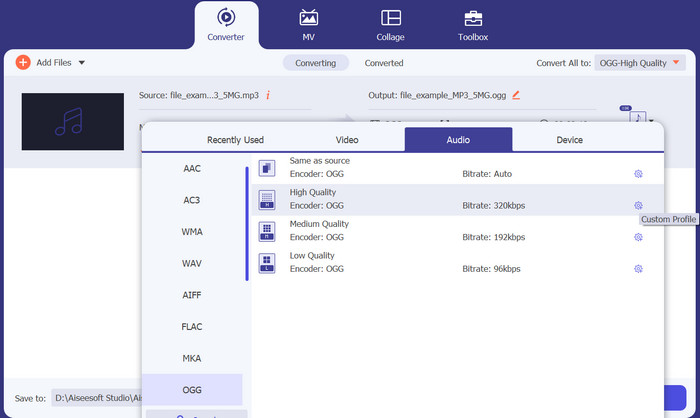
Step 2. Choose OGG as the output format
Select OGG as the output format by clicking on the Profile dropdown menu and choosing OGG from the list of available formats. If needed, you can also adjust the output settings by clicking on the Settings button. This will allow you to customize parameters such as bit rate, sample rate, and channels.
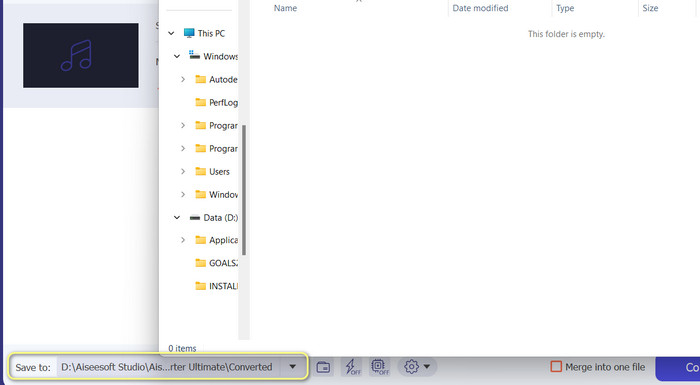
Step 3. Specify the output destination
Choose the output folder where you want to save the converted file by clicking the Browse button next to the Output Folder field.
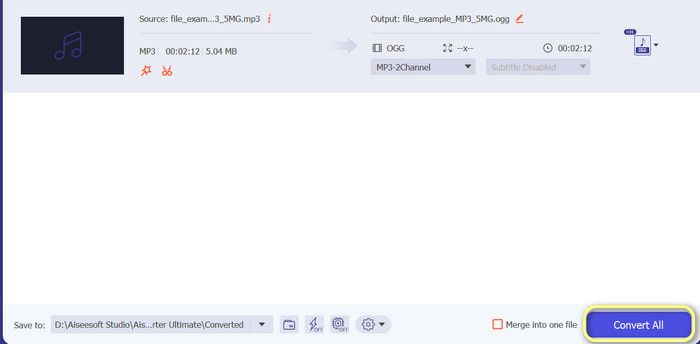
Step 4. Convert MP3 to OGG files
Once you're satisfied with your settings, hit the Convert All button to begin the conversion process.FVC Free Video Converter will begin converting your MP3 file to OGG format. The progress bar will show you how far along the conversion process is, and you can also see an estimated time remaining.
優點
- 自定義音頻輸出設置。
- 轉換速度快。
- 它提供了許多實用程序來滿足不同的需求。
缺點
- 為免費用戶提供有限的功能。
- 它可能需要一些更高的計算機資源來進行硬件加速。
第 2 部分。如何使用免費音頻轉換器將 MP3 轉換為 OGG
123apps 在線音頻轉換器是一款功能強大的工具,可以輕鬆在線將 MP3 轉換為 OGG。憑藉其易於使用的界面,用戶可以快速添加 MP3 文件並選擇將其轉換為 OGG 格式。該轉換器還允許用戶更改輸出設置,例如比特率和採樣率,以獲得他們想要的 OGG 文件的質量。轉換過程快速簡單,用戶可以直接從網站上獲取更改後的文件。最重要的是,在線音頻轉換器適用於許多不同的音頻文件,這使其成為需要以不同方式轉換音頻的人們的有用工具。同時,按照下面的說明學習如何直接從網站上將 MP3 轉換為 OGG。
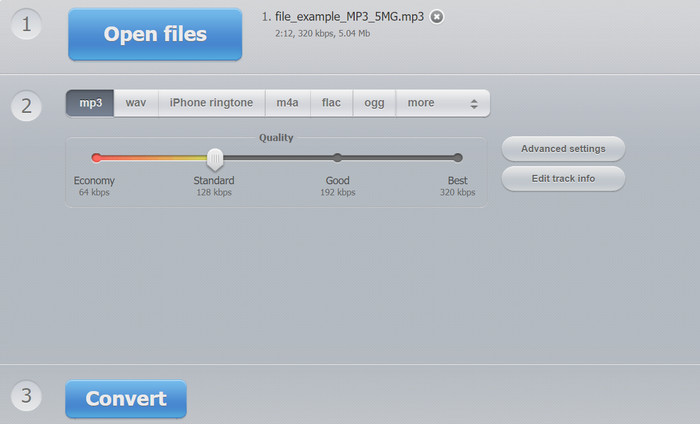
Step 1. Open your web browser and navigate to the Online Audio Converter website by 123apps. Click the Open files button to select the MP3 file that you want to convert.
Step 2. Choose OGG as the output format from the dropdown menu. Optionally, you can customize the output settings such as bitrate, sample rate, and channel. This step is optional but can be helpful if you wish to control the quality of the output file.
Step 3. Click the Convert button to start the conversion process. This may take a few moments, depending on the size of your file and the speed of your internet connection. Lastly, click the Download button to save the OGG file to your computer.
優點
- 它支持批量轉換。
- 上傳文件大小沒有限制。
缺點
- 該網站顯示廣告。
- 始終需要 Internet 連接。
第 3 部分。如何使用 Audacity 將 MP3 轉換為 OGG
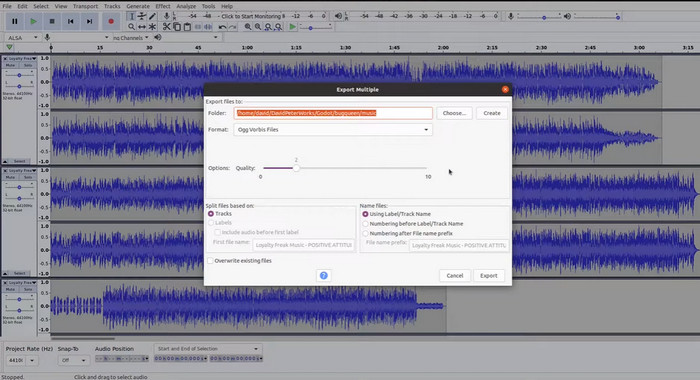
還有 Audacity MP3 到 OGG 轉換器。是的,你沒有聽錯。該程序是一款開源音頻編輯軟件,提供將文件從 MP3 轉換為 OGG 的功能。除了轉換之外,Audacity 還提供了一系列編輯工具和效果器,允許用戶修改和增強他們的音頻文件,使其成為音頻編輯和轉換任務的多功能工具。
此外,Audacity 可用於 Windows、macOS 和 Linux 操作系統,使其易於訪問。憑藉其先進的功能和易用性,Audacity 是任何希望將 MP3 文件轉換為 OGG 格式的人的絕佳選擇。查看下面的指南,了解該程序的工作原理。
Step 1. Get Audacity and install it on your computer. Open Audacity and then open the MP3 file you want to change. You can do this by hitting File and Open, then finding the MP3 file on your computer and clicking it.
Step 2. Click File and then Export once the MP3 file is open in Audacity. Choose OGG Vorbis Files as the file type in the Export Audio dialog box.
Step 3. By moving the Quality slider, you can set your OGG file to the level you want. Higher quality settings will make the file size bigger, while lower quality settings will make the file size smaller but may hurt the quality of the music
Step 4. Click Save to save the OGG file to a place on your computer that you choose. Click OK to finish changing the format.
優點
- 它可以將 MP3 批量轉換為 OGG。
- 它可以安裝在 Windows、macOS 和 Linux 操作系統上。
缺點
- 專門的支持社區不支持該計劃。
- 沒有直接的 MP3 導出。
延伸閱讀:
Best Tools that You Can Use to Batch Convert MP3 to M4R Files
2 Best Ways to Edit OGG Metadata You Should Try for Free
第 4 部分。如何使用 FFmpeg 將 MP3 轉換為 OGG
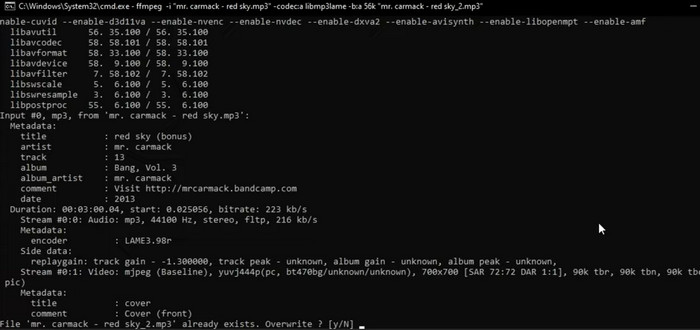
對於需要將 MP3 文件轉換為 OGG 格式並且需要對轉換過程具有高度控制和靈活性的用戶來說,FFMPEG 是一個不錯的選擇。它可以處理多種音頻和視頻格式,並且支持多種編解碼器和設置,可用於微調輸出格式以滿足特定要求。此外,由於 FFMPEG 是一個命令行工具,它可以在廣泛的操作系統上訪問,包括 Windows、macOS 和 Linux,將 MP3 轉換為 OGG。按照下面的 FFmpeg 將 MP3 轉換為 OGG 指令的步驟進行操作。
Step 1. Open your computer's terminal or command line. Find the location where the MP3 file you want to convert is stored.
Step 2. Type ffmpeg -i input.mp3 output.ogg, where input.mp3 is the name of your MP3 file, and output.ogg is the name you want to give your OGG file. To run the command, press Enter.
Step 3. Wait for FFMPEG to finish the process of converting. When the conversion is done, you should see a message that says the conversion went well. Now, save your new OGG file in the same folder as your original MP3 file.
優點
- 它為用戶提供了高度的靈活性和控制力。
- 它可以快速高效地轉換文件。
- 跨平台兼容性。
缺點
- 大多數用戶不習慣使用命令行工具。
- 學習如何有效地使用它可能需要一些時間。
第 5 部分。 如何使用 VLC 媒體播放器將 MP3 轉換為 OGG
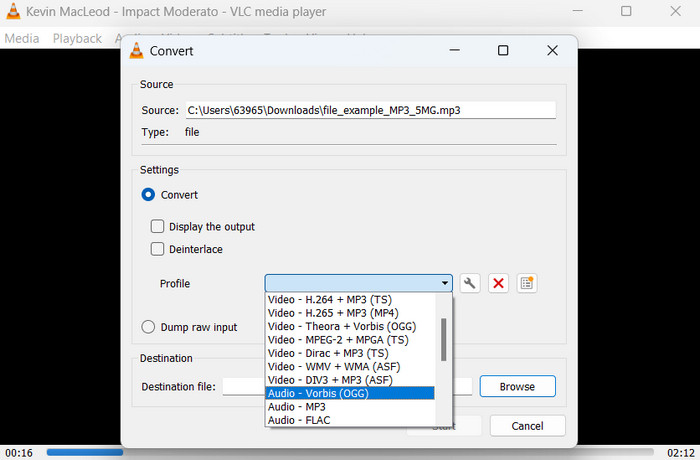
VLC 媒體播放器是一種功能強大的多媒體工具,廣泛用於播放各種類型的媒體文件。然而,許多用戶可能不知道這個軟件也可以作為一個有效的 MP3 到 OGG 轉換器。憑藉其內置的轉換工具,VLC 媒體播放器可以快速輕鬆地將 MP3 文件轉換為 OGG 格式,讓用戶可以享受各種格式的自己喜歡的音樂。無論您是要轉換單個文件還是一批文件,VLC 媒體播放器都能為您的所有音頻轉換需求提供簡單且用戶友好的解決方案。了解如何使用以下步驟將 MP3 轉換為 OGG:
Step 1. To play a video, launch VLC and select Media from the player's menu bar. The Convert /Save option will appear in a dropdown menu; select it.
Step 2. In the File Selection area, select the MP3 file you want to convert by clicking the Add button. When you're ready to convert or save the file, it's time to hit the Convert / Save button.
Step 3. Click the Profile dropdown menu and choose Audio - Vorbis (OGG) as your desired profile.
Step 4. To provide a new location and filename for the converted file, click the 'Browse' button to the right of the Destination file section. The conversion can be kicked off by clicking the Start button at the window's bottom.
優點
- 它支持多種格式。
- 簡單且用戶友好。
缺點
- 有限的編輯選項。
- 可能的音頻質量損失。
第 6 部分。 關於 MP3 到 OGG 的常見問題解答
MP3 和 OGG 文件的音質有區別嗎?
是的,MP3 和 OGG 文件的音質存在差異。 OGG 文件由於其更好的壓縮算法而往往具有更好的音質,但普通聽眾可能無法識別音質的差異。
將 MP3 文件轉換為 OGG 需要多長時間?
將 MP3 文件轉換為 OGG 文件所需的時間取決於文件大小和計算機的速度。通常,轉換單個文件需要幾分鐘時間,但這可能因各種因素而異。
MP3 到 OGG 轉換器可以在移動設備上使用嗎?
是的,也有適用於移動設備的 MP3 到 OGG 轉換器。這些轉換器可以作為應用程序從適用於 Android 和 iOS 設備的相應應用程序商店下載。
結論
Converting from MP3 to OGG is possible via various means. The converters that were discussed each have their own set of benefits and drawbacks. Some are more intuitive and simple to use, while others provide more flexibility and powerful features. Which converter a user chooses to employ ultimately hinges on their individual requirements.
-
 Windows和Mac上出色的OGG播放器,您不容錯過
 當您想以OGG格式播放喜歡的音頻時,尤其是在存儲空間較小時。您可以從本文中了解有關5個最佳OGG播放器的信息。
-
 了解如何將 MP3 轉換為 WAV 格式
 您想知道如何將 MP3 轉換為 WAV 嗎?確定哪些工具可以產生最佳質量的轉換。
-
 在 Windows 和 Mac 上修復和編輯 MP3 元數據的 4 種最佳方法
 想知道輕鬆編輯 MP3 元數據的秘密嗎?該博客將使用您輕鬆訪問的不同工具教您不同的技術。
