


 視頻轉換大師
 屏幕錄影大師
 影片修復
影片修復
 安全下載
安全下載輕鬆在 VLC 媒體播放器中截取螢幕截圖
在觀看影片時擷取螢幕截圖,是保留難忘瞬間或擷取有價值資訊的一種方便方式。這就像是從影片中「定格」某個特定時刻,將那一刻保存下來。VLC 媒體播放器是一款操作友善的播放器,可在 Windows、macOS 和 Linux 上使用。VLC 提供內建的精準畫面擷取功能。與許多其他媒體播放器不同的是,VLC 將流程大幅簡化,只需幾次點擊或按下快捷鍵,就能擷取想要的影像。熟練掌握這個功能後,使用者便能快速從喜愛的影片中整理出一系列截圖收藏。本文將一步步說明如何在 VLC 中截圖,幫助使用者充分運用 VLC 媒體播放器的截圖功能,輕鬆豐富多媒體使用體驗。請繼續閱讀,了解如何透過快捷鍵與選單截圖、VLC 的優勢與限制,以及替代軟體的介紹。

第 1 部分:如何在 VLC 中截取螢幕截圖
使用快捷鍵或選單選項可以輕鬆地在 VLC 媒體播放器中截取螢幕截圖。您可以利用這兩種方法輕鬆地從影片中擷取畫面。只需按幾下按鍵,您就可以捕捉並儲存您最喜歡的時刻的快照。 VLC 的多功能螢幕截圖功能可增強您的多媒體體驗,讓您輕鬆保留難忘的場景。
在VLC中透過快捷鍵截圖的步驟:
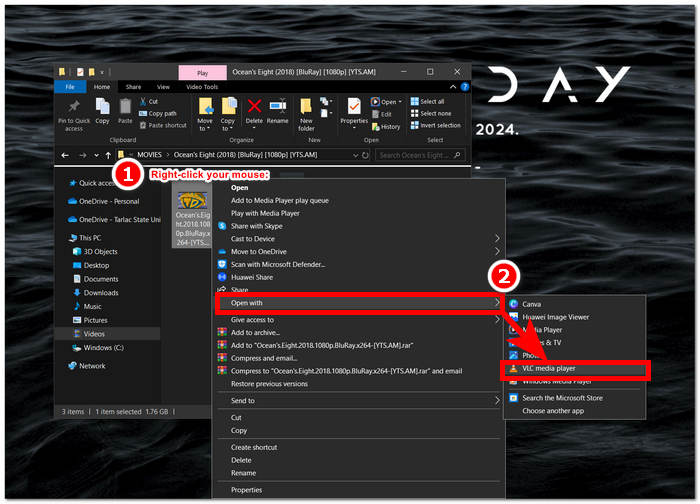
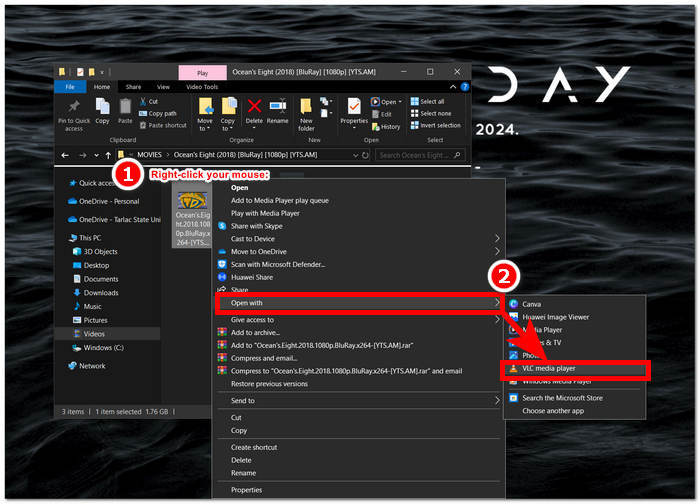
步驟 1. 在桌面上開啟影片,滑鼠右鍵點擊檔案,選擇 VLC Media Player。
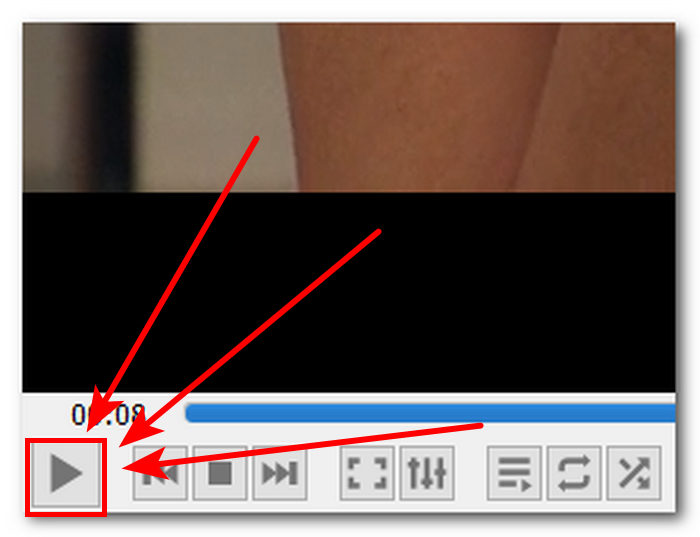
步驟 2. 播放影片或拖曳到你想要截圖的部分,然後按一下暫停(Pause)按鈕。
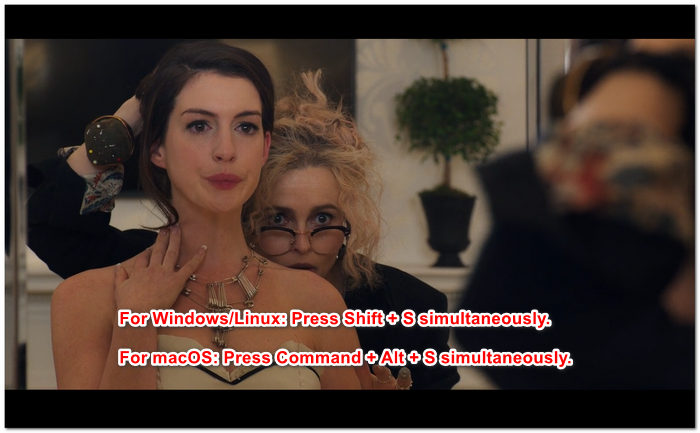
步驟 3. 若要使用快捷鍵在 Windows/Linux 上截圖,請同時按下 Shift + S;在 macOS 上,請同時按下 Command + Alt + S。
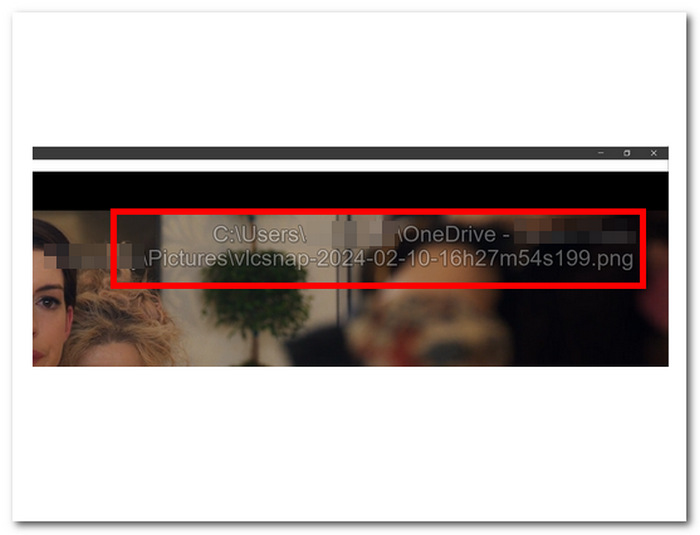
步驟 4. 按下快捷鍵後,螢幕右上角會出現一行文字,顯示VLC 截圖資料夾的位置。只要依照路徑前往,就可以查看所有截圖。
透過選單在 VLC 中截取螢幕截圖的步驟:
步驟 1. 在桌面上使用 VLC Media Player 找到並開啟你的影片。
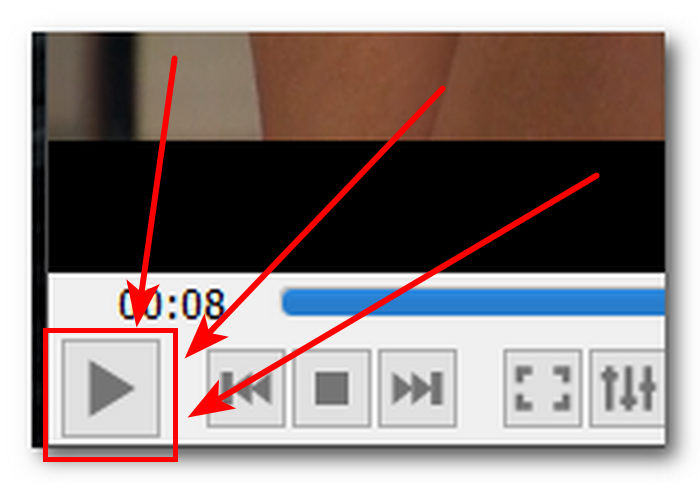
步驟 2. 按一下位於畫面左下角的暫停(Pause)按鈕,將影片停在你想要截圖的畫面。
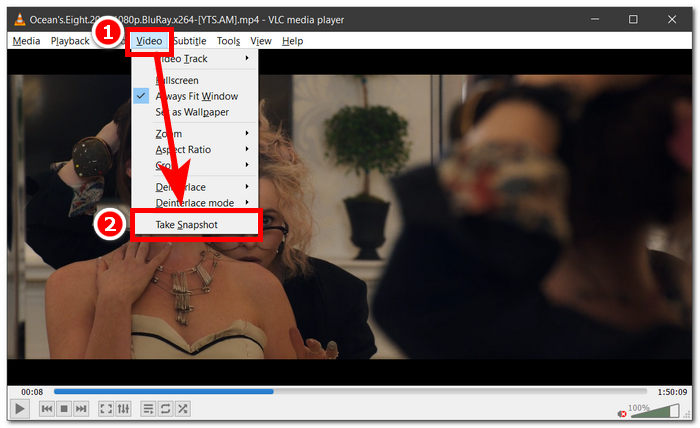
步驟 3. 影片暫停後,點選播放器左上角的視訊(Video)設定。
步驟 4. 在選單中找到擷取畫面(Take Snapshot)並點擊,即可對影片進行截圖。
無論你選擇哪一種方式,VLC 都能輕鬆讓你截圖,使用者幾乎不需花費什麼力氣,就能將影片中的精采片段儲存下來。無論你偏好使用 VLC 截圖快捷鍵,還是透過選單操作,VLC 都能在擷取畫面時提供流暢順手的體驗。
第 2 部分:VLC 的優點和局限性
無可否認,VLC 螢幕截圖提供了兩種對 VLC 媒體播放器中播放的任何類型影片進行螢幕截圖的方法。 VLC Media Player 以其優點而閃耀,但可能會讓用戶懷疑它的局限性。因此,我們在下面列出了 VLC 媒體播放器的一些優點和限制。
VLC 截圖的優點:
◆ 提供易於使用且易於使用的介面來擷取快照。
◆ 同時提供快捷鍵和選單選項,更加方便。
◆ 可自訂設定來調整影像格式和品質。
◆ 輕鬆保存最喜愛的時刻並增強多媒體體驗。
VLC 截圖的限制:
◆ 無法使用用於精煉擷取影像的進階編輯工具。
◆ 與此工具相比,專用的螢幕截圖軟體可提供更高的精確度。
◆ 由於版權保護,無法對加密的DVD 或藍光光碟進行螢幕截圖。
◆ 與專門的截圖工具相比,控制和客製化能力有限。
◆ 對於更複雜的編輯需求,使用者可能需要使用外部軟體。
◆ 此工具主要適用於基本的螢幕截圖要求,而非進階編輯任務。
VLC 媒體播放器螢幕截圖可能採取了僅截取螢幕截圖的方式,而不包括用戶出於其他目的可能需要的其他功能。請注意,VLC Media Player 是一個視訊播放器,而不是螢幕截圖軟體工具。這就是為什麼基本螢幕截圖就是它的作用。
第 3 部分:VLC 螢幕截圖的最佳替代方案
Screen Recorder 是一款軟體,能讓使用者擷取影片中喜愛畫面的截圖。此軟體功能進階,可同時作為視訊錄製器、音訊錄製器與遊戲錄製器使用。它具備極佳的螢幕錄製與截圖能力,並支援 Windows 與 Mac 電腦。作為一款功能強大的軟體,它提供了 VLC 媒體播放器截圖功能所無法達成的特色。例如「捲動視窗截圖」,可在單一畫面中擷取很長的貼文內容,特別適合閱讀網站和文件的人使用;又如「彈出式選單擷取」,能輕鬆截取各種選單視窗畫面而不受干擾。
步驟 1. 前往 Screen Recorder 官方網站下載並安裝軟體。
步驟 2. 安裝完成後,在桌面上啟動此應用程式。
步驟 3. 在軟體介面中,點擊 Snapshot 按鈕,即可對螢幕進行截圖。
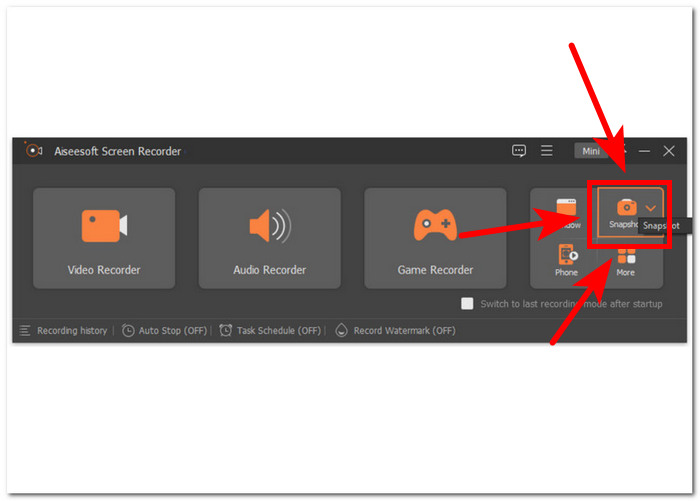
步驟 4. 你可以自由選擇想要截圖的範圍,不論是目前作用中的視窗,或是自行框選的區域皆可。選定範圍後,點擊 儲存(Save),即可將截圖以合適的圖片格式保存。
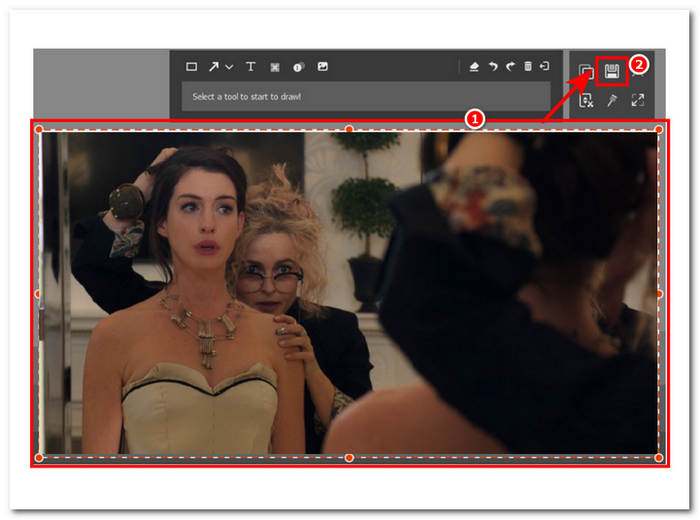
總而言之,在同時考慮螢幕錄製和螢幕截圖等任務時,Aiseesoft Screen Recorder 是一款多功能軟體。 VLC 媒體播放器和 Aiseesoft 螢幕錄影機提供快速鍵控制,只需使用鍵盤即可輕鬆截取螢幕截圖。兩者在截圖方面都提供了很好的效果,但 Aiseesoft Screen Recorder 不僅僅是截屏,正如它在軟體中的功能所顯示的那樣。
第 4 部分:有關如何在 VLC 媒體播放器中截圖的常見問題解答
VLC 螢幕截圖的預設位置在哪裡?
VLC 螢幕截圖預設儲存位置在電腦上的「圖片」資料夾中。若要變更此設置,請導航至工具 > 首選項 > 視頻,然後在視頻快照目錄下選擇新資料夾。
我可以連續捕獲多個螢幕截圖嗎?
是的,您可以透過對每個所需的幀重複該過程來捕獲多個螢幕截圖。但是,沒有內建功能可以按照指定的時間間隔自動擷取多個螢幕截圖。
VLC 是否支援擷取串流影片的螢幕截圖?
是的,您可以使用上述相同方法在 VLC Media Player 中擷取串流影片的螢幕截圖。只需在所需時刻暫停影片並拍攝快照即可。但是,請記住,螢幕截圖的品質可能取決於串流媒體來源和您的網路連線速度。
在 VLC Media Player 中截取螢幕截圖有任何限制嗎?
一項限制是,由於版權保護措施,您無法擷取加密 DVD 或藍光光碟的螢幕截圖。此外,VLC 的螢幕截圖功能可能無法與某些視訊編解碼器或串流媒體來源順利配合,從而導致潛在的相容性問題。
我可以全螢幕截取影片嗎?
是的,您可以在 VLC 媒體播放器中以全螢幕模式播放影片時擷取影片的螢幕截圖。只需在影片處於全螢幕模式時按下鍵盤上的 Shift + S 或從功能表列轉到影片 > 拍攝快照即可。這使您可以在不退出全螢幕播放的情況下捕獲特定幀的螢幕截圖。
結論
總結來說,在 VLC 媒體播放器中截圖,是一種簡單直接的方式,能將影片中的難忘瞬間保存下來,或擷取重要資訊。VLC 介面友善,因此成為跨平台使用者中相當受歡迎的播放器選擇。無論透過快捷鍵或選單操作,VLC 都讓整個流程變得輕鬆,使使用者能毫不費力地擷取並儲存喜愛場景的畫面。然而,若使用者需要更進階的功能,例如更精準的編輯或擷取捲動視窗畫面等,那麼像 Aiseesoft Screen Recorder 這類替代軟體,則能提供更完整的解決方案。透過了解 VLC 截圖功能的優點、限制與替代選擇,使用者可以進一步提升多媒體體驗,並更有效率地管理各種截圖需求。
-
 如何在 Windows 10/11 中輕鬆截取滾動螢幕截圖
 透過學習 Windows 10/11 上的滾動螢幕截圖,釋放螢幕擷取的全部潛力。找出這些有用的軟體和網路擴充功能來使用。
-
 如何在幾分鐘內在 Mac 上進行滾動螢幕截圖
 不要滿足於部分捕獲!了解在 Mac 上拍攝滾動螢幕截圖的簡單步驟。立即輕鬆擷取整個網頁或文件。
-
 如何在 Windows Media Player 中高效截圖
 探索在 Windows Media Player 中輕鬆擷取螢幕截圖的最簡單方法。透過我們的綜合指南提升您的螢幕擷取體驗。
