


 視頻轉換大師
 屏幕錄影大師
 影片修復
影片修復
 安全下載
安全下載用 3 種有效方法將 PPT 轉換為 MP4
無論是在學校、工作等場合,PPT 都是簡報的絕佳工具。
但是,重要的是要承認有些人無法存取該文件,因為他們的設備上沒有安裝應用程式或軟體工具。這樣,大多數簡報者都可以將簡報轉換為 MP4 版本,以便輕鬆地與所有人分享資料。
因此,如果你正在尋找一種方法,將你的PPT 轉成 MP4,以便快速分享並提升檔案內容的可存取性,那麼你來對地方了。請繼續閱讀本文,深入了解將 PPT 檔案轉成影片的 3 種不同方法。

第 1 部分:如何在 PPT 中將 PowerPoint 轉換為 MP4
使用 PowerPoint 簡報,使用者可以輕鬆地將 PPT 轉換為 MP4。這是一個非常方便和靈活的內建功能。
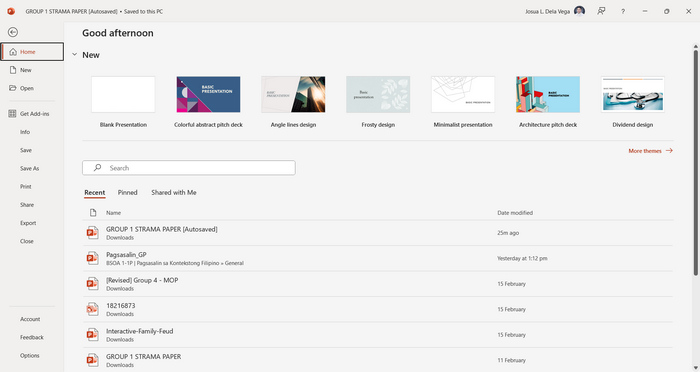
步驟 1.在你的裝置上使用 PowerPoint 簡報軟體開啟你的簡報。
步驟 2.前往 檔案 分頁,找到 匯出 按鈕並點擊。
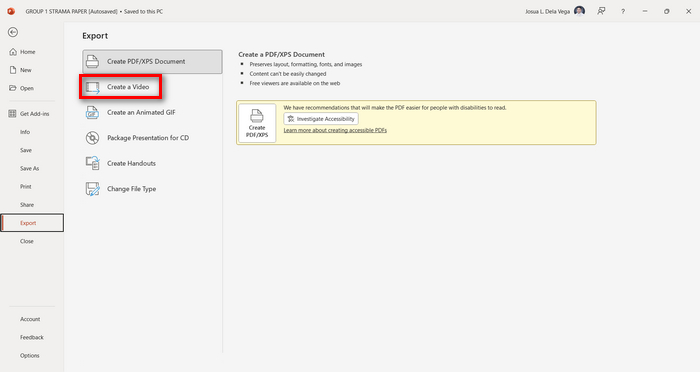
步驟 3.進入 匯出 分頁後,點擊 建立視訊 選項。
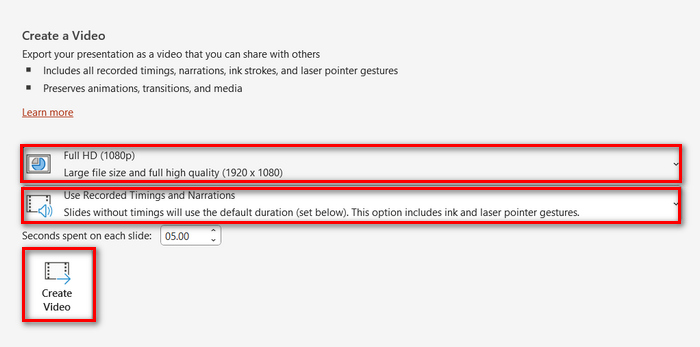
步驟 4.現在設定你偏好的視訊解析度,你可以在 480p 到 4K 之間選擇。此外,在 使用預錄的計時及旁白 選項中,你可以手動設定投影片的停留時間。完成後,點擊 建立視訊 按鈕。
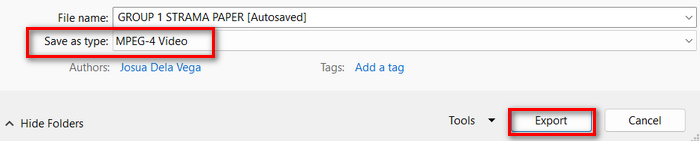
步驟 5.點擊 建立視訊 按鈕後,會跳出新視窗,讓你檢查輸出檔案的格式以及要儲存的位置。設定完成後,只要點擊 匯出 按鈕,並耐心等候轉檔完成即可。
利用 PowerPoint 內建功能將簡報轉成 MP4 確實相當方便。不過,如果你想要加入背景音樂等,自訂功能就比較不足。儘管如此,如果你的目的只是為了分享,那這點對你來說並不成問題。
第 2 部分:免費在線將 PPT 轉換為帶音訊的 MP4
如果您有 PPT 文件,並且由於裝置上沒有 PowerPoint 簡報軟體應用程式或工具而想要在線上轉換它,則可以使用 MagicSlides。透過此線上轉換器工具,您只需將檔案匯入系統即可輕鬆將 PowerPoint 轉換為 MP4。
步驟 1.點擊 Upload your source file 按鈕,上傳你想轉成 MP4 的 PPT 檔案。
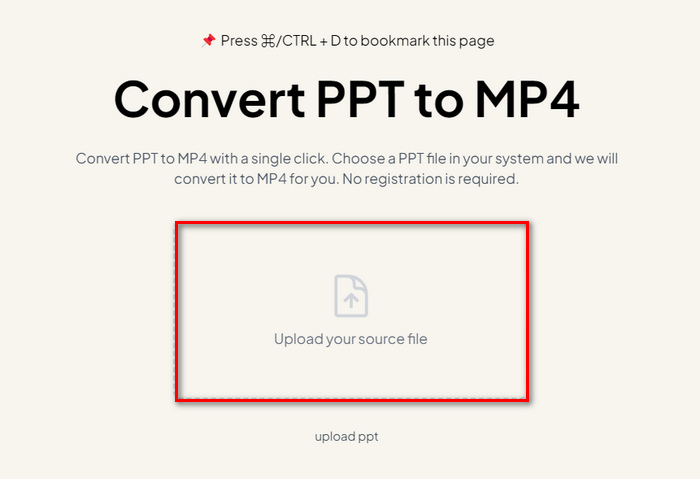
步驟 2.檔案匯入後,點擊 Create MP4 按鈕,開始進行轉檔。
步驟 3.完成後,你可以先預覽已轉換的 PPT 檔案,若對結果滿意,只需點擊 Download 按鈕,即可將檔案直接下載到你的裝置。
雖然此工具提供了將 PPT 轉換為 MP4 的非常簡單的步驟,但匯入 PPT 檔案需要花費大量時間,這可能會令人不安,尤其是當您趕時間時。此外,它沒有任何自訂選項。它只是將 PPT 檔案轉換為視訊。
第 3 部分:如何將 PPT 轉換為具有效果和音訊的 MP4
如果你想將 PPT 轉成 MP4,同時還要加入特效與音訊,那麼這個方法就非常適合你。透過 FVC Screen Recorder,你可以利用其編輯功能,將 PowerPoint 簡報製作成更具創意與互動性的 MP4 檔案。此外,你完全不用擔心輸出品質,因為它支援最高 4K 視訊解析度。欲使用此工具,可依照下方教學進行:
步驟 1.先下載該軟體工具並安裝到你的電腦上。
步驟 2.開啟你的 PowerPoint 簡報,並確保已切換為全螢幕顯示。
步驟 3.接著,在螢幕錄製工具上選擇 Video Recorder 功能,並將錄製範圍設定為 Full。
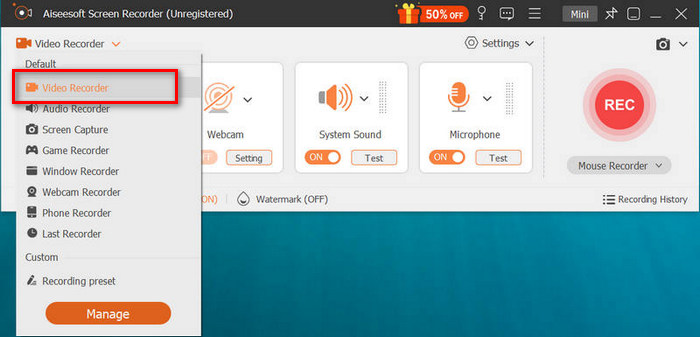
步驟 4.之後開始播放 PowerPoint 投影片播放,同時點擊 REC 按鈕開始錄製簡報。
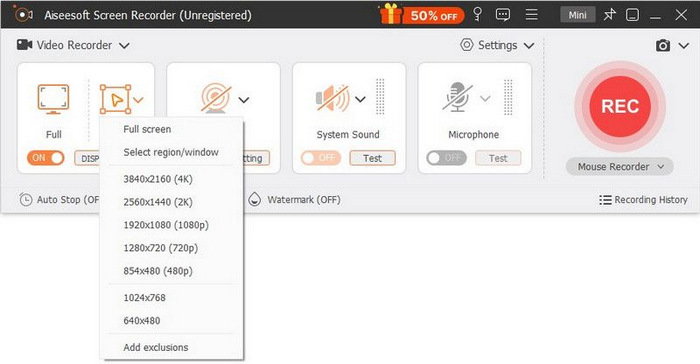
步驟 5.完成後,只要點擊 Stop 按鈕,即會跳到預覽介面。在畫面下方角落,你可以看到各種編輯功能,利用它們來編輯音訊與效果,將 PPT 轉成 MP4。

步驟 6.最後,你可以點擊 Open Folder 按鈕來存取你的檔案。
使用 FVC Screen Recorder 將 PowerPoint 轉換為 MP4 的好處是您可以控制投影片的時間和節奏。此外,與僅提供基本轉換的其他工具不同,該工具具有可用於進一步增強轉換後的 MP4 檔案的編輯功能。
第 4 部分:有關將 PPT 轉換為 MP4 的常見問題解答
將 PPT 轉換為 MP4 需要多長時間?
轉換過程的時間取決於要轉換的檔案大小。但通常,簡單的演示在轉換過程中不會花費太多時間。
PPT轉MP4時可以保留動畫和轉場嗎?
是的。內建功能可讓使用者在轉換過程中保留動畫和過渡。這是為了確保在轉換為 MP4 格式時保留簡報中的視覺元素(例如過渡和動畫)。但是,請務必注意,動畫和過渡的兼容性可能會有所不同,具體取決於所使用的 PowerPoint 版本和所應用效果的複雜性。
轉換為 MP4 時,我的 PowerPoint 簡報的品質會保留嗎?
是的。 PowerPoint 簡報最高支援 4K 視訊解析度。因此,選擇較高的解析度將有助於保持演示的品質。此外,當您選擇使用一些高級轉換器工具將 PPT 轉換為 MP4 時,該工具提供了調整位元率和壓縮設定的選項,以進一步優化視訊質量,您可以保證高品質的輸出。
結論
將 PPT 轉成 MP4 格式,的確能在不同平台與裝置間分享檔案時帶來極大的便利與可及性。現在你已經了解如何進行轉檔,是時候把這些知識付諸實踐了。立刻開始轉換,擴大你的簡報影響力與觸及範圍!
-
 如何在 PowerPoint 中調整圖片大小 [更改大小的最快方法]
 學習如何在 PowerPoint 中調整圖片大小至關重要,尤其是如果您想在演示文稿中使用它。閱讀本文以了解如何操作。
-
 Apowersoft Watermark Remover 評測 – 功能、優缺點和價格
 Apowersoft Watermark Remover是最好的水印去除器之一,支持在線和離線,點擊了解更多!
-
 如何修復 PowerPoint 中影片無法播放的問題快速指南
 您的 PowerPoint 影片無法播放嗎?使用我們最好的五種解決方案,輕鬆解決嵌入式影片無法播放的問題。
