


 視頻轉換大師
 屏幕錄影大師
 影片修復
影片修復
 安全下載
安全下載批量壓縮圖像:輕鬆壓縮的初學者指南
有時,我們需要壓縮很多圖像文件,而重複壓縮每個圖像文件很煩人。如果您想知道是否有一個工具可以同時壓縮圖像,答案是肯定的!
在這篇文章中,我們將介紹 3 種批次壓縮圖片的方法。我們非常理解這方面的需求,因為一次性完成可以大幅節省時間,對於需要壓縮大量圖片檔的人來說更是相當實用。還在等什麼?一起開始吧!

第 1 部分。
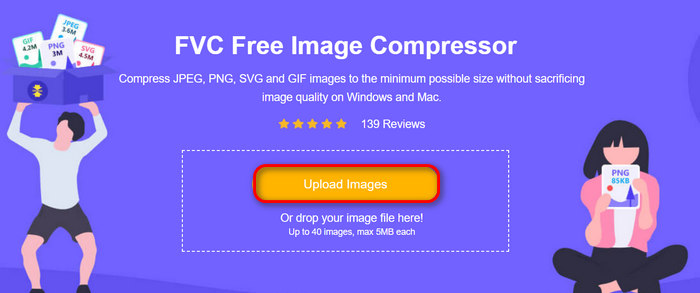
說到批次圖片壓縮,最好的線上工具就是 FVC 免費圖片壓縮器。這個工具完全免費,只要有網路連線,就能在各種裝置上輕鬆使用。不過,即使它是免費工具,也千萬別小看它對圖片所能做到的事。此工具可以一鍵壓縮多達 40 個圖片檔,而在輸出品質方面,它具備最佳化與進階壓縮演算法。此外,它還能處理多種圖片格式,例如 JPEG、PNG、SVG,以及動態 GIF。
以下是使用 FVC 免費圖片壓縮器在線批次壓縮圖片的方法:
步驟 1:在瀏覽器中開啟其官方網站。
步驟 2:之後,點擊上傳圖片(Upload Images),匯入你想要壓縮的圖片,最多可選擇 40 張。
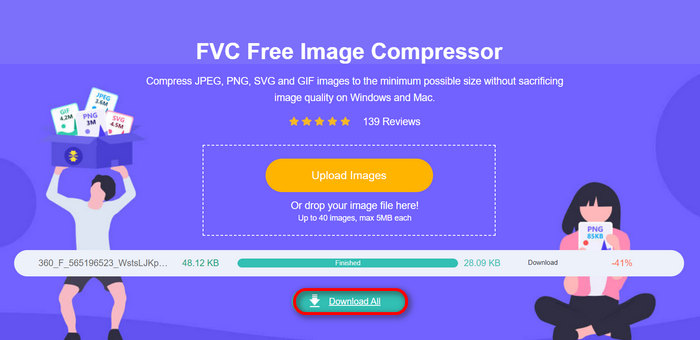
步驟 3:圖片壓縮完成後,你可以透過檢視壓縮後的檔案大小來預覽結果。最後,點擊全部下載(Download All)以儲存壓縮後的圖片。
當談到批量壓縮影像的便利性、簡易性和品質時,FVC Free Image Compressor 是一個佼佼者。此外,它是百分之百免費的,所以如果您預算有限並且希望節省批量壓縮照片的時間,請立即嘗試此工具!
第 2 部分:使用 Photoshop 批次壓縮影像
當涉及大量壓縮影像的專業方法時,這些使用者的首選工具之一就是 Photoshop 軟體。該工具因其令人印象深刻的功能而備受推崇,使其成為同時壓縮大量照片的絕佳選擇。以下是如何使用 Photoshop 批次壓縮影像的逐步指南:
步驟 1:先將所有想要批次壓縮的照片儲存到同一個資料夾中。
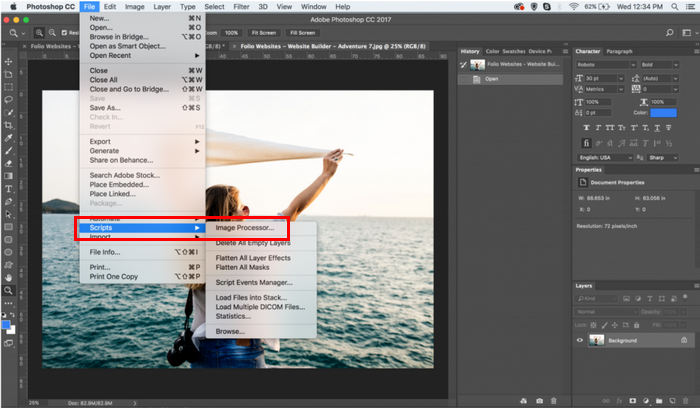
步驟 2:開啟 Photoshop,前往檔案(File)分頁,點擊指令碼(Script),然後選擇影像處理器(Image Processor)。
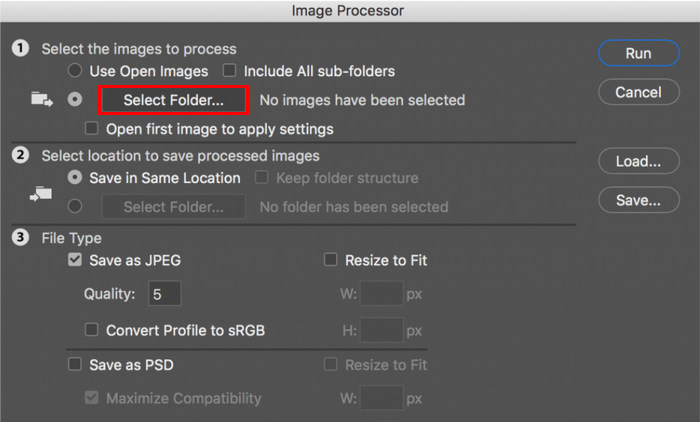
步驟 3:接著,在「選取要處理的影像(Select the images to process)」下方,點擊選取資料夾(Select Folder),匯入你想壓縮的照片。
步驟 4:之後,系統會在原始資料夾中自動建立一個新資料夾,壓縮後的圖片就會儲存在這個新資料夾中。
步驟 5:在檔案類型(File Type)區段,調整設定以重新調整圖片尺寸。勾選調整成適合大小(Resize to Fit),並設定壓縮後照片的最大高度與寬度。
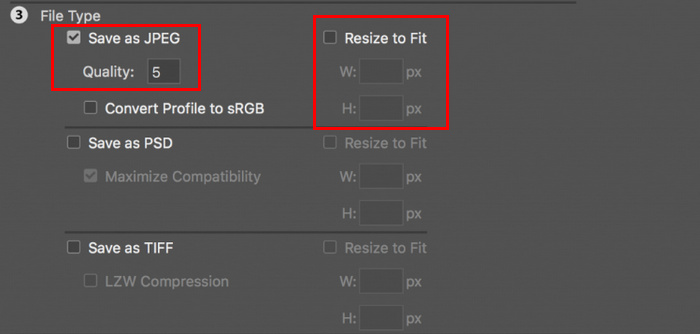
步驟 6:在品質(Quality)欄位中輸入 1 到 12 之間的數字。請注意,數字越高,檔案大小越大。另一方面,如果你是壓縮 JPG 檔案格式,記得勾選「另存為 JPEG(Save as JPEG)」選項。
步驟 7:現在,點擊執行動作(Run Action)按鈕,以檢視可用的動作。
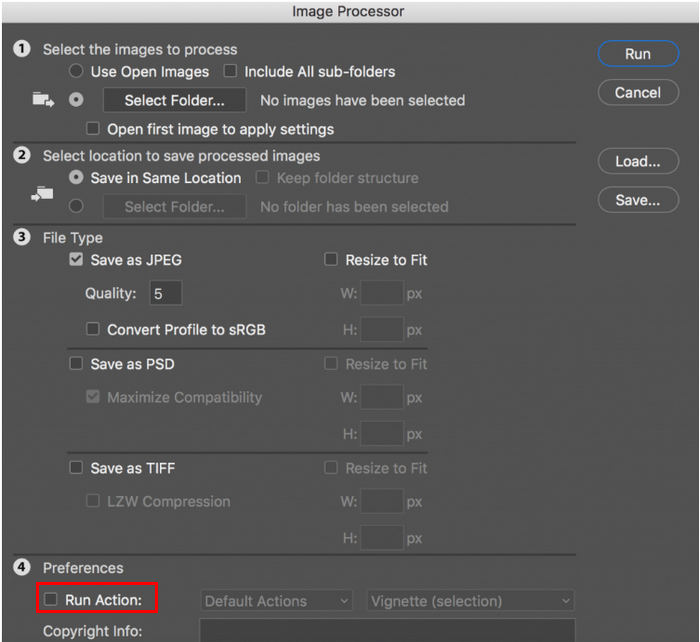
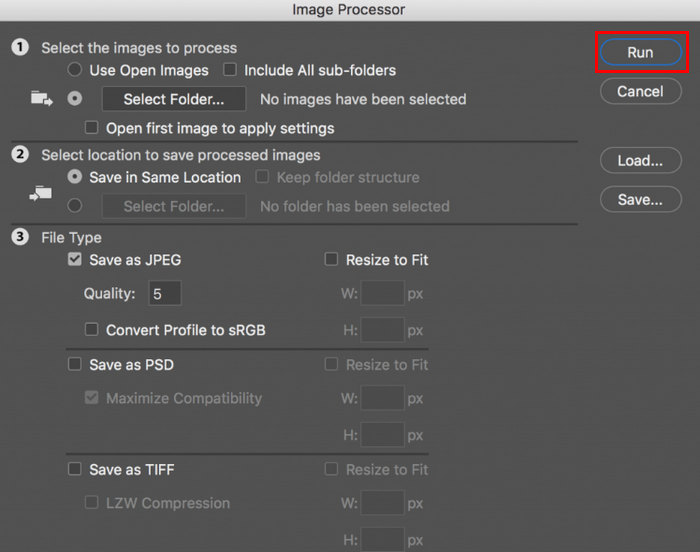
步驟 8:完成設定後,點擊執行(Run)按鈕。資料夾中的圖片就會被處理並儲存到指定的目的地資料夾。
Photoshop 確實是大量壓縮影像的絕佳工具。對於需要專業結果的人來說,它是理想的選擇。然而,該工具需要訂閱,並且存在巨大的學習曲線,可能會導致用戶無法有效地使用該工具批量壓縮照片。
第 3 部分。
如果您的電腦裝置使用的是 Windows 10 作業系統,則可以透過 Windows Paint 應用程式批次壓縮映像。這款繪圖應用程式以其繪圖和製作草圖的功能而聞名,但除此之外,它還包含出色的照片編輯功能,例如裁剪、調整大小等。
以下是在 Windows 10 上批次壓縮圖片的方法:
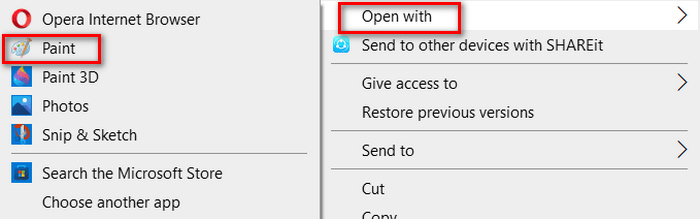
步驟 1:在你想壓縮的圖片檔上按右鍵,點擊開啟方式(Open With),然後選擇小畫家(Paint)。
步驟 2:前往首頁(Home)分頁,選擇調整大小與扭曲(Resize and Skew)。
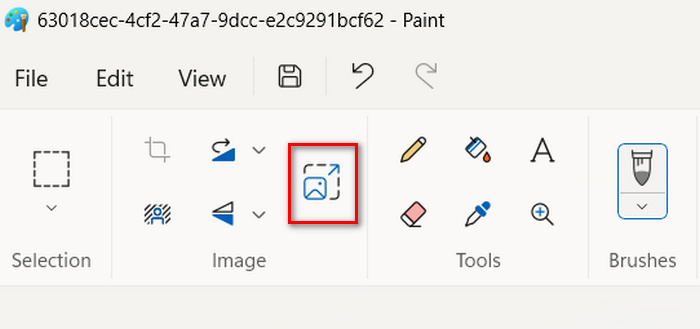
步驟 3:接著,點擊調整大小與扭曲(Resize and Skew)按鈕。在這裡,你可以透過變更百分比(percentage)或像素(pixel)大小來調整圖片尺寸。當達到想要的大小後,點擊確定(OK)。
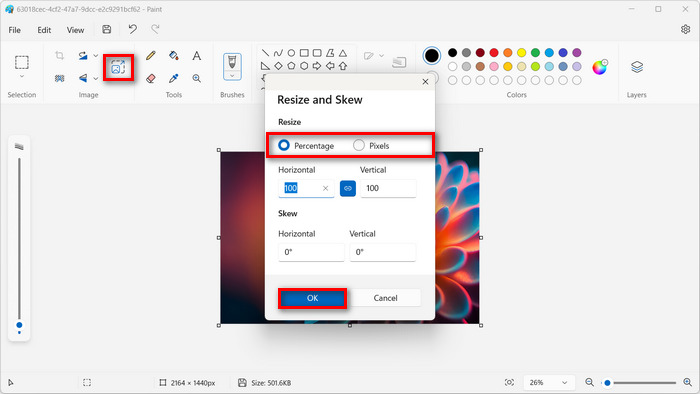
步驟 4:尺寸調整完成後,點擊檔案(File)並選擇儲存(Save),以存下壓縮後的圖片。
步驟 5:之後,回到檔案(File)分頁,點擊匯入至畫布(Import to Canvas),並選擇從檔案(From a File)。
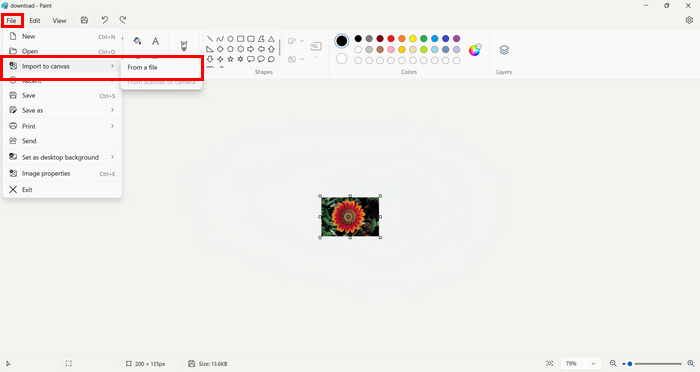
步驟 6:選取你要壓縮的照片,並拖曳使其符合預設尺寸。這個流程雖然不是典型的批次壓縮方式,但相較於其他圖片壓縮工具,仍能讓作業流程更加順暢。完成後,點擊儲存(Save)按鈕。
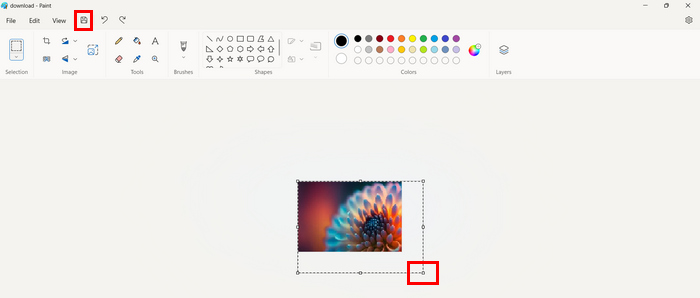
Windows Paint確實是一個很好的圖片壓縮工具,但與專用的批次壓縮器相比還是有不足。
第 4 部分:在 Mac 上批次壓縮影像
Preview是一個內建的影像檢視器工具,可讓Mac使用者查看不同的影像檔案。但除此之外,該工具在管理和編輯映像方面非常有用,尤其是在批量壓縮映像檔方面。
為此,請按照以下步驟操作:
步驟 1:在 Finder 視窗中,選取所有你想調整尺寸的圖片。
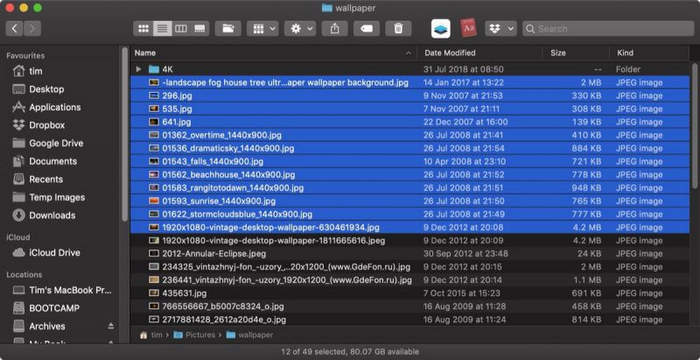
步驟 2:接著,在選取的圖片上按右鍵,點選開啟方式(Open With),然後選擇預覽程式(Preview)。
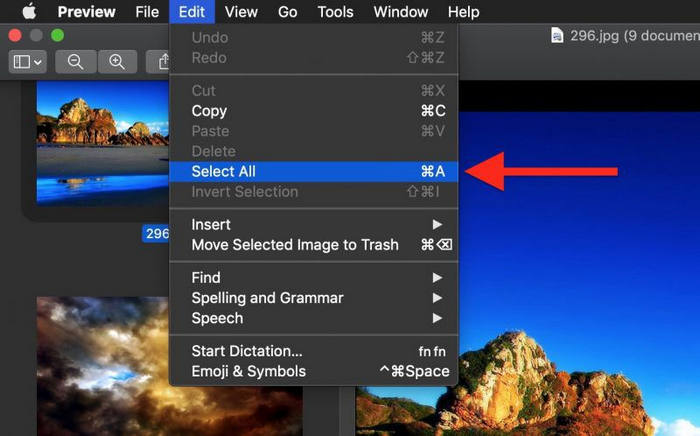
步驟 3:現在,從預覽程式的選單列中選擇編輯(Edit),再點選全選(Select All),或者使用鍵盤快速鍵Command + A來選取所有已開啟的圖片。
步驟 4:當所有圖片都已選取後,前往工具(Tools)並選擇調整大小(Adjust Size)。
步驟 5:接著,輸入新的寬度與高度,以及解析度來變更圖片檔案的尺寸。完成後,視窗下方會顯示新的檔案大小。確認無誤後,點擊確定(OK)即可。
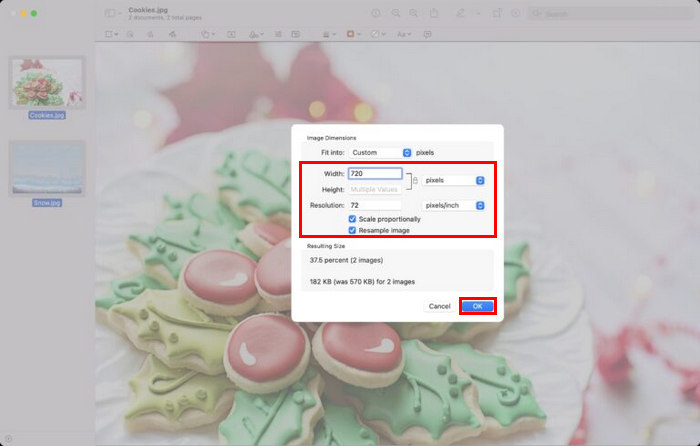
透過取代原始檔案來調整影像大小並儲存到原始位置。
第 5 部分. 有關批量影像壓縮的常見問題解答
有什麼軟體可以大量壓縮圖片?
用於大量批次壓縮圖片的最佳軟體工具是 Photoshop。它可以同時壓縮更多照片,且仍能維持良好的畫質。唯一的缺點是,若未訂閱其付費方案,就無法享受所有完整功能。
如何壓縮資料夾中的所有影像?
若要壓縮資料夾中的所有圖片,你可以使用 FVC 免費圖片壓縮器。只要點擊「新增檔案(Add File)」按鈕,就會跳出你的資料庫,讓你選擇存放所有欲壓縮圖片的資料夾。接著,全選該資料夾中的照片,但請限制在 40 個檔案以內。完成後,工具會自動將你的照片壓縮,並儲存在一個壓縮後的資料夾中。
您可以在不損失品質的情況下壓縮多張照片嗎?
是的。您可以在不損失品質的情況下壓縮多張照片。您只需要使用正確的壓縮工具,例如 FVC Free Image Compressor 和 Photoshop。這些工具具有強大的功能,可以幫助維持壓縮照片的品質。
結論
透過這些方法,您現在可以有效率且有效地批次壓縮映像。因此,無論本文中的工具概述如何,您現在都配備了可以完美運行的各種方法。立即嘗試這些技術來簡化您的影像管理並優化您的工作流程。
-
 如何在 Windows 和 Mac 上壓縮 JPEG [終極指南]
 正在尋找在 Windows 和 Mac 裝置上壓縮 JPEG 檔案的高效工具?立即閱讀本文並了解五種無縫壓縮方法。
-
 將影像大小調整為 20KB 的 3 種方法:無縫壓縮
 擔心如何使圖片檔案大小達到 20KB?本文將教您 3 種如何快速無縫地將影像大小調整為 20KB 的方法。
-
 比率壓縮照片:我需要了解什麼? [審查]
 了解什麼是照片壓縮比以及它如何影響影像品質。另外,當壓縮比不正確時,請指示如何變更該壓縮比。
