


 視頻轉換大師
 屏幕錄影大師
 影片修復
影片修復
 安全下載
安全下載為您提供全面評論:Google Drive 會壓縮照片嗎?
有些網站對插入圖片的寬度和高度有限制。因此,您不可避免地會遇到需要放大或縮小圖片的情況。說到圖片處理,您首先想到的肯定是業界專家 Photoshop。它以其豐富的功能而聞名。對於專業人士來說,Photoshop 無疑是調整圖片大小的理想選擇。但如果您是新手,可能會因為找不到相應的功能而苦惱。
沒關係;我們已為你準備了關於如何在 Photoshop 縮小圖片的最詳細指南。如果你有更緊急的任務,可以考慮使用本文中推薦的其他圖片處理工具。
第 1 部分:如何在 Photoshop 中調整影像大小
首先讓我們看看如何使用 Photoshop 來更改圖像的大小。
請注意,更改圖片尺寸和縮小圖片尺寸的步驟可能略有不同。因此,我們將逐步指南分為兩部分。您將在下一部分中找到有關縮小圖片尺寸的具體指南。
步驟一: 開啟 Photoshop,然後前往 檔案 > 開啟,選擇你想調整大小的圖片。
步驟二: 前往 影像 > 影像大小。
步驟三: 在 影像大小 對話框中輸入你想要的像素尺寸、文件大小或解析度。
步驟四: 在確認前選擇一種重取樣方法。
Bicubic(雙立方): 適合平滑的漸層;它會計算像素的平均值以提高精準度。
Bicubic Smoother(雙立方平滑): 最適合放大圖片,特別是含有雜訊的影像,會呈現較柔和的效果。
步驟五: 點擊 確定(OK) 套用變更。
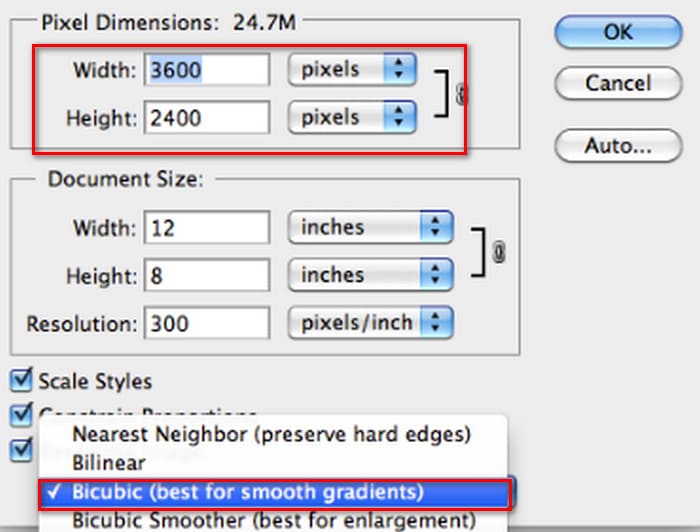
您現在已成功更改圖片的寬度和高度。但請注意,此操作也可能會增加圖片檔案的大小。因此,在了解寬高比的同時,請務必檢查圖片檔案的大小是否符合您平台的要求。
第 2 部分:如何在 Photoshop 中縮小影像
在本節中,我們將重點放在如何在 Photoshop 中縮小影像的尺寸。
步驟一: 啟動 Photoshop,並前往 檔案 > 開啟,選擇你要編輯的圖片。
步驟二: 前往 影像 > 影像大小。此動作會開啟 影像大小 對話框。
步驟三: 根據你的需求輸入新的像素尺寸、文件大小或解析度數值。
步驟四: 選擇一種重取樣方法。
Bicubic(雙立方): 適合平滑漸層;它會利用周圍像素來產生精確的結果。
Bicubic Sharper(雙立方銳利): 建議在縮小圖片尺寸時使用,能維持銳利的細節。如果影像變得過度銳利,可改回使用 Bicubic。
步驟五: 點擊 確定(OK) 套用變更並調整圖片大小。
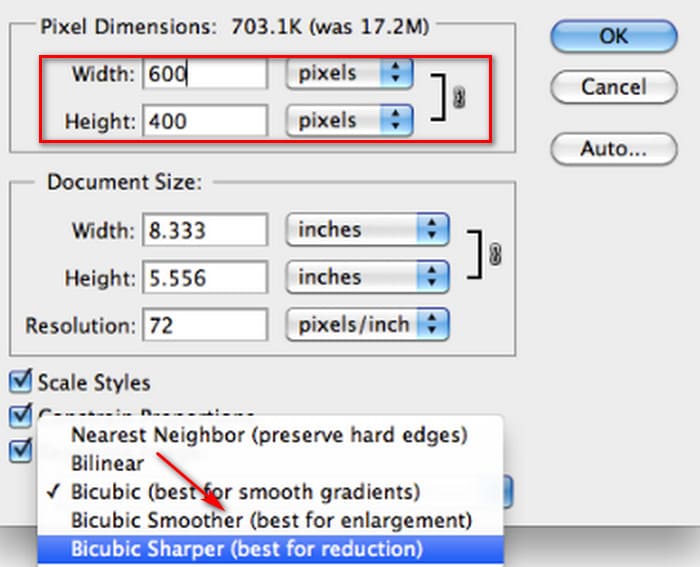
現在,您已成功縮小了原始影像的尺寸。然而,與第一部分的情況一樣,操作完成後,您也會注意到影像檔案的大小發生了顯著變化,這主要體現在壓縮後檔案變得更小了。
需要特別注意的是,影像品質可能已經有所下降。如果你覺得畫質影響了觀看體驗,可以再使用影像增強工具進行修復。
第 3 部分:如何在 Photoshop 中批次調整影像大小
使用 Photoshop 調整圖片大小需要相當多的步驟。當你有大量圖片需要處理時,將它們一張一張地拖進 Photoshop 進行編輯非常耗時且繁瑣。幸運的是,我們有另一種批量縮小圖片大小的方法。
以下是在 Photoshop 中批次縮小影像尺寸的方法。
步驟一: 先將所有想要批次壓縮的照片放到同一個資料夾中。
步驟二: 啟動 Photoshop,點擊 檔案 選單,選擇 指令稿(Scripts),再選擇 Image Processor(影像處理器)。
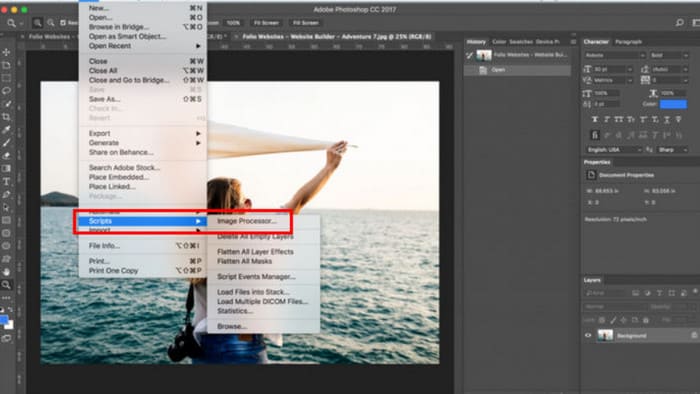
步驟三: 在 選取要處理的影像(Select the images) 下方點擊 選擇資料夾(Select Folder),匯入你想壓縮的照片。
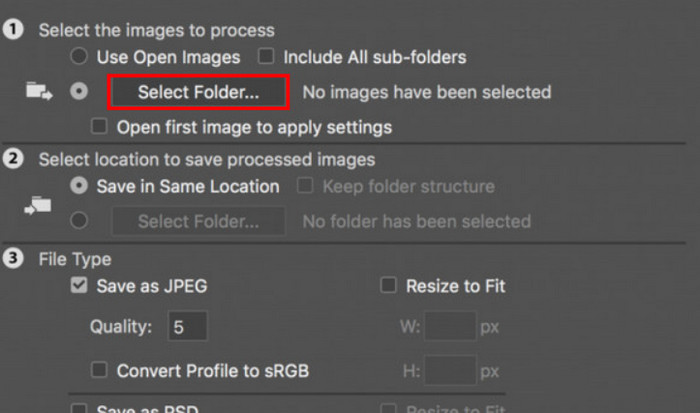
步驟四: Photoshop 會在原本的資料夾中自動建立一個新資料夾,用來存放壓縮後的圖片。
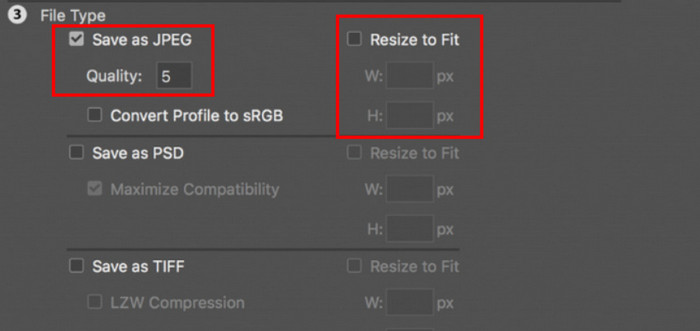
步驟五: 在 檔案類型(File Type) 區域勾選 調整以符合大小(Resize to Fit),然後設定縮放後圖片的最大寬度與高度。
第 4 部分:Photoshop 替代線上影像尺寸縮小器 - FVC 影像壓縮器
Photoshop 的介面對新手或有急迫修圖需求的人來說仍然過於複雜,而縮小圖片的步驟也不算少。有一個更便利的替代方案,就是 FVC 免費圖片壓縮工具(Free Image Compressor)。你只需透過瀏覽器上傳想處理的圖片,它就會自動幫你壓縮圖片大小,並且還允許你在網頁上手動調整長寬比例、旋轉或翻轉圖片。
還有一個問題我們不能忽視。常規使用 Photoshop 需訂閱。但 Adobe 產品系列價格昂貴。 FVC 免費圖像壓縮器是一款完全免費的線上工具。您是否考慮過批次處理影像? FVC 免費圖像壓縮器的開發人員並沒有忽略這一點。目前,您可以在此平台上批量處理最多 40 張圖片。
步驟一: 前往 FVC 免費圖片壓縮工具(FVC Free Image Compressor)的官方網站。
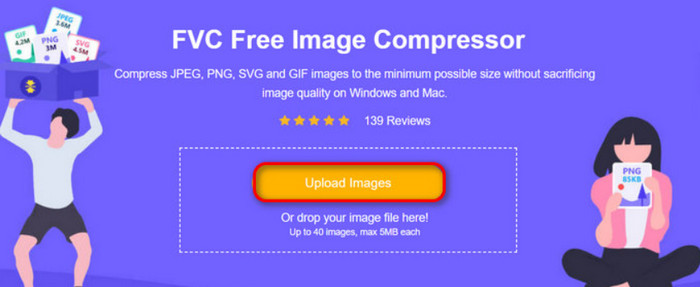
步驟二: 點擊 Upload Images(上傳圖片),選擇並上傳你想壓縮的照片。
步驟三: 壓縮完成後,預覽更新後的檔案大小。接著點擊 Download All(全部下載),將壓縮後的圖片儲存到你的裝置。
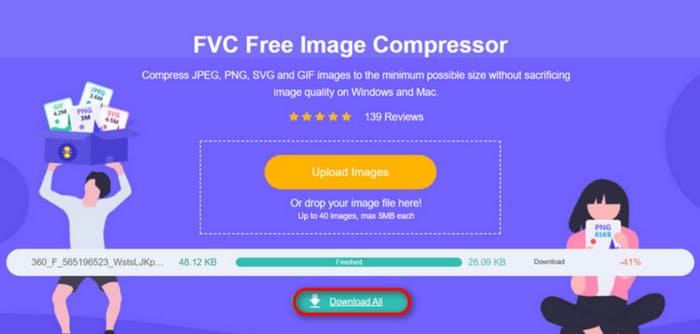
壓縮結果出來後,你是否驚訝地發現影像的清晰度竟然沒有損失太多? FVC 免費影像壓縮器採用最先進、最高效的壓縮技術,在影像解析度和尺寸之間找到完美的平衡。
無論是新手還是專業人士,您都會發現 FVC 免費圖片壓縮器是 Photoshop 的最佳替代品。
第五部分:如何在 Photoshop 中縮小影像的常見問題解答
如何在 Photoshop 中縮小影像而不損失品質?
要在 Photoshop 中縮小影像尺寸而不使其失真,關鍵在於確保在操作時選擇「重新取樣」。調整長寬比時,也需注意清晰度的變化。
如何在不裁剪的情況下縮小照片?
你可以使用圖片尺寸調整工具(photo resizer)來改變顯示尺寸。或者,也可以考慮壓縮圖片檔案,這會大幅縮小其大小。
如何製作一張小於1MB的照片?
您可以使用一些專門的圖像壓縮器。特別建議一些可讓您調整壓縮等級並在下載前預覽壓縮影像大小的工具,例如 Photoshop 或 FVC 免費影像壓縮器。
結論
在閱讀完以上內容並學會如何在 Photoshop 縮小圖片之後,你就可以試著自己動手操作了。我們為每一個步驟都附上了圖片,方便你看清每個細節。如果你不想另外在裝置上安裝 Photoshop,或是被它複雜的介面勸退,不妨試試 FVC 免費圖片壓縮工具幫你處理圖片。操作簡單、步驟清楚,而且完全免費。
-
 如何使用Premiere Pro和免費在線壓縮MXF
 如何用較小的文件壓縮MXF?如何在Adobe Premiere Pro中壓縮MXF文件?這篇文章分享2種壓縮MXF文件的方法。
-
 如何輕鬆壓縮 MOV 檔案:6 種免費選擇
 要壓縮 MOV,您可以參考本文中的 6 個選項,包括 3 個桌面軟體和 3 個線上平台。我們將在這裡向您展示如何使用它們。
-
 如何將MP4視頻壓縮到較小的尺寸
 MP4視頻太大,無法上傳?是否要縮小視頻尺寸?這是3種無限制地將MP4文件壓縮為較小尺寸的有效方法。
