


 視頻轉換大師
 屏幕錄影大師
 影片修復
影片修復
 安全下載
安全下載使用 Firefox 螢幕擷取實現無縫螢幕抓取的 4 種方法
您是否使用 Mozilla Firefox 作為主要網頁瀏覽器?作為長期運行的網頁瀏覽器之一,Mozilla Firefox 已成為數百萬尋求休閒網路瀏覽、資訊、娛樂等的用戶的首選。作為網頁瀏覽體驗的一部分,保存資訊以便於共享的功能在網頁瀏覽器中變得非常有用,就此而言,在 Mozilla Firefox 中也是如此。除此之外,在編寫本指南時,有很多方法可以從您的網頁瀏覽器中截取螢幕截圖。
在本指南中,我們將深入研究使用 Mozilla Firefox 的不同類型的螢幕截圖,以幫助您輕鬆收集和保存在網路上看到的盡可能多的資訊。因此,學習如何使用這些方法在 Firefox 上截圖可以幫助您有效地使用快捷鍵、內建工具、開發人員工具和全功能軟體進行截圖,從而實現更便捷的截圖方式。

第一部分:您可以擷取的 Firefox 截圖類型
在截圖之前,用戶應該確定他們想要的截圖類型。在這種情況下,我們使用 Mozilla Firefox 網路瀏覽器來幫助使用者了解使用網頁瀏覽器時可以截取的不同類型的螢幕截圖。因此,在本節中,我們列出了用戶可以對 Mozilla Firefox 截取的所有螢幕截圖。
| 截圖類型 | 信息 |
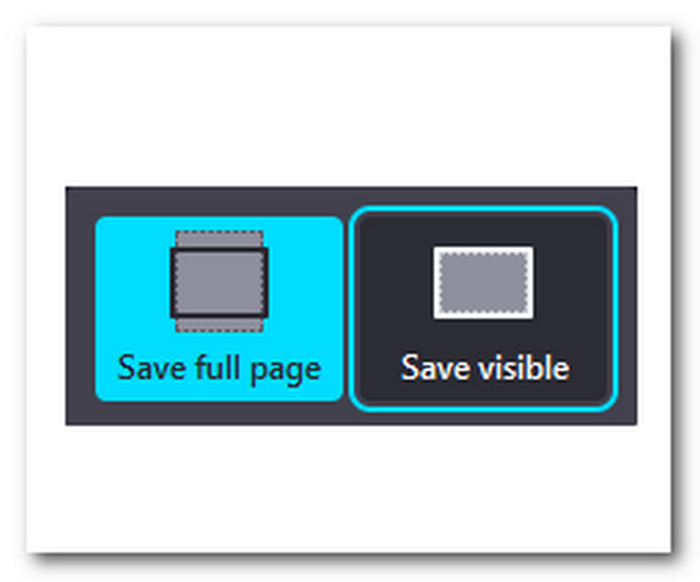
| 整頁 | 螢幕截圖是使用者可以用來保存所有網頁內容的檔案。它也被稱為“螢幕截圖滾動”,用於冗長的信息頁面。 |
| 可見部分 | 這種類型的螢幕截圖指的是截取網頁中僅在使用者螢幕上可見的部分。它最常用於保存包含資訊或圖片的網頁的整個可見螢幕。 |
| 選擇地區 | 此截圖將僅儲存或截取網頁特定區域的截圖。這種截圖類型僅關注特定區域,避免手動裁剪整個截圖的麻煩。 |
| 全視窗 | 使用者熟悉的螢幕截圖類型。這是最常用的網頁截圖方法。透過它,用戶可以截取整個 Mozilla Firefox 瀏覽器的螢幕截圖。 |
Please remember that when taking a screenshot using your Mozilla Firefox, users may use all the abovementioned screenshot types, like scrolling screenshots or selecting one region. These can be used through different means, like the default method or, better yet, third-party software for customization and user convenience.
第 2 部分。
方法一:快速鍵
使用快捷鍵截圖是最快的方式,在 Mozilla Firefox 等瀏覽器中,用戶可以透過預設方式進行截圖,無需第三方軟體即可執行 Firefox 截圖快捷方式。
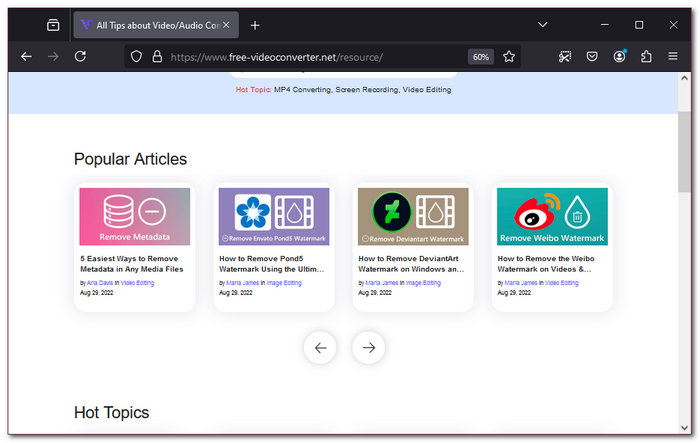
Step 1. Open your Mozilla Firefox browser and go to the webpage where you want to take a screenshot.
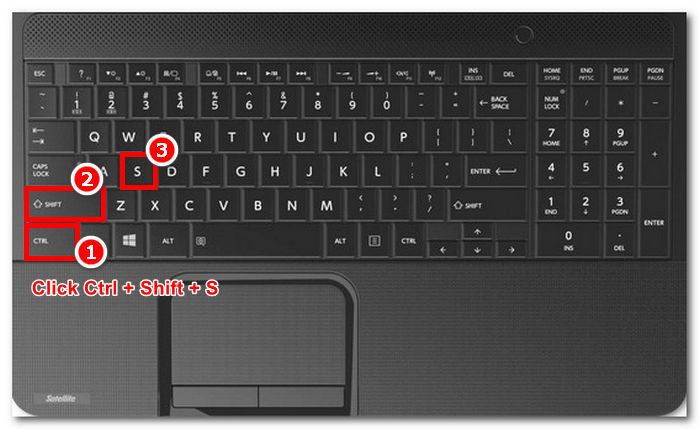
Step 2. Once you are on the webpage, click the combination key of Ctrl + Shift + S on your keyboard. This will allow you to use Mozilla Firefox's shortcut key functionality to take a screen without using your Mouse.
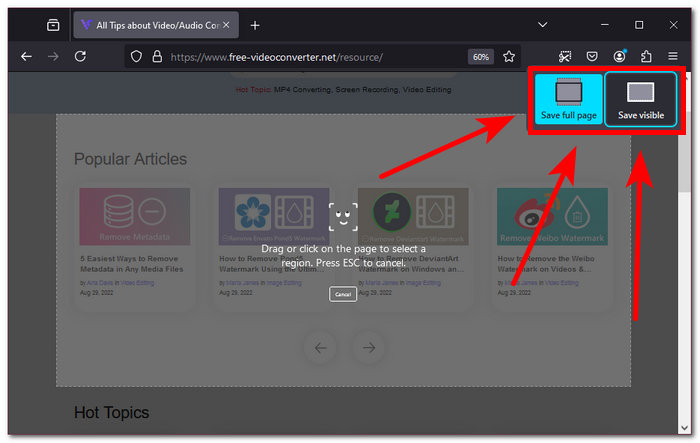
Step 3. The screenshot settings will appear from the upper-right part of your Mozilla Firefox interface. Next, choose the screenshot type you want to use on your webpage.
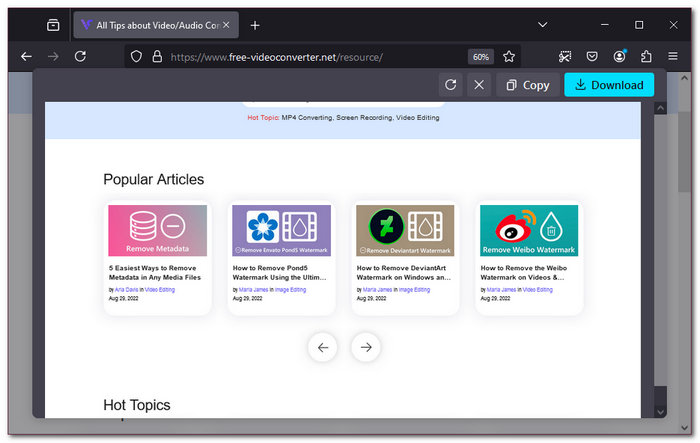
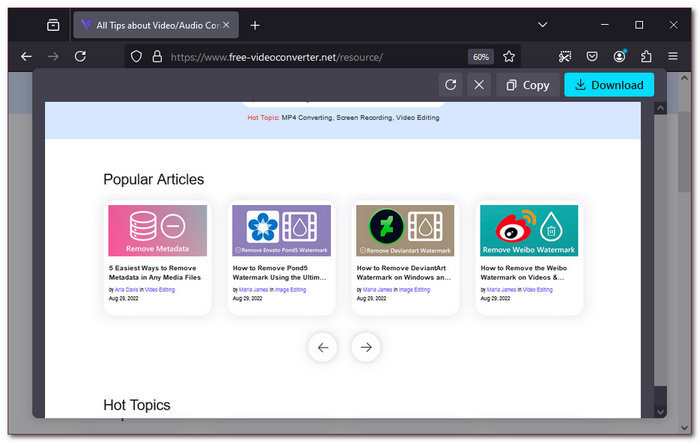
Step 4. Finally, select the area you want to take a screenshot with, and just like that, you can take a screenshot of your Firefox webpage using only a shortcut keys. Thus, you can copy or download the screenshot to your device.
方法 2:內建工具功能
截取 Firefox 網頁畫面的另一種預設方式是透過其內建功能。使用者可以透過兩個子類別執行此操作:右鍵單擊功能或點擊 Mozilla Firefox 瀏覽器右上角的螢幕截圖圖示。
Step 1. Open your Mozilla Firefox browser and go to the webpage where you want to screenshot the content.
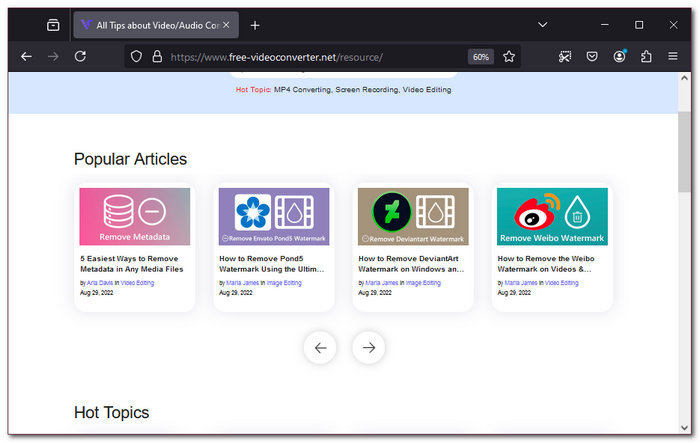
Step 2. To take a screenshot, you may do the following:
a.) Right-click functionality: proceed to right-click and select the Take Screenshot from the drop-down list.
b.) Screenshot icon: click on the screenshot icon on the upper-right part of your webpage to access the screenshot tools.
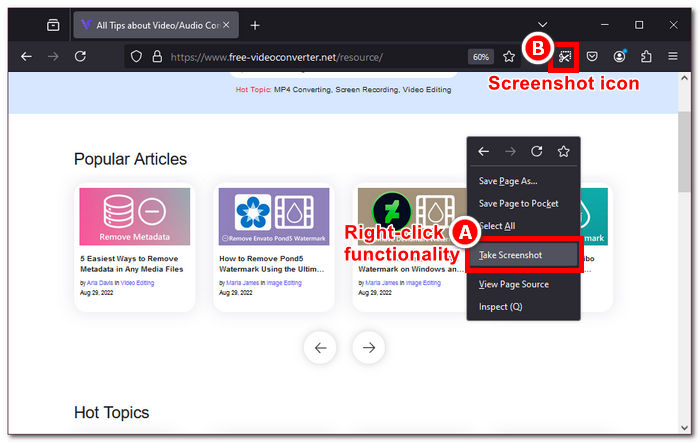
Step 3. The screenshot tool will appear on your webpage, whichever built-in tool you choose. After that, you can select the screenshot type you want to use.
Step 4. Simply select the area you want to take a screenshot using your chosen screenshot tool.
方法 3:開發人員工具選項
截取 Firefox 瀏覽器內容的另一種預設方式是透過瀏覽器的開發人員工具選項。這種方法比我們的前兩種方法複雜得多。但是,有了正確的指導資料,您就可以在 Mozilla Firefox 中順利截取任何內容的螢幕截圖。因此,此方法可以捕獲整個網頁,而無需手動滾動並截取每個網頁的內容。為此,只需按照我們下面創建的步驟操作即可。
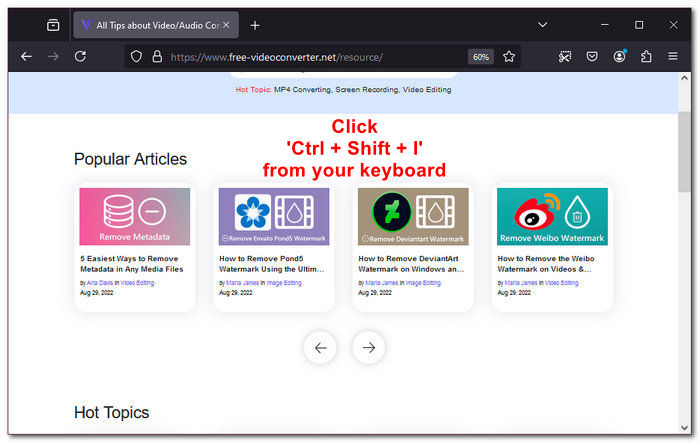
Step 1. Proceed to launch your Mozilla Firefox browser, and from there, go to the webpage where you want to take a full-page screenshot. On the webpage, click the keyboard shortcut key Ctrl + Shift + I to open the Developer Tool Settings.
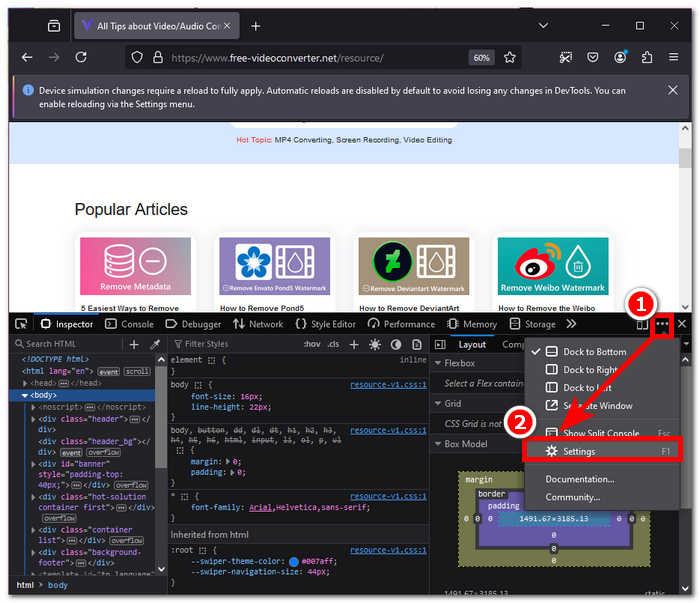
Step 2. Once the Developer Tools appear from the bottom of your web browser, click the ellipses tool to access the Developer Tools Settings.
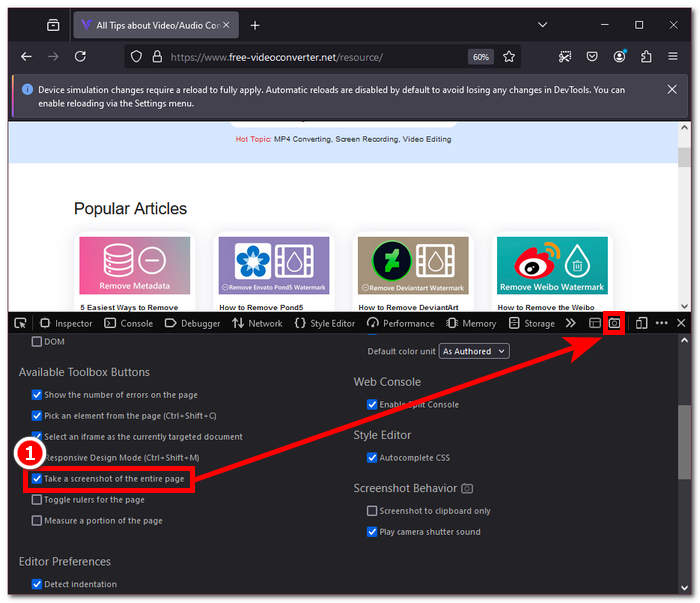
Step 3. Under the Available Toolbox Buttons with the Developer Setting, proceed to put a checkmark on the Take a Screenshot of the entire page so that a camera icon will appear at the top-right part of the Developer Tool.
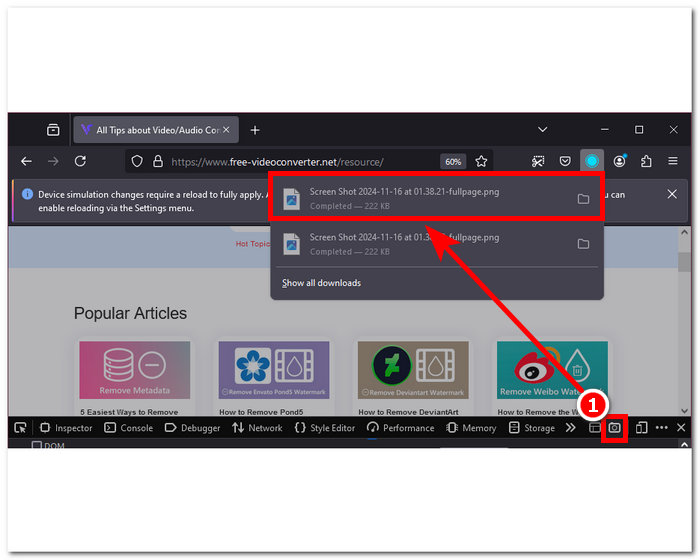
Step 4. Lastly, just simply click on the Developer Tool's camera icon to take a full-page screenshot of the web page in your Mozilla Firefox browser.
方法 4:功能齊全的軟體工具
Suppose you are still trying to figure out how to screen capture Firefox with an emphasis on customization settings despite knowing the default method we prepared for you above. In that case, this method is for you. Through a full-featured software tool, you can take screenshots of any type and edit them for more emphasis all in one tool. The FVC screen recorder is a tool that functions as a screen video recorder and screenshot tool for web browsers. This tool can screen record in its web-based version; however, a desktop version is also available, and thus, it contains more features and functions for screenshots.
使用 FVC 精選的螢幕錄影機在 Mozilla Firefox 瀏覽器中截取螢幕截圖,您可以執行所有不同類型的螢幕截圖(全頁、可見頁面、選擇區域和全視窗),同時允許您進行即時編輯,您可以輕鬆地在螢幕截圖中裁剪、註釋、突出顯示等,然後將其保存到您的裝置中,而使用 Web 瀏覽器的預設值則無法使用這些功能截圖。
Step 1. Download and install the FVC-picked screen recorder software on your desktop devices, then launch the program.
Step 2. Once you manage to launch the software, click on the Snapshot icon from its user interface, then simply choose a screenshot feature from the drop-down menu you want to use to take a screen capture of your Mozilla Firefox browser.
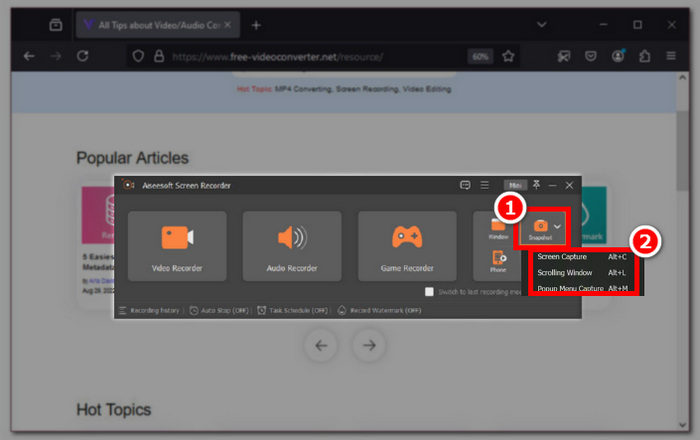
Note: Screen Capture allows you to take a screenshot of the full screen of the webpage to save. The Scrolling Window feature takes a screenshot of the whole webpage, starting from above down to the bottom. Popup Menu Capture allows users to take a customized screenshot in which they can select a region on the webpage.
Step 3. Once you decide on what Snapshot feature tool to use to take a screenshot of your webpage, it will automatically display a screenshot area that you can move around to fully exclude the parts of the webpage you don’t want to include in the screenshot.
Step 4. Once you are satisfied with the screenshot area, you can add highlights and draw or annotate your screenshot before clicking on the Save button.
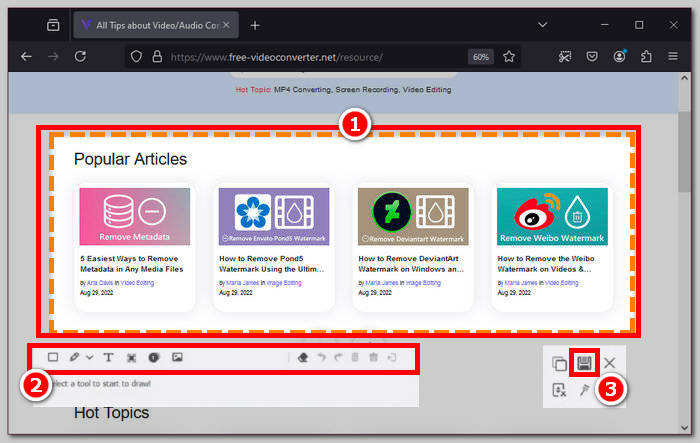
What’s more, it cannot only screenshots on Firefox but also your other search engine, including Google Chrome.
第 3 部分。
我的 Firefox 螢幕截圖儲存在哪裡?
當您從 Mozilla Firefox 瀏覽器截取螢幕截圖時,螢幕截圖通常位於您電腦的檔案總管中的下載資料夾中。
Firefox 截圖工具可以在隱私瀏覽中使用嗎?
是的,即使使用 Mozilla Firefox 瀏覽器的隱私瀏覽功能,使用者也可以使用它來截取螢幕截圖。
Firefox 沒有截圖選項,怎麼辦?
當您在 Firefox 瀏覽器中找不到螢幕截圖功能時,您可以求助於第三方軟體,例如 FVC 螢幕錄影機工具。該工具可以輕鬆滿足 Firefox 瀏覽器所缺少的所有螢幕截圖需求。
結論
截圖很容易;因此,為了有效地從 Firefox 網頁截取螢幕截圖,使用者首先應該知道特定任務需要什麼特定的螢幕截圖類型。找出類型後,他們可以繼續選擇是使用透過瀏覽器功能進行截圖的預設方式,還是使用功能齊全的截圖工具,例如 FVC 螢幕錄影機。
-
 如何在 HP 上輕鬆擷取螢幕截圖 [2024 指南]
 透過我們的逐步指南了解如何在戴爾電腦上截取螢幕截圖。透過這個簡單的過程提高您的效率並節省時間。現在讀!
-
 使用本基本指南輕鬆截取視訊螢幕 [2024]
 了解如何使用這些簡單的方法輕鬆地從影片中截取螢幕截圖。按照我們的指南立即開始截取您喜愛的影片的螢幕截圖!
-
 如何使用此基本指南在 Mac 上輕鬆截取螢幕截圖
 想要在 Mac 上截取螢幕截圖但不確定如何操作?我們抓到你了!我們將向您展示截圖和保存螢幕圖像的最簡單、最快捷的方法。
