


 視頻轉換大師
 屏幕錄影大師
 影片修復
影片修復
 安全下載
安全下載VLC 翻錄 DVD:如何使用 VLC 輕鬆轉換 DVD [2024]
肯定的是,用 DVD 播放機看電影曾經是你生活的一部分?請告訴我們,您小時候在哪裡看的第一部動畫片或電影?很懷舊的感覺吧?如今,Netflix 壓倒了所有串流媒體平台,觀看電影從未像現在這樣簡單和方便。因此,許多光碟現在都被忽視了,等待隨著時間的推移而腐爛。
現在,如果你正在尋找保存收藏的方式,你唯一能做的,就是借助 VLC 將每一張光碟轉檔備份。VLC 是一款免費的多媒體播放器,允許使用者播放、轉換並修復各種類型的影片。除此之外,這個工具還能擷取 DVD,將其中的多媒體內容轉出。有鑑於此,本文特別為你準備了一份教學指南,幫助你使用 VLC 擷取 DVD。另外,在文章的最後,還有一款 VLC 的替代方案等待你來發掘,它可能提供更簡單且更強大的功能。還在等什麼?立刻往下滑,深入閱讀這篇文章吧。

第 1 部分:在 VLC 上翻錄 DVD
VLC 是一款適用於 Windows、macOS 和 Linux 用戶的媒體播放器軟體應用程式。該工具因其多方面功能而廣為人知,用戶不僅可以透過它播放各種視頻,還可以翻錄 DVD,使其更易於在不同設備上訪問和播放。該工具的作用是從光碟中提取內容,然後將其轉換為可以輕鬆儲存或共享的數位化影片檔案。
價格:100% 免費
以下是使用 VLC 擷取 DVD 的逐步教學:
步驟 1: 首先,你需要在裝置上下載並安裝 VLC。之後,載入光碟。
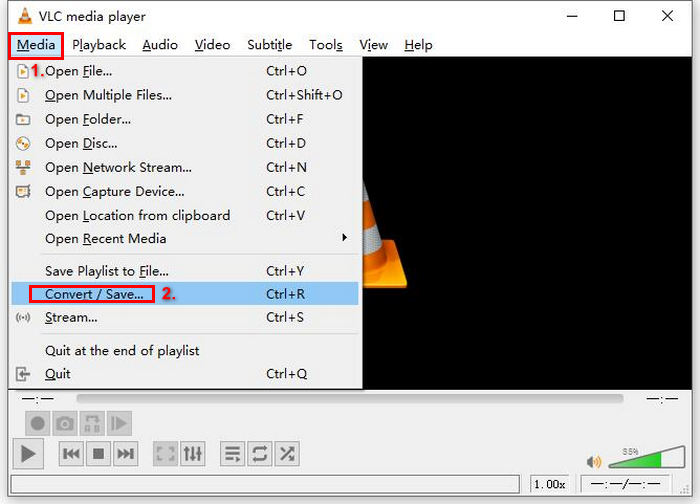
步驟 2: 接著,前往 媒體(Media) 分頁,從清單中選擇 轉換/儲存(Convert/ Save) 選項。
步驟 3: 然後,點選上方的 光碟(Disc) 分頁,勾選啟用 DVD 選項,並在 光碟裝置(Disc device) 中選擇你想擷取的 DVD。
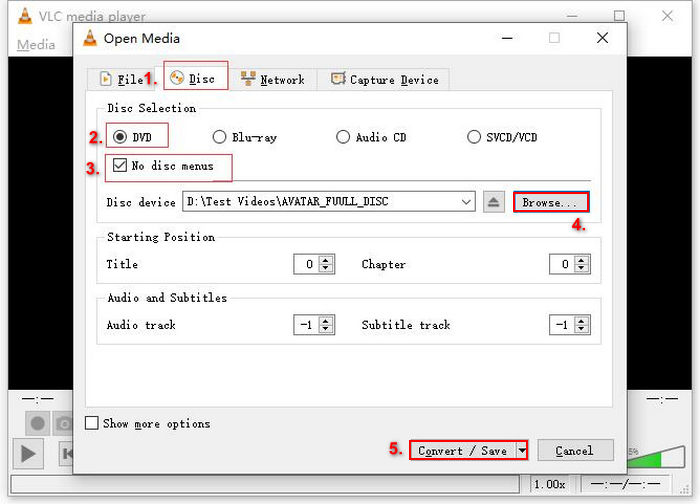
步驟 4: 現在,點擊 轉換/儲存(Convert/ Save) 按鈕,接著在下面的設定檔下拉選單中,將輸出格式設為 MKV。
步驟 5: 之後,在下方的 目的地(Destination) 區域中,點選 瀏覽(Browse),選擇資料夾,並為輸出檔案命名。
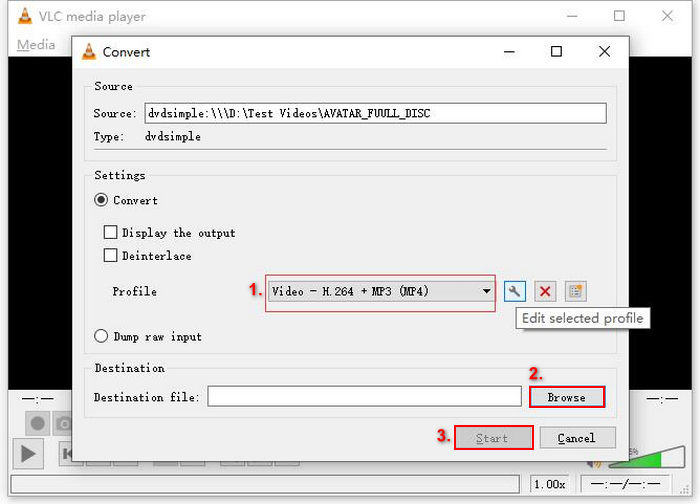
步驟 6: 當一切就緒後,點擊 開始(Start) 按鈕,即可使用 VLC 擷取 DVD。
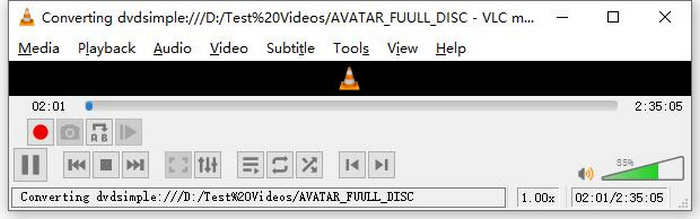
注意:你可以在底部看到「轉換中」的進度列,只需耐心等待 VLC 完成擷取。
評論:
我們喜歡 VLC 媒體播放器的原因是它真正可靠且功能多樣,特別是對於尋找免費 DVD 翻錄選項的用戶來說。然而,儘管有這個功能,它的介面對於初學者來說可能有點技術性,而且與更專業、更專用的 DVD 翻錄軟體相比,這個過程可能看起來很漫長。此外,它可能會難以處理一些受複製保護的光碟,從而限制了它在這些情況下的有效性。儘管如此,仍然建議使用 VLC 翻錄 DVD。
第 2 部分。
如果您正在尋找 VLC 以外的 DVD 翻錄工具,AnyMP4 DVD Ripper 就是您的理想之選。這款 VLC DVD 翻錄軟體功能齊全,支援多種常用視訊輸出格式,包括 MP4、MOV、AVI、MKV 等。有了它,您可以輕鬆地將 DVD 轉換為數位格式,以便在各種設備上播放,且不會損失畫質。它的 DVD 翻錄功能非常出色,支援轉換任何類型的 DVD,例如自製 DVD、商業 DVD、健身 DVD 以及包含 99 個標題的 DVD。
使用 AnyMP4 DVD Ripper 翻錄 DVD 的步驟:
步驟 1: 首先,你需要在裝置上下載並安裝此工具。記得將 DVD 放入電腦的 DVD 光碟機中,並等待幾分鐘,直到系統偵測到光碟。
步驟 2: 接著,啟動該工具並點擊「Load DVD」以載入光碟。
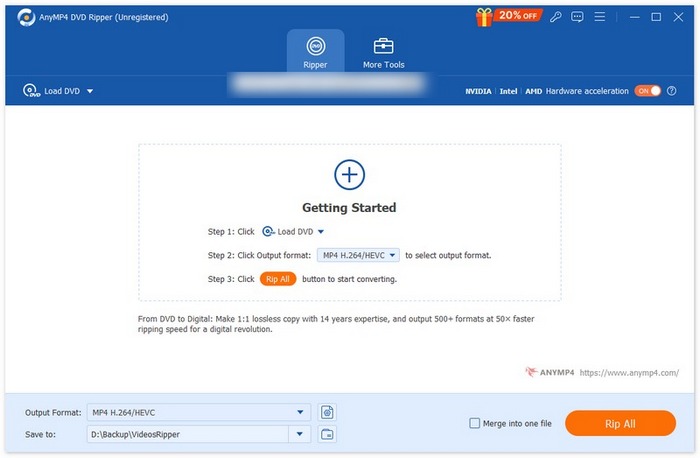
步驟 3: 然後,點擊下方的「Output Format」,在「Video」分頁中選擇你想要的影片格式。透過這個流程,你可以把 DVD 轉成更容易存取、且被多種裝置支援的影片檔案格式。完成後,只需點擊「Rip All」按鈕,即可開始擷取你的 DVD。

是不是方便多了? AnyMP4 DVD Ripper 確實是 VLC DVD Ripper 的絕佳替代品。從介面、轉換過程到其他必要功能,這款工具徹底改變了遊戲規則,遠勝於 VLC 的 DVD 轉換方式。
第 3 部分。
翻錄 DVD 的最佳格式是什麼?
翻錄 DVD 的最佳格式取決於使用者的裝置。然而,MP4 是一種廣泛且常用的視訊格式。因此,在翻錄 DVD 時,您可以選擇的最安全的格式是 MP4。
我可以在 Windows 7 翻錄 DVD 嗎?
是的。您可以使用 VLC 媒體播放器在 Windows 7 上翻錄 DVD。 VLC 支援多種作業系統,包括 Windows 7。但請確保您的 DVD 驅動器可以正常運行,並且 VLC 是最新的,以避免相容性問題。
翻錄一張 DVD 要多久?
擷取一張 DVD 所需的時間會因多種因素而異。你必須考量 DVD 的容量大小、DVD 光碟機的讀取速度,以及你選擇的擷取設定,例如解析度、格式等。一般來說,擷取一張標準 DVD 可能需要 20 分鐘到一個多小時。畫質較高的擷取與檔案較大的輸出,通常會需要更長的處理時間。如果你想了解VLC 的播放速度,可以到這裡查看。
我可以使用 VLC 翻錄受版權保護的 DVD 嗎?
不行。
結論
現在你已經知道如何使用 VLC 擷取 DVD,就沒有理由再把所有 DVD 永遠堆在那裡了。只要依照本教學操作,你就能把所有光碟轉成數位檔案,隨時隨地在任何裝置上播放。同時,若 VLC 在你那邊無法正常運作,你可以改用 AnyMP4 DVD Ripper 作為替代方案。是否已經感到期待?那就一起來試試看,開始擷取吧。
-
 如何通過 Chromecast 將 DVD 電影從 PC/Mac 流式傳輸到電視
 不知道如何通過 Chromecast 在電視上觀看 DVD 電影?本文介紹了通過 Chromecast 將 DVD 電影從 PC 投射到電視的最簡單方法。
-
 Android DVD 播放器 – 如何在 Android 手機上播放 DVD 視頻
 如何在 Android 手機上播放 DVD 文件?有沒有安卓 DVD 播放器?在本文中,您將了解在有或沒有外部驅動程序的情況下在 Android 手機上播放 DVD 視頻的 3 種方法。
-
 在 PC 上播放 DVD 視頻的 DVDFab 播放器的最佳 3 替代品
 DVDFab Player 值得購買嗎?可以播放4K視頻嗎?它的付費版本怎麼樣?本文將詳細介紹其功能,並提供 DVDFab Player 的 3 種最佳替代品供您選擇。
