


 視頻轉換大師
 屏幕錄影大師
 影片修復
影片修復
 安全下載
安全下載使用我們最好的 3 款 DVD 翻錄器輕鬆將 DVD 轉換為 AVI
音訊視訊交錯格式(也稱為 AVI)是一種廣泛使用的檔案格式,用於在一個檔案中儲存視訊和音訊內容。這種格式以其多功能性和對各種編解碼器的廣泛支援而聞名。正因為如此,許多需要翻錄 DVD 收藏的用戶會將其轉換為 AVI 格式。
除此之外,使用者之所以會將 DVD 轉檔為 AVI,不僅是為了保存其內容,也是為了讓影片能在任何裝置上播放。最後,儘管不斷有新格式出現,AVI 仍然相當重要,甚至是 DVD 轉檔時的熱門選擇。現在,為了幫助你輕鬆將 DVD 轉成 AVI,我們整理了三款最佳 DVD 擷取軟體,它們都能高效轉換成 AVI 格式。那還在等什麼?立刻把這篇文章通篇讀完吧!

第 1 部分:使用 AnyMP4 DVD Ripper 將 DVD 轉成 AVI
我們清單上的第一款工具是 AnyMP4 DVD Ripper。這個工具能讓任何人更輕鬆、快速地將 DVD 轉換成 AVI。載入 DVD 之後,使用者只需將其匯入軟體,然後將格式更改為 AVI。除了 AVI 之外,使用者也可以將光碟轉檔為 MP4、MOV、MKV 等多種格式。最後,此工具還內建剪輯功能,可在轉檔前進一步優化影片輸出效果。
價格:
● 1 個月授權:$24.96
● 永久授權:$54.96
支援系統:
●蘋果系統
● 窗戶
優點:
● 支援多達 500 種格式與裝置。
● DVD 翻錄功能透過 NVIDIA、Intel 和 AMD 的硬體加速而增強。
● 介面非常友好,最適合初學者。
● 包含基本的影片編輯功能以增強影片輸出。
● 允許在翻錄之前調整影片品質和效果。
缺點:
● 免費版本不提供完整功能。
使用 AnyMP4 DVD Ripper 將 DVD 轉成 AVI 的快速指南:
步驟 1: 先在電腦上下載並安裝 AnyMP4 DVD Ripper。在繼續之前,請先將 DVD 放入 DVD 光碟機中,並稍候片刻讓軟體偵測光碟。
步驟 2: 啟動 AnyMP4 DVD Ripper,然後按一下「Load DVD(載入 DVD)」按鈕以載入 DVD 內容。
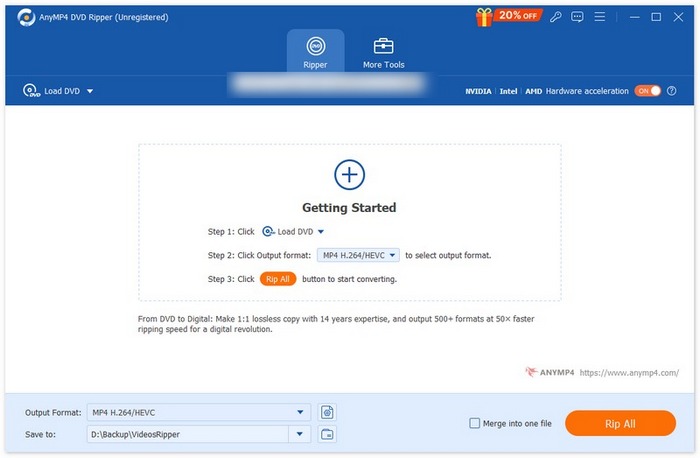
步驟 3: 接著,點選「Output Format(輸出格式)」區域,並在「Video(影片)」分頁中選擇「AVI」。選好格式後,只要按下「Rip All(全部轉檔)」按鈕,即可開始轉檔你的 DVD。
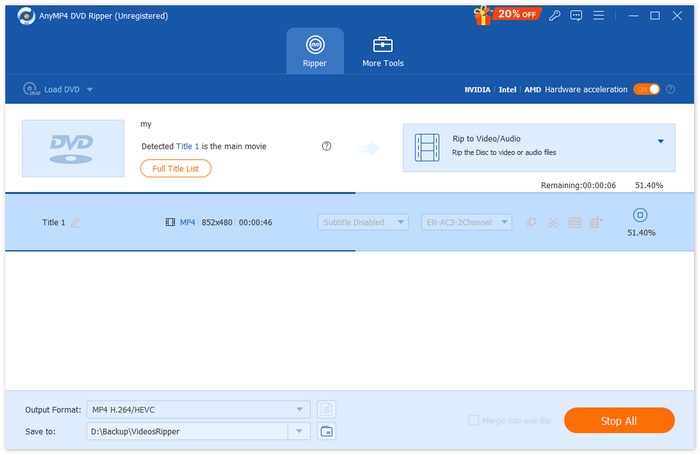
有了 AnyMP4 DVD Ripper,將 DVD 轉換為 AVI 格式既快速又省力。此外,它支援最高 8K、4K 與 1080p 解析度,確保轉檔後的 DVD 仍能維持無損畫質輸出。
第 2 部分。
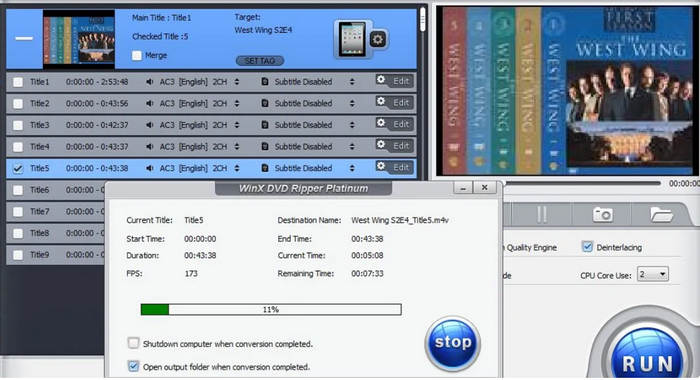
您可以使用的另一個將 DVD 轉換為 AVI 的工具是 WinX DVD Ripper Platinum。該工具以其強大且多功能的翻錄功能而聞名,可將 DVD 內容翻錄成 AVI 等各種視訊格式。此外,它還可以有效地翻錄受版權保護的 DVD。但請注意,翻錄受版權保護的 DVD 可能會產生法律後果。最後,該工具利用 3 級硬體加速進行轉換,可快速將 DVD 翻錄為 AVI。
價格:
● 1 年訂閱:$39.95
● 終身授權:$59.95
● ● 四合一套組:$89.95
支援系統:
●蘋果系統
● 窗戶
優點:
● 支援HVEC編碼,實現高品質的視訊輸出。
● 可以翻錄具有複製保護的 DVD 檔案。
● 支援 AVI、MP4、WMV、MOV、FLV、MPEG 和 MP3 輸出格式。
● 提供高品質輸出,不會崩潰。
缺點:
● 使用者介面對某些初學者來說並不理想,因為它太複雜了。
● 編輯功能有限。
第 3 部分。
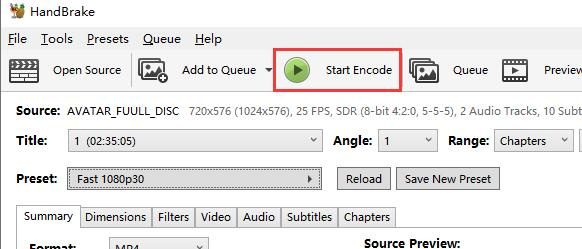
您可以用來將 DVD 翻錄為 AVI 的最後一個工具是 HandBrake。該工具是一種流行的開源視訊轉換工具,支援多種最常用的視訊格式。這款 DVD 翻錄工具對各種音訊和視訊格式提供豐富的支持,可以輕鬆有效地將 DVD 轉換為任何格式,尤其是 AVI。
價格: 免費
支援系統:
●蘋果系統
● 窗戶
● Linux
優點:
● 易於導航的介面。
●大量轉換排隊托盤極為實用。
● 支援多種輸出格式和編解碼器。
● 提供視訊品質的進階自訂選項。
● 免費且開源。
缺點:
● 與具有 GPU 加速的付費 DVD 翻錄器相比,轉換速度可能較慢。
● 如果不借助第三方工具,HandBrake 本身不支援翻錄受保護或加密的 DVD。
第 4 部分。
AVI 和 MP4 有什麼區別?
雖然 AVI 和 MP4 都是影片容器格式,但它們在壓縮方式、相容性與檔案大小方面有所不同。AVI 通常壓縮較少,因此能提供較高的視訊品質,但檔案體積也較大;相對地,MP4 的壓縮較高,產生的檔案大小會比較小。
如何在沒有 CD 光碟機的情況下將 CD 轉換為數位格式?
要將沒有 CD 驅動器的 CD 轉換為數位文件,您需要使用外部 USB CD 驅動器。該驅動程式隨時可用,可讓您連接到電腦並像通常使用翻錄軟體一樣翻錄 CD。另一種選擇是使用帶有 CD 驅動器的電腦將 CD 翻錄成您選擇的數位格式,然後透過 USB、雲端儲存或外部驅動器將這些檔案傳輸到您的裝置。
我可以合法地將 DVD 翻錄到我的電腦上嗎?
從技術上講,不行,但這應該是合法的做法,而且不違反當地法律。在許多地區,翻錄您擁有的 DVD 以供個人使用是合法的,例如建立備份或將內容傳輸到另一台裝置供個人觀看。然而,翻錄受版權保護的 DVD 可能是違法的,因為破壞數位版權管理或 DRM 保護會違反版權法。
翻錄 DVD 會損失品質嗎?
是的。當您翻錄 DVD 時,轉換後的輸出品質可能會有所損失。然而,這取決於翻錄過程中使用的工具和設定。通常,DVD 採用 MPEG-2 格式編碼,該格式已經過壓縮。因此,當您將 DVD 翻錄為 AVI 之類的格式時,它會進一步壓縮。然而,仍然有一些 DVD 翻錄器提供無損提取選項,以確保品質盡可能接近原始品質。
結論
從 DVD 觀賞內容本身是件令人享受的事。然而,隨著數位化的興起,看電影變得越來越便利,將 DVD 擷取成 AVI 的需求在因應這些改變上就顯得格外重要。如果你正在尋找一款能將 DVD 轉成你所需影片格式(特別是 AVI)的最佳工具,那麼本文所評測的這些工具或許正適合你。
-
 如何通過 Chromecast 將 DVD 電影從 PC/Mac 流式傳輸到電視
 不知道如何通過 Chromecast 在電視上觀看 DVD 電影?本文介紹了通過 Chromecast 將 DVD 電影從 PC 投射到電視的最簡單方法。
-
 Android DVD 播放器 – 如何在 Android 手機上播放 DVD 視頻
 如何在 Android 手機上播放 DVD 文件?有沒有安卓 DVD 播放器?在本文中,您將了解在有或沒有外部驅動程序的情況下在 Android 手機上播放 DVD 視頻的 3 種方法。
-
 在 PC 上播放 DVD 視頻的 DVDFab 播放器的最佳 3 替代品
 DVDFab Player 值得購買嗎?可以播放4K視頻嗎?它的付費版本怎麼樣?本文將詳細介紹其功能,並提供 DVDFab Player 的 3 種最佳替代品供您選擇。
