


 視頻轉換大師
 屏幕錄影大師
 影片修復
影片修復
 安全下載
安全下載值得考慮的 6 款最佳 DVD 翻錄軟體 - 選擇一款
過去,我們最常接觸到的電影載體就是 DVD。那個時候,家家戶戶都有 DVD 播放機,電腦也都配備了 DVD 光碟機。想看電影或影集時,我們會到影音店買一片 DVD。然而,隨著手機和電腦功能日益強大、更新,我們能見到這種格式的機會也愈來愈少。我們可以直接在網路上選片,還能透過連結把精彩影片分享給朋友。不過,這並不代表 DVD 會就此消失,它依然是最安全的資料儲存裝置之一。但我們常常會不小心刮傷或弄裂 DVD。為了避免其中影片遺失,最好的方式就是將 DVD 數位化,把影片匯出並備份保存。在這種情況下,我們就需要專業的DVD 翻錄軟體來幫助完成操作。如果你想挑一款符合期待的工具,請繼續閱讀本指南。我們將介紹市面上六款頂尖的 DVD 翻錄程式,並附上使用教學。在這裡,你可以找到所有需要了解的資訊。

第 1 部分 簡介
為什麼你需要 DVD 翻錄器
正如介紹中所提到的,現在人們更喜歡在線觀看熱門電影和電視劇。然而,這並不意味著DVD將被淘汰。由於當時設備的限制,大多數上映多年的經典老電影都保存在DVD上。而DVD作為實體載體,容易損壞。為了確保這些寶貴的視訊資源不會遺失,我們需要將DVD數位化,使用專業的DVD翻錄軟體匯出其中的視頻,並在其他裝置上進行備份。
翻錄 DVD 的第二個原因是,雖然我們家裡可能有 DVD 播放器或光碟機,但當我們想在其他場景或地點播放 DVD 上的內容時,隨身攜帶這些設備並不實用。我們可以提前提取視頻,並將文件保存到手機或電腦上。這樣,即使使用普通的視訊播放器,我們也可以觀看 DVD 上保存的內容。
目前市面上有許多軟體提供此類服務,一些功能更全面的影片編輯器也配備了此類功能。為了幫助您更準確地找到理想的DVD翻錄軟體,我們將在下文中為您介紹六款最佳的DVD翻錄軟體。您可以根據它們的優缺點和使用步驟來決定選擇哪一款作為您的最佳助手。
第二部分:2025 年最佳 DVD 翻錄軟體
正如介紹中所提到的,現在人們更喜歡在線觀看熱門電影和電視劇。然而,這並不意味著DVD將被淘汰。由於當時設備的限制,大多數上映多年的經典老電影都保存在DVD上。而DVD作為實體載體,容易損壞。為了確保這些寶貴的視訊資源不會遺失,我們需要將DVD數位化,使用專業的DVD翻錄軟體匯出其中的視頻,並在其他裝置上進行備份。
AnyMP4 DVD 翻錄器
AnyMP4 DVD Ripper 可以將 DVD 中的影片轉換為任何流行格式,並允許在 Windows 或 Mac 電腦上直接編輯匯出的影片。憑藉其先進的硬體加速技術,它可以將 DVD 翻錄速度提升 50 倍。此外,它還可以 1:1 複製 DVD,不會造成任何畫質損失,因此我推薦追求高品質的用戶嘗試使用。
• 支援多語言字幕,並允許您調整 DVD 字幕和音軌。
• 利用強力加速技術,加快撕裂速度。
• 2 種 DVD 分析模式,滿足您對更快分析速度或更全面分析結果的需求。
• 將 DVD 電影中的精彩片段儲存為 PNG/JPG 格式。
• 支援自訂 DVD 品質、解析度、位元率等。
• 支援匯出為視訊、音訊和其他常用格式。
下載完成後,您可以按照以下步驟使用評價最高的 DVD 翻錄軟體。
步驟 1: 在桌機上啟動程式,將 DVD 放入光碟機。點擊介面上的「Load DVD」,把光碟載入到此平台。
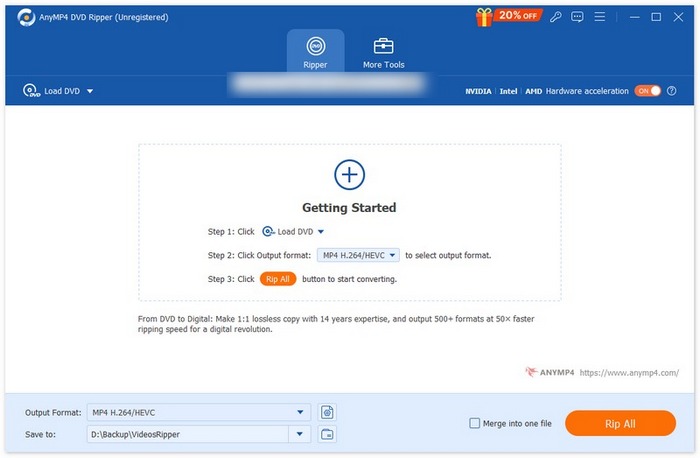
步驟 2: 當 DVD 載入程式後,工具會自動進行分析,你就能看到它的詳細資訊。你也可以依照需求,自行調整影片畫質、編碼器與影格率。
步驟 3: 選擇你想要翻錄的內容,並從下方的「Output Format」按鈕中選取輸出格式。
步驟 4: 立即點擊「Rip All」,開始將內容轉檔成你所選擇的任意格式。
優點
- 支援超過500種輸出檔案格式。
- 幾個簡單的步驟,就能加快撕扯過程。
- 安全撕開,不損失品質。
- 配備全套影片編輯功能,幫助您修改文件。
缺點
- 免費版本可以解鎖非常有限的功能。
WinX DVD翻錄器
WinX DVD Ripper 是一款專業且有效率的 DVD 處理工具。它能在五分鐘內將光碟中的影片轉換為 MP4 格式,並確保轉換過程中視訊品質不受影響。輸出的影片相容於 iPhone、iPad、安卓裝置、智慧電視、PC、平板電腦等。當然,它還配備了功能豐富的影片編輯功能。您可以剪輯和合併 DVD 中的影片、調整音軌、添加字幕軌道等。此外,它還可以輕鬆調整位元率、幀率和解析度等各種視訊元素。我們已經在實際使用中使用它,並參考了許多 WinX DVD Ripper 的評測,我們認為它是一款適合大多數用戶的完美 DVD 翻錄工具。
您可以依照以下步驟翻錄 DVD。
步驟 1: 在 Windows 電腦上下載並安裝 WinX DVD Ripper。
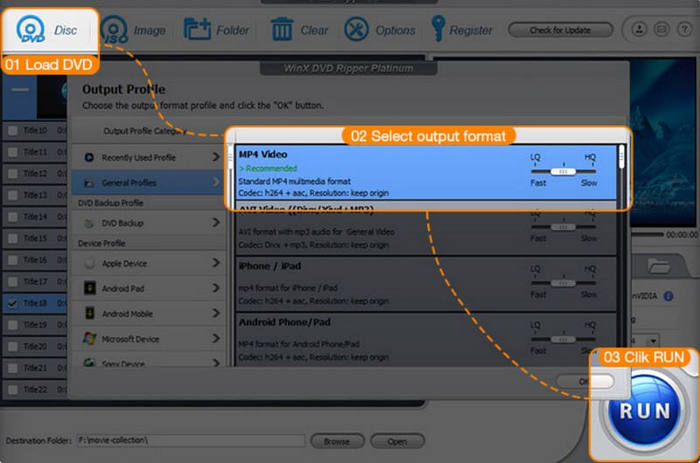
步驟 2: 插入你的 DVD,然後點擊 Disc,在程式中載入這張光碟。
步驟 3: 為你的影片選擇一種輸出格式。你也可以選擇輸出成裝置專用檔案,例如 iPhone、iPad 等。
步驟 4: 選擇目的地資料夾。最後,點擊 RUN 開始翻錄流程。
優點
- 可在進階硬體配置上實現 5 分鐘 DVD 翻錄。
- 支援超過 210 種視訊或音訊編解碼器。
- 提供位元率、取樣率、fps 和解析度的自訂設定。
缺點
- 僅與 Windows 作業系統相容。
手剎
Handbrake 是影片編輯工具中不容忽視的老朋友了。除了最著名的格式轉換功能外,它還可以用作免費的 DVD 翻錄轉換器。與前兩款工具一樣,Handbrake 允許用戶自由調整視訊參數。您可以為 DVD 上的影片添加標題、字幕,甚至濾鏡。 Handbrake 支援的其他操作包括降噪、色彩校正和灰階調整。
這是使用 Handbrake 翻錄 DVD 的指南。
步驟 1: 從官方網站下載 Handbrake。接著將光碟放入電腦的 DVD 光碟機。
步驟 2: 開啟 Handbrake 後,它會自動偵測你的 DVD。此時你會看到 Source Selection。
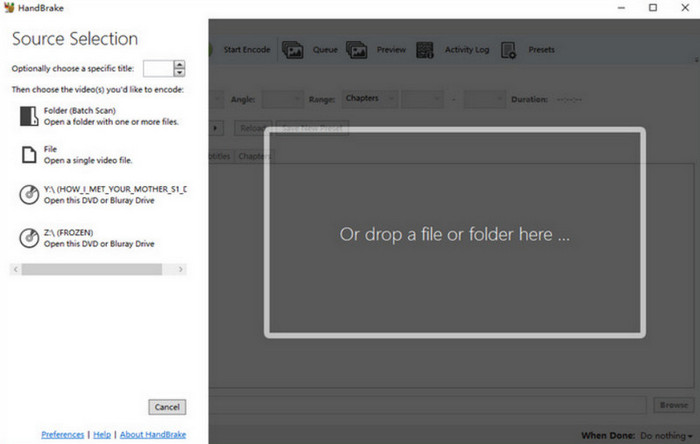
步驟 3: 點擊你的目標 DVD,程式會開始掃描光碟中的內容。
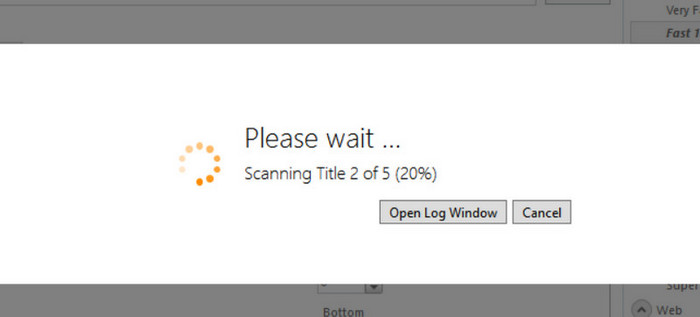
步驟 4: 展開 Title 底下的清單,決定你想要翻錄 DVD 的哪一部分。
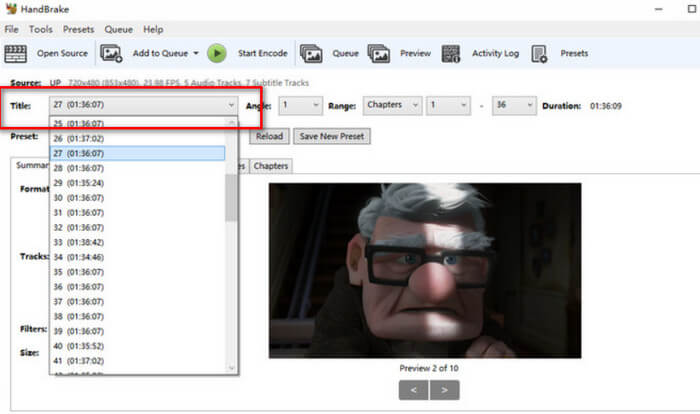
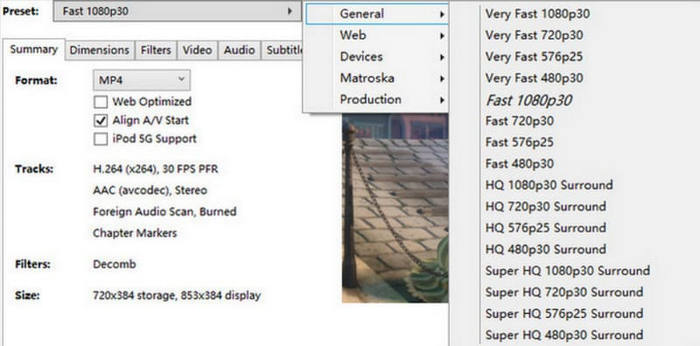
步驟 5: 之後,你需要為影片選擇一種輸出格式。同時,你也可以點擊 Preset > General 來選擇目標解析度。
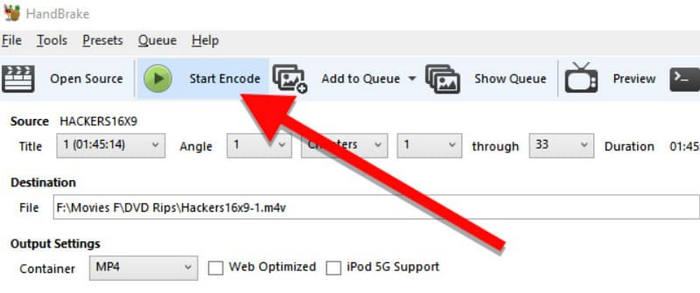
步驟 6: 若要開始翻錄過程,請點擊 Start Encode 按鈕。
優點
- 100% 免費且開源。
- 相容於 Mac、Linux 和 Windows 系統。
缺點
- 頁面設計風格比較老舊。
Wonderfox DVD翻錄器
Wonderfox DVD Ripper 是一款專門用來處理 DVD 及其檔案的軟體。它宣稱能在 0 品質損失的情況下翻錄 DVD。使用者只需 3 個步驟就能完成所有必要操作。由於它擁有超過 600 種輸出預設檔案格式,並能完整解碼與數位化光碟內容,因此幾乎可以處理任何檔案格式與 DVD。當然,它的功能並不只限於影片處理,使用者也可以用它來為影片新增字幕。
以下是使用 Wonderfox DVD Ripper 應執行的操作。
步驟 1: 在你的裝置上下載並安裝 Wonderfox DVD Ripper,然後將它開啟。
步驟 2: 放入你想要翻錄的 DVD。接著點擊 DVD Disc,將光碟中的內容上傳到程式。
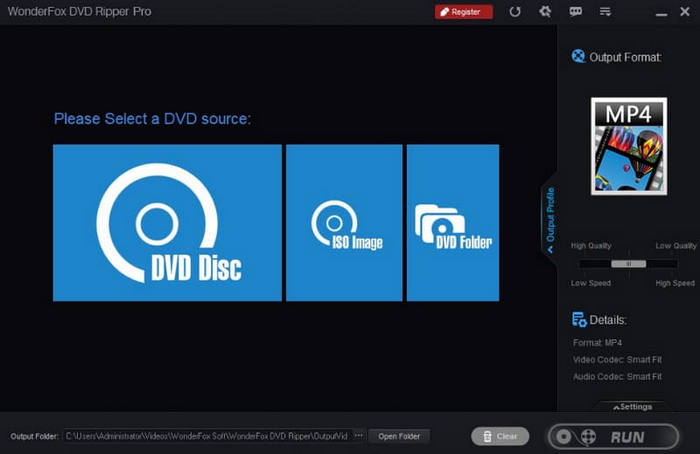
步驟 3: Wonderfox DVD Ripper 會自動選取 DVD 上的主影片。你可以再依序加入其他影片。若要編輯影片,請點擊 Edit。
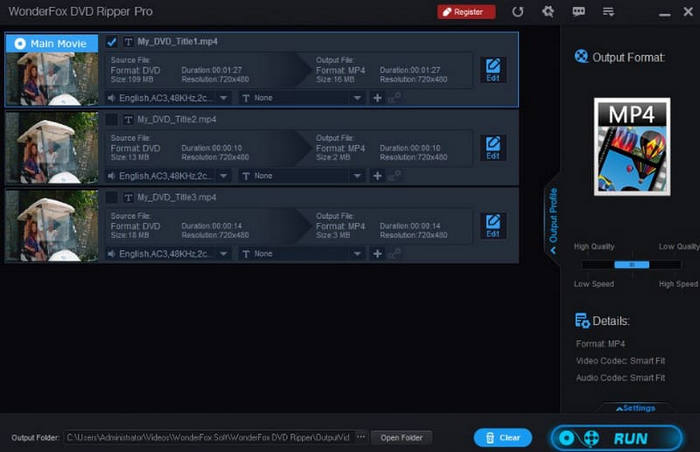
步驟 4: 點擊 Output Format,為翻錄後的影片選擇檔案格式。最後,點擊 RUN。
優點
- 它可以輕鬆壓縮 DVD 上的文件,且不會造成任何品質損失。
- 處理 DVD 極其高效。
- 使用非常簡單。使用者只需三步驟即可翻錄 DVD。
缺點
- 僅可在 Windows 電腦上下載。
- 提供的出口剩餘時間不準確。
DVDFab HD 解密器
DVDFab 是 DVD 和藍光光碟處理專家。與傳統的翻錄器相比,它擁有一項特殊功能。使用者可以在開始操作之前設定播放模式偏好設定。您可以先確定轉換後的 DVD 影片的播放位置,然後根據您的偏好設定影片參數。在視訊和音訊品質方面,它可以匯出無損品質的視訊和 5.1 AC3 音訊。如果您想在家中享受戲院等級的視聽體驗,我們推薦您嘗試 DVDFab HD Decrypter。
以下是使用 DVDFab HD Decrypter 翻錄影片時應該做的事情。
步驟 1: 開啟 DVDFab 軟體並選擇 Ripper 模式,然後載入你的目標 DVD。
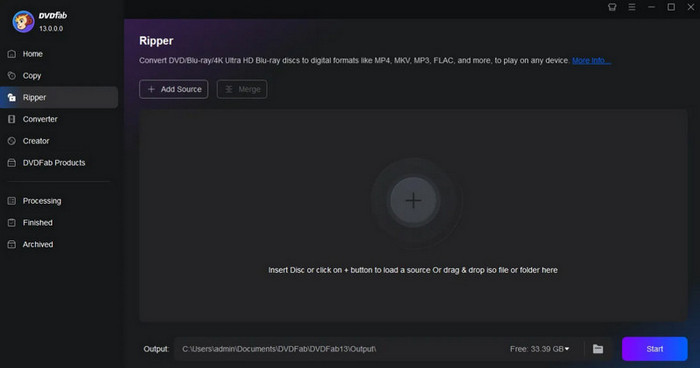
步驟 2: 點擊 Choose Other Profile > Format > Video,為你的檔案選擇一種數位格式。若需要編輯檔案,請點擊 Advanced Settings 和 Video Edit。
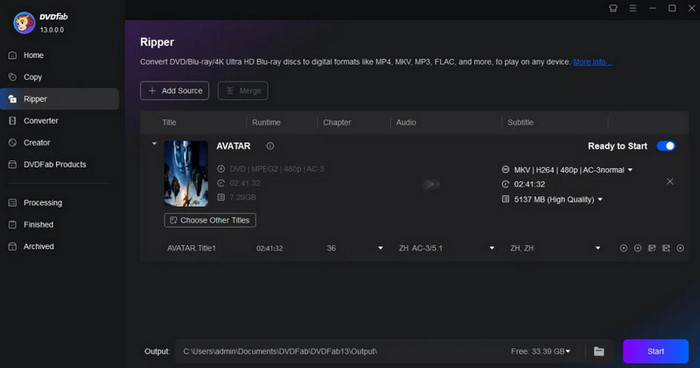
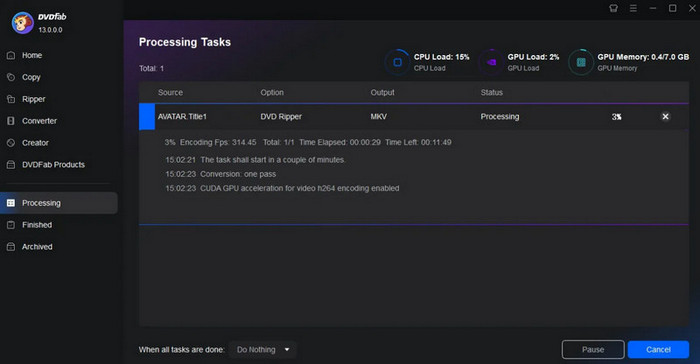
步驟 3: 點擊 Start,讓程式開始翻錄你的 DVD。
優點
- 支援多達 1000 多種文件格式。
- 可以透過 GPU 加速以 50 倍的速度轉換 DVD。
缺點
- 免費版限制太多,需要付費才能開始正常使用。
Movavi 視頻轉換器
與前面提到的 FVC Video Converter Ultimate 類似,Movavi Video Converter 也是一套全方位的影音處理工具。不過,它支援的格式範圍進一步擴展到了 DVD。它的介面涵蓋所有基本的影音編輯工具,可以裁剪、剪輯、旋轉、調整大小、反轉影片等。在特效方面,這款MP4 編輯器甚至提供超過 6000 種不同選項。你只需一鍵就能把影片輸出成任何主流格式,來完成 DVD 翻錄。
這是有關如何使用這款最佳 DVD 翻錄程序的指南。
步驟 1: 在電腦上安裝 Movavi Video Converter,並載入你的 DVD。
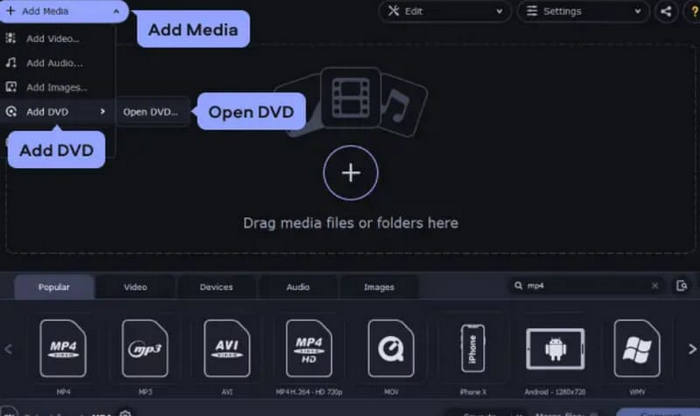
步驟 2: 點擊 Add Media,選擇 Add DVD > Open DVD。接著找到 VIDEO_TS 資料夾。
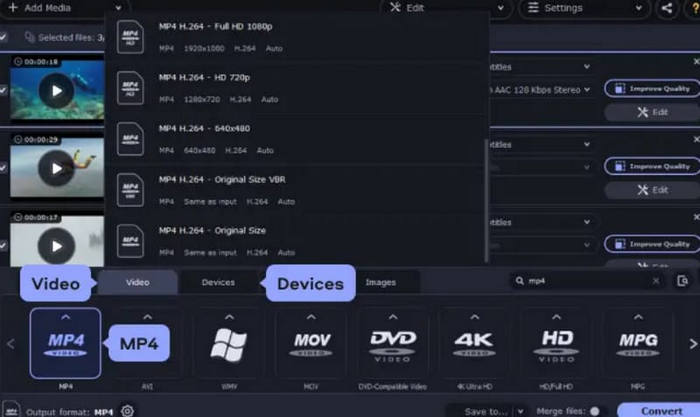
步驟 3: 在 Video 分頁下選擇輸出格式。
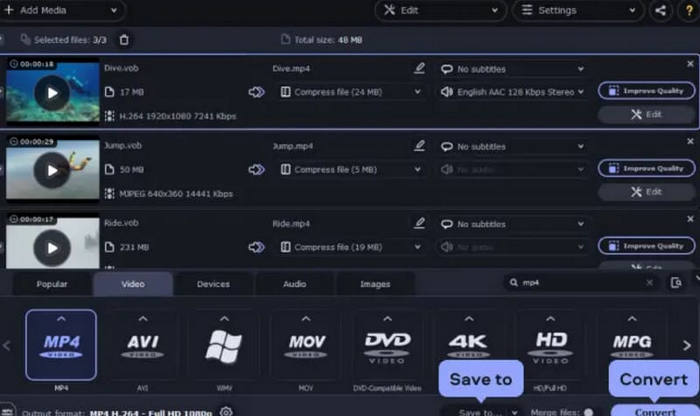
步驟 4: 點擊 Save to 選擇影片的儲存路徑。最後點擊 Convert。
優點
- 支援使用 AI 技術升級您的影片。
- 基於強大的技術支持,經常更新。
- 提供及時的客製化服務。
缺點
- 不支援刻錄 DVD。
第 3 部分。最佳 DVD 翻錄軟體常見問題解答
翻錄 DVD 會毀壞它嗎?
此操作不會影響 DVD 上的影片或 DVD 本身。但是,插入和取出 DVD 時請小心,以免刮傷 DVD。
翻錄的 DVD 有多少 GB?
DVD 通常最多可儲存 4.7 GB 的資料。一部電影通常佔用 1 到 2 GB。您可以根據內容估算。
翻錄 DVD 時品質會下降嗎?
翻錄 DVD 不會影響影片品質。當然,如果在導出前壓縮視頻,清晰度可能會降低。
結論
本文評測了市面上六款最佳DVD翻錄軟體,幫助您找到最適合的選擇。您可以在這裡找到詳細的操作步驟以及它們的優缺點。如果您需要免費的解決方案,可以嘗試Handbrake;如果您需要專業的DVD翻錄工具,我推薦AnyMP4 DVD Ripper。
-
 在 Windows 和 Mac 上將 Video_TS 燒錄到 DVD 的 3 種方法
 手邊有 TS 檔案並想將其保存在 DVD 上,請閱讀本指南。我們將詳細教您如何在 Windows 或 Mac 電腦上將 Video_TS 燒錄到 DVD。
-
 2025 年 5 款適用於 Windows 10 的免費 DVD 播放器評測
 什麼是Windows 10最好的免費DVD播放器?如何獲得Windows Media Player播放DVD?這篇文章列出了5個適用於Windows 10的最佳免費DVD播放器。
-
 適用於 Mac 的 DVD 播放器軟體免費下載 2025
 如何在沒有DVD驅動器的Mac上播放DVD?如何在Mac上使用外部DVD播放器?此帖分享了5個免費的Mac DVD播放器。
