


 視頻轉換大師
 屏幕錄影大師
 影片修復
影片修復
 安全下載
安全下載Vudu 光碟轉數位:了解如何輕鬆轉換 DVD
如果您收藏了大量 DVD,並想將它們數位化,Vudu 的「光碟轉數位」服務可以讓您輕鬆上手。無需攜帶笨重的 DVD 盒佔用空間,您可以輕鬆地在您喜愛的設備上觀看電影,無需 DVD 播放器。只需幾個簡單的步驟,您就可以將 DVD 轉換為數位文件,儲存在您的 Vudu 影碟庫中,隨時可以在線觀看。
因此,在本指南中,我們將探討什麼是Vudu Disc to Digital(Vudu 光碟轉數位)以及如何進行轉換。同時,我們也會帶你一步一步了解如何使用其他替代工具來完成轉檔。好奇想知道更多嗎?那就繼續往下看。

第 1 部分。什麼是 Vudu 光碟轉數字
Vudu 是沃爾瑪旗下一家知名的美國數位視訊商店和串流媒體服務平台。該平台允許用戶購買或租借電影,有時也提供免費觀看,但選擇有限。除此之外,Vudu 的一大亮點是它提供光碟轉數位服務。此功能可讓您使用適用於 macOS 和 Windows 的藍光或 DVD 翻錄器將實體光碟轉換為數位拷貝。
價格:
• DVD 轉 SD 或標示:每次轉換 $2
• DVD 轉 HDX 或高清:每次轉換 $5
• 藍光轉 HDX:每次轉換 $2
第 2 部分。 Vudu 光碟轉數位版是否仍然有效
遺憾的是,由於授權協議的變更和技術更新,Vudu 光碟轉數位服務自 2019 年 12 月 31 日起不再可用,這給維護桌面服務帶來了挑戰。這意味著使用 Vudu To Go 軟體直接在桌上型電腦上轉換光碟的選項已不再可用。不過,對於那些想要繼續數位化 DVD 和藍光收藏的人來說,仍然有一個好消息。 Vudu 的行動光碟轉數位功能仍然完全可用。使用行動光碟轉數位服務,用戶仍然可以使用相容智慧型手機或平板電腦上的 Vudu 應用程式轉換他們的實體光碟。
第 3 部分。 Vudu 數位化 DVD 的替代品
由於 Vudu 光碟轉數位功能不再受支持,因此仍有多種方法可以將 DVD 數位化。這些替代方案提供相同的服務,但功能和翻錄過程有所不同。不過,以下工具仍然是 DVD 數位化的絕佳替代方案:
AnyMP4 DVD 翻錄器
在Vudu光碟轉數位版的最佳替代方案中,AnyMP4 DVD Ripper名列前茅。這是一款可靠的DVD轉換軟體,支援多種常用視訊輸出格式,包括MP4、MOV、AVI、MKV等。使用者可以使用它將DVD轉換成最適合自身需求的格式。它還內建編輯功能,使用者可以在轉換前進一步自訂DVD內容,例如標題、音軌、字幕等。此外,它還支援Blu-Hyper等先進技術,可實現更快更有效率的DVD數位化。
如何使用 AnyMP4 DVD Ripper 將 DVD 數位化:
步驟一:首先,安裝 AnyMP4 DVD Ripper,並將 DVD 放入電腦的 DVD 光碟機中。
注意:在進行下一步之前,請先將 DVD 放入電腦的 DVD 光碟機中,並稍候幾分鐘,直到系統偵測到光碟為止。
步驟二:軟體會自動偵測並分析你的 DVD。成功載入後,你可以依需求編輯標題、字幕等內容。
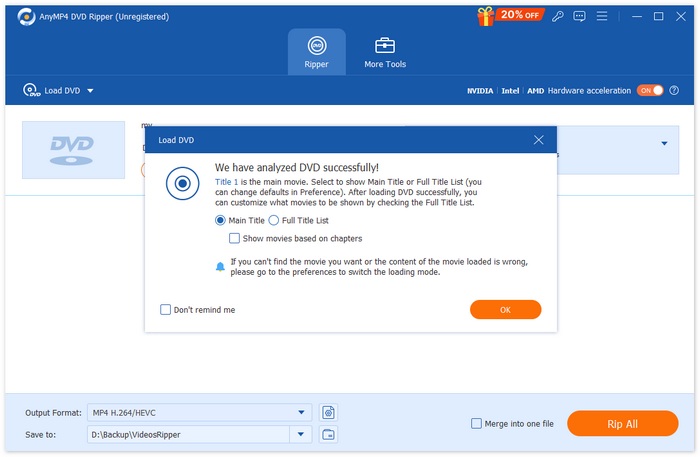
步驟三:之後,點擊下方的「輸出格式(Output Format)」按鈕,從「影片」分頁中選擇你偏好的數位格式。完成設定後,只要按下「全部擷取(Rip All)」按鈕,就能開始轉檔你的 DVD。
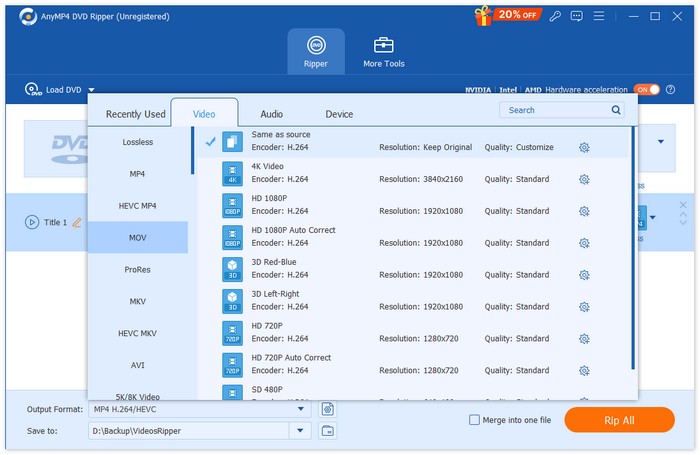
AnyMP4 DVD Ripper 是一款真正意義上的 DVD 翻錄工具,尤其適合將 Vudu 光碟轉換為數位格式。它能輕鬆將 DVD 數位化,支援多種格式,最棒的是,由於採用了先進的技術和演算法,轉換品質始終保持一流水平。
DVDFab
DVDFab 也是一款很出色的DVD 擷取軟體,可作為 Vudu Disc to Digital 的替代方案,因為它讓使用者能夠將實體 DVD 擷取成各種數位格式。此外,它支援多種輸出格式,包括 MP4、MKV、AVI 等,確保能與多數媒體播放器相容。
使用 DVDFab 將 DVD 數位化的步驟:
步驟一:在電腦上下載並安裝 DVDFab。
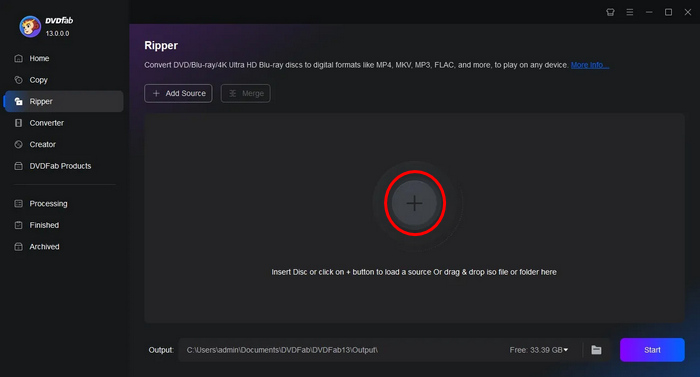
步驟 2.之後,啟動工具並點擊加號(Plus)按鈕,從你的裝置載入 DVD。
步驟三:接著,點擊「選擇其他標題(Choose Other Titles)」來選擇輸出格式。
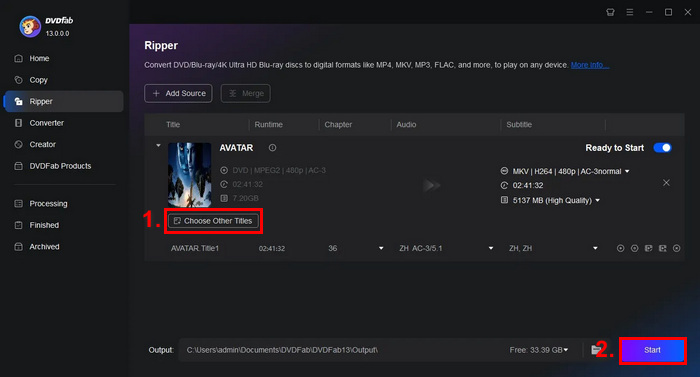
步驟 4.最後,點擊Start按鈕開始將你的 DVD 數位化。
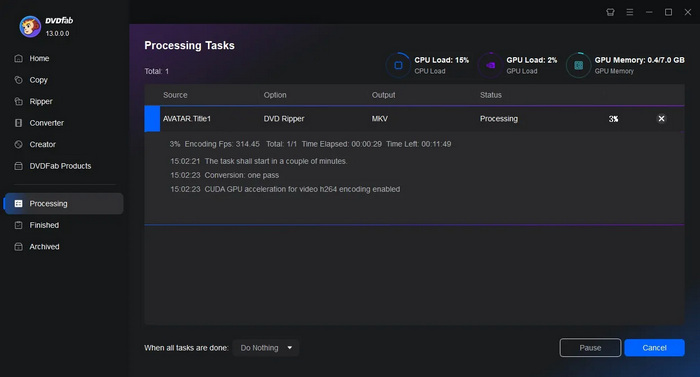
DVDfab 非常適合想要輕鬆數位化 DVD 的用戶。雖然主要功能有點複雜,但一旦使用者掌握了操作方法,翻錄過程其實非常簡單。
手剎
HandBrake 是一款廣受歡迎的開源影片轉檔工具,也是 Vudu Disc to Digital 的絕佳替代方案。此工具支援當前最常見的多種影片格式,使你能輕鬆又有效率地將 DVD 和藍光光碟轉成數位檔案。因此,當你使用 HandBrake DVD Ripper時,就能輕鬆把實體光碟轉成數位檔,方便在多種裝置上儲存與播放。
使用 HandBrake 將 DVD 數位化的步驟:
步驟一:首先,你需要在電腦上下載並安裝 HandBrake。
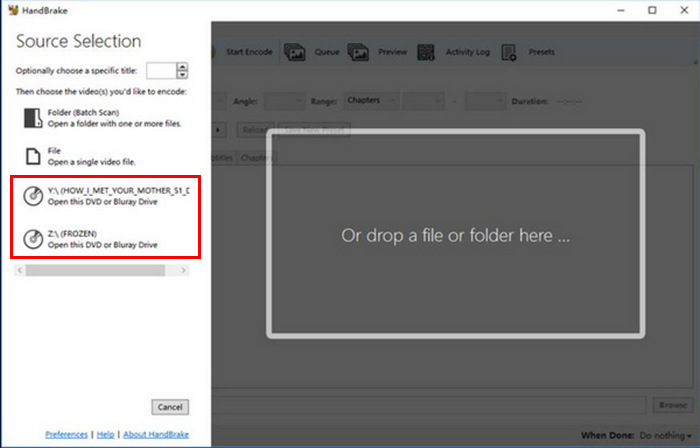
步驟 2.接著啟動工具,將 DVD 放入 DVD-ROM,並在Source Selection下選擇你的 DVD。工具隨即會開始掃描 DVD 的影片標題。
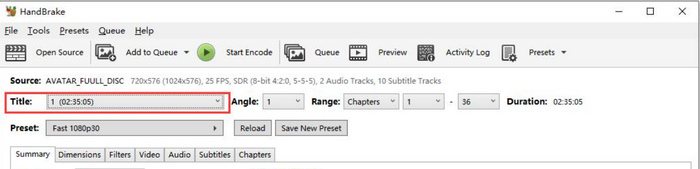
步驟 3:當 DVD 開啟後,前往標題的下拉選單,選擇你想擷取的標題。
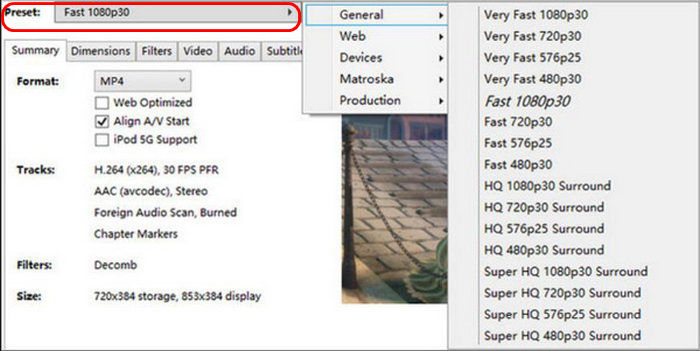
步驟四:接下來,你需要決定輸出檔案的畫質。只要點擊「預設(Preset)」按鈕並自訂設定即可。裡面已經為各種需求準備好預設:Apple TV、Android 手機、PlayStation 等等。
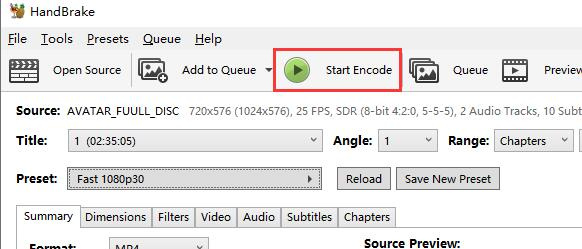
步驟五:選好檔名與預設後,就可以按下視窗上方的「開始編碼(Start Encode)」按鈕來開始擷取 DVD。視窗底部會顯示一個進度列,告訴你剩下多少時間才能完成轉檔。
注意:畫質設定越高,轉檔所需時間就會越長,因此你可能需要讓電腦持續運作一段時間。
HandBrake 的優點在於它是開源的,但使用它作為數位化 DVD 的替代品可能會對初學者構成挑戰。
第 4 部分。關於 Vudu Disc 的常見問題解答
如果我的 DVD 有刮痕或損壞,我可以將其轉換為數位版嗎?
這取決於損壞程度。輕微的刮痕可能不會影響轉換過程,但嚴重刮痕或損壞的 DVD 可能會導致錯誤。
我需要網路連線才能使用 Vudu 的行動光碟轉數位功能嗎?
轉換過程。數位副本將添加到您的 Vudu 庫中,然後您就可以在線上存取。
使用 Vudu 的行動光碟轉數位版功能轉換的 DVD 數量是否有限制?
您可以轉換的光碟數量沒有嚴格限制,但每次轉換都需要付費,並且您必須遵守 Vudu 設定的規則,例如基於位置的限制和支援的標題。
結論
雖然Vudu Disc to Digital已經停止服務,但本文提到的幾款替代方案仍能幫助你將 DVD 數位化。此外,行動版服務仍然存在,不過可能不像桌面版那樣高效與方便。無論如何,AnyMP4 DVD Ripper、DVDFab 和 HandBrake 都能在整個過程中幫上忙。所以,你還在等什麼?現在就開始把你的 DVD 數位化吧!
-
 適用於 Windows/ MacOS/ Linux 的 5 款最佳免費 DVD 翻錄器 [評測]
 您是否正在尋找免費的 DVD 翻錄工具?本文將介紹 5 款 DVD 翻錄工具,協助您節省 DVD 轉換成本。
-
 4 款最佳外置 CD/DVD 光碟機:綜合評測
 如果您正在尋找最佳的外部 CD/DVD 光碟機,那麼您來對地方了。本文精選了三款最佳產品,並對每款產品進行了全面評測。
-
 VideoByte BD-DVD Ripper 是什麼以及如何使用它 [評測]
 如果您打算使用 VideoByte BD-DVD Ripper 來翻錄 DVD,請閱讀本文以獲取有關其功能、價格和使用指南的完整詳細資訊。
