


 視頻轉換大師
 屏幕錄影大師
 影片修復
影片修復
 安全下載
安全下載WhatsApp錄影:在電腦/安卓/iPhone上錄製的3種方法
WhatsApp 可能是當今最受歡迎的即時通訊應用程式之一,但它無法直接錄製視訊通話。無論是工作會議、線上課程,還是與親朋好友的私密聊天,能夠保存這些珍貴瞬間都非常有用。
好消息是?你不必錯過。無論你使用哪一種裝置,都有安全且有效的WhatsApp 視訊通話錄製方式可供選擇。在本指南中,我們將示範三種經過驗證的方法,教你如何在電腦、Android 和 iPhone 上錄製 WhatsApp 視訊通話。所以,如果你曾希望能重播視訊通話內容,或保留一通重要電話的備份,那麼這正是你該開始看的地方。

第一部分:可以直接錄製 WhatsApp 視訊通話螢幕嗎?
如前所述,WhatsApp 沒有錄製視訊通話的功能。這主要是出於隱私和安全的考量。 WhatsApp 使用端對端加密,這意味著只有通話中的雙方才能看到和聽到通話內容。
因此,為了保護您的私人對話安全,該應用程式不允許直接錄製。所以即使您嘗試在 WhatsApp 中尋找錄製按鈕,也找不到。該應用程式不支援視訊通話錄製。
第二部分:如何在筆記型電腦/Mac/PC 上錄製 WhatsApp 影片【免費】
既然你知道無法直接錄製 WhatsApp 視訊通話,那麼實現這一目標的最佳方法是使用螢幕錄製工具。
FVC Screen Recorder 是一款免費且操作簡單的螢幕錄影工具,能幫你在筆電、Mac 或 PC 上,以清晰的畫面與音訊錄下 WhatsApp 視訊通話。無論你是在錄製重要的線上會議,或是與親友的私人聊天,FVC Screen Recorder 都能讓流程變得輕鬆。你可以錄製整個螢幕或只錄製 WhatsApp 通話視窗、調整聲音來源,甚至在需要時加入你的網路攝影機畫面。
主要特點:
• 以全螢幕、選定視窗或自訂區域錄製 WhatsApp 視訊通話。
• 清楚錄製視訊通話、會議和線上聊天。
• 錄製時可新增文字、線條、高亮和形狀。
• 同時錄製系統聲音和麥克風聲音。
• 以各種視訊和音訊格式儲存錄音。
• 以高畫質畫質錄製影片。
• 適用於 Windows 和 macOS。
如何在筆記型電腦/Mac/PC上錄製WhatsApp視訊通話:
步驟一:在電腦上下載並安裝 FVC Screen Recorder。
步驟二:啟動程式並點擊錄影模式(Video Recorder),然後開啟 WhatsApp,開始進行視訊通話。
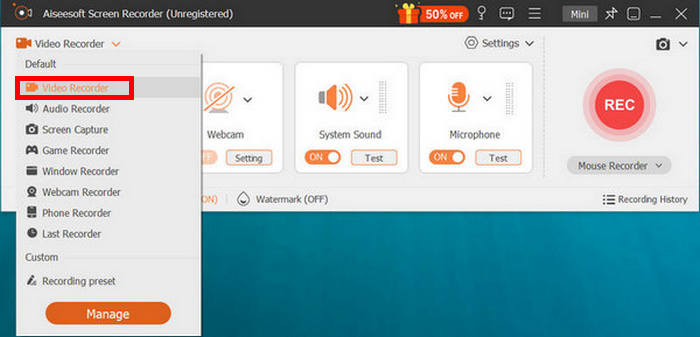
步驟三:當 WhatsApp 視訊通話進行中,並且你已點選錄影模式(Video Recorder)後,就可以調整螢幕錄製範圍。選擇系統音訊或麥克風作為聲音來源。
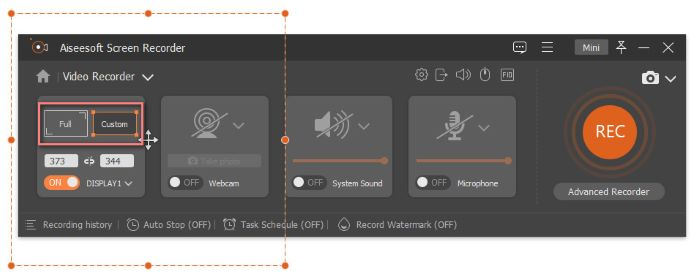
注意:「Duration(時長)」功能可用來錄製特定時間長度的視訊通話。
步驟四:如果在視訊通話過程中已經完成 WhatsApp 視訊錄製,只要點擊停止按鈕即可。
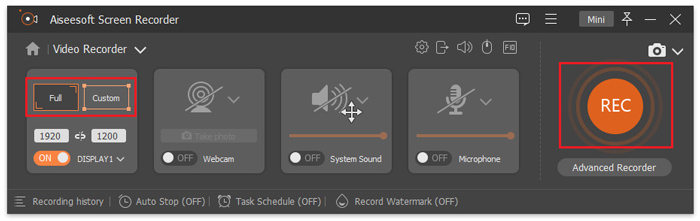
你看,FVC 螢幕錄製軟體讓我們可以輕鬆錄製各種場景,甚至包括 WhatsApp 視訊通話。只需點擊幾下,即可開始錄製並儲存視訊通話。
第三部分:WhatsApp 如何在手機上錄製視頻
如果你偏好在手機上進行 WhatsApp 視訊通話,也一樣可以輕鬆錄製,直接使用裝置內建的功能即可。現在 iPhone 和 Android 裝置都提供螢幕錄影工具,只要幾下就能將 WhatsApp 視訊通話錄下來。
如何在 iPhone 上錄製 WhatsApp 視訊通話:
步驟一:打開 iPhone 上的設定 App,前往控制中心,點選自訂控制項。在那裡將螢幕錄製加入,讓它顯示在控制中心中。
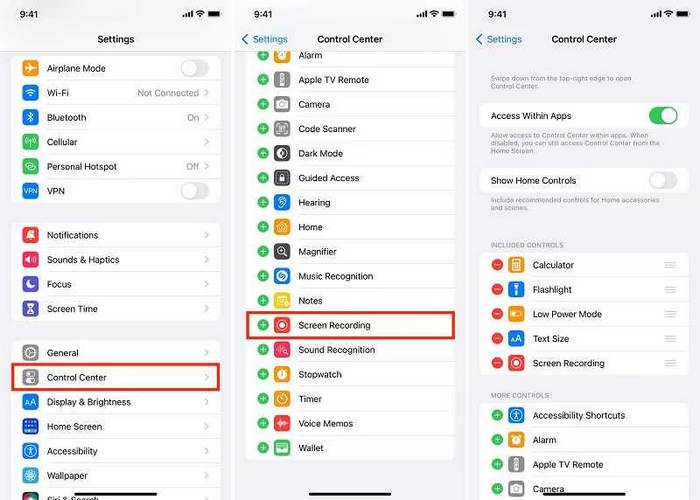
步驟二:完成後,滑動開啟控制中心並點選螢幕錄製以開始錄製。接著開啟 WhatsApp,並開始你想錄下的視訊通話。
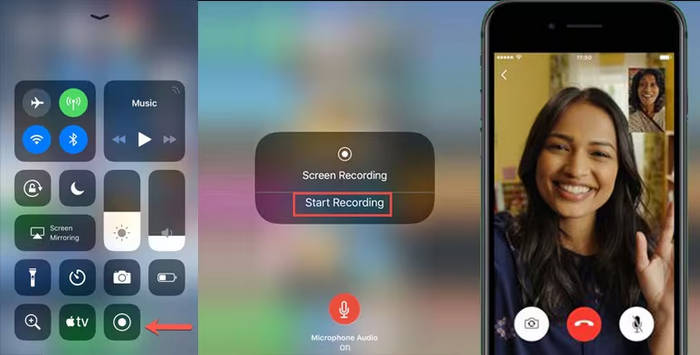
注意:螢幕頂端會出現紅色列,代表正在錄影中。
步驟三:完成後,點擊紅色列並選擇停止。錄製好的影片會自動儲存在「照片」App 中。
如何在安卓裝置上錄製WhatsApp視訊通話:
安卓用戶可以使用安卓螢幕錄製應用程式。這款應用程式提供了一種高效且方便的方式來錄製安卓裝置上的螢幕,包括WhatsApp視訊通話。具體操作步驟如下:
步驟一:首先,你需要下載並安裝該 App。之後開啟這項工具。
步驟二:設定錄製選項。在這裡你可以調整影片尺寸、位元速率、錄製時長等。
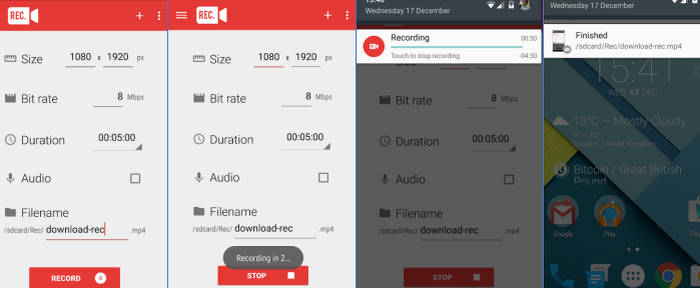
步驟三:接著,在你進行 WhatsApp 視訊通話時,在 App 中點擊「Record(錄製)」按鈕開始錄製你的視訊通話。
步驟四:完成後,你可以在 Android 手機上找到已儲存的視訊通話。
第四部分:錄製 WhatsApp 通話影片時應注意的事項
在錄製 WhatsApp 視訊通話之前,請記住以下重要事項:
• 錄音前務必先徵得對方同意。
• 請確保您的裝置有足夠的儲存空間進行錄影。
• 請檢查您的麥克風和攝影機權限是否已啟用。
• 保持網路連線穩定,避免視訊或音訊品質下降。
• 關閉不必要的應用程序,以防止錄製過程中出現卡頓或中斷。
• 錄製完成後,檢查並刪除不必要的文件,以保護隱私。
若有興趣,請點此進一步了解Facebook 通話錄製工具。
第五部分:關於錄製 WhatsApp 影片的常見問題
當您錄製視訊通話時,WhatsApp 會通知其他人嗎?
不,WhatsApp 不會在您錄製視訊通話時發送任何通知或提醒。但是,為了尊重對方的隱私,最好在錄音前先徵得對方的同意。
為什麼我無法直接在 WhatsApp 應用程式內錄製視訊通話?
WhatsApp 沒有內建錄音功能,因為它採用端對端加密,確保只有通話參與者才能存取通話內容。這種設計有助於維護所有使用者的隱私和資料安全。
為什麼我的WhatsApp錄影沒有聲音?
如果錄音沒有聲音,可能是因為在 WhatsApp 錄影過程中麥克風或系統音訊未啟用。請確保您的錄音應用程式已獲得音訊存取權限,並在開始通話前開啟麥克風。
結論
雖然無法直接在 WhatsApp App 內錄製視訊通話,但正如這篇WhatsApp 視訊錄製指南所示,仍然有簡單又有效的方法可以達成。無論你使用的是 PC、Mac、iPhone 還是 Android,像 FVC Screen Recorder 以及各裝置內建的螢幕錄影功能,都能幫助你以清晰的畫面與音訊錄下重要通話。
請記住,務必事先徵得對方同意,確保設備已準備就緒,並按照正確的步驟操作,才能獲得最佳效果。只要方法正確,您就可以輕鬆錄製 WhatsApp 視訊通話。
-
 8 款最佳滑鼠記錄器,輕鬆捕捉滑鼠遊標
 正在尋找一款滑鼠記錄器來記錄你的滑鼠移動?以下有 8 款最佳滑鼠記錄工具,可幫助你提高工作效率和工作流程。
-
 如何使用 VLC 輕鬆錄製螢幕 [完整指南]
 如果您想知道如何使用 VLC 螢幕錄製功能錄製螢幕,別擔心!本文將教您四種像專業人士一樣輕鬆完成螢幕錄製的方法。
-
 如何在沒有通知的情況下錄製 Snapchat 螢幕
 想要在不觸發通知的情況下錄製 Snapchat 螢幕嗎?閱讀本指南,看看這裡的三種解決方案是否可以輕鬆解決您的問題。
