


 視頻轉換大師
 屏幕錄影大師
 影片修復
影片修復
 安全下載
安全下載如何在桌面和在線將 MOV 視頻轉換為 FLV 格式
MOV 既是一種檔案副檔名,也是影片格式。副檔名為 MOV 的檔案是 Apple QuickTime 電影檔,在 iOS 和 Mac 上能良好運作。此外,Windows 10 也內建相應的解碼器。不過,MOV 並非為線上發布而設計。因此,在上傳到 YouTube 或其他網站之前,你必須先將 MOV 轉檔為 FLV。本文將與你分享兩種最佳的解決方法。

第 1 部分: 如何在 PC/Mac 上將 MOV 轉換為 FLV
你幾乎可以在 QuickTime 中開啟所有 MOV 檔案,但它無法將 MOV 轉為 FLV 格式。所以你需要一款影片轉檔軟體,例如 FVC Free FLV Converter。雖然它是免費的,你卻能獲得許多只有專業軟體才具備的實用功能。
最佳免費 MOV 轉 FLV 轉檔器的主要功能
- 1.將無限的MOV文件批量轉換為FLV格式。
- 2. 轉換時保護視頻和音頻質量。
- 3. 提供自定義分辨率等多種獎勵功能。
不用說,它是免費將 MOV 文件轉換為桌面 FLV 的最佳選擇。
如何將 MOV 批量轉換為 FLV
第 1 步:添加 MOV 文件
在安裝完成後啟動這款最佳的 MOV 轉 FLV 轉檔器。你可以從官方網站免費下載這套軟體。於主介面點擊新增檔案按鈕,將想要轉檔的 MOV 檔案匯入軟體。接著,這些影片就會顯示在媒體庫面板中。你可以在這裡預覽並編輯影片。

步驟2:設定輸出格式
若要變更輸出格式,點擊並展開底部的輸出格式選項。前往一般影片分頁,向下捲動並選擇FLV或相關格式。你也可以在格式設定對話框中修改解析度和其他參數。點擊齒輪圖示,即會彈出格式設定對話框。

第 3 步:將 MOV 轉換為 FLV
點擊開啟資料夾按鈕(位於輸出資料夾欄位旁),選擇特定目錄來儲存轉檔結果。最後,點擊轉換按鈕,MOV 轉 FLV 轉檔器就會自動完成剩下的工作。幾分鐘後,你就能在指定的位置找到轉好的 FLV 檔案。

第 2 部分:將 MOV 在線轉換為 FLV 的最佳方式
如今,我們有比以往更多方式可以編輯和轉換影片檔案。以 FVC Free Online Video Converter 為例,它是一款線上的 MOV 轉 FLV 網路轉檔工具。它讓你免註冊即可免費處理多個 MOV 檔案,而且沒有檔案大小限制、浮水印等限制。如果你只是偶爾需要將 MOV 轉為 FLV,請依照下列步驟操作。
步驟 1: 在瀏覽器中前往 https://www.free-videoconverter.net/free-online-video-converter/。它支援 Chrome、Firefox 及其他瀏覽器。點擊新增檔案開始轉換按鈕以下載啟動程式。
下載桌面版以批次轉換檔案。
步驟 2: 啟動程式跳出後,點擊新增檔案按鈕。從硬碟上傳你打算轉檔的 MOV 檔案。然後在啟動程式底部的格式區域選擇FLV。
提示:若需要變更解析度,點擊設定圖示開啟設定對話框,即可輕鬆調整。
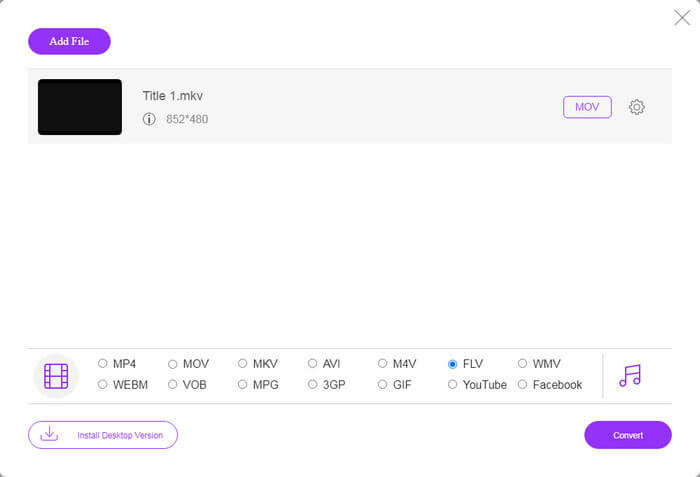
步驟 3: 按下轉換按鈕,開始在線上將 MOV 轉為 FLV。根據我們的測試,完成作業只需片刻時間,實際所需時間則取決於你的網路連線速度。接著,將轉好的 FLV 檔案下載到電腦中。
你可能也會喜歡:
MOV 與 FLV
第 3 部分:關於將 MOV 轉換為 FLV 的常見問題解答
如何在 Mac 上將 MOV 轉換為 FLV?
沒有第三方視頻轉換器,無法在 Mac 上將 MOV 轉換為 FLV。但是,有很多適用於 Mac 的 MOV 到 FLV 轉換器。您還可以使用網絡應用程序從 MOV 生成 FLV 文件。
VLC 可以將 MOV 轉換為 FLV 嗎?
是的,VLC 能夠在 Windows、Mac、Linux 上將 MOV 轉換為 FLV。 VLC的最大優點是免費。缺點是工作流程複雜。事實上,轉換功能隱藏在菜單欄中。
MOV 或 FLV 哪個更好?
答案取決於您的目的。要在 iOS 或 Mac 上播放或編輯,MOV 優於其他格式。但是,FLV 可以生成較小的文件大小並且在 Internet 上運行良好。
結論
本指南討論了將 MOV 視頻文件轉換為 FLV 格式的最佳方法。幸運的是,至少有兩種方法可以完成這項工作。首先,您可以使用網絡視頻轉換器應用程序將 MOV 更改為 FLV。如果您需要更高級的功能,FVC Free FLV Converter 可以滿足您的需求。此外,它是完全免費的在計算機上使用。更多問題?請在此帖子下方留下您的信息與我們聯繫。
-
 2 在 PC/Mac 上將 WMV 文件轉換為 FLV 的最簡單方法
 如何將 WMV 轉換為 FLV?首先,您需要閱讀我們的推薦並找到您喜歡的方法,然後按照我們的指南快速完成工作。
-
 4種經過驗證的將TS轉換為台式機/在線FLV的方法
 默認情況下,您無法在計算機或手機上打開 TS。觀看視頻文件的唯一方法是使用我們的具體指南將 TS 轉換為 FLV 或其他格式。
-
 3 個免費在線將 MTS 轉換為 FLV 的解決方案
 想要將 MTS 轉換為 FLV?這裡有 3 個免費的 MTS 到 FLV 轉換器軟件,您可以嘗試在 Mac OS X 和 Windows 10/8/7 上將 MTS 轉換為 FLV。

