


 視頻轉換大師
 屏幕錄影大師
 影片修復
影片修復
 安全下載
安全下載通過轉換格式在 iPhone 上播放 AVI 視頻的最佳 2 方法
當您花了幾個小時將大型 AVI 電影發送到您的 iPhone/iPad 並想通過 iPhone/iPad 觀看您喜歡的電影時,您只會收到“此視頻格式不支持播放”的錯誤消息。它一定非常令人沮喪。那是因為iOS系統只支持播放MP4、MOV和M4V視頻,有很多限制。
的確有許多第三方 iOS 影片播放器可以在 iPhone 上輕鬆播放 AVI 影片,但你需要注意,AVI 影片檔通常容量都很大,會佔用 iPhone 上過多的儲存空間。因此,你可以選擇將 AVI 影片轉檔為相容格式,再在 iPhone 上播放。本文將提供 2 種簡單方法,協助你把 AVI 影片轉換為 MP4/MOV/M4V 格式。

第 1 部分:什麼是 AVI?為什麼 AVI 視頻無法在 iPhone 上播放?
AVI 是 Audio Video Interleaved(音訊視訊交錯格式)的縮寫,裡面包含影片、音訊與字幕檔。此格式由 Microsoft 發明,因此與 Windows 上的 Windows Media Player 相容。由於採用較低的壓縮率,AVI 檔案通常容量較大、畫質較高。現在常被用來將電影與電視影集存放在光碟中。
iPhone不能播放AVI視頻的原因是iOS系統只支持MP4、MOV和M4V格式。此外,它對視頻也有一些限制:
• 編解碼器:H.264
• 分辨率:1080p
• 幀率:60 fps
第 2 部分:如何免費轉換 AVI 視頻以在您的 iPhone 上播放
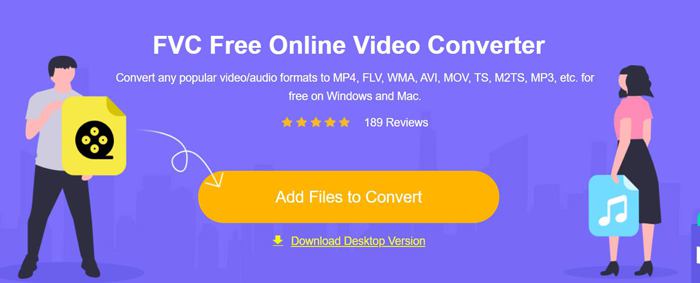
FVC Free Online Video Converter 是一款功能強大的影片轉檔工具,能將 AVI 影片轉換成超過 10 種格式。它也支援調整影片的編碼格式、解析度、影格率和位元率,以符合 iPhone 影片的需求。
步驟 1: 在任一瀏覽器中開啟 FVC Free Online Video Converter。點擊加入檔案開始轉換(Add Files to Convert)按鈕,在數秒內安裝啟動程式,然後再點擊一次該按鈕,選擇想要加入 AVI 影片轉檔器的 AVI 檔案。
步驟 2: 接著你可以在下方的影片格式列表中選擇 MP4、M4V 或 MOV。點擊設定(Settings)圖示,將影片編碼格式改為 H.264,並選擇 1920x1080p 解析度。然後點擊確定(OK)按鈕儲存設定。返回主介面後,點擊轉換(Convert)按鈕,選擇想要的儲存路徑,並開始轉換 AVI 影片,以便在 iPhone 上播放。
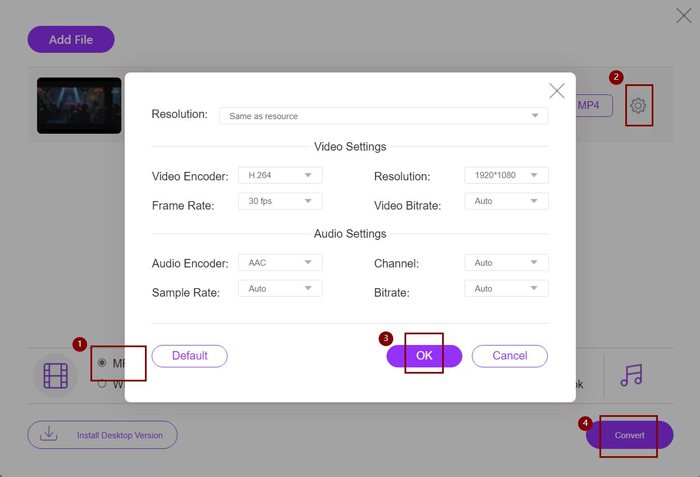
雖然這是將 AVI 視頻轉換為 iPhone 兼容格式的一種非常簡單的方法,但您仍然需要根據 iPhone 視頻的限制更改詳細參數。有時,您可能會發現這些視頻仍然無法在您的 iPhone 上播放。因此,還有將 AVI 視頻轉換為使用預設 iPhone 格式在 iPhone 上播放的最簡單方法。請繼續閱讀這篇文章。
第 3 部分: 將 AVI 視頻轉換為在 iPhone 上播放的最佳方式
FVC Video Converter Ultimate 是 FVC 免費在線視頻轉換器的專業版。它支持 500 多種格式的導入和導出,包括 iPhone、iPad 和許多 Android 手機的預設。此外,它還提供了為視頻添加字幕、水印和主題的編輯功能。
- 1. 將 AVI 視頻轉換為 MP4、MOV 或 M4V 視頻以在 iPhone 上播放。
- 2.為iPhone、iPad和Android手機提供多種預設格式。
- 3. 支持批量轉換AVI視頻在iPhone上播放。
- 4.支持旋轉、裁剪、濾鏡、拼貼等編輯AVI視頻。
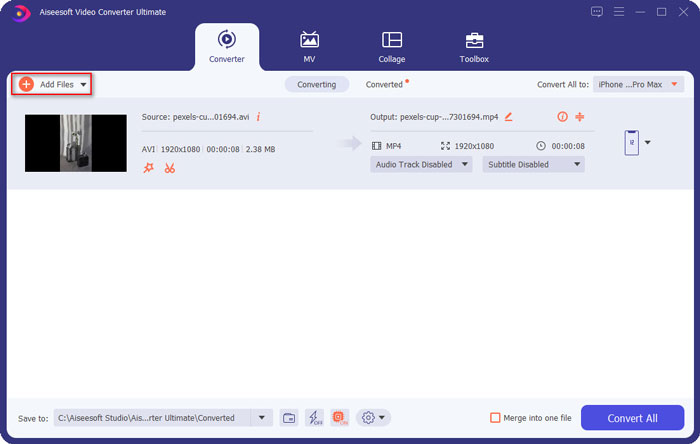
步驟 1:在 Windows 上下載並啟動 FVC Video Converter Ultimate。點擊加入檔案(Add Files)按鈕,選擇你想在 iPhone 上播放的 AVI 影片;或者你也可以直接拖放檔案,將其加入到軟體中。
步驟 2:點擊右上角全部轉換為(Convert All to)旁邊的下拉選單,選擇裝置(Device)分頁,然後點擊對應的 iPhone 機型。
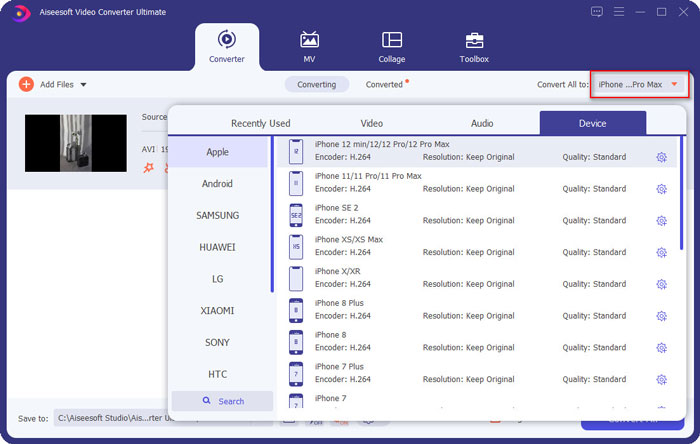
步驟 3:然後回到主介面,選擇儲存路徑。最後,點擊全部轉換(Convert All)按鈕,開始將 AVI 影片轉換為可在 iPhone 上播放的格式。
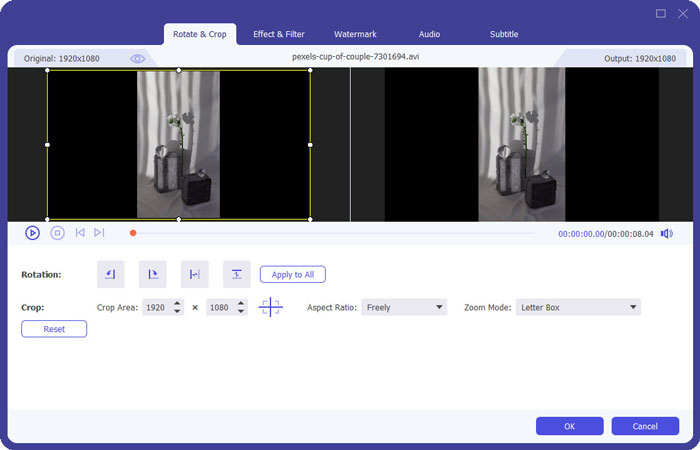
步驟 4:如果你想編輯輸出影片,只需在轉換前點擊編輯(Edit)圖示。你可以加入特效、濾鏡、浮水印、字幕等。
第 4 部分: 在 iPhone 上播放 AVI 視頻的常見問題
1. 我可以在 iPhone/iPad 上播放 AVI 電影而不轉換格式嗎?
是的你可以。 iPhone/iPad 的第三方視頻播放器有很多,您可以直接在 App Store 或 Google Play 搜索所需的播放器,即可在 iPhone 上播放 AVI 視頻。
2. 在 iPhone 上播放視頻的最佳格式和視頻設置是什麼?
iPhone 支持 MP4、MOV 和 M4V 格式。推薦設置為 H.264 編解碼器、1080p 分辨率和低於 60 fps 的幀速率。
3. 如何將 AVI 視頻傳輸到 iPhone 上免費播放?
本文中提到了兩種方法可以將 AVI 視頻轉換為在 iPhone 上播放。您可以使用免費的在線視頻轉換器並調整視頻參數。您還可以使用最簡單的方法通過 FVC 免費視頻轉換器將 AVI 傳輸到 iPhone 的兼容格式。
結論
大多數電影和電視劇總是以 AVI 格式保存,但 AVI 視頻無法在 iPhone 或 iPad 上播放。要在 iPhone 上的任何地方觀看您喜愛的電影,您可以選擇第三方視頻播放器。但最簡單和最安全的方法是將 AVI 視頻轉換為在 iPhone 上播放。您已經從本文中學到了 2 種簡單的方法。如果您還有其他問題,歡迎在下方留言。
-
 如何免費在Windows / Mac /在線壓縮大型AVI文件
 閱讀並獲取3種免費方法來壓縮計算機上的AVI文件。您可以減小AVI視頻的文件大小而不會降低質量。您的AVI視頻大小可以像您想像的一樣小。
-
 AVI VS MP4 – AVI和MP4格式之間的異同
 哪種視頻格式更好,AVI或MP4?如果要獲得詳細的比較,可以查看此AVI VS MP4文章。您可以了解AVI和MP4在許多方面的異同。
-
 6 個最佳 AVI 合併:如何在 Windows 和 Mac 上加入 AVI 視頻文件
 當您想加入 AVI 視頻以製作 DVD 時,您可以了解前 6 名最佳 AVI 加入者的功能,包括免費在線工具,以及文章中的桌面程序。
