


 視頻轉換大師
 屏幕錄影大師
 影片修復
影片修復
 安全下載
安全下載2 種高效的方法將 M4V 轉換為高流暢度的 GIF 文件
在您的 Mac 上下載一些有趣的 M4V 視頻後,您可能想要剪輯那些精彩的部分並將這些 M4V 片段轉換為動畫 GIF,以作為表情符號在互聯網上傳播。
GIF動畫因其高兼容性而在網絡、社交平台或聊天中非常流行和常用。它只是結合了幾個恆定的圖像,因此大多數動畫 GIF 的幀速率和分辨率都較低。不過別擔心。請繼續閱讀本文並了解有關如何將 M4V 高質量轉換為 GIF 的更多信息。

第 1 部分:將 M4V 轉換為動畫 GIF 的最佳和專業方法
FVC 免費影片轉 GIF 製作工具 是一款專業而強大的軟體,能剪輯原始影片並以高品質將 M4V 轉換成 GIF。此外,你還可以透過新增預設主題與浮水印來編輯動態 GIF。
- 1. 以 30 倍的速度輕鬆將 M4V 視頻轉換為動畫 GIF。
- 2.製作GIF時提供高分辨率和幀率選項。
- 3. 可以添加特效、主題、字幕,讓GIF更有趣。
- 4. 支持導入 100 多種格式並從中創建 GIF。
步驟一: 在 Windows/Mac 上下載 FVC 免費影片轉 GIF 製作工具 並啟動。點擊 新增檔案 按鈕,選擇想要轉換成 GIF 的 M4V 影片,或是直接將想要的檔案拖放到軟體中。
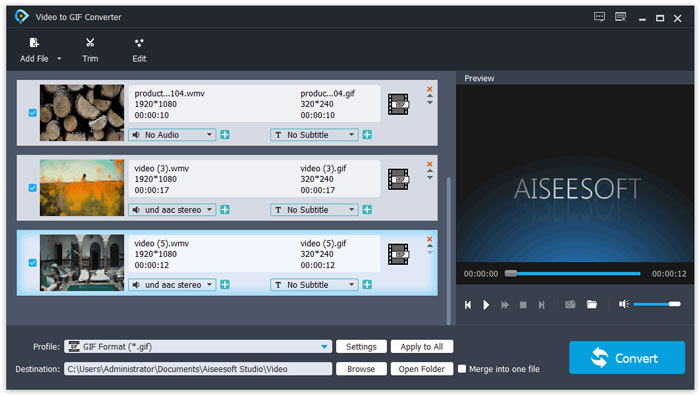
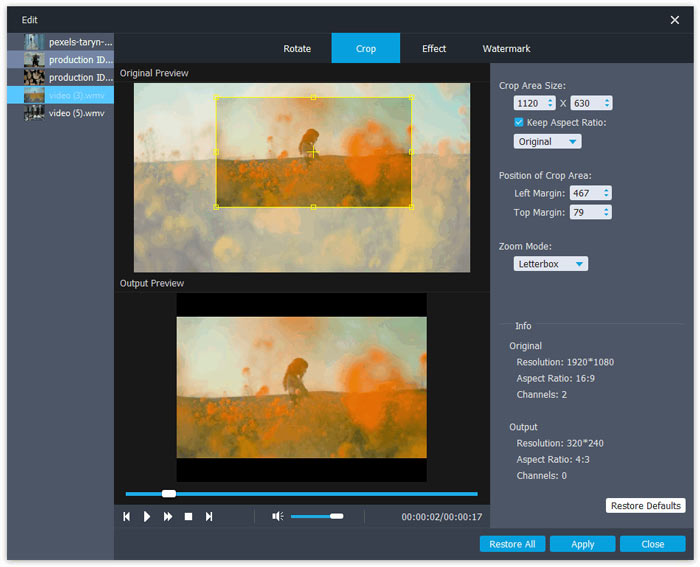
步驟二: 在將 M4V 轉換為 GIF 之前,你可以點擊 剪輯 按鈕裁切原始影片,選擇需要的片段。若想讓動態 GIF 更有趣,可以點擊 編輯 按鈕,依需求加入預設主題和浮水印。
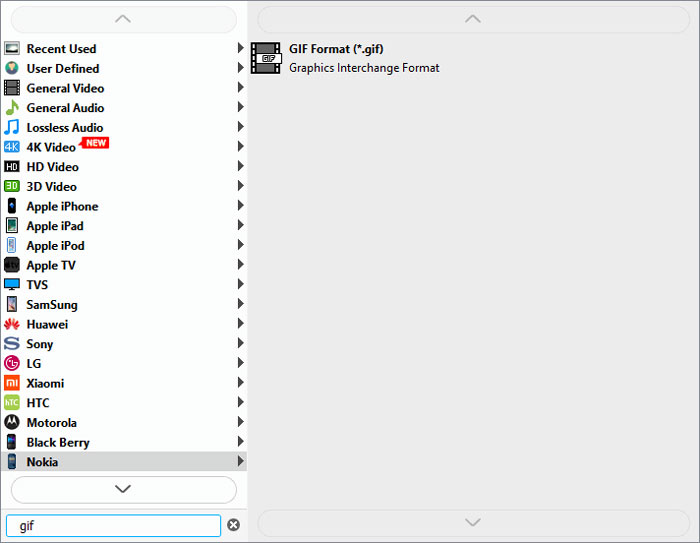
步驟三: 然後點擊 輸出格式 選單選擇 GIF 格式。你也可以在下方的搜尋欄中搜尋想要的格式。點擊 設定 圖示調整詳細參數,包括解析度、影格率以及位元率。為了保持高品質與流暢度,你可以選擇高解析度及 25fps 影格率。接著點擊 轉換 按鈕,開始將 M4V 檔案轉換為 GIF。
第 2 部分:如何免費在線將 M4V 轉換為 GIF
你也可以透過 FVC 免費線上影片轉檔器 免費在線上將 M4V 影片轉換為動態 GIF。無需下載任何軟體,就能輕鬆轉換各種格式,包括將 M4V 轉成 GIF。雖然它不支援剪輯影片,且僅提供較低的解析度與影格率,但對於快速、簡單的轉檔來說,仍是不錯的選擇。
- 1. 只需單擊三下,即可將 M4V 視頻轉換為 GIF。
- 2.支持多種視頻和音頻格式。
- 3. 自定義視頻分辨率、幀率和比特率。
- 4. 沒有水印應用於您的輸出視頻。
步驟一: 使用任何瀏覽器前往 FVC 免費線上影片轉檔器 官方網站。點擊 新增檔案開始轉換 按鈕,在數秒內安裝啟動器。然後再次點擊該按鈕,將想要的檔案新增到線上 M4V 轉檔工具中。
下載桌面版以批次轉換檔案。
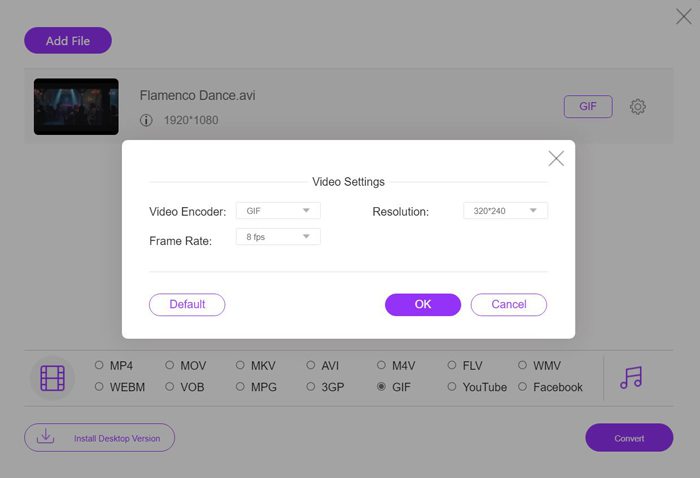
步驟二: 在底部的影片清單中勾選 GIF 作為輸出格式。然後點擊 設定 圖示變更參數。選擇最高 320x240 的解析度與 8fps 的影格率,接著點擊 確定 按鈕儲存設定。
步驟三: 回到主介面後,點擊 轉換 按鈕,選擇儲存路徑,並將動態 GIF 下載到你的電腦中。
延伸閱讀:
• 如何壓縮 M4V
M4V 與 GIF
第三部分:M4V轉小尺寸GIF動畫常見問題
1. 將 M4V 視頻轉換為 GIF 會降低質量嗎?
當然,會的。 GIF 尺寸較小,質量相對較低。即使保持原始分辨率,質量也會下降。為了盡可能保持質量,您可以依靠 FVC Free Video to GIF Maker 來調整詳細參數。
2. 我可以將 M4V 電影的某個部分轉換為動畫 GIF 嗎?
是的你可以。在將 M4V 轉換為 GIF 之前,您可以選擇預先剪輯所需的部分。或者您可以使用 FVC Free Video to GIF Maker 來剪切視頻並製作動畫 GIF。
3. M4V視頻轉GIF後如何保持流暢度?
幀率會影響流暢度。通常情況下,高於 24 fps 的幀速率對於人們的眼睛來說就足夠了。因此,您應該將導出幀速率更改為大約 25 fps 以保持流暢性。
結論
現在動畫GIF在日常生活中很常用,您已經在本文中學習瞭如何從M4V視頻和電影中創建GIF。您可以依靠專業的 FVC Free Video to GIF Maker,您還可以免費在線將 M4V 視頻轉換為 GIF。如果您有任何其他問題,請在下面留下您的評論。
-
 6種免費將M4V轉換為MP4的方法(包括刪除DRM)
 這篇文章是將M4V轉換為任何播放器的MP4的詳細指南。您可以將M4V更改為MP4,甚至可以將受保護的M4V文件更改為MP4,以便可以無限制地播放M4V視頻。
-
 4個最佳MP4到M4V轉換器,可輕鬆將MP4視頻轉換成M4V
 當您需要將MP4更改為M4V文件時,應該從本文中了解有關兩種格式之間差異的更多詳細信息,以及最佳的MP4到M4V轉換器。
-
 M4V到MP3轉換器–從M4V文件提取MP3的4種最佳方法
 如果您想輕鬆地從M4V視頻中提取MP3音頻,則可以了解有關4種最佳M4V到MP3轉換器的更多信息,以從文章中獲取所需的音頻文件。

