


 視頻轉換大師
 屏幕錄影大師
 影片修復
影片修復
 安全下載
安全下載在 OBS Studio 和其他可能的工具上錄製藍光的簡化方法
藍光光碟是目前光碟所能儲存的最高畫質格式。它可儲存最高 1080 像素的影片。與音訊一樣,相較於 CD,藍光能產生極為清晰純淨的音效。而且,由於容量很大,不必擔心高容量檔案的儲存問題。接著,OBS Studio 是一款可免費下載的開源程式,支援 Windows、macOS 與 Linux 等平台。此外,它非常適合錄製電腦螢幕上的影音內容。有些使用者覺得在工作室環境中錄製藍光較為麻煩,因此請繼續閱讀本文,了解如何使用 OBS 錄製藍光電影,以及應該使用哪一款專業錄影工具來取得高畫質的影片輸出。

第 1 部分。 如何使用 OBS Studio 錄製藍光電影
OBS Studio 以強大的免流媒體工具而聞名,由於其有影響力的讚助商 Youtube、Twitch、Facebook、API.video、own3d.pro 和許多其他平台,它會定期收到更新。由於這些主要平台,無需擔心流媒體。另一方面,它以最複雜的記錄工具和更少的指導而聞名。但是,如果您想要簡單的流媒體,則無需深入複雜的設置。此外,通過閱讀本文了解有關 OBS Studio 的步驟和詳細信息,將困難變為可管理。
以下是有關如何使用 OBS Studio 的一些步驟:
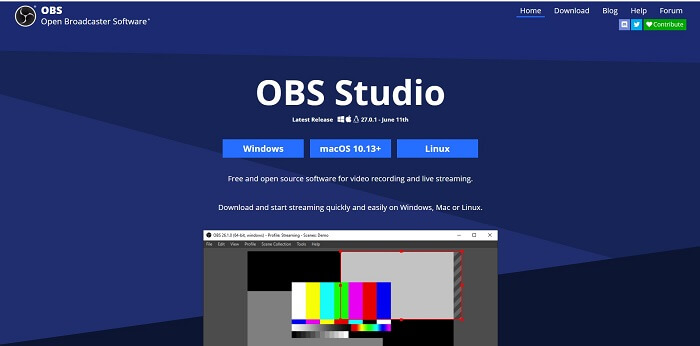
步驟 1. 打開瀏覽器,選擇你目前使用的作業系統,然後下載、設定並安裝軟體,接著點選「完成」以啟動工具。
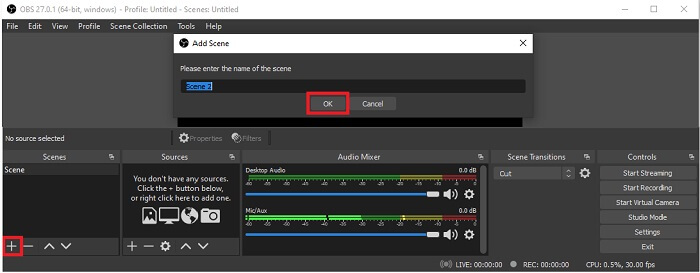
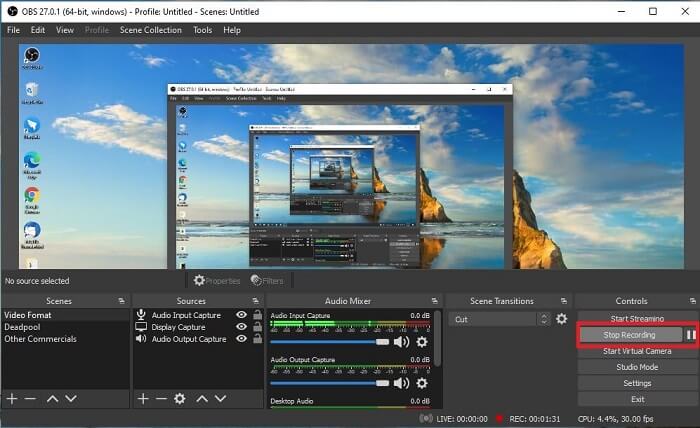
步驟 2. 前往 Scenes(場景) 面板,點選 Add(新增) 圖示新增一個場景,為它命名後,點選 OK 繼續。
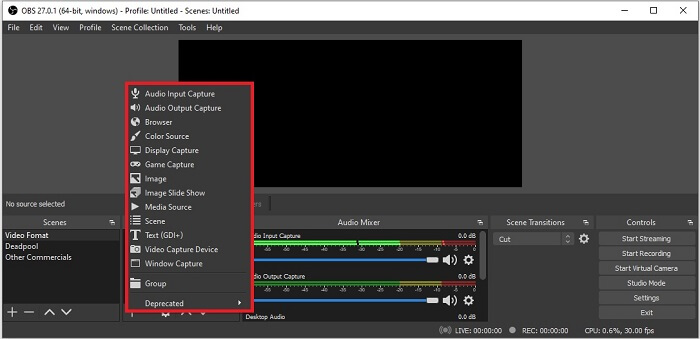
步驟 3. 接著到「來源」面板。點選 Plus(加號) 圖示,畫面會顯示各種選項。以下是其中一些基本選項:Audio Input Capture(音訊輸入擷取) 用於錄製麥克風中的聲音;接著是 Audio Output Capture(音訊輸出擷取),用於錄製系統播放出來的聲音;Display Capture(顯示器擷取) 用於錄製整個螢幕;最後是 Game Capture(遊戲擷取),可錄下你的遊戲集錦。設定完成後點選 OK 儲存。當所有所需來源都已加入後,可在 Audio Mixer(音訊混音器) 分頁中調整音量。
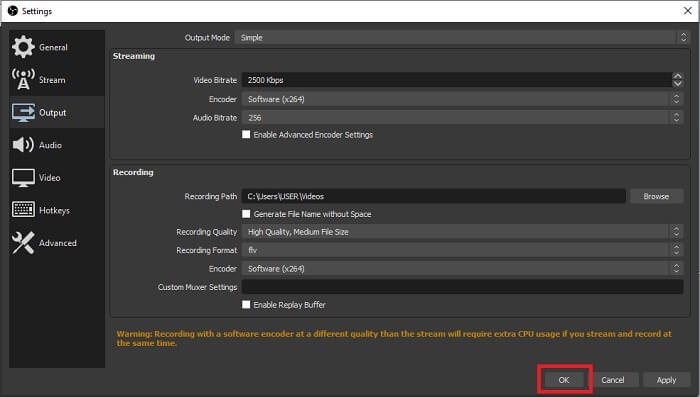
步驟 4. 點選介面右下角 Control Panel(控制面板) 下方的 Settings(設定) 按鈕。進入 Output(輸出) 分頁,設定格式並依需求調整各項選項。完成其他設定後,點選 OK 儲存。
步驟 5. 點選 Start Recording(開始錄製) 按鈕開始錄影。錄製完成後,再點選與開始錄影相同位置、右下角的按鈕停止錄製。你可以在檔案總管中檢視錄製好的檔案。
優點
- 它適合錄製任何視頻和直播。
- 它不為您提供免費試用。因為它是免費的。
- 提供了很多選擇。
缺點
- 不是初學者的最佳選擇,因為有很多設置。
- 它不支持視頻編輯,因此您需要安裝其他工具進行編輯。該工具本身為 85.6MB,這是屏幕錄像機擁有的最大存儲空間。
第 2 部分。 使用 OBS 替代品捕獲藍光的在線方法
OBS工作室確實是錄製和流媒體的不錯選擇。但是這個工具的界面比較多,所以新用戶記錄起來比較麻煩。這是您可以使用的替代在線工具。
FVC 免費屏幕錄像機(在線工具)
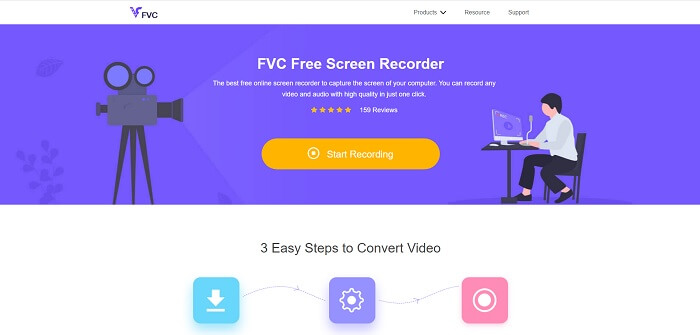
一款對使用者來說操作負擔更小的免費線上工具是 FVC Free Screen Recorder。它與在 OBS Studio 中錄製藍光的功能相同,但因為有易於操作的浮動工具列而更好上手。這款細節到位的工具,能協助你錄製各種可用的影音平台內容,並保有清晰音訊與高畫質影片輸出,你可以將其存入藍光。與其下載龐大的安裝檔只為使用一次,不如試試這款線上工具。現在就來看看它的操作方式。以下是使用這款線上工具的步驟。
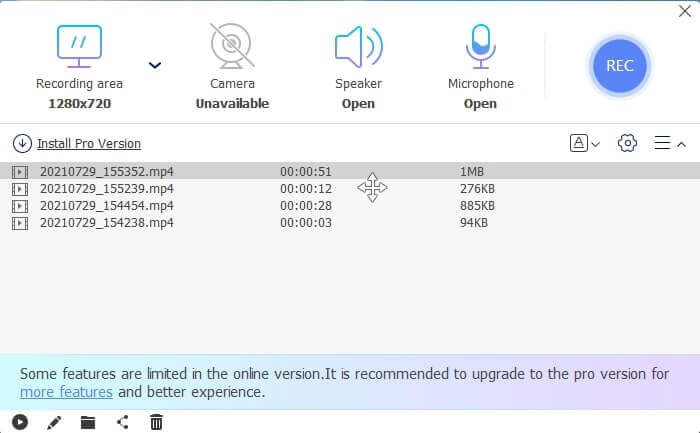
步驟 1. 開啟瀏覽器並造訪 https://www.free-videoconverter.net/free-screen-recorder/。接著,點選 Start Recording(開始錄製) 按鈕啟動線上工具。啟動後,螢幕上會彈出一個浮動列。
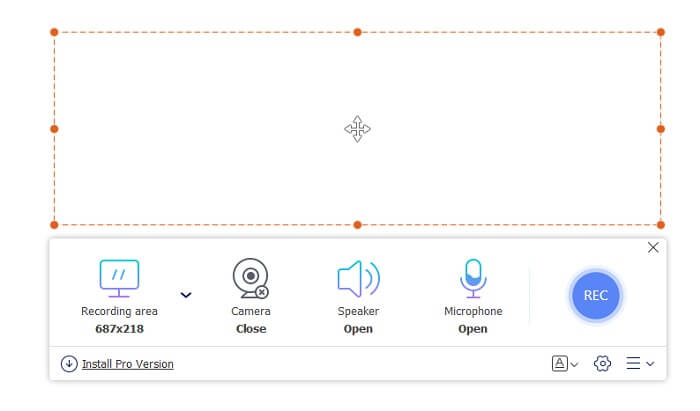
步驟 2. 在浮動工具列中,有 4 個不同的面板可供選擇。你可以調整畫面框架大小,或直接選擇全螢幕錄製。接著,點選系統音量上的 Speaker(喇叭) 圖示。另外,如果想加入自己的聲音與畫面,可以開啟 Microphone(麥克風) 與 Webcam(網路攝影機)。若不打算加入,則可再次點擊將其關閉。然後點選圓形的 REC 按鈕開始錄製。
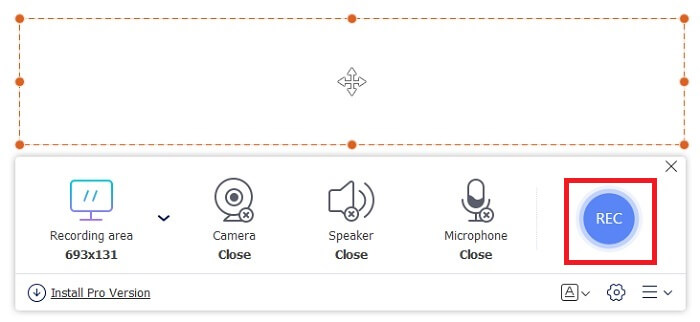
步驟 3. 錄製完成後,點選 方形 按鈕停止錄製。你所擷取的所有錄影都會列在 history dropdown(歷史下拉清單) 中。點選最上方的錄影檔,因為那是最新的一筆紀錄。
優點
- 在線免費開源。沒有下載,所以沒有麻煩。
- 支持所有平台的在線服務的最佳屏幕錄像機。
- 易於使用,因為它有工具的點指示。
缺點
- 該工具需要互聯網連接才能運行。
- 不免費支持高級功能。
第 3 部分。 錄製藍光電影的最佳 OBS 替代品
OBS Studio 上的另一個最佳藍光唱片是這款 FVC 屏幕錄像機。如果您想在線和離線錄製並適用於所有平台,那麼這適合您。
FVC 屏幕錄像機
與 OBS Studio 不同,此工具具有可管理的工具欄,用戶友好。 FVC 屏幕錄像機是錄製的最佳選擇之一。它包括像 OBS 那樣更切中要害且易於理解的功能。例如,錄製屏幕、網絡攝像頭、音頻和系統聲音等等。該工具還具有 obs 沒有的鎖定功能。除了這個工具是付費使用的。此外,如果您使用此屏幕錄像機,那麼您就做出了正確的選擇。
請按照以下有關如何充分使用此工具的步驟進行操作。
步驟 1. 點選下載按鈕安裝軟體後,依照你偏好的設定進行安裝,接著點選「完成」繼續,工具便會自動啟動。
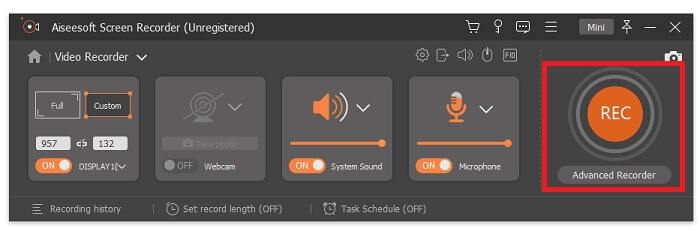
步驟 2. 點選 Video Recorder(錄影工具)。隨即會顯示 4 個不同的面板。第一個面板可調整畫面框架大小以變更長寬比,或點選 Full(全螢幕) 錄製整個顯示器畫面。第二個面板 Webcam 用於在錄製螢幕時同時錄下你的臉部影像。下一個面板是 System Sound(系統聲音),用於錄製系統音訊。最後是 microphone(麥克風),用來將你的聲音輸入到影片中。點選碟片形狀按鈕開始錄製。
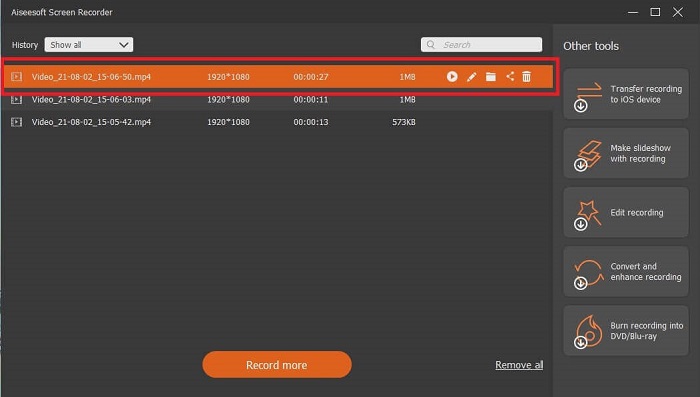
步驟 3. 當影片錄製完成後,點選 方形 按鈕停止錄影。再點選 Play(播放) 按鈕即可預覽錄製好的影片。
優點
- 它具有我們稱之為鎖定屏幕的獨特功能,可避免錄製時受到干擾。
- 它可以錄製24小時沒有任何音視頻功能障礙。
- 由於其壓縮數據格式和易於執行的信息,存儲和用戶友好。
缺點
- 要獲得它需要支付一個月、一年或一生的費用。
- 需要從網站下載才能使用。
進一步閱讀
2. 在 Mac 上使用 QuickTime 錄製含音訊的螢幕畫面
第 4 部分。 在 OBS Studio 上錄製藍光的常見問題解答
藍光、DVD 和 CD 之間有什麼區別?
每種光盤格式之間的主要區別在於它可以自行存儲的輸出和存儲量。它指出,CD 最多可以存儲 700 MB 的文件,DVD 最多可以存儲 4.7GB 的數據,而藍光可以存儲最多 25GB 的數據。在某些情況下,雙層藍光可以支持 50GB 的數據。它還具有三重磁盤層和四重磁盤層。
OBS 是免費工具嗎?下載安全嗎?
是的,OBS Studio 是一種免費工具,沒有隱藏費用。此外,您可以在所有不同的平台上下載它。另一個是的,它可以抵禦惡意軟件、病毒、蠕蟲、瀏覽器劫持者等。
哪些視頻編解碼器支持藍光?
影片格式:MPEG-2、MPEG-4 AVC 和 SMPTE VC-1。
音訊格式:Linear PCM(LPCM)、Dolby Digital®(DD)、Dolby Digital® Plus(DD+)、Dolby® TrueHD、DTS Digital Surround® 和 DTS-HD®。
結論
畢竟,在一天結束時,屏幕錄像機因其功能而很有用。 OBS 是錄製的不錯選擇,但由於有多種選項,它讓用戶猜測並詢問他們是否做得對。但是因為支持所有各種平台的在線和離線列表。現在您擁有選擇的權力。選擇最適合您的。
就像 FVC 屏幕錄像機一樣。它是一種用戶友好的現場工具,可幫助用戶隨時隨地進行記錄。即使它是一個付費使用的工具。儘管如此,花的每一分錢都是值得的。記住,如果易於使用的可以做得更好,請不要為難以使用的自己感到壓力。
-
 行動!屏幕錄像機評論–缺點,優點及其最佳替代方案
 Action Screen Recorder 是捕捉遊戲視頻的理想遊戲錄製軟件嗎?只需從評論中了解更多詳細信息,並從文章中了解更多細節。
-
 適用於計算機、iOS 和 Android 的 3 款最佳 Facebook 通話記錄器
 當您想記錄 Facebook 通話以保存有價值的東西時,有很多 Facebook 通話記錄器可供選擇。在這裡,您可以了解 3 種為 PC、iOS 和 Android 錄製 Facebook 視頻通話的最佳工具。
-
 適用於 Windows 和 Mac 的 6 大免費 WAV 錄音機
 我們在本文中分享的最好的 WAV 錄音軟件具有多種實用功能,可幫助您像專業人士一樣捕捉音頻和語音。
