


 視頻轉換大師
 屏幕錄影大師
 影片修復
影片修復
 安全下載
安全下載在Windows / Mac /在線上將VOB文件轉換為MP4的3種免費方法
VOB被稱為DVD視頻對象文件格式。因此,默認情況下,DVD光盤將視頻,音頻和字幕流保存為VOB格式。至於MP4,它是一種流行的容器格式,用於存儲視頻,音頻和字幕數據。 VOB VS MP4之間最大的比較是兼容性。幾乎所有便攜式設備和播放器都可以播放MP4視頻。這是將VOB轉換為MP4格式的最大原因。
此外,VOB文件始終是大文件。為了節省存儲空間並解決不兼容問題,將VOB轉換為MP4是一個不錯的選擇。您可以以相當好的質量和較小的文件大小存儲相同的視頻內容。因此,轉換為MP4格式後,您可以直接在手機或計算機上播放VOB視頻。

第1部分:如何批量將VOB聯機轉換為MP4
有沒有支援批次轉檔的線上 VOB 轉 MP4 工具?當然有。就是 FVC Free Online Video Converter,它讓使用者可以免費在線批次將 VOB 檔轉成 MP4。沒有最長時長限制,也不用擔心檔案過大。因此,如果你在找一個沒有任何限制的線上 VOB 轉 MP4 轉檔器,FVC Free Online Video Converter 會是你的第一選擇。
- •將VOB文件批量轉換為MP4,同時保持原始質量。
- •沒有文件大小限制。您可以免費將大型VOB轉換為MP4文件。
- •在將VOB導出為MP4格式之前,請調整視頻分辨率,採樣率,幀頻等。
- •無水印。您轉換後的MP4視頻將完全沒有水印。
步驟 1: 點擊 Add Files to Convert 並安裝啟動器。在跳出的視窗中瀏覽並加入你的 VOB 檔案。
步驟 2: 在線上影片轉檔工具的底部,將 MP4 設為輸出影片格式。
步驟 3: 點擊旁邊的 齒輪 圖示來調整輸出影片設定。
步驟 4: 點擊 Convert,即可免費在線將 VOB 轉成 MP4。
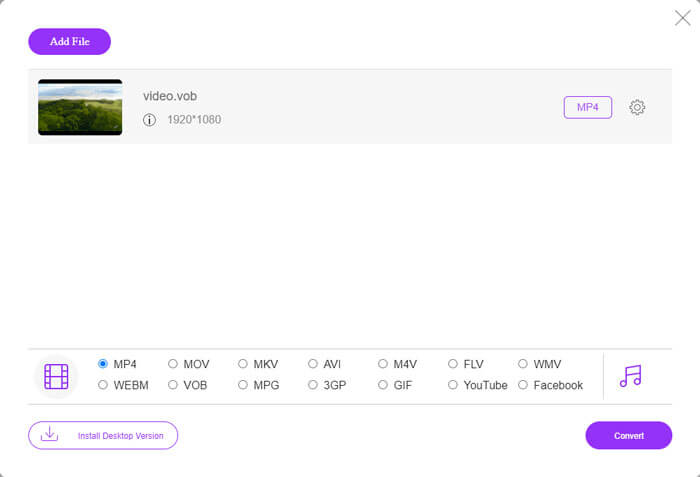
這款免費線上 MP4 轉檔器也能將 M2TS、MTS、MOV、MKV、WMV、TS 等格式轉為 MP4。
它還有一個桌面版本供您嘗試:
第2部分:如何在Windows上使用VLC將VOB轉換為MP4
VLC是Windows,Mac,iOS和Android用戶的免費VOB到MP4轉換器應用程序。您可以輕鬆地在手機或計算機上將VOB文件轉換為MP4。這裡將向您展示如何使用VLC Media Player在Windows 10上將VOB轉換為MP4。
步驟 1: 執行 VLC。在上方的 Media 清單中選擇 Convert/Save。
步驟 2: 在 Open Media 視窗中點擊 Add。瀏覽並將一個 VOB 影片匯入 VLC。
步驟 3: 在右下角從 Convert/Save 選擇 Convert。
步驟 4: 在 Profile 區段中,將 MP4 設為輸出影片格式。
步驟 5: 點擊 Start,即可使用 VLC 開始將 VOB 檔案轉成 MP4。
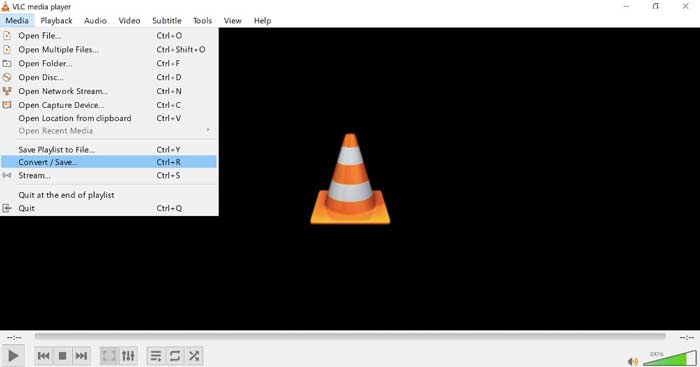
第3部分:如何在Mac上將VOB轉換為MP4(使用HandBrake)
HandBrake是一個開源視頻轉換器,可以在Windows,Mac和Linux上免費將VOB轉換為MP4。支持將多個VOB文件同時轉換為MP4。雖然視頻轉換速度並不快。
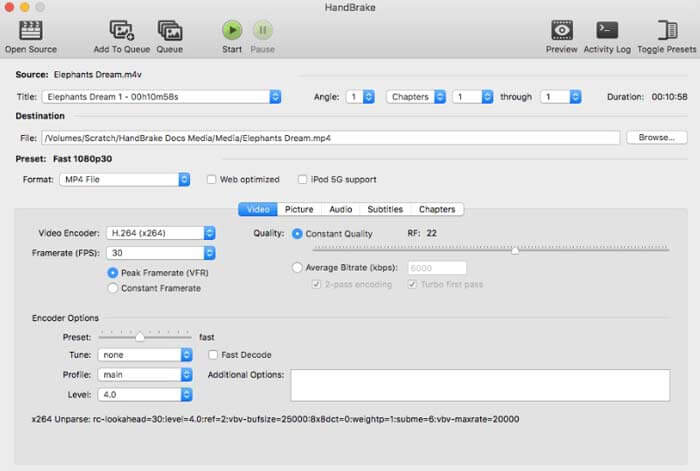
步驟 1: 執行 HandBrake。點擊 Open Source 新增 DVD VOB 檔案。
步驟 2: 點擊 Browse 設定新的儲存資料夾。
步驟 3: 在 Preset 區段下,從 Format 清單中選擇 MP4。
步驟 4: 調整其他影片輸出設定。
步驟 5: 點擊 Start,即可在 Mac 上用 HandBrake 將 VOB 轉成 MP4。
-
第4部分:將VOB轉換為MP4的常見問題解答
如何使用FFmpeg將VOB轉換為MP4?
FFmpeg 是一款適用於 Windows 和 Mac 使用者的不錯 VOB 轉檔工具。不過,FFmpeg 對初學者來說並不算友善。如果你熟悉命令列操作,可以在 FFmpeg 視窗中輸入 ffmpeg -i input -acodec libfaac -vcodec mpeg4 -b 1200k -mbd 2 -flags+mv4+aic -trellis 2 -cmp 2 -subcmp 2 -metadata title=filename output.mp4,然後按下 Enter 鍵,即可使用 FFmpeg 將 VOB 轉成 MP4。
您可以使用Windows Media Player將VOB轉換為MP4嗎?
否。WindowsMedia Player只能是您的VOB播放器。您可以在Windows Media Player上播放VOB文件。順便說一句,第一次在Windows上播放VOB文件時,將需要下載編解碼器。
如何在iPhone和Android上播放VOB文件?
手機本身不支持VOB。您需要安裝VOB播放器,例如VLC Media Player。或者,您可以將VOB更改為其他格式,以有效地壓縮文件大小。例如,您可以從MP4創建VOB文件以獲取iPhone和Android播放。
最好的VOB到MP4轉換器是什麼?不同的人有不同的答案。有些人希望將VOB批量轉換為MP4,而不會降低質量,而另一些人則更注重直觀的界面,高級功能等等。無論如何,如果您不想安裝其他任何東西,但仍然需要將大型VOB文件轉換為MP4,則FVC Free Online Video Converter是您的不錯選擇。您可以在線將VOB文件批量轉換為MP4,沒有限制和水印。
更多閱讀-
 如何在不降低質量的情況下將M2TS轉換為MP4
 要將視頻從高清攝像機轉換為普通的MP4?這是在Windows和Mac上將M2TS文件更改為MP4的5種簡單免費方法。
-
 如何在不損失質量的情況下將MOV轉換為MP4
 要將MOV(Apple QuickTime電影)文件轉換為MP4?這篇文章分享了4種免費方法,可將Windows 10/8/7 / XP和Mac OS X上的MOV視頻文件轉換為MP4格式。
-
 如何免費編輯和轉換M2TS文件
 如何免費編輯M2TS文件?有什麼方法可以轉換M2TS文件?在本指南中,我們將向您展示最好的免費M2TS編輯器,以幫助您輕鬆地編輯和轉換M2TS文件。
-
