


 視頻轉換大師
 屏幕錄影大師
 影片修復
影片修復
 安全下載
安全下載如何編輯 WAV 檔案以進行快速音訊高品質編輯
WAV 檔案是最受歡迎的音訊檔案格式,被視為儲存具有不同位元率的音樂或錄音的理想方式。較佳的檔案格式代表較好的音質,而編輯 WAV 檔案也能進一步提升品質。但要如何確保自己在編輯時沒有不知不覺地破壞 WAV 檔的音質呢?別擔心,本指南會為你解答哪些軟體或工具最適合用來編輯 WAV 檔案。我們根據實際使用經驗,整理出四種方法。此外,無論你是新手還是有經驗的使用者,都能在本指南中一步一步學會如何有效率地編輯 WAV 檔案,而不會毀掉檔案。

第 1 部分:使用全功能 WAV 編輯器編輯 WAV 的最佳方法
FVC 已經替你在網路上搜尋並整理出最適合用來編輯 WAV 的方法,讓你不必再四處查找。出乎我們意料的是,我們發現了這款FVC 精選的 Video Converter Ultimate,它操作簡單、介面直覺,卻提供了完整的工具功能,例如剪切、分割、合併、音量增強等。透過這款在 Windows 與 Mac 上都適用的出色軟體來編輯 WAV 檔案,其下載次數超過五百萬次,不但在 WAV 編輯上深受信賴,同時也可當作轉檔器與影片編輯工具使用。
主要功能特色:
• 多功能且易於使用的WAV 編輯器。
• 特色工具,如音訊剪切器、合併器、壓縮器、噪音消除器、音量增強器等。
• 支援MP3、AAC、WMA、WAV 等1000 多種音訊/視訊格式。
• 上傳WAV 時沒有檔案大小限制。
步驟 1.在此下載並安裝 FVC 精選的 Video Converter Ultimate。
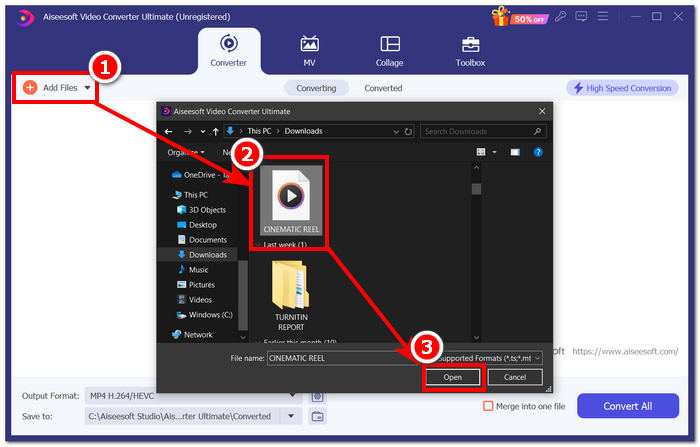
步驟 2.在工具介面上點擊「加入檔案」(Add Files)按鈕,將你的 WAV 檔案加入軟體中。
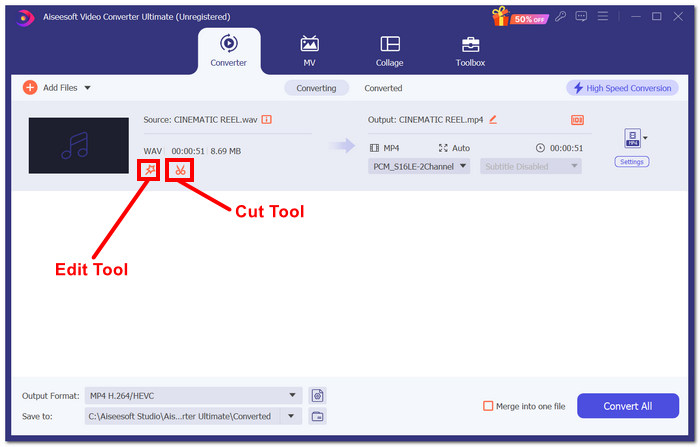
步驟 3.當你的 WAV 檔已載入工具後,可點擊上傳檔案旁邊的 Edit(編輯)與 Cut(剪切)工具來進行編輯。
注意:
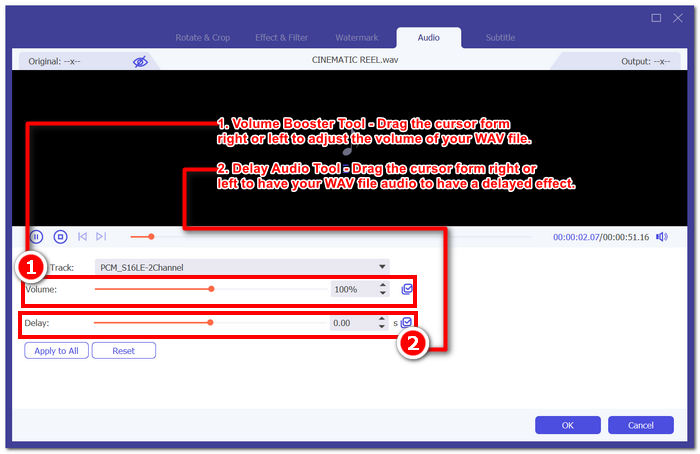
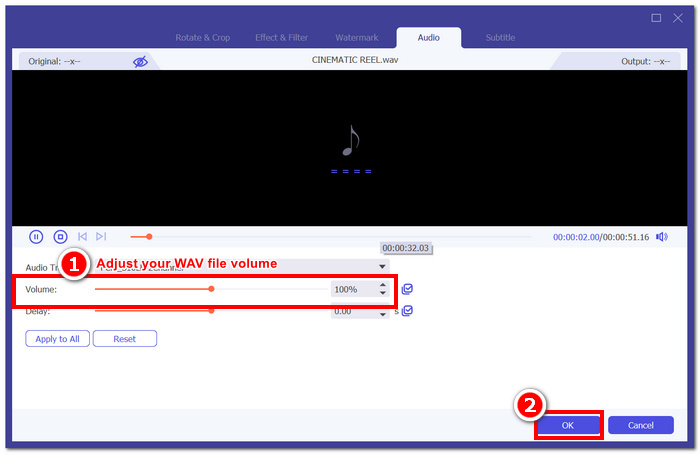
編輯工具是一個看起來像魔杖的圖標,該工具包含音量增強器和音訊延遲功能。
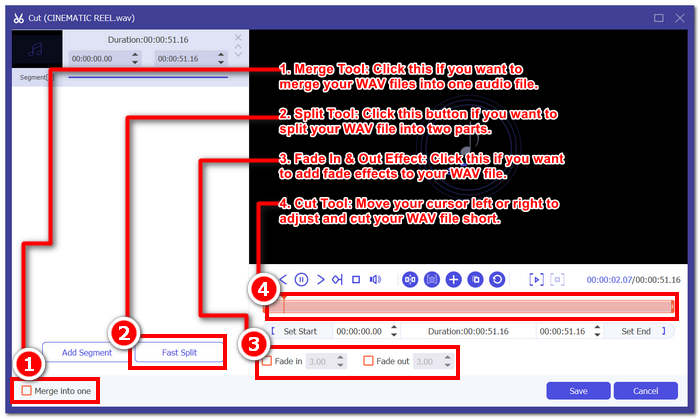
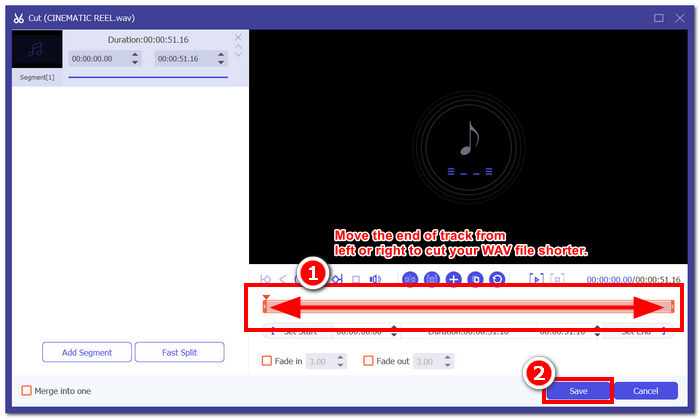
剪切工具是剪刀圖標,它包含剪切、分割、合併和添加淡入淡出效果。
步驟 4.若要編輯 WAV 檔案的音量,點擊看起來像魔杖的圖示以開啟音量增強功能,並將音量游標往左或往右拖曳來調整音量,或直接輸入你想要的音量值。若要修正音訊延遲,可拖曳延遲游標來調整音訊延遲。完成後,點擊「OK」按鈕。
另一方面,要剪切 WAV 文件,請點擊剪刀按鈕,然後將遊標從左向右拖曳到曲目即可縮短 WAV 檔案。完成 WAV 檔案的剪切後,繼續點擊“儲存”按鈕。
步驟 5.當你已經依照喜好成功地編輯與剪切 WAV 檔案後,點擊「全部轉換」(Convert All)按鈕,將檔案輸出至桌面上預設的下載資料夾。

我們使用 FVC 選擇的軟體編輯 WAV 檔案的經驗為我們節省了時間,並以其聲譽而聞名,因為遵循上述步驟可以幫助我們順利地執行任務。此外,在使用該軟體時,我們注意到它擠滿了其他視訊和音訊編輯功能。總的來說,這為我們提供了許多選擇來編輯 WAV 檔案。
第 2 部分. 使用內建工具在 Windows 7/8/10/11 上編輯 WAV 文件
方法 1. 使用外掛程式在 Windows Media Player 中編輯 WAV 文件
Windows Media Player是Windows裝置中的內建媒體播放器,透過使用外掛程式也可以用作WAV檔案編輯器。為此,可以在 Microsoft Store 中免費下載 SolveigMM WMP 修剪器插件,以便剪切和編輯 WAV 檔案。
步驟 1.前往 Windows 的 Microsoft Store,從中下載 SolveigMM WMP Trimmer Plugin。
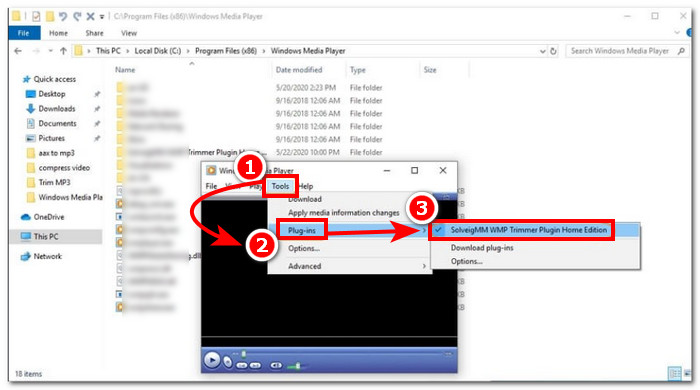
步驟 2.外掛安裝完成後,開啟 Windows Media Player,點擊播放器最上方的「工具」(Tools)選項,接著點擊「外掛程式」(Plug-ins),啟用 SolveigMM WMP Trimmer Plugin。
步驟 3.啟用外掛後,透過點擊播放器最左上角的檔案資料夾(File),或點擊左下角的資料夾圖示來上傳你的 WAV 檔案。當 WAV 檔案載入播放器後,點擊「Edit File」按鈕即可進入實際的 WAV 編輯階段。
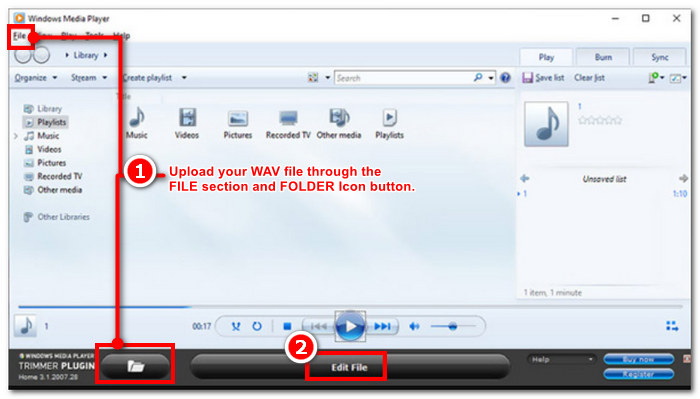
步驟 4.你現在可以進行編輯作業,例如拖曳左右兩側的修剪列來裁剪 WAV 檔案。當你對 WAV 檔的長度感到滿意時,點擊「Trim」按鈕即可將裁剪後的檔案儲存,預設會保存在原本 WAV 檔所在的資料夾中。
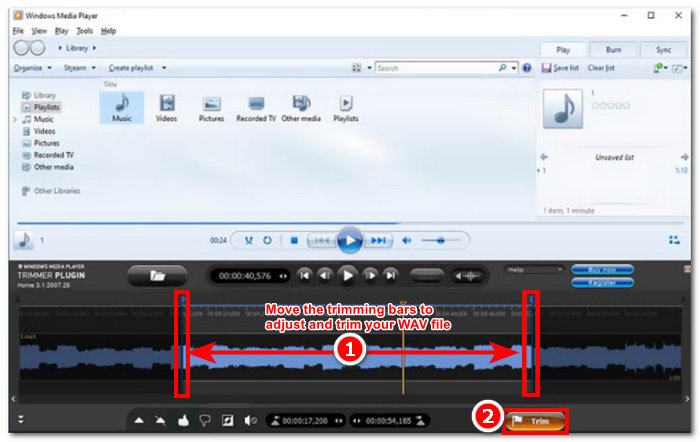
現在您已經編輯了 WAV 文件,在這種情況下,可以在插件的幫助下透過 Windows Media Player 進行修剪。現在您可以透過內建播放器編輯 WAV 檔案。這些外掛程式可能對使用者的方便很有用,但它們並不是完全免費的,因為與付費版本相比,它們僅具有有限的編輯功能。
方法 2. 使用檔案總管編輯 WAV 檔案屬性
如果你平常覺得各種軟體工具不好上手,我們也準備了另一種方法,讓你使用 Windows 7/8/10/11 內建的功能來編輯 WAV 檔案。信不信由你,Windows 並沒有內建可以自由編輯 WAV 檔音訊內容的軟體或功能,但仍可以透過預設方法來編輯 WAV 檔案的資訊屬性。簡單來說,這種預設方法是透過檢視檔案時調整其屬性,來變更 WAV 檔案的資訊。下面我們將列出編輯 WAV 檔案資訊屬性的具體步驟。
步驟 1.開啟檔案總管(File Explorer),找到你想要編輯的 WAV 檔案。
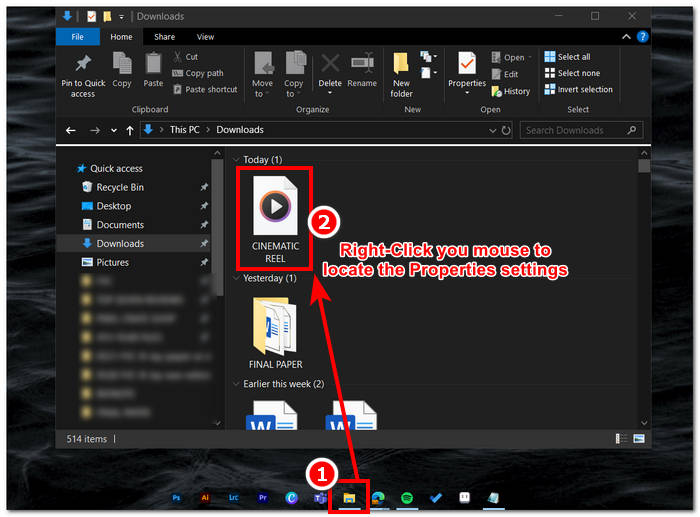
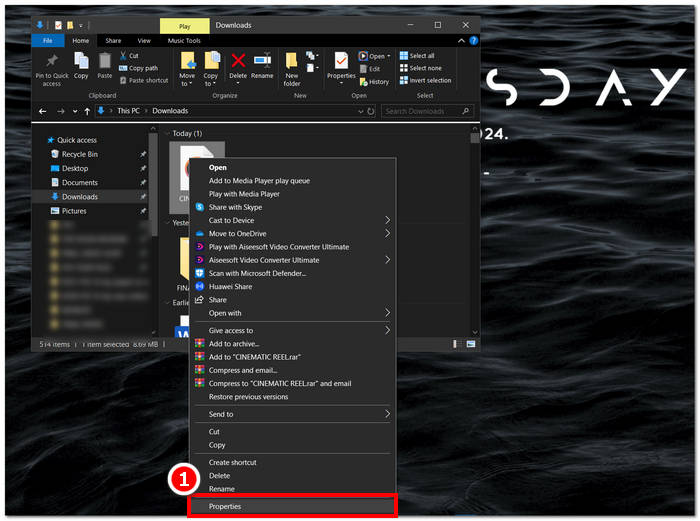
步驟 2.找到「內容」(Properties)後點擊它,將會跳出一個顯示該 WAV 檔案資訊的視窗。
步驟 3.在新開啟的視窗中,點擊「詳細資料」(Details),然後在視窗下方點擊「移除屬性及個人資訊」(Remove Properties and Personal Information)。
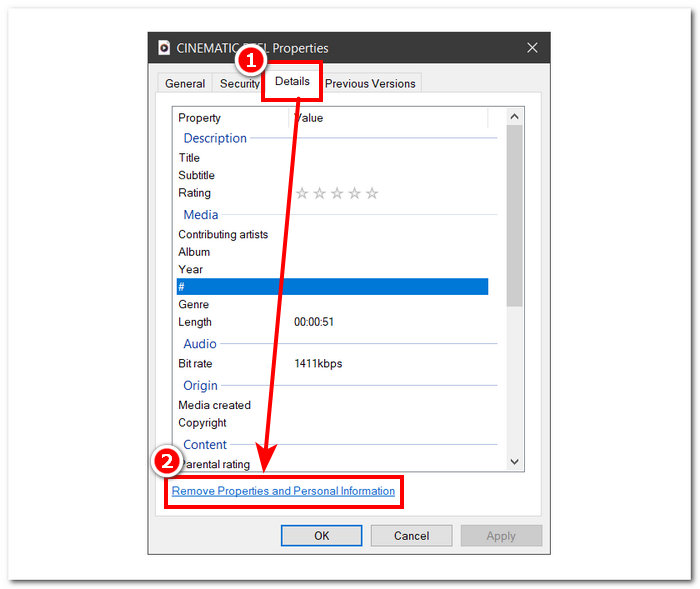
步驟 4.選擇第二個選項「從此檔案中移除下列屬性」,接著點擊「全選」(Select All)按鈕。最後點擊「確定」(OK)按鈕,即可將 WAV 檔案的資訊詳細資料重設為預設狀態。
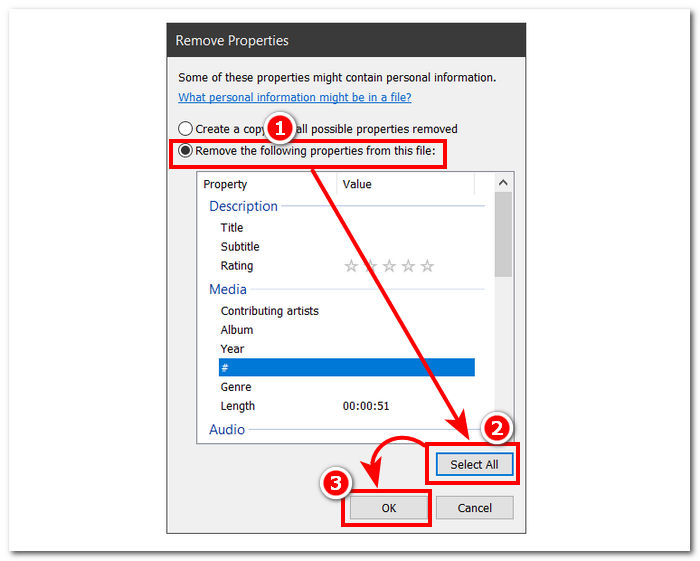
請記住,此方法僅適用於 Windows 用戶,不允許用戶調整音訊文件,而是調整資訊屬性。總的來說,使用預設方法重設WAV檔案資訊很方便。不過,當您想要填寫WAV檔案的詳細資料時,除了使用軟體之外別無他法,在本例中是FVC選擇的軟體。
第 3 部分:使用 GarageBand 在 Mac 上編輯 WAV 文件
我們偶然發現了也有行動應用程式版本的軟體。 GarageBand 是一款適用於 macOS 和 iOS 裝置的熱門工具,可提供功能齊全的音訊編輯器。該工具提供預製預設並與智慧型控制整合。此外,我們在下面列出了使用 GarageBand 的簡單方法;在這種情況下,我們將使用 macOS 版本。
步驟 1.在你的 macOS 裝置上下載 GarageBand,完成安裝後將軟體開啟。
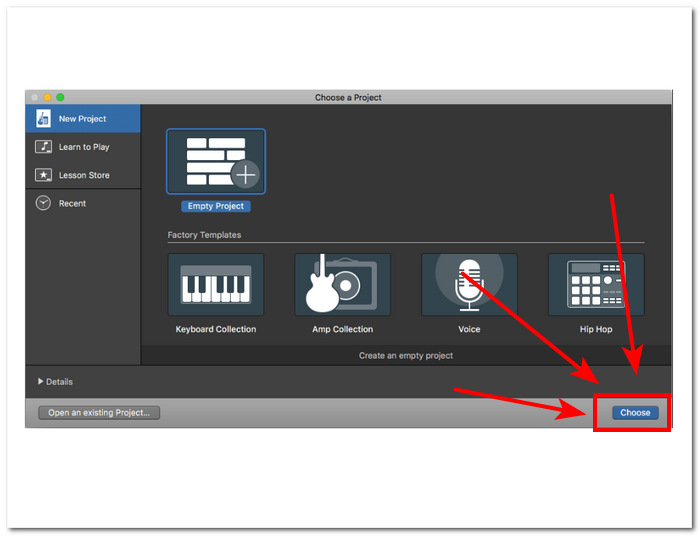
步驟 2.點擊「Choose」按鈕,將你的 WAV 檔載入軟體。當 WAV 檔載入工具後,對軌道(track)按兩下,讓音訊編輯器(Audio Editor)視窗出現在介面底部。
步驟 3.在軟體下方的「Track」與「Region」區域中進行探索,並編輯你的 WAV 檔案。
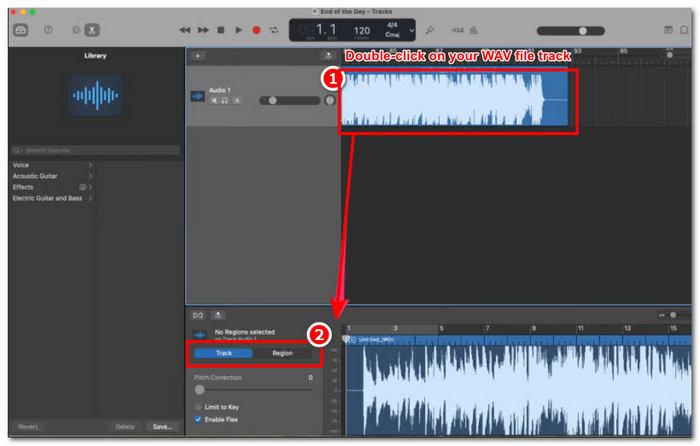
Track 部分負責編輯 WAV 檔案的音高並作為校正器。
Region部分包含變調的調整,這可以幫助使用者反向播放WAV檔案。
步驟 4.當你對 WAV 檔案的變更感到滿意後,點擊「Share > Export Songs to Disk」(分享 > 將歌曲匯出到磁碟),並選擇你希望儲存已編輯 WAV 檔案的位置。
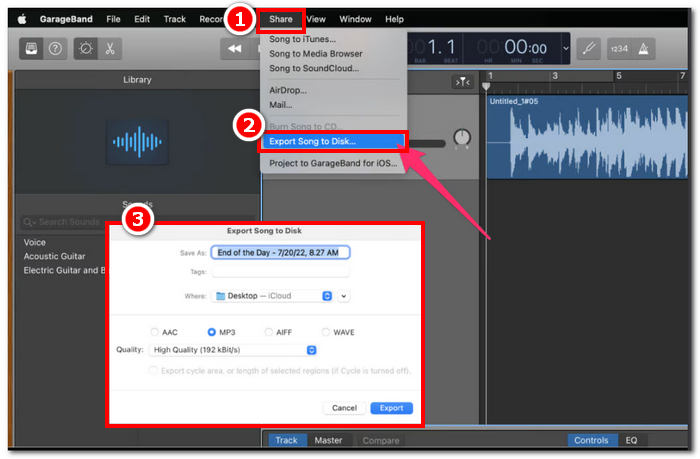
GarageBand 是用於在 macOS 和 iOS 上編輯 WAV 檔案的可靠軟體。因此,如果您正在尋找更高級的功能,我們建議使用 GarageBand macOS 版本。總體而言,這兩個版本在基礎到中級音訊編輯方面都表現出色,但請注意,您需要對該工具的介面有一定的了解,以避免混淆。
第 4 部分:使用線上編輯器編輯 WAV 文件
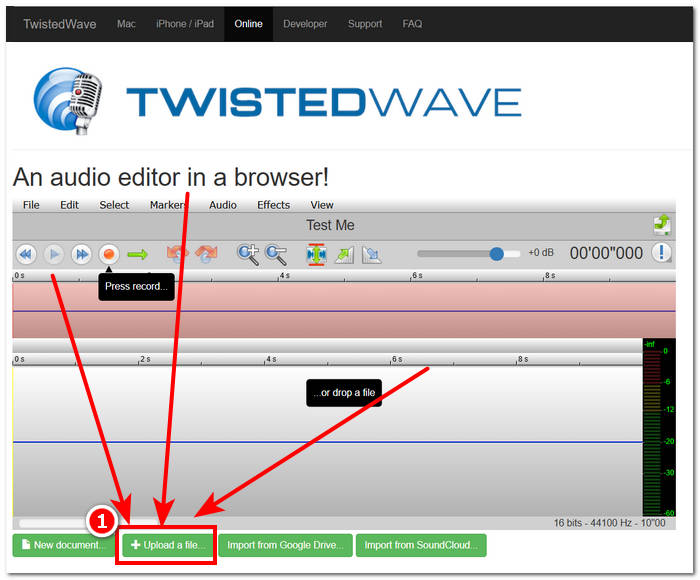
編輯 WAV 檔案的另一種方法是使用可以處理基本編輯的線上工具。 TwistedWave 作為一個基於網路的音訊編輯器出現,它不僅可以用作線上編輯器,還允許使用者編輯 WAV 音訊。此外,儘管其介面過時,但它是值得信賴的 WAV 工具,並且是我們發現的基於 Web 的 WAV 編輯器工具中設計最簡單的工具之一。
步驟 1.前往 TwistedWave 官方網站,點擊「Upload a file」按鈕,從桌面中選取你要在該工具中編輯的 WAV 檔案。
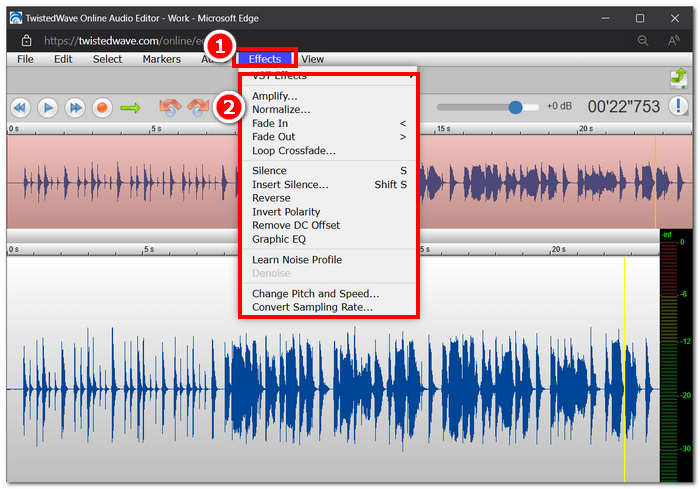
步驟 2.當 WAV 檔案載入工具後,點擊介面上方的「Effect」選項,從可用的效果中選擇你想套用到 WAV 檔案上的動作。
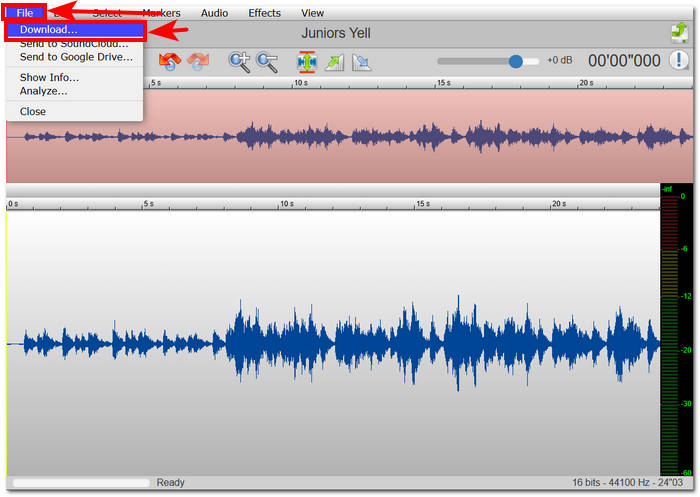
步驟 3.在選好要套用於檔案的效果後,就可以下載已編輯的 WAV。要這麼做,點擊工具左上角的「File」選項,然後點擊「Download」,將 WAV 檔匯出到你的下載資料夾。
要在線編輯 WAV 文件,TwistedWave 是在伺服器上處理 WAV 文件的最簡單方法,因此無需下載軟體。儘管使用起來很方便,但它只允許用戶在免費帳戶中編輯一個文件,最多五分鐘。
第 5 部分. 有關編輯 WAV 檔案的常見問題解答
微軟有音訊編輯軟體嗎?
截至本指南創建時,Microsoft 還沒有專門的音訊編輯軟體,與 WAV 檔案編輯器一樣。對於更改音訊和應用效果等任務,建議使用 FVC 精選軟體和 Audacity。
可以在 Windows Media Player 中修剪 WAV 檔案嗎?
不行,Windows Media Player 本身沒有進行此類作業的功能。要在桌面上裁剪 WAV 檔案,必須透過第三方軟體來完成,例如 macOS 上的 GarageBand,以及適用於 Windows 的 FVC 精選軟體。
Mac 上最簡單的音訊編輯應用程式是什麼?
GarageBand 絕對是最簡單的,介面設計簡單。它在 macOS 用戶中廣為人知,更不用說音樂愛好者和新手製作人了。該工具提供強大的高級功能,並已預先安裝在 macOS 上,以便即時存取該服務。
WAV 檔案通常用於什麼?
WAV 檔案通常與音訊、錄音和編輯過程中的專業用途相關。 WAV 以其無損品質和未壓縮特性而聞名,是匯出 WAV 和其他音訊專案的理想格式。
WAV 檔案是數位檔案還是類比檔案?
WAV 檔案是一種用於儲存可透過電腦和其他裝置共用的聲音資料的數位格式。因此,它包含數位形式的類比聲波。
結論
使用正確的軟體與工具來編輯 WAV 檔案,能確保音訊品質更佳。因此,請依照多種不同方式來編輯 WAV 檔案,包括推薦的全功能軟體、Windows 內建的方法、適用於 macOS 與 iOS 使用者的 GarageBand,最後還有供網頁版工具使用者選擇的方法。
-
 WAV Player –適用於Android,iPhone,PC和Mac的前5種WAV Player應用程序
 如何在Android手機上播放WAV文件?哪些玩家可以玩WAV?此帖分享了5個針對Android,iPhone,Mac和PC的最佳免費WAV播放器。
-
 適用於 Windows 和 Mac 的 6 大免費 WAV 錄音機
 我們在本文中分享的最好的 WAV 錄音軟件具有多種實用功能,可幫助您像專業人士一樣捕捉音頻和語音。
-
 適用於Windows和Mac的5大最佳鼠標和鍵盤記錄器
 這是可以保存鼠標移動和鍵盤單擊並重複事件的前五項最佳鼠標和鍵盤記錄器程序。
