


 視頻轉換大師
 屏幕錄影大師
 影片修復
影片修復
 安全下載
安全下載有關如何在 Audacity 中反轉音訊的詳細指南 [2024]
反轉音軌可以為您的音樂作品添加獨特的維度和色彩,為創意的故事敘述產生迷人的音效。這種風格被廣泛使用,並且在豐富音訊項目的深度和原創性方面越來越流行。因此,如果您正在 Audacity 中編輯音訊並希望透過反轉來添加扭曲,那麼您來對地方了!
在本文中,我們將引導您完成如何在 Audacity 中反轉音訊的詳細步驟,並分享寶貴的提示,以幫助您充分利用此功能。閱讀本指南後,您將準備好反轉音軌並輕鬆探索新的創意視野。因此,準備好改造您的音訊專案並發現反向音訊的令人興奮的潛力!

第 1 部分:如何在 Audacity 中反轉音頻
Audacity 是一款旨在讓用戶無需昂貴的高級工具即可編輯音訊檔案的程序,從而確保免費提供高品質的輸出。作為一種開源工具,每個人都可以免費使用它,並提供一長串付費軟體中常見的功能。在其眾多功能中,Audacity 因其反轉音軌的能力而脫穎而出。此功能可讓使用者根據自己想要的音訊聲音發揮創意。通常,編輯人員會反轉音頻,因為這會為他們的項目添加獨特的效果。
以下是在 Audacity 中反轉音訊的方法。
步驟 1:在電腦上下載並安裝 Audacity。
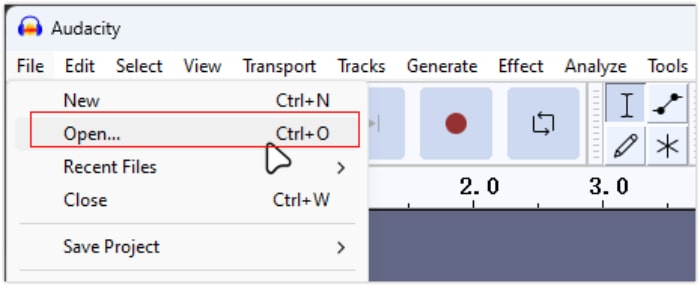
步驟 2:啟動工具,前往左上角的 檔案(File) 功能表並選擇 開啟(Open)。然後在電腦中瀏覽、定位並選取你要反轉的音訊檔,或將該音訊檔拖放到程式中。
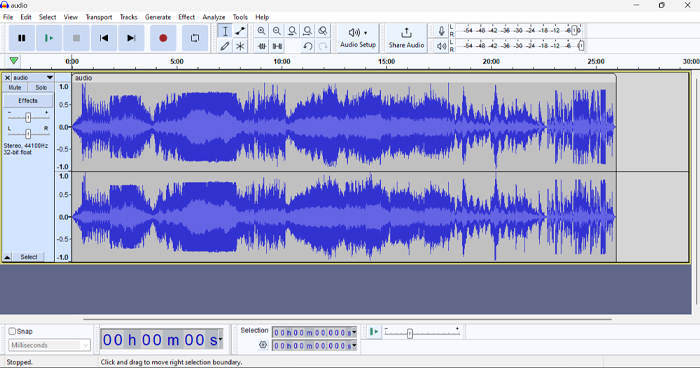
步驟 3:接著,點擊音訊軌道,前往 選取(Select) 分頁,選擇 全部(All) 以選取整個音訊檔。
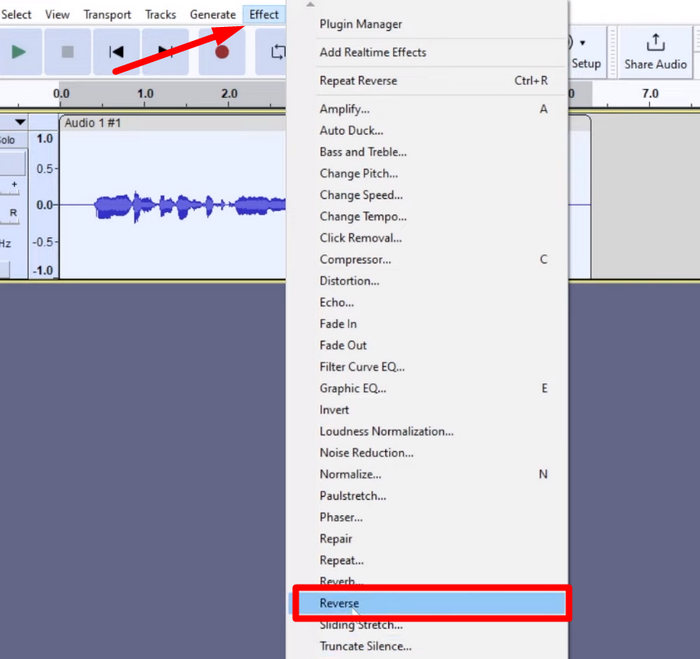
步驟 4:要反轉音訊,前往 效果(Effect) 分頁,並從下拉選單中選擇 反轉(Reverse)。Audacity 會處理並反轉所選的音訊片段。
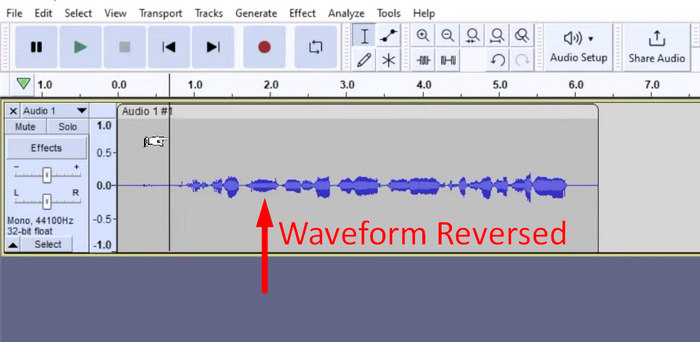
步驟 5:你可以按下鍵盤上的空白鍵預覽反轉後的音訊。或者,也可以使用 Audacity 視窗左上方的播放控制,點擊 播放(Play) 按鈕。
步驟 6:最後,要匯出反轉後的音訊檔,回到「檔案」功能表,在其下選擇「匯出(Export)」。如此一來,你的音訊就會以新檔案的形式儲存。同時,匯出前別忘了選擇你偏好的音訊檔格式。
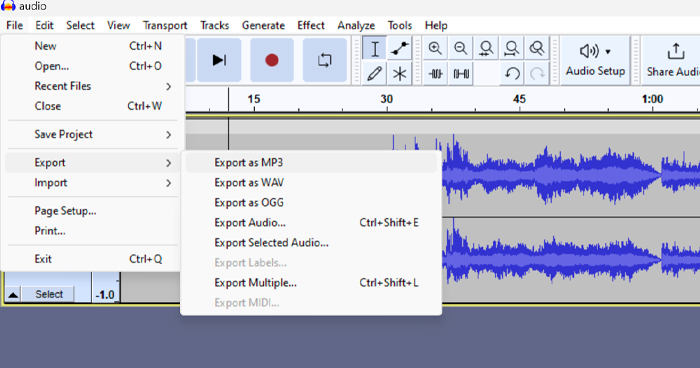
由於一些意外遺失工作的問題,請在編輯時定期儲存項目,以防止進度遺失。您可以使用 Windows 上的 Ctrl + S 或 Mac 上的 Cmd + S 快速儲存您的工作。此外,請考慮使用描述性檔案名稱並將檔案組織在專用資料夾中,以使專案組織良好且易於存取。
第 2 部分:如何在 Audacity 中反轉部分音頻
在某些情況下,用戶只想在 Audacity 中反轉部分音頻,可能是因為他們只想強調或創建獨特效果的特定部分。以下步驟與如何反轉整個軌道幾乎相同。然而,選擇音訊的一部分有點棘手,需要強調步驟以避免混淆,特別是對於初學者來說。
以下是在 Audacity 中只反轉部分音訊的方法。
步驟 1:在工具的主介面中,前往左上角的 檔案(File) 功能表並選擇 開啟(Open)。然後在電腦中瀏覽、定位並選取你要反轉的音訊檔,或將該音訊檔拖放到程式中。
步驟 2:接下來,要選取你想反轉的音訊片段時,可以使用 縮放(Zoom) 功能放大波形軌道,然後拖曳滑鼠選取你只想反轉的那一段音訊。
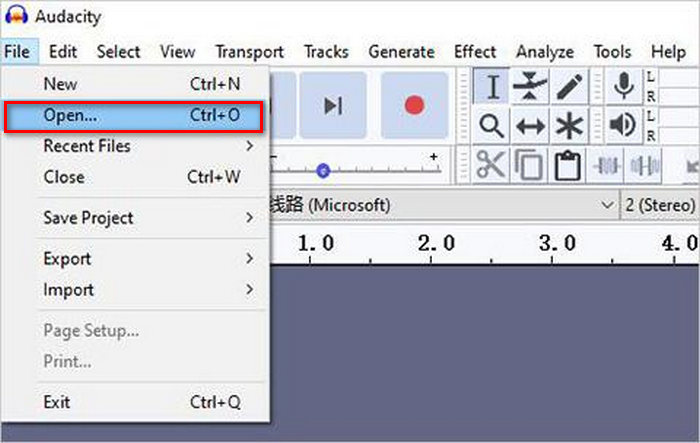
步驟 3:要反轉音訊,前往 效果(Effect) 分頁,並從下拉選單中選擇 反轉(Reverse)。Audacity 會處理並反轉所選的音訊片段。
步驟 4:你可以按下鍵盤上的空白鍵預覽反轉後的音訊。或者,也可以使用 Audacity 視窗左上方的播放控制,點擊 播放(Play) 按鈕。
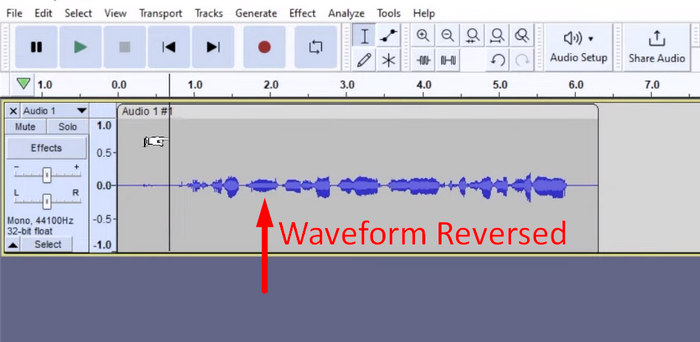
步驟 5:最後,要匯出反轉後的音訊檔,在「檔案(File)」功能表下選擇「匯出(Export)」。再選擇 匯出為(Export as),並在最終匯出前選取你偏好的音訊檔格式。
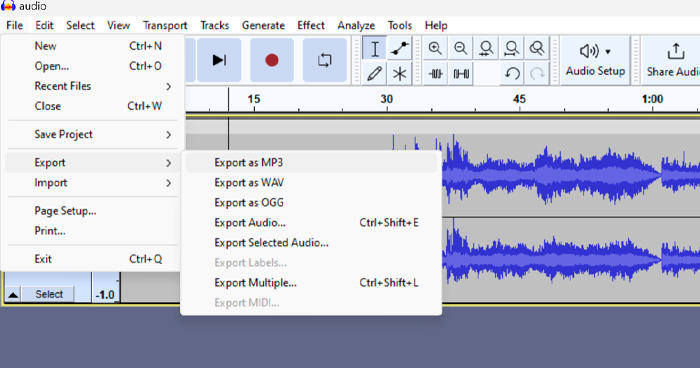
在 Audacity 中選取特定音訊片段進行反轉時,請務必仔細放大波形,以清楚看出該段音訊的起點與終點。這有助於精準選取,避免包含不想要的部分。另外,在反轉之前,如果有需要,可先使用「分割剪輯(Clip Split)」工具將音訊切成多個小段,例如先剪裁 MP3 音訊,讓你能更輕鬆地獨立操作和編輯特定片段。這樣的做法能提升編輯的掌控度,並確保反轉後的音訊能流暢達到你想要的效果。
第 3 部分:使用 Audacity 替代方案反轉音訊/視頻
同時,如果你偏好更簡單、容易上手的方式來反轉音訊或影片,可以使用這款 Audacity 的替代工具——由 FVC 推薦的 Video Converter Ultimate。這套完整的影音工具雖然以強大的轉檔功能聞名,但除此之外,對需要方便反轉音訊或影片的使用者來說,也同樣非常好用。
步驟 1:在你的電腦上下載並安裝 FVC 推薦的 Video Converter Ultimate。
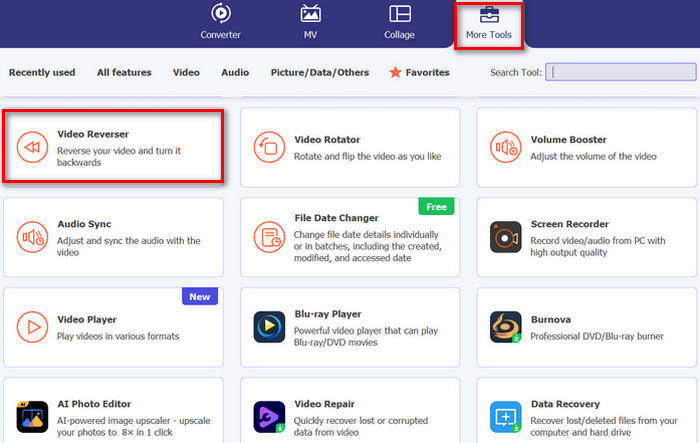
步驟 2:啟動工具後,前往「更多工具(Moretools)」分頁,從中選擇 影片反轉器(Video Reverser)。
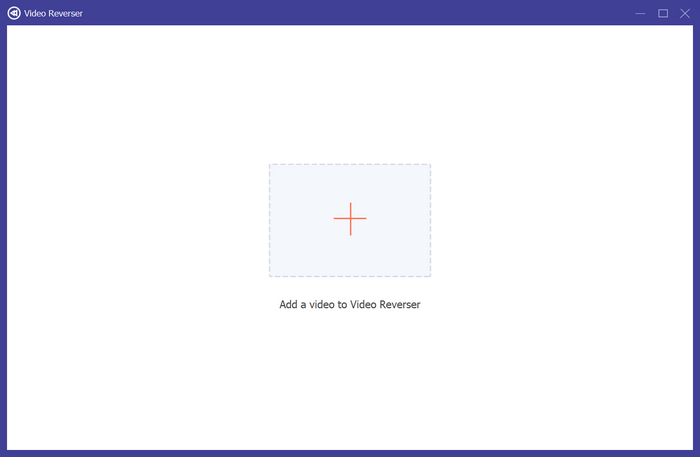
步驟 3:接著,點擊 新增影片到影片反轉器(Add a Video to Video Reverser) 按鈕,匯入你想要反轉的音訊或影片。
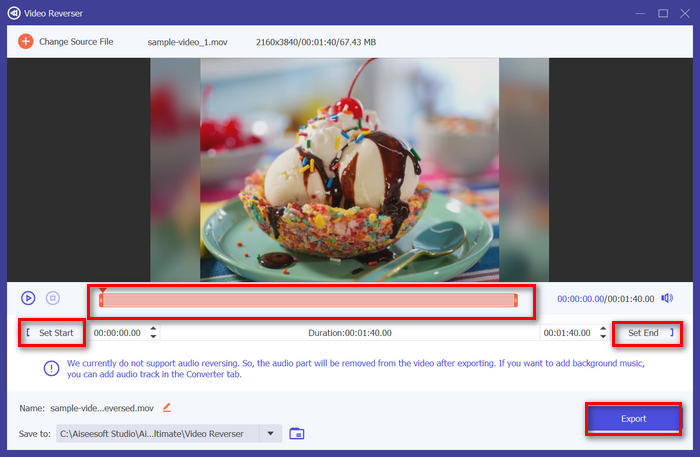
步驟 4:進入 影片反轉器(Video Reverser) 介面後,若你想反轉整個軌道,只需前往「匯出(Export)」按鈕,即可自動反轉你的檔案。但如果你只想反轉其中一部分,可以拖曳滑桿,仔細選擇要反轉的音訊或影片片段。或者,你也可以直接輸入該片段的開始時間與結束時間。完成後,只要點擊 匯出(Export) 按鈕即可。
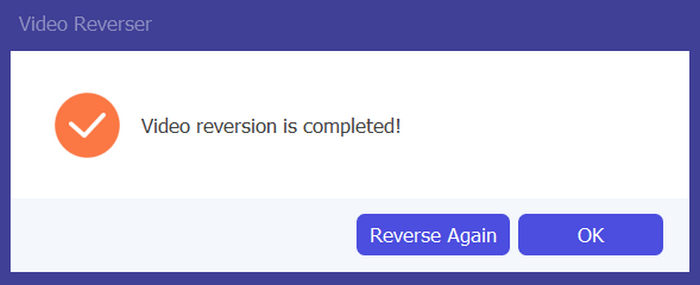
步驟 5:當匯出完成後,你會看到提示訊息,並且可以在電腦資料夾中存取這個已反轉的影片。
給你了!簡單易行,對吧?您無需對複雜的介面感到困惑。透過 FVC 精選的 Video Converter Ultimate,您所需的一切都觸手可及。
第 4 部分:有關 Audacity 中倒車音訊的常見問題解答
如何取消 Audacity 中的反向音訊效果?
如果您在 Audacity 中反轉了音訊並希望撤消它,您可以輕鬆恢復到原始音訊。只需前往 Audacity 介面左上角的「編輯」選單,然後選擇「撤銷反向」即可。此外,您可以使用鍵盤快速鍵 Ctrl + Z(Windows)或 Cmd + Z(Mac)來撤銷上一個動作。這會將音訊恢復到套用反向效果之前的原始狀態。
Audacity 支援哪些音訊格式的倒車音訊?
Audacity 支援多種流行的音訊格式,例如 WAV、MP3、FLAC、AIFF 和 OGG。
您可以在 Audacity 中扭曲音訊嗎?
是的。您可以在 Audacity 中扭曲音訊。 Audacity 提供了多種效果和工具,可讓您對音軌套用失真。若要新增此功能,請前往效果,按一下失真和調製,然後選擇失真。
您可以在 Audacity 中轉換音訊嗎?
可以的。Audacity 支援多種音訊格式。如果你發現某個音訊檔在你的裝置上不相容,例如,就可以使用 Audacity 輕鬆將 AIFF 轉成 MP3。
結論
總結來說,學會 如何在 Audacity 中反轉音訊 並不困難,而且能為你的音訊或影片專案增添獨特效果。依照上述詳細步驟操作,就能立刻開始反轉你的音軌。若想要更簡單的替代方案,可以試試 FVC 推薦的 Video Converter Ultimate。準備好發揮創意了嗎?現在就試試這些方法吧!
-
 免費加入MOV –如何將兩個MOV文件合併為一個
 對於初學者而言,可能很難將多個MOV視頻剪輯結合在一起。那麼,有沒有簡單快捷的方法來組合MOV文件?如果有,那怎麼用呢?這篇文章將幫助您獲得這些答案。
-
 在Windows / Mac /在線上免費免費合併視頻的4種方式
 這是將視頻合併到一個新視頻中的4種快速方法。沒有視頻文件的大小或格式限制。您可以成功加入2、3、4甚至更多不同格式和分辨率的視頻剪輯。
-
 免費在 Windows 和 Mac 上加入 M4V 文件的具體指南
 如果您正在尋找一種將 M4V 視頻文件合併為一個的解決方案,請不要錯過這篇文章。在這裡,我們將討論合併 M4V 視頻文件的兩種最佳方法。
