用戶指南

視頻/音頻轉換解決方案

開始使用

FVC Free FLV to Audio Converter 是最好的免費視頻到音頻轉換器。它可以從 FLV 視頻文件中提取音軌。更重要的是,它支持在不同的音頻格式之間轉換音頻文件。
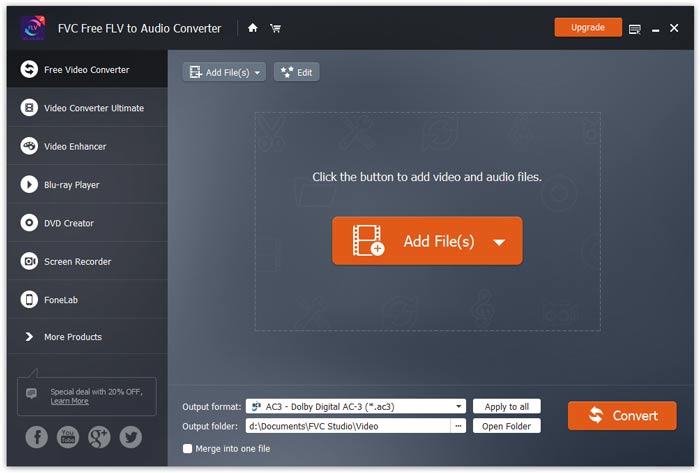
主界面

下載並安裝

根據您計算機的操作系統下載安裝包。然後,雙擊安裝文件並按照屏幕上的說明安裝程序。

首選項

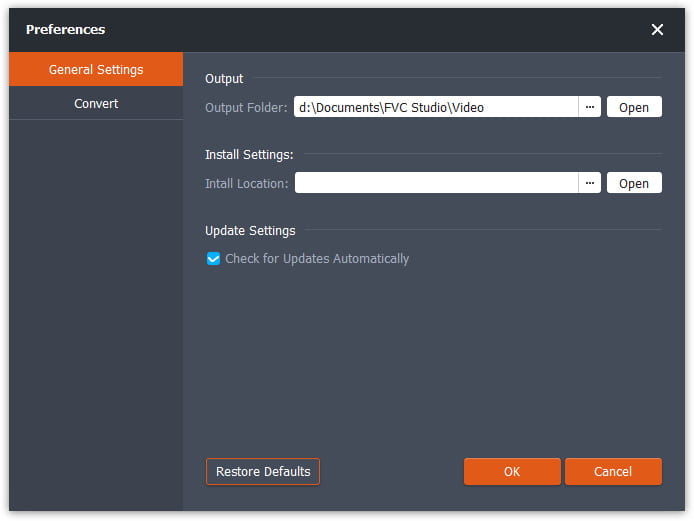
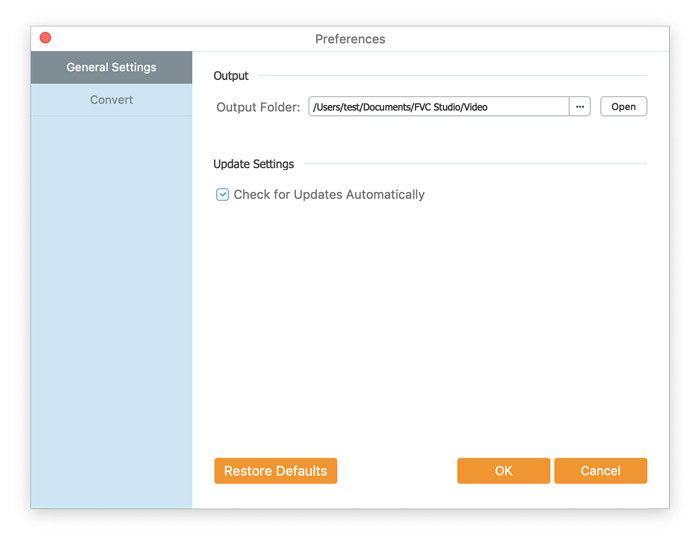
Before you start the conversion, it’s recommended to tweak the default settings. You can click the Menu icon and click on Preferences… to configure the specific settings. For example, you are free to choose the output folder to store your converted files.

首選項

將FLV轉換為音頻

現在您可以按照以下步驟將 FLV 文件轉換為音頻格式。

Step 1. Launch FVC Free FLV to Audio Converter

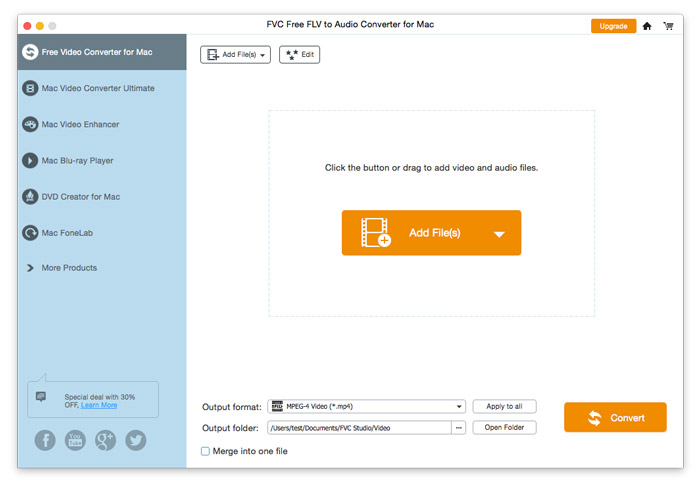
啟動 FVC Free FLV to Audio Converter,你會看到它乾淨的界面。

主界面

Step 2. Add an FLV file into the program

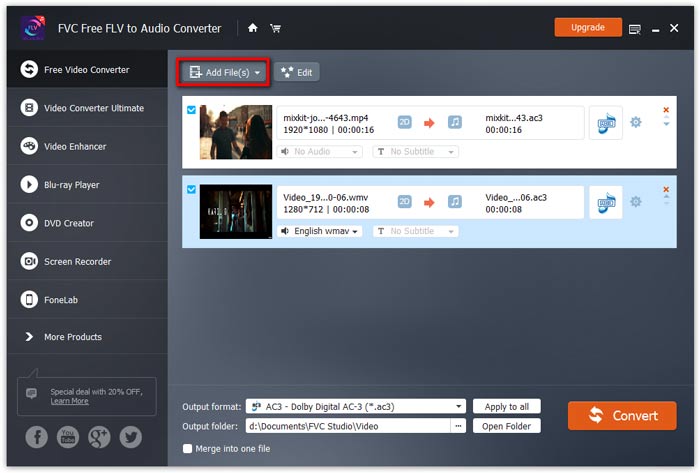
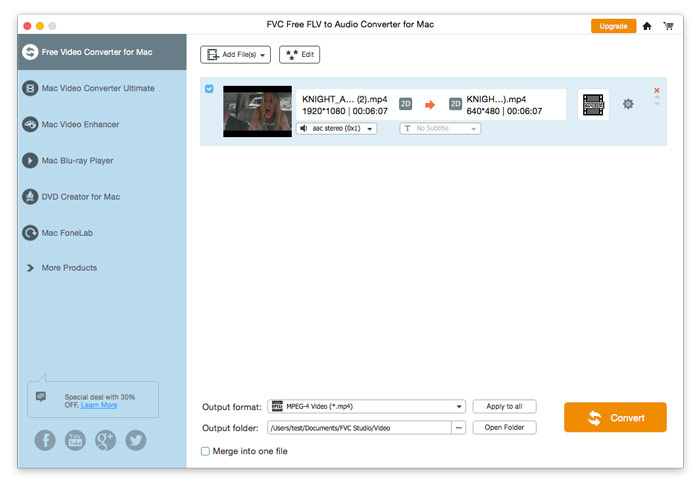
Click the Add File(s) button and choose FLV files you want to process in the dialogue opening subsequently. After the files are added to the program, they will be displayed on the file list.

添加FLV文件

Step 3. Select the output format

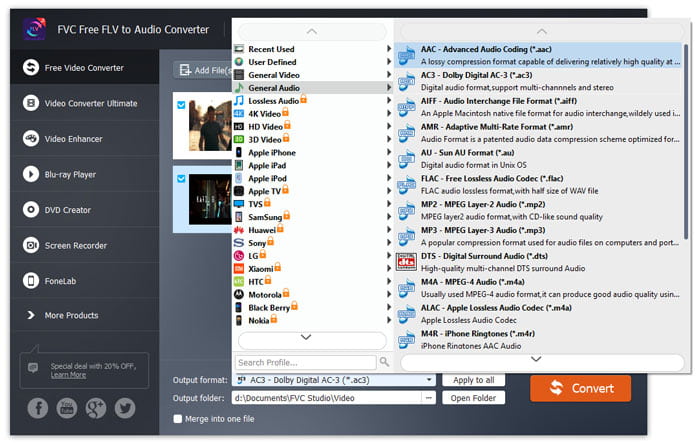
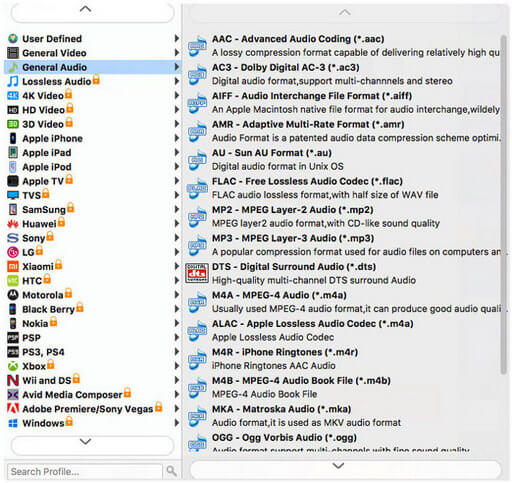
Click to open Output format drop-down list, then choose the audio format from the General Audio profile list. It can convert your FLV files to MP3, WMA, AAC, M4A, and so on.

選擇音頻格式

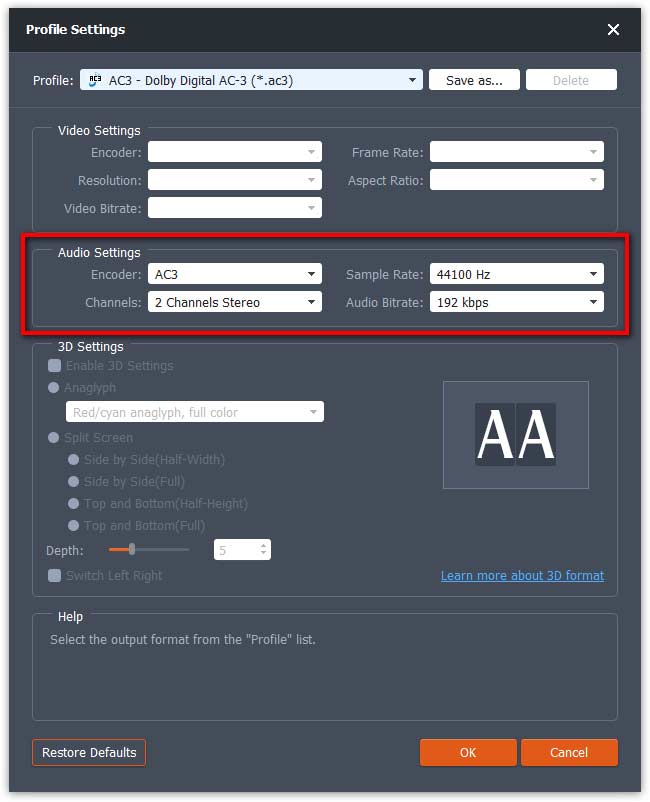
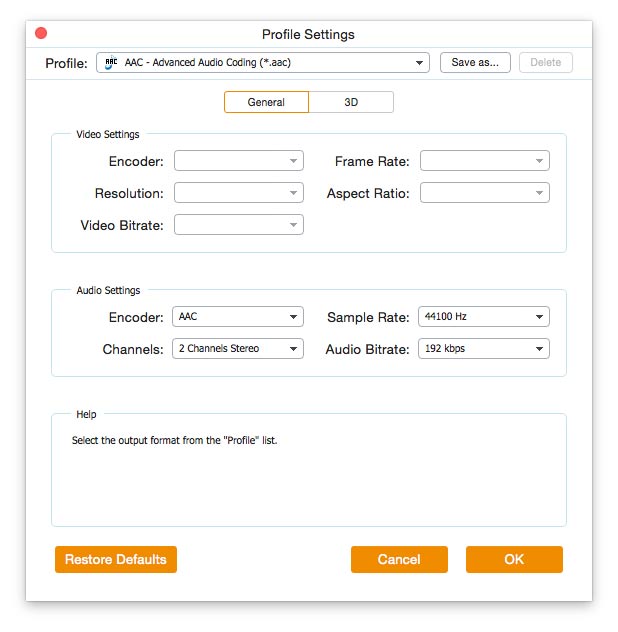
If you’re not satisfied with the original profile parameter settings, you can click the Cogwheel icon and adjust the encoder, channel, sample rate, and audio bitrate in the Profile settings window.

配置文件設置

Step 4. Start converting FLV to Audio

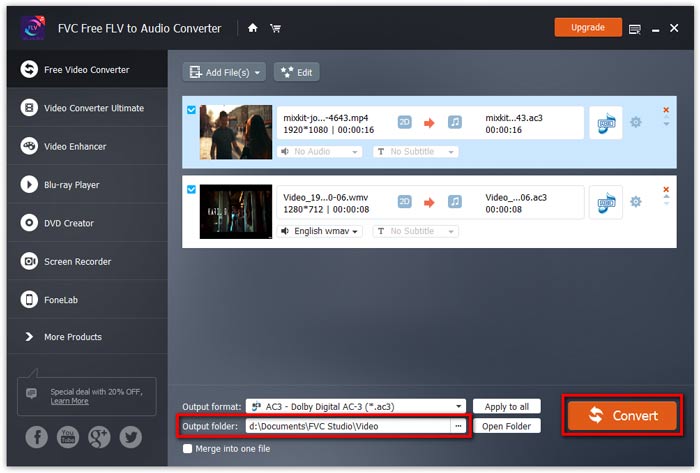
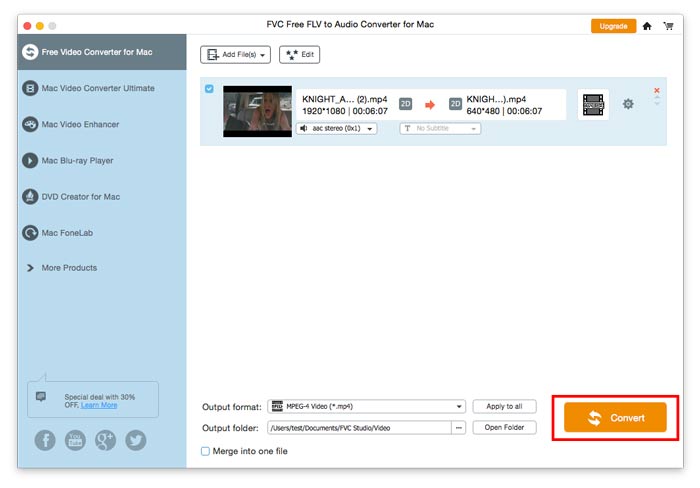
Go to Output folder to choose the destination folder for saving output files, and then click OK button to return to the main window. Finally, click the Convert button to start the conversion.

開始轉換

用戶指南

視頻/音頻轉換解決方案

開始使用

FVC Free FLV to Audio Converter 是最好的免費視頻到音頻轉換器。它可以從 FLV 視頻文件中提取音軌。更重要的是,它支持在不同的音頻格式之間轉換音頻文件。

主界面

下載並安裝

根據您計算機的操作系統下載安裝包。然後,雙擊安裝文件並按照屏幕上的說明安裝程序。

首選項

Before you start the conversion, it’s recommended to tweak the default settings. You can click the Menu icon and click on Preferences… to configure the specific settings. For example, you are free to choose the output folder to store your converted files.

首選項

將FLV轉換為音頻

現在您可以按照以下步驟將 FLV 文件轉換為音頻格式。

Step 1. Launch FVC Free FLV to Audio Converter

啟動 FVC Free FLV to Audio Converter,你會看到它乾淨的界面。

主界面

Step 2. Add an FLV file into the program

Click the Add File(s) button and choose FLV files you want to process in the dialogue opening subsequently. After the files are added to the program, they will be displayed on the file list.

添加FLV文件

Step 3. Select the output format

Click to open Output format drop-down list, then choose the audio format from the General Audio profile list. It can convert your FLV files to MP3, WMA, AAC, M4A, and so on.

選擇音頻輸出

If you’re not satisfied with the original profile parameter settings, you can click the Cogwheel icon and adjust the encoder, channel, sample rate, and audio bitrate in the Profile settings window.

配置文件設置

Step 4. Start converting FLV to Audio

Go to Output folder to choose the destination folder for saving output files, and then click OK button to return to the main window. Finally, click the Convert button to start the conversion.

開始轉換