


 視頻轉換大師
 屏幕錄影大師
 影片修復
影片修復
 安全下載
安全下載如何使用應用程序在 iPhone 上輕鬆將 HEIC 更改為 JPG
與 JPEG 不同,HEIC 格式的支援度並不高,因此在傳輸檔案之前往往有必要先進行轉檔。但在裝置上選擇轉檔工具可能會有點困難,因為並不是每一款工具在轉換影像檔時都能有良好表現。所以,如果你想知道如何在自己的裝置上將 HEIC 格式改成 JPEG,就必須閱讀本文。文中將介紹三種不同的方法,讓你能在 iPhone 和桌面裝置上輕鬆把HEIC 轉成 JPG,而且不會犧牲原始 HEIC 檔案的品質。

第 1 部分。如何使用文件應用程序在 iPhone 上將 HEIC 轉換為 JPG
透過像是 檔案 App 這類的檔案管理器,你可以在 iPhone 上輕鬆將 HEIC 轉成 JPG,而不需要額外下載其他檔案。除了能在 iPhone 本機儲存之外,這個工具也支援其他雲端儲存應用程式,這也是為什麼這項功能會在 iPhone 使用者之間如此受歡迎的原因之一。如果你想在 iOS 裝置上試試看這個內建的檔案管理 App,請依照下列步驟有效地操作。
如何使用文件應用程序將 HEIC 轉換為 JPG 的步驟:
步驟 1. 開啟你想要複製的 HEIC 圖片所在的相簿。
步驟 2. 然後開啟「檔案」App,並選擇「在 我的 iPhone 上」。在使用的同時,你也可以連線到 Google 雲端硬碟或其他 iCloud 雲碟,上傳 HEIC 檔案;若 HEIC 檔案不在本機儲存空間中,就必須透過這種方式,不過你會需要網路連線才能完成。
步驟 3. 開啟 App 之後,你需要建立一個資料夾,接著將檔案貼上進去,檔案格式就會自動儲存為 JPEG。
第 2 部分。如何在 iPhone 上使用第三方應用程序將 HEIC 轉換為 JPG
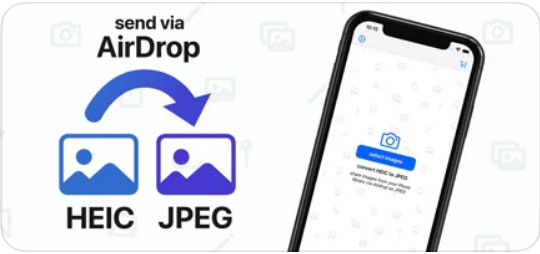
你可以使用的最佳免費 App 之一是 HEIC to JPEG,用來變更 HEIC 的格式。這款 App 為開源軟體,也就是說你可以在任何 iOS 裝置上免費下載。如果你想知道如何在 iPhone 上將 HEIC 轉成 JPG,可以依照下面的步驟操作。
如何使用 HEIC 轉 JPEG 將 HEIC 轉換為 JPG 的步驟:
步驟 1. 在 App Store 搜尋 HEIC to JPEG,然後點擊下載按鈕,將此 App 安裝到你的 iOS 裝置上。
步驟 2. 安裝完成後,點擊 App 開啟它。點選 Select Image(選擇圖片)即可直接存取 iOS 裝置中的「照片」,並選取你想要轉換的 HEIC 圖片。
步驟 3. 如果你已經在 App 中上傳了 HEIC 檔案,就必須逐一點選檢查。點擊想要轉換的 HEIC 檔後,點擊畫面右上角的 Share as JPEG(以 JPEG 分享)。
步驟 4. 在這個畫面中,點選 Save Image(儲存圖片),HEIC 照片就會被轉換成 JPEG。
第 3 部分。 如何將 HEIC 轉換為 JPEG 並將照片傳輸到 Windows 和 Mac
假設第三方 iOS App 和內建的檔案管理器都無法滿足你的需求,那該怎麼辦?不用擔心,我們已經替你想好了。FVC Free HEIC to JPG Converter 是一款網頁工具,能讓使用者自動把 HEIC 檔案轉成 JPEG。利用它,你只需要三個簡單步驟就能完成轉檔工作。以下是當你手邊沒有 iPhone 可用時,將 HEIC 轉成 JPEG 的操作步驟。
如何使用 FVC Free HEIC to JPG Converter 將 HEIC 轉換為 JPG 的步驟:
步驟 1. 點擊這個連結,在你常用的瀏覽器中開啟該網頁工具的官方網站。
步驟 2. 接著點擊 Add HEIC/HEIF File(s)(新增 HEIC/HEIF 檔案),找到你想變更格式的 HEIC 圖片,然後點選 Open(開啟),成功上傳檔案。
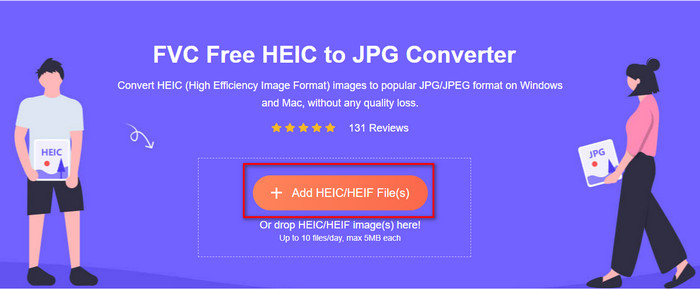
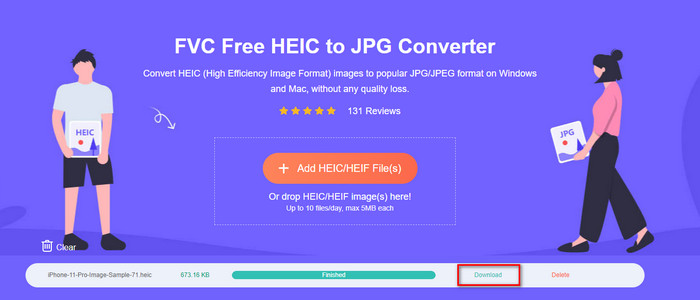
步驟 3. 系統會隨即開始將格式轉成 JPEG,程序結束後,點擊 Download(下載),即可將已轉成 JPEG 格式的影像檔下載到你的裝置中。正如我們所承諾的,你只需要閱讀並完成這三個簡單步驟,就能成功把圖片格式改成 JPEG。所以,如果 iPhone 上的 App 無法順利運作,這就是你必須選擇來替代它們的工具。
第 4 部分。有關在 iPhone 上將 HEIC 轉換為 JPEG 的常見問題解答
在 iPhone 上傳輸 HEIC 文件之前是否需要將其轉換為 JPEG?
這取決於接收方 iOS 裝置的版本;如果對方使用的是 iOS 11 或更新版本,那麼就不需要轉換為 JPEG,因為裝置本身原生支援開啟這種檔案。但如果接收方的版本低於 iOS 11,那麼你就需要先將 HEIC 轉成 JPEG。
將 HEIC 轉移到另一台設備需要時間嗎?
不是因為這種格式的壓縮,所以以這種格式傳輸圖像很容易。但是,如果您將其批量發送到其他設備,則需要等待該過程完成。如果您使用互聯網連接傳輸它,您將需要一個快速的來快速處理它。
將 HEIC 轉換為 JPEG 後,圖像的高質量是否會保留?
HEIC 和 JPEG 可以存儲高質量的圖像,因此通過將 HEIC 轉換為 JPEG,您在轉換過程中不會遇到質量損失。然而,一些轉換器會降低圖像質量以快速處理它們。為避免原始 HEIC 文件質量不佳,您必須選擇最佳轉換器以輕鬆將格式更改為 JPEG,而不會丟失原始質量。
結論
現在我們已經學會如何在 iPhone 上將 HEIC 轉成 JPG,而不用擔心品質流失。即使你一開始覺得處理HEIC 格式很麻煩,透過本文的說明,你已經減輕了不少負擔,因為你現在掌握了多種轉檔方式。所以,如果你想在 iPhone 上試試看上面介紹的兩種方法,就請依照步驟操作。但如果你認為這些方法仍無法滿足你的需求,那就應該選擇我們提到的線上轉檔工具。文中也提供了如何在網頁上使用該轉換器的操作指南,照著做就能完整了解使用方式。希望你喜歡這篇文章,也歡迎造訪我們的網站,我們還整理了各種解決日常影音問題的其他方法。
-
 使用 2022 年的前 4 種改進方法將 HEIC 轉換為 PDF
 要了解有關最佳 HEIC 到 PDF 轉換器的更多信息,您可以下載此 2022。您可以閱讀本文,因為我們提供了對它們的評論。
-
 2022 年精選的 5 個最佳 HEIC 到 JPG 轉換器
 使用 HEIC 到 JPC 轉換器,您可以輕鬆地將圖像格式更改為便攜式 JPG。想知道這5個工具是什麼?閱讀這篇文章。
-
 您必須知道的最佳免費和付費 HEIC 轉換器 [2022 年更新]
 你想知道HEIC轉換器是什麼嗎?如果是這樣,我們將包括可用於更改 HEIC 格式的前 5 個免費和付費 HEIC 轉換器。
