


 視頻轉換大師
 屏幕錄影大師
 影片修復
影片修復
 安全下載
安全下載如何刪除 PPT 背景圖片:桌面版和線上版
製作PPT時,我們經常需要設定多個不同風格的模板,並插入預先準備好的圖示或圖片。但很多素材圖片都有背景色。如果頁面上的顏色過多,會顯得雜亂,所有元素隨意堆疊,無法構成一個完整的設計。
因此,我們必須嚴肅對待並進行PPT 去除背景圖片的操作。PowerPoint 本身提供了兩種方式來實現這個功能。但如果你想體驗更出色的背景去除服務,可以試試本文推薦的最佳線上工具。我們不再多說,立刻開始看看具體怎麼做。

一、如何刪除PPT中的背景
製作 PPT 時,你可以手動處理 PowerPoint 中的圖片。它的介面上有兩個工具可以幫助你去除圖片背景。接下來,我們分別從這兩種情況來看如何操作。
使用“設定透明顏色”功能刪除背景
第一種是為圖片加上透明色效果。這種方法非常適合單色的圖片,而且效果立竿見影。
以下是如何使用透明色彩功能去除 PPT 中影像的白色背景。
步驟 1. 打開你的 PPT,找到你想要編輯的圖片。選中它,然後在工具列中選擇格式。
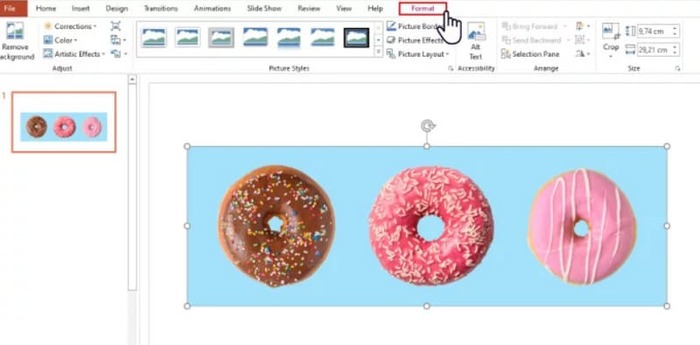
步驟 2. 在左上角找到色彩。展開選單並選擇設定透明色彩。
步驟 3. 游標會變成一支鉛筆。將它移到圖片上並點擊,圖片的背景色就會變成透明。
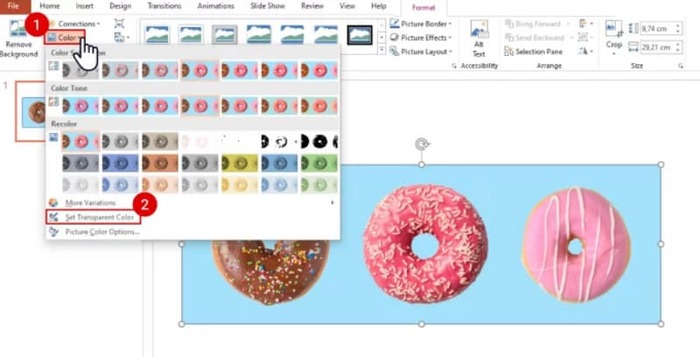
請注意,此方法不適用於背景有陰影的影像。此外,如果圖片中的物體顏色與背景過於接近,透明度功能可能會同時擦除背景和物體。
使用刪除背景功能刪除背景
您會在 PowerPoint 頁面的左上角看到一個「刪除背景」按鈕。點擊它,PPT 刪除背景程式會自動識別背景並高亮顯示要刪除的部分。
以下是如何使用「刪除背景」功能從 PPT 幻燈片中刪除背景圖像。
步驟 1. 將圖片插入投影片後,選中該圖片。
步驟 2. 點擊「圖片格式」>「移除背景」。
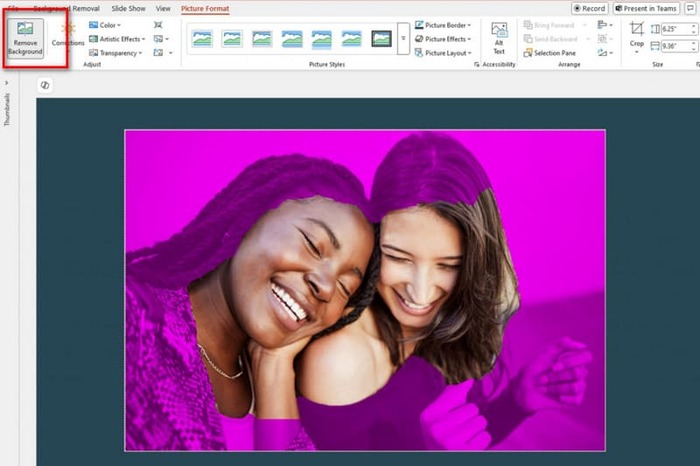
步驟 3. 系統會自動運行並偵測背景,被偵測出的背景會以紫色標示。你也可以選擇標記要保留的區域或標記要移除的區域來手動調整範圍。
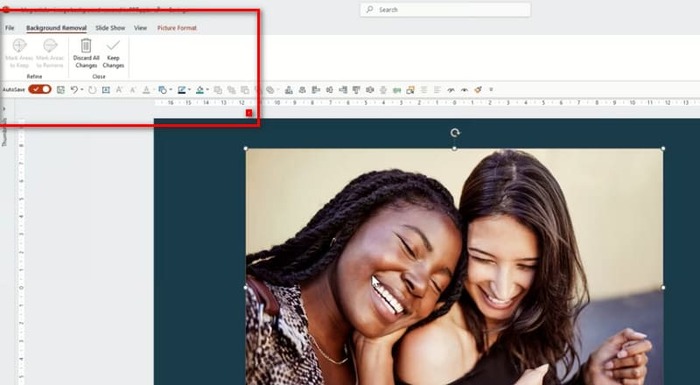
可惜的是,這個功能與透明效果功能都有一個通病:它們在偵測背景方面表現很差,很容易把圖片中的核心物件一併刪除。即使你嘗試手動調整,PowerPoint 在執行時仍然會「堅持己見」。如果你的圖片背景偏暗或並非單一顏色,建議改用其他更創新的工具來移除背景或為圖片新增背景。
第 2 部分:如何在線上刪除圖片的白色背景並將其上傳到 PowerPoint
免費:FVC 背景去除器
從以上內容我們可以看出,雖然 PowerPoint 提供的工具操作簡單,但無法處理背景較為複雜的圖片。如果你有這類任務,我們建議使用 FVC Free Background Remover 作為助手。它完全免費,你只需將圖片上傳到平台(支援 PNG、JPG 或 JPEG 格式),而且FVC Free Background Remover甚至可以用來更換投影片圖片的背景。你可以上傳想要的新背景,或是選擇單一純色。
以下是使用 FVC 免費背景移除器去除 PPT 中的背景圖形的方法。
步驟 1. 在瀏覽器中打開 FVC Free Background Remover,點擊上傳圖片,將圖片加入投影片。
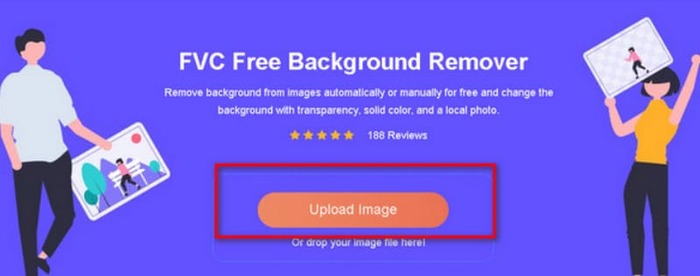
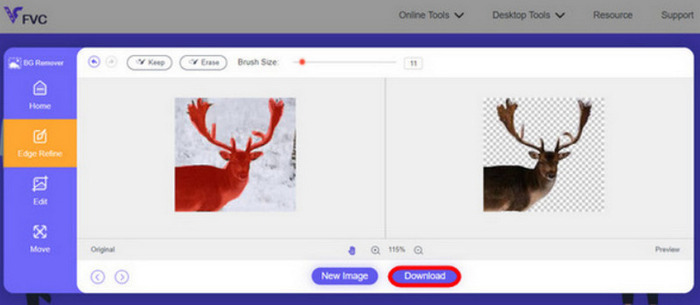
步驟 2. FVC Free Background Remover 會載入圖片並自動執行去背。流程完成後,你可以進一步編輯圖片並自訂相關設定。
步驟 3. 最後點擊下載,將編輯後的檔案儲存下來。
以上 PPT 去除圖片背景的方法主要針對靜態圖片。如果你的畫面上有浮水印、標誌等內容,建議進一步了解如何從照片中移除浮水印,以獲得最佳顯示效果。
三、PPT刪除背景圖片常見問題
如何去除 PPT 中圖片的白色背景?
PowerPoint 具有「背景移除」和「透明色效果」功能,可協助您。但是,這些功能可能會破壞螢幕的完整性。您可以使用 FVC 免費背景移除器來處理圖片。
為什麼 PowerPoint 中沒有透明顏色?
首先,您需要確保已選擇目標圖片。如果未選擇圖片,則無法為其添加透明色效果。
如果「刪除背景」工具不起作用,我該怎麼辦?
首先,請檢查您的圖片格式是否與PowerPoint相容,例如JPG、JPEG或PNG。如果不相容,請先轉換格式。您的PowerPoint版本不是最新版本也可能導致此問題。請先更新PowerPoint,然後重新開啟操作。
結論
雖然 PowerPoint 內建了PPT 移除背景圖片的功能,但這些功能過於基本,也很容易破壞畫面中原有的元素。如果你的圖片背景顏色單純,或是白色背景,那麼 PowerPoint 內建工具可能就足夠。不過,如果你的圖片細節很多,我們仍然建議使用像 FVC Free Background Remover 這樣的專業工具。它操作簡單,而且不需要另外下載軟體。
-
 以 4 種方式變更影像背景的逐步指南
 正在尋找更改照片背景的工具?在本文中,了解可用於輕鬆更改圖像背景的各種圖像編輯工具。
-
 使用有效且有用的工具去除 GIF 背景
 如果沒有合適的工具去除背景可能會令人沮喪。請參閱這篇文章,了解有關如何使 GIF 背景透明的應用程式建議。
-
 如何使用 GIMP 從影像中刪除背景
 開始使用 GIMP 以及從影像中刪除背景的逐步過程。立即探索使用 GIMP 創建透明圖像的有效方法!
