


 視頻轉換大師
 屏幕錄影大師
 影片修復
影片修復6 個免費工具從圖像中刪除背景:快速而準確
如此輕鬆地去除圖片背景,已成為影像編輯產業中的革新突破。此外,對於像你這樣的使用者而言,尋找真正符合並滿足自身需求的工具,也應該被放在首要考量;試想一款創新的工具,能讓使用者毫不費力地去除圖片背景,再進一步將作品轉化為視覺上極具震撼力的傑作。在本文中,我們將深入探討背景去除的藝術,為你介紹六款最佳背景去背工具,從最受歡迎到較少人知道的實用選擇一應俱全。同時,我們也會帶你了解它們的功能特色與簡化後的操作步驟,幫助你有效學會操作並選出最合適自己的工具。還在等什麼?現在就開始閱讀本篇文章,揭開影像背景去除背後的變革力量,讓流程更順暢、更省時。

第 1 部分:如何從圖像中刪除背景
FVC 免費背景去除
FVC Free Background Remover 是一款專為尋求高 CP 值背景去除方案的使用者所設計的線上工具。這個操作友善的工具非常適合預算有限的使用者,卻同時提供可與付費工具相比、甚至更勝一籌的功能。FVC 以直覺、簡潔的介面聞名,讓所有人都能用得舒適順手。它將「易用性」作為優先考量,支援多種裝置與平台,確保更多使用者都能方便地使用。此外,FVC Free Background Remover 對安全性也極為重視,提供穩定可靠且安全的環境,讓你能安心地優化與美化影像。以下整理了 FVC Free Background Remover 的功能特色及使用步驟。
◆ 自動 AI 背景去除。透過 AI 技術自動為圖片去背,智慧辨識影像中需要被移除的部分並進行處理。此 AI 經過大量測試與調校,只為確保呈現盡可能完美的結果。
◆ 背景去除與更換。除了替圖片去除背景之外,還可以將背景更換為純色,使其成為一款用途多元、應用彈性的工具。
◆ 支援簡易編輯。這款操作友善的工具,讓使用者可以輕鬆進行裁切、旋轉、翻轉等基本編輯。這些細節功能會累積成整體成果,讓你一邊預覽一邊微調圖片。
◆ 高品質下載。使用背景去除功能後,仍能維持高輸出品質。當背景移除完成,儲存編輯結果時仍可保留原始畫質。
◆ 支援多種格式。可匯入 JPG、JPEG、PNG 等格式的圖片,輸出則為 PNG,以確保在儲存至桌面時仍維持無損畫質。
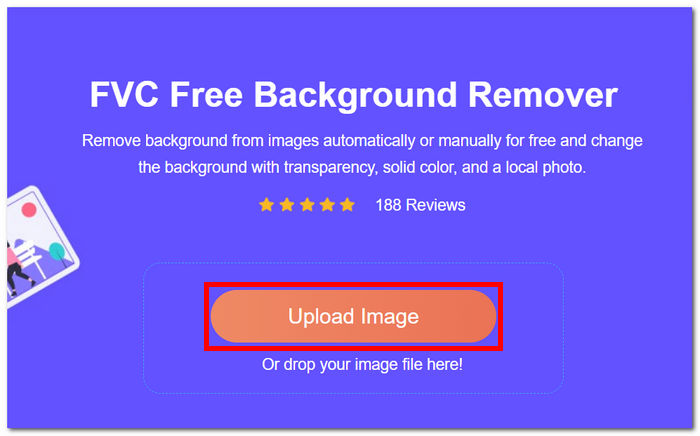
步驟 1. 先前往 FVC Free Background Remover 官方網站,在頁面中找到標示為 Upload Image 的區域,並上傳你想處理的圖片。
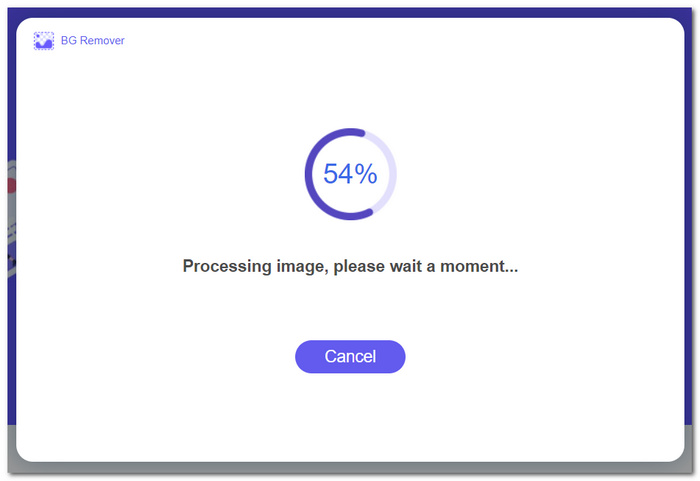
步驟 2. 接著交由 AI 發揮作用,耐心等待工具自動辨識並去除你上傳圖片中的背景。
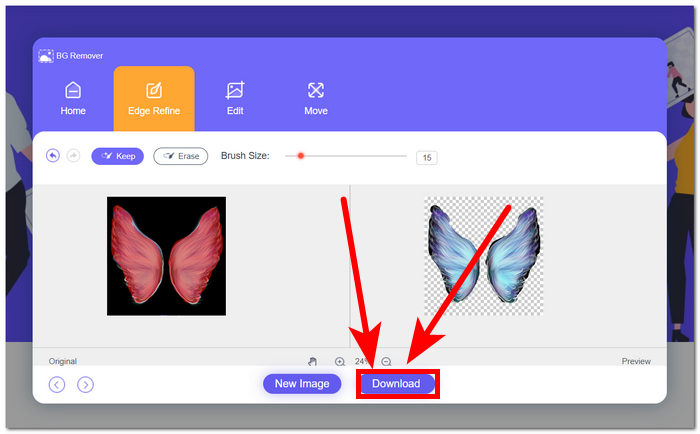
步驟 3. 當背景去除程序完成後,點擊Download 按鈕,即可將已去背的圖片下載並儲存到你的電腦。
FVC 免費背景去除劑是一個被低估的工具,經常被許多使用者忽略。儘管其鮮為人知的地位,這個隱藏的寶石提供了有價值的免費服務,為發現其功能的用戶的創造性努力做出了貢獻。憑藉簡單性和效率,它仍然是圖像編輯過程中的忠實盟友。
畫布
Canva,創意無極限!其直覺的平台讓使用者可以輕鬆地從圖像中刪除背景,解鎖設計可能性的世界。對於不熟悉介面的用戶來說,在 Canva 中刪除圖像背景可能是一項挑戰;這是因為 Canva 是一款編輯軟體,這意味著影像背景去除軟體中存在許多工具,可能會讓使用者不知所措。因此,它的背景去除器被認為是軟體類別中的頂級軟體,因為人工智慧運行並為該工具提供動力。以下是其背景去除的一些功能以及使用 Canva 的步驟。
◆ 背景去除工具。它的背景去除處理幾乎是即時完成,並搭配魔術橡皮擦與魔術替換等附加工具,讓你能在軟體中更有效率地潤飾圖片。
◆ AI 整合技術。強大的 AI 能夠偵測並辨認圖片中的干擾元素,並立即將其清除。
◆ 多功能編輯軟體。這是一款幾乎能包辦所有作業的工具:做簡報、編輯照片與影片、建立文件,以及製作背景去除效果等,都能在同一平台完成。
步驟 1. 在桌面下載並安裝 Canva,或直接透過瀏覽器使用 Canva 網頁版。
步驟 2. 在主介面中,於畫面中的上傳區域點擊 Upload,將你的圖片匯入。
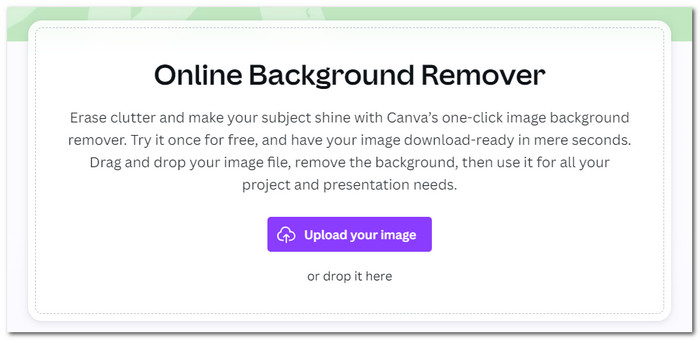
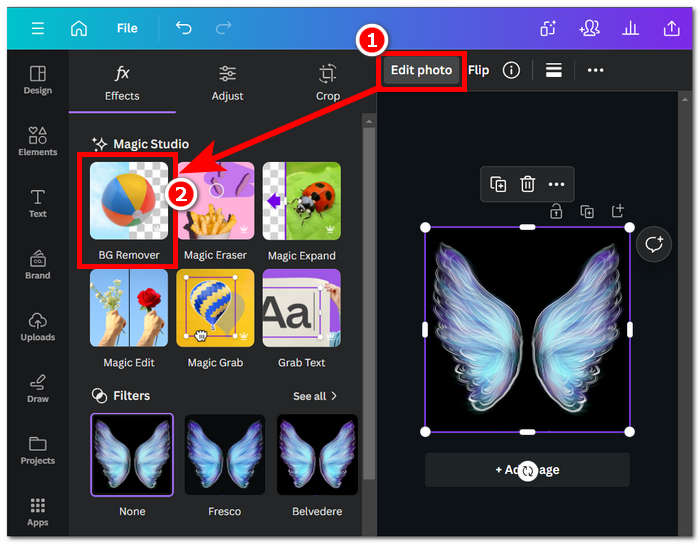
步驟 3. 圖片成功載入 Canva 後,點選 BG Remover,即可即時移除圖片背景。
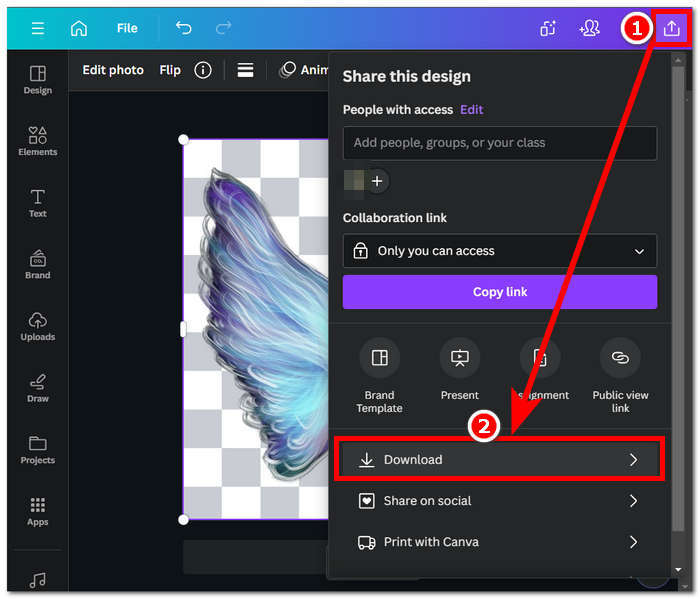
步驟 4. 完成處理後,點擊畫面右上角的分享圖示,接著選擇 Download,即可將圖片儲存到你的電腦。
探索 Canva 的介面可能會花費您一些時間來完成背景刪除任務,但值得嘗試體驗令人印象深刻的軟體功能。然而,免費用戶可能無法最大限度地發揮 Canva 在後台刪除的潛力,因為該軟體提供付費訂閱,並且對免費使用該軟體有有限的浮水印。
Adobe 快遞
Adobe Express 是 Adobe Creative Cloud 套件中的一項動態功能,以其強大的背景移除功能重新定義了映像編輯。該工具專為用戶友好的可訪問性而設計,提供無縫體驗,輕鬆消除圖像中的背景。
◆ 專業級背景去除。此工具能以專業、快速且流暢的流程,替你的圖片移除背景。
◆ 直覺、簡單的介面。介面設計簡潔明瞭,使用起來毫不費力,不需要具備任何 Adobe 軟體的先備經驗。
◆ 精準主體挖空。會自動凸顯出圖片中的主體,產生精準的主體挖空與背景切割效果。
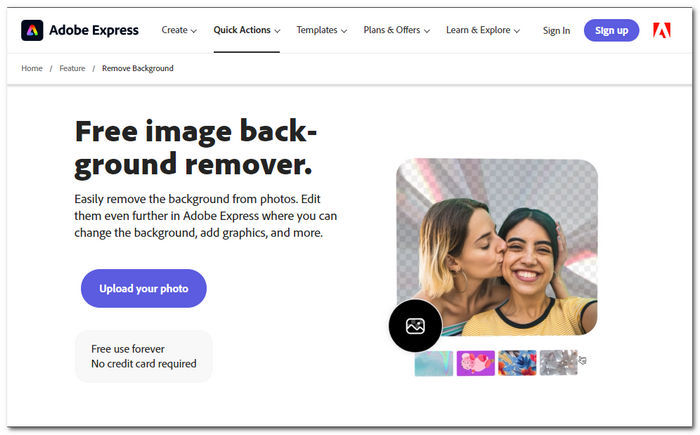
步驟 1. 在瀏覽器中前往 Adobe Express Background Remover 官網,並點擊頁面上的「Upload your photo」按鈕上傳照片。
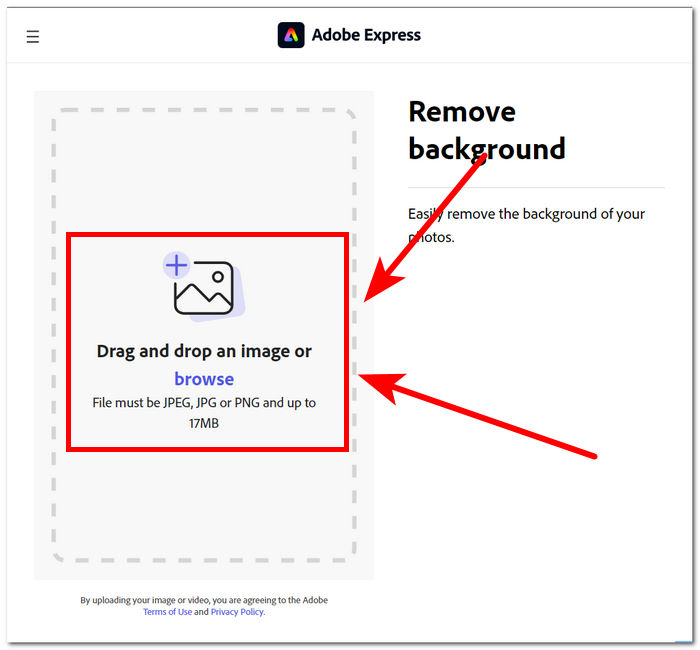
步驟 2. 點擊「Upload your photo」後,在跳出的瀏覽視窗中選取你的圖片檔案,即可將圖片匯入工具中。
步驟 3. 圖片上傳後,系統會自動開始處理並移除你圖片中的背景。
步驟 4. 在圖片右側找到並點擊 Download,即可將去背後的圖片下載到桌面。
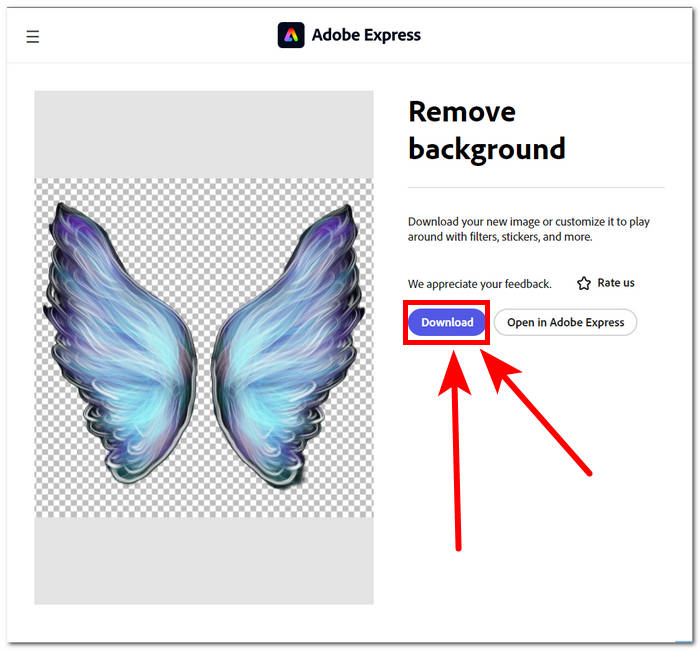
總之,Adobe Express 是一款專業級工具,功能強大,足以去除影像背景中最細微的細節。該工具的介面可能有一個簡單的方法來進行背景刪除過程,但它仍然需要您註冊才能將圖像保存到桌面。
第 2 部分:如何從圖像桌面中刪除背景
Adobe Photoshop
Adobe Photoshop 在影像處理領域中堪稱頂尖軟體之一,在背景去除這類圖片操作上表現尤為突出。它提供了多種強大工具與功能,幾乎所有影像編修工作都能在單一軟體內完成。想要達成近乎完美的背景去除,關鍵在於主體與背景的精準選取;同時也建議你熟悉如何在 Photoshop 中進行主體挖空,以充分發揮 Photoshop 在背景去除上的完整實力。
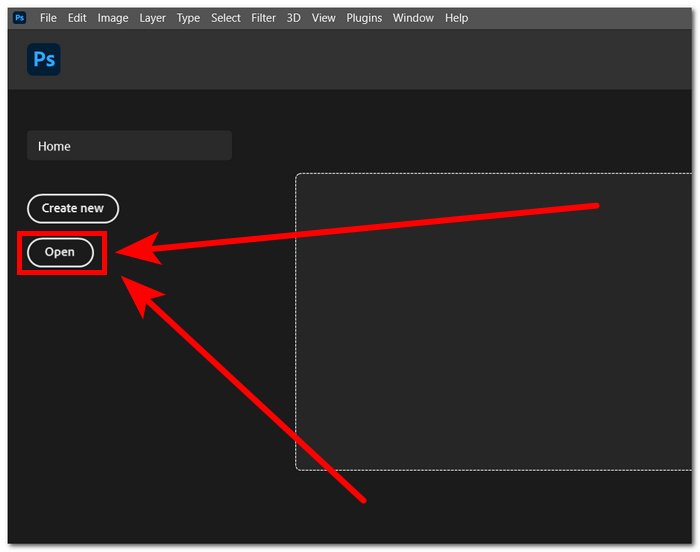
步驟 1. 在桌面開啟 Adobe Photoshop,於軟體介面中點選 Open 按鈕,載入你要編輯的圖片。
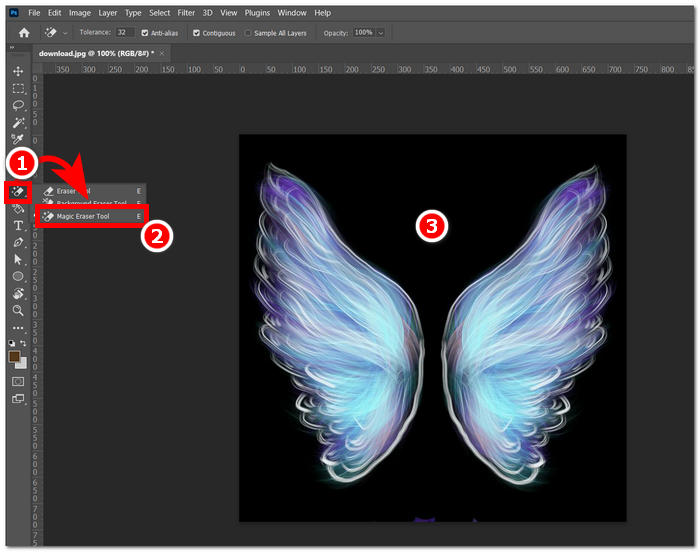
步驟 2. 圖片載入後,於左側工具列中找到 Eraser Tool,並從中選擇「Magic Eraser Tool(魔術橡皮擦工具)」。
步驟 3. 選取 Magic Eraser Tool 之後,在圖片中點擊背景區域,即可自動將該背景去除。
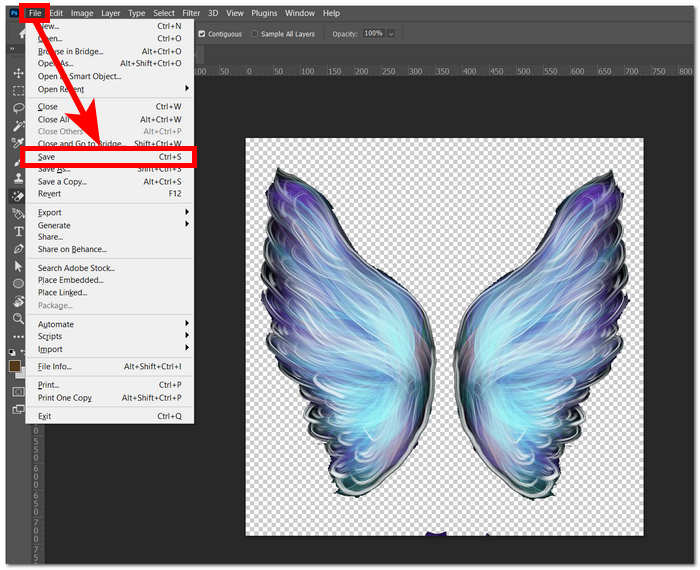
步驟 4. 背景移除完成後,在畫面左上方點選「File」選單,再選擇「Save」或「Export」,即可將圖片下載並儲存到桌面。
透過先進技術和功能的結合,Photoshop 賦予並釋放每個使用者內在的創造者。 Adobe 透過其直覺的介面從影像中刪除背景,確保 Adobe 軟體中無法完成艱鉅的任務。
GIMP
GIMP 是一款開源應用程序,允許用戶從圖像中刪除白色背景或任何不需要的背景,使其成為圖形愛好者和圖像編輯新手的理想選擇。除了背景移除功能之外,GIMP 還擁有一套多功能的工具和功能,深入研究 GIMP 的 GIMP 功能可以幫助最大限度地提高和擅長背景去除,還可以促進更廣泛的視覺增強和操作。
步驟 1. 開啟 GIMP 軟體,在畫面左上方點選「File」選單,選擇 Open 並匯入你的圖片。
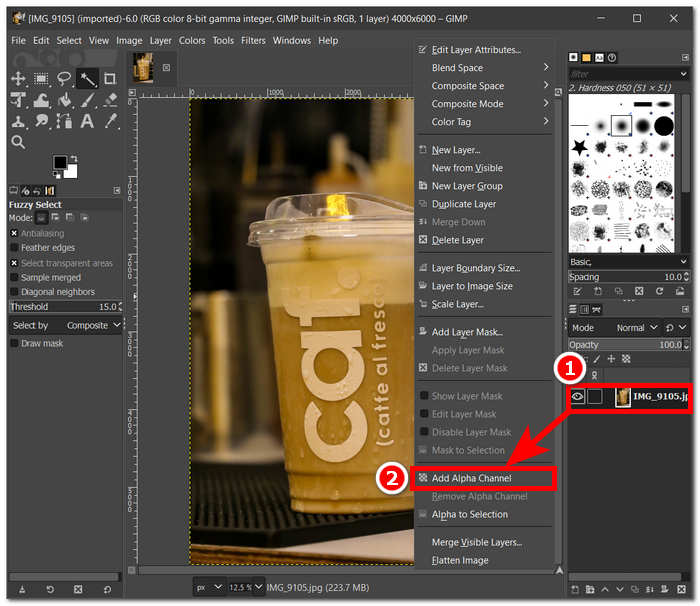
步驟 2. 圖片顯示於畫面後,前往右下角圖層面板,選取對應圖層,於該圖層上按滑鼠右鍵,並在選單中點選 Add Alpha Channel。
步驟 3. 在左上角工具列中選擇 Fuzzy Select 工具,選取後拖曳滑鼠覆蓋到你想要移除的區域。
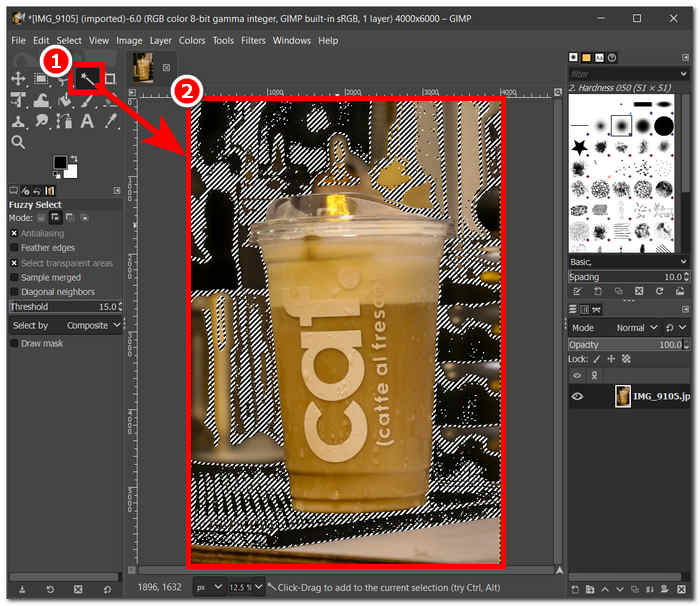
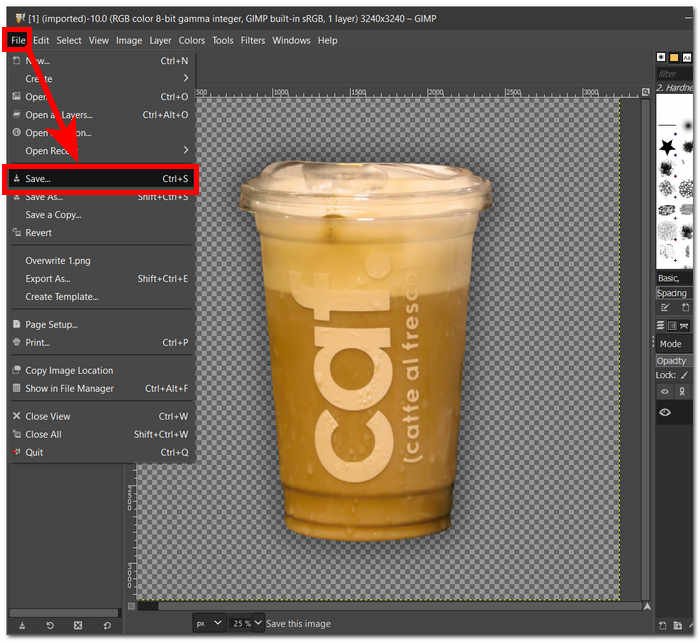
步驟 4. 被選取的區域會出現虛線框,接著按鍵盤上的 Del 鍵,即可刪除背景。當你對結果滿意後,在畫面左上方的 File 選單中找到 Save,即可將圖片儲存到桌面。
GIMP 憑藉其操作介面友善,不僅很適合作為專業人士的工具,也適合想要入門的新手使用。它提供多種不同的背景去除方式,可依照你個人的習慣與喜好自由選擇。例如色彩工具、路徑工具、圖層遮罩與模糊選取工具等,使 GIMP 成為一款相當多元且有彈性的影像編修軟體。
Picsart
Picsart 是一款新手必備工具,因其在行動裝置上的應用程式版本而廣受歡迎。它的去除工具具有簡單、即時的效果。它的背景去除精度和快速有效的去除方法都來自於它使用的人工智慧。除了刪除背景之外,它的功能之一是它可以替換或添加圖像中的背景,這使得該工具很受歡迎。如何刪除影像的背景?不用擔心,只需按照下面列出的簡單步驟操作即可。
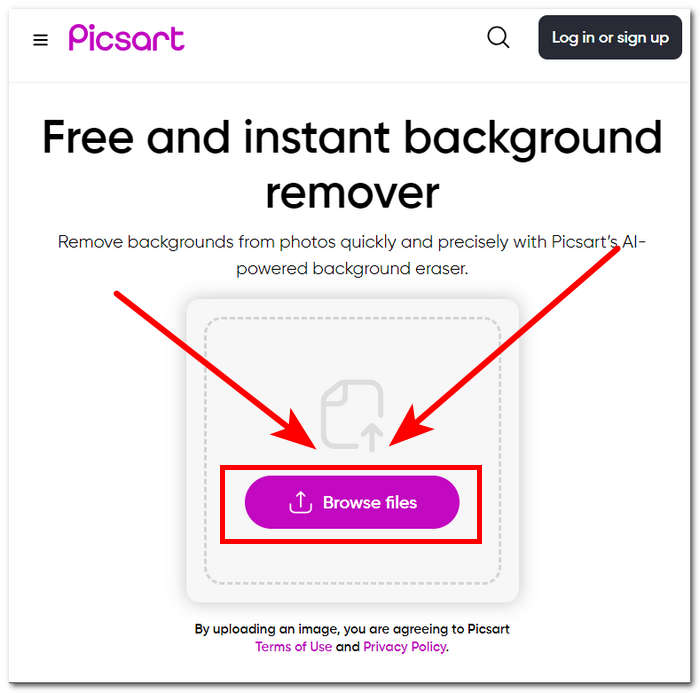
步驟 1. 在瀏覽器中前往 Picsart Background Remover 工具頁面,點擊 Browse Files 按鈕上傳你的圖片。
步驟 2. 上傳開始後,系統會自動分析並辨識你的圖片,同步完成背景去除處理。
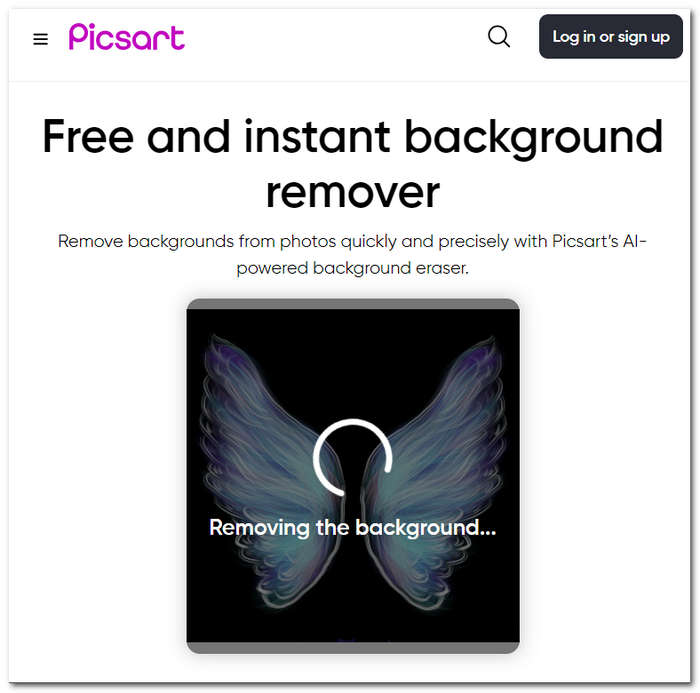
步驟 3. 處理結束後,你可以先預覽並進一步編輯圖片,確認滿意後,點擊 Download 按鈕,即可將圖片下載並儲存。
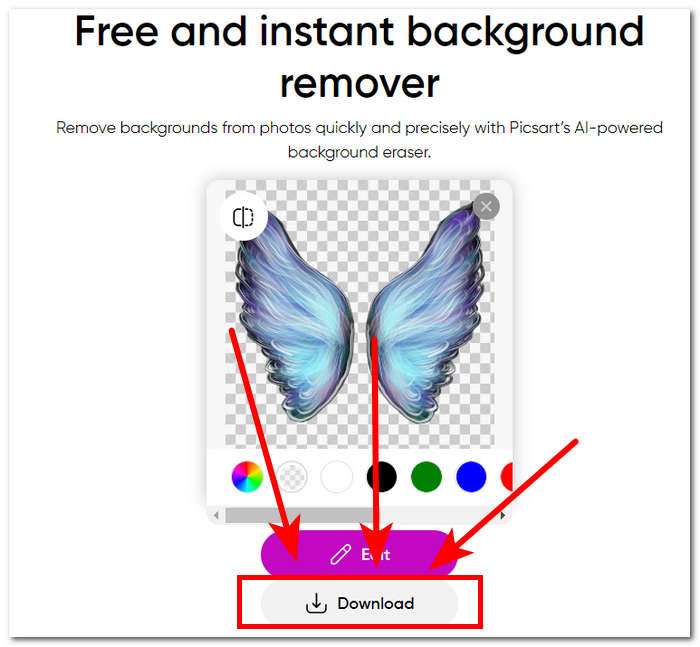
總之,Picsart 作為影像編輯應用程式的流行進行了調整和投資,使該工具能夠滿足所有類型的視覺編輯需求。它的背景去除劑肯定能立即精確地完成工作。因此,您仍然需要註冊才能下載完整的高解析度映像。否則,您將陷入低解析度的結果。
第 3 部分:有關如何從圖像中刪除背景的常見問題解答
可以自動去除圖片背景嗎?
是的,許多先進的影像編輯工具,包括 FVC 免費背景移除器、Adobe Express 和 Canva,都利用人工智慧演算法自動偵測和移除影像中的背景。此功能簡化了編輯過程,使用戶更快、更有效率。
可以自動刪除圖片背景嗎?
是的,許多先進的影像編輯工具,包括 FVC 免費背景移除器、Adobe Express 和 Canva,都利用人工智慧演算法自動偵測和移除影像中的背景。此功能簡化了編輯過程,使用戶更快、更有效率。
可以去掉JPG圖片的背景嗎?
當然,背景去除工具支援 JPG 影像格式。工具的多功能性涵蓋各種影像格式,確保使用者可以輕鬆編輯和增強其 JPEG 檔案。因此,它仍然取決於您使用的工具或軟體,因為有些工具或軟體需要訂閱才能刪除 JPG 格式等的背景。
PNG 是唯一支援透明背景的圖片格式嗎?
雖然 PNG 是具有透明背景的圖像的常用格式,但其他格式(如 GIF 和 TIFF)也支援透明度。然而,由於 PNG 與透明度設定的廣泛接受的兼容性,上述類似工具通常可以為 PNG 提供最佳結果。
我可以使用什麼來刪除圖像的背景?
您可以使用 Adobe Express 和 Photoshop 等專用影像編輯軟體或 FVC 免費背景移除器等專用線上工具。這些工具通常提供使用者友善的介面和高級功能,使您能夠獲得精確且專業的結果。
結論
總結來說,從圖片中移除背景的流程並不依賴某一款特定的應用程式、軟體或工具,其關鍵反而在於使用者是否能善用並極大化手邊工具所提供的各項功能。最終,背景去除的成功與否,是由你完成作品的品質來決定,而工具的選擇應該回歸到是否符合你的個人偏好與工作模式,而不是拘泥於使用哪一款特定工具。
-
 PicWish 照片增強器評論和可供嘗試的替代工具
 探索 PicWish 影像增強器為照片編輯世界帶來的魔力。深入檢視並探索可供您嘗試的可行替代方案。
-
 如何在 Windows/Mac/線上從圖像中刪除文本
 告別影像中分散注意力的文字!探索如何使用這些專為文字刪除而設計的流暢解決方案從圖像中刪除文字。
-
 Fotor 審查背景去除劑和照片增強器
 關於 Fotor 背景去除器和照片增強器您需要了解的所有資訊。查看它的一些功能並查看適合您需求的建議替代方案。
