免費 M4V 到 MOV 轉換器

快速將您的文件轉換為其他高質量的格式。
添加文件進行轉換

Download Desktop VersionDesktop Version to convert files in batch.

資源資源 > MOV轉換 > M4V 轉 MOV

談論如何將 M4V 轉換為 MOV 的特殊實踐

As an MPEG-4 file extension, M4V is similar to MP4. An Apple iTunes store movie or video can be encoded with this app. The main difference between M4V and MP4 is that M4V is protected and may only be played on a computer with an iTunes license. But what if you need to convert it to MOV to watch it on your video player? What are you going to do? Here are the best and hot picks you need to see to convert M4V to MOV.

M4V 轉 MOV

第 1 部分。 M4V 和 MOV 概述

Apple created the M4V video format, which is used to distribute videos via iTunes in its native format. Aside from the possibility of including Apple's DRM protection, it's virtually identical to MP4 video. iTunes stores video material, like TV series, movies, and music videos, which are well-protected with this video format. M4V files also allow for the creation of chapter information. Apart from iTunes and Apple QuickTime player, most video players can play DRM unprotected M4V files. Video Studio Pro can also open M4V files, which provides a long-range editing capability.

However, MOV is a QuickTime video format developed by Apple and used in the QuickTime framework of Mac OS X. The Windows platform also supports this multimedia container's capacity to store several tracks, each one containing a specific sort of data (audio, video, subtitles). Video editing programs can benefit significantly from separating media data from media offsets, abstract data references, and track edit lists. It's common practice to distribute movies and videos over the internet in MOV container format.

第 2 部分。 如何將 M4V 更改為 MOV 離線

In searching for the best converter you can use offline, this software is what you want. Video Converter Ultimate is the best and most recommended software you can use in converting formats like M4V to MOV. It is available in both Windows and Mac. Also, it is free to download. It is the fastest converter you can imagine because it can convert large file sizes of video format that other software and online converters cannot. It also supports various formats like even the most unfamiliar video formats you can only see on this software. With the excellent quality output and many more available tools to improve your video, everyone should use this. Without further ado, here are the procedures you should consider:

Step 1. To get started, simply click on the Free Download icon to the right to begin the download. Once the download is complete, you can choose to download the software on either Windows or Mac. First, you must install the software on your computer's desktop and then click Start Now to begin using it.

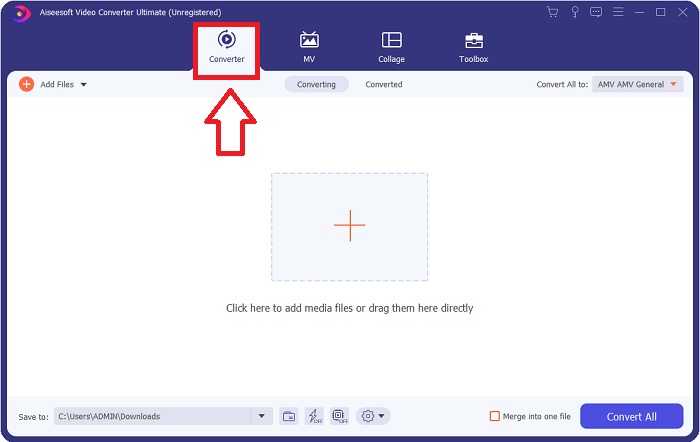
Step 2. Open the software you've just downloaded. When you open the software for the first time, a window with the Converter interface will be displayed. Enter your video file here and begin the conversion process.

打開文件視頻轉換

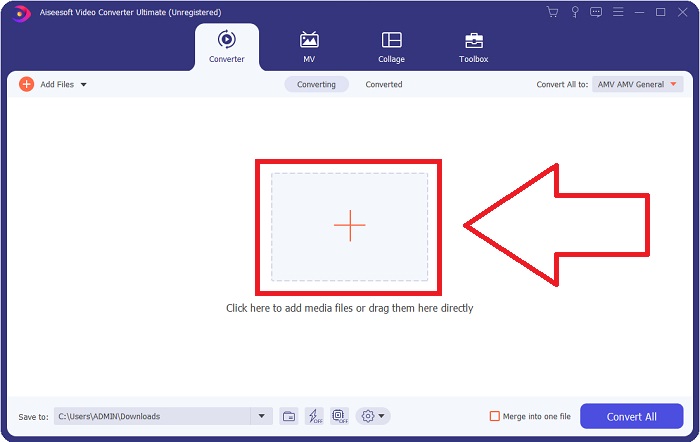
Step 3. Begin the converting process by importing your files into the converter. The video file you want to convert can be dragged and dropped onto the + icon.

添加要轉換的文件

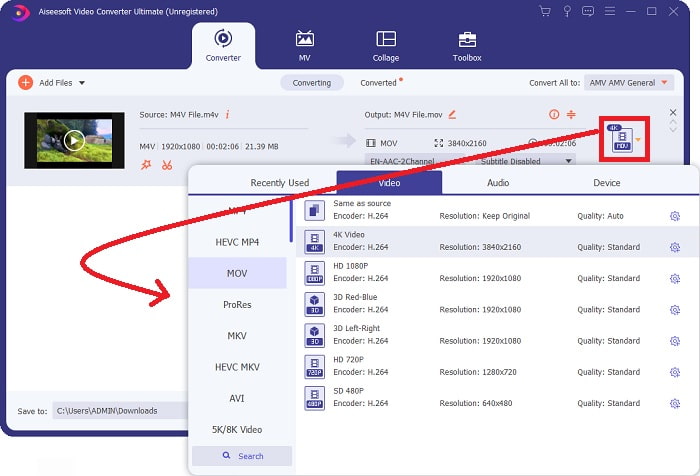
Step 4: An options menu appears in the screen's upper-right corner; click on a video format from the list to select it. Select the MOV format from the drop-down option. Once you've picked a MOV file, there are a variety of video quality options. But if your chosen video output isn't listed, you can alter the quality settings to suit your requirements. The gear icon allows you to change the display's resolution, frame rate, and audio quality. Click the Create New button to save your changes.

轉換流程

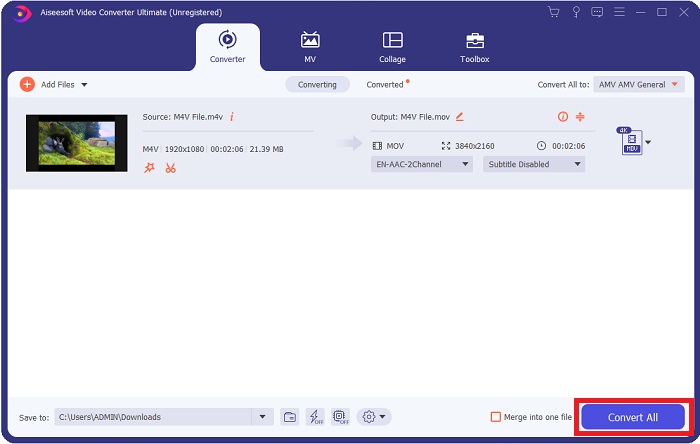
Step 5. To begin transferring the video to your computer, select Convert All when you are finished editing the video, and it is ready to be converted.

導出文件

第 3 部分。 將 M4V 在線轉換為 MOV 的其他方法

方法 1. 使用免費視頻轉換器

Use this online version of Video Converter Ultimate if you don't have time to download it. On the internet, FVC Free Video Converter Online is the best web application for quickly and easily transcoding between many different types of video formats. It's suggested for new users since it has no restrictions on the file formats it may support, unlike online converters. Follow these steps to learn more about this web-based tool.

Step 1. By clicking on this link, you will be directed to the main website of the FVC Free Video Converter Online.

Step 2. To get the launcher for your computer, click the Add Files to Convert option to the right if this is your first time using it. When it has been downloaded a second time, it will automatically launch. After the file has been downloaded a second time, navigate it in your folder and click Open to open it.

添加文件進行轉換

Download the Desktop Version to convert files in batch.

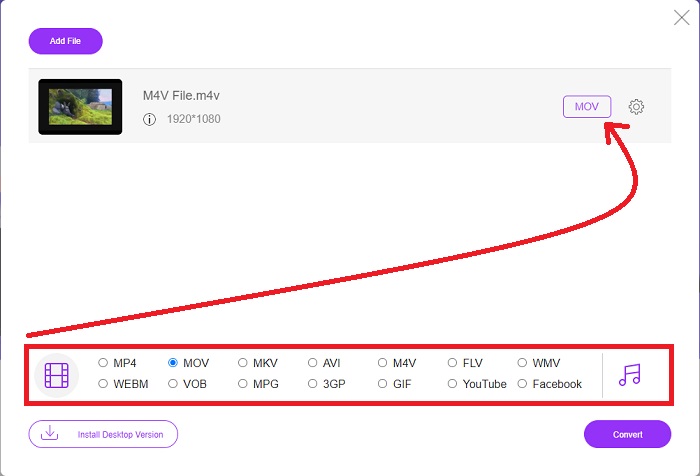
Step 3. Choosing the MOV format from the Video menu below and clicking on it will start the conversion process before it even starts.

可用格式如下

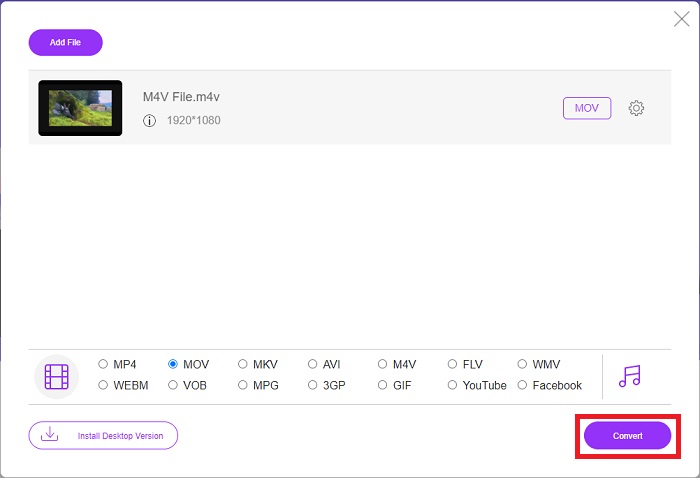
Step 4. Click Convert to begin the process of converting one format to another after you've selected a format to convert.

選擇後轉換

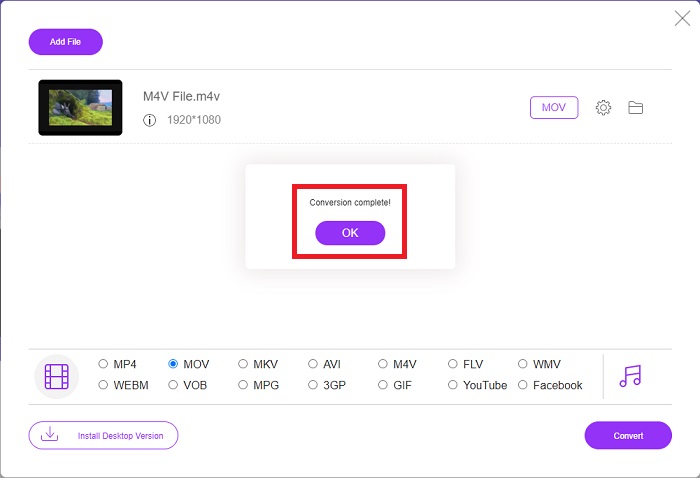
Step 5. It will just take a few minutes for the converted file to appear in a file folder, which you can then open to begin watching it.

等待觀看

方法 2. 使用 ConvertFiles

ConvertFiles 是一款功能強大的在線文件轉換器,可以在多種文件格式之間進行轉換。支持 200 多種格式的文檔、照片、演示文稿、檔案、音頻和視頻文件。以下是了解此在線工具所需的步驟。

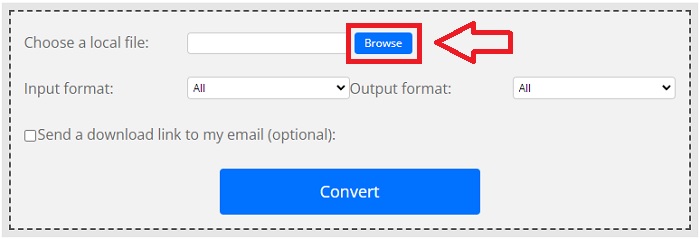
Step 1. Search ConvertFiles to any web browser, and then click the main website. After you click it, you will proceed to the interface of the website. Click Browse to navigate the files from your local disk that you need to convert.

瀏覽文件

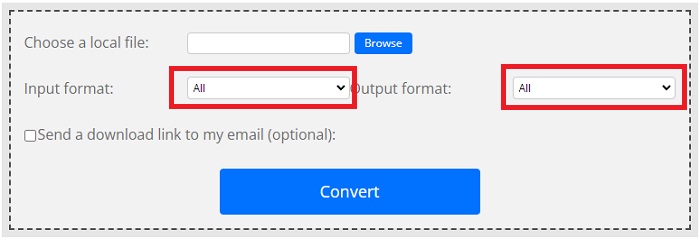
Step 2. Set the input and output format of the video file.

設置輸入和輸出

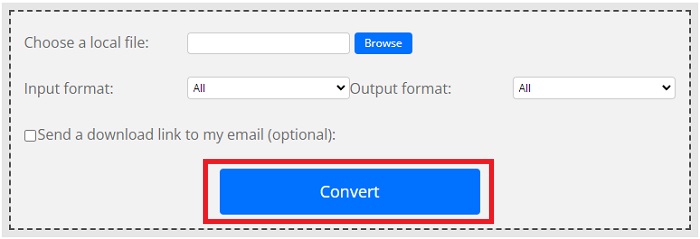
Step 3. To convert your file, click Convert and wait for the process to finish, and click Download.

轉換和下載

M4V 與 MOV

M4V 是由 Apple 開發的,它也使用 MPEG 4。M4V 文件通常用於存儲從 Apple iTunes 商店下載的視頻,如音樂視頻、電視劇集等。您可能會發現一些 M4V 文件受版權保護,因為它使用Apple 的 FairPlay DRM 版權保護。

影片

MOV 格式可用於存儲電影、電視節目、短視頻剪輯或家庭電影。它實際上是以 Apple 於 1991 年推出的 QuickTime 文件格式 (QTFF) 保存的。當人們想要保存高質量的視頻時,通常會使用 MOV 文件。

第 4 部分。 有關 M4V 到 MOV 轉換的常見問題解答

MP4 還是 MOV 哪個更好?

Files in MP4 format are often more compressed and more diminutive in size, but files in MOV format are typically higher in quality but larger in file size. MOV files are preferable for video editing on a Mac since they are mainly intended for QuickTime instead of other video formats. Continue learning more details about MP4 vs MOV.

為什麼MOV文件這麼大?

QuickTime is an editable codec that is being converted by iMovie from the source media. The data used by the camera is exceptionally compressed, making it unsuitable for post-production processing in most cases. A significantly higher data rate and more excellent storage space are required by the format and codec utilized. Click here to learn how to compress MOV files.

MOV有什麼用?

在 MOV 文件擴展名的情況下,它是指已放置在 QuickTime File Format (QTFF) 容器文件(container file)中的 Apple QuickTime 電影文件。 MOV 文件可以通過使用不同的軌道在同一文件中包含音頻、視頻和文本,或者軌道可以指向保存在另一個文件中但未包含在 MOV 文件中的數據。

結論

All things considered, despite all the online web tools introduced above, connectivity issues are one of the main factors in converting a video may be interrupted. That's why using software that is free to download, like Video Converter Ultimate, is the best recommended you should consider. There's a lot of featured tools this converter has other than converting your video file in a too fast manner. In addition to that, it supports massive video formats, so you wouldn't have to worry about converting unfamiliar files so that you can enjoy this video at best with excellent output possible.

優秀的

Rating: 4.0 / 5 (based on 139 votes)

免費在線視頻轉換

Free Convert M4V to MOV Online!

添加文件進行轉換