


 視頻轉換大師
 屏幕錄影大師
 影片修復
影片修復解決有關如何將 MPEG 轉換為 MOV 的問題的傑出工具
As a video and audio file compression standard, it also handles the transmission of these files in a more efficient manner. The Moving Picture Experts Group (MPEG) is given to experts who set the MPEG standards. These adaptations all have their specifications and use cases in the industry, making it difficult to know which. This will be a sneak peek at what this article talks about. Most of the topics talk about how to convert MPEG to MOV and some of its details and information provided. Continue reading as we discuss the differences and comparisons between the two video formats.
第 1 部分。MPEG VS。 MOV – 簡介
MPEG is an outdated video file type that compresses video data using MPEG-1 or MPEG-2 compression. Internet video and DVD distribution are two common uses for this technology. The fact that it does not provide lossless compression and some of the flexibility offered by other formats makes t a poor format for video editing. Due to the fact that MPEG has been a standard for a long time, it is well supported by major browsers and video players and allows for streaming. It is an excellent choice for end-product video distribution over the Internet and DVD.
However, video in the MOV format is usually connected with the QuickTime multimedia player. Apple is the company that created this video extension. It compresses video and audio by utilizing an algorithm. Even though it is an Apple product, it is compatible with both MAC and Windows operating systems. Now that you know all about these two video formats, the next part will discuss all the best software and online tools you can use to convert MPEG to MOV and vice-versa.
第 2 部分。 如何在 Mac 上將 MPEG 轉換為 MOV
If you're looking for the right software you can use on Mac to convert MPEG to MOV, this article recommends Video Converter Ultimate. This software is free to download and available on both Windows and Mac. It is software that a wide range of users can use since it has a very accessible tool and user-friendly interface.
除了可以轉換的其他軟件和在線工具之外,該軟件還有一個轉換器,支持多種視頻格式,可以在不到一分鐘的時間內轉換文件。除了其出色的轉換器功能外,該軟件還提供了不同的特色工具來進一步增強您的視頻。關於軟件的描述性細節已經足夠了,讓我們深入了解您需要遵循的步驟:
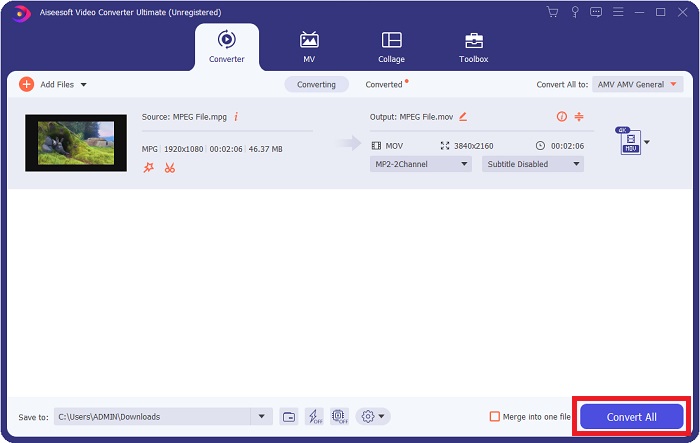
Step 1: Right-click on the Free Download icon that is provided below to begin the download process. Windows and Mac operating system computers are both supported with this software. After completing the download, you can install it and start using the software by clicking the Start Now button.
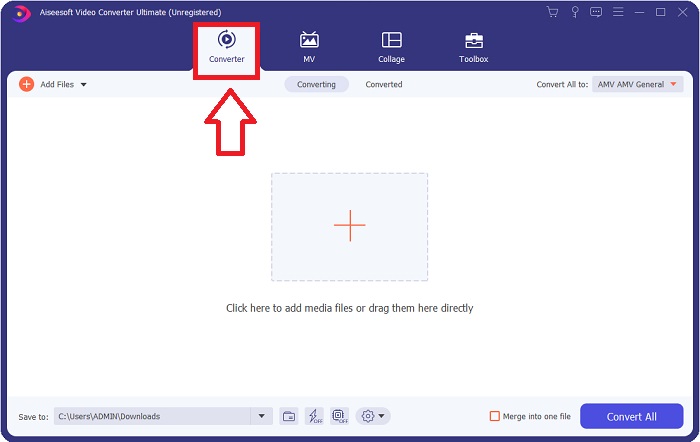
Step 2: When you have downloaded the software, open it. It will appear in a window when the software is launched for the first time. Begin the conversion process by entering your video file here.
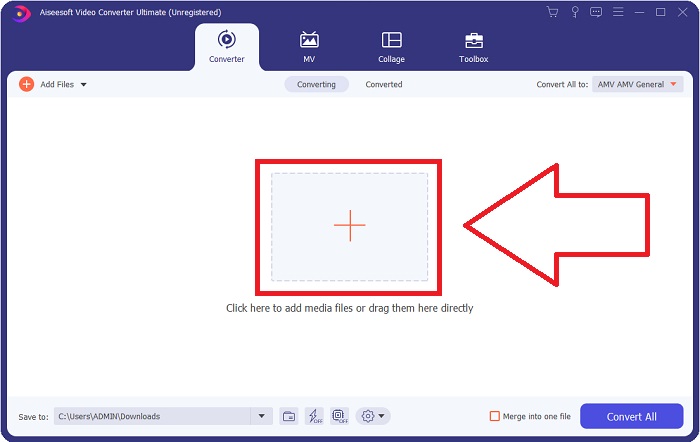
Step 3: Start the conversion process by uploading the files you want to convert into the converter. By doing this drag the video or you can click the + symbol.
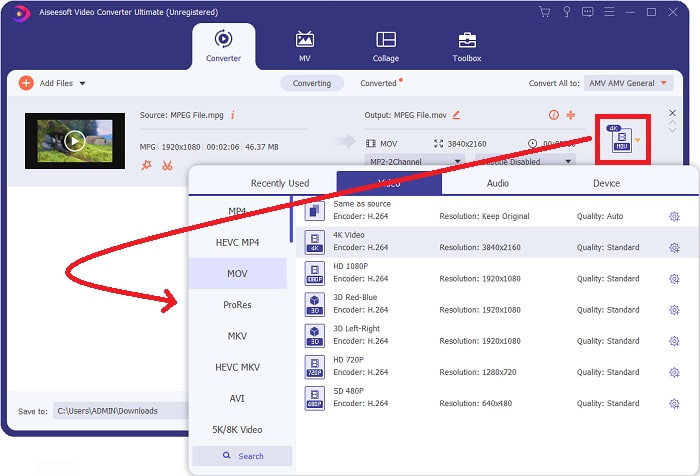
Step 4: The screen's upper-right corner displays an options menu, from which you can select a video format. On the drop-down menu of Convert All you can now select MOV as the video format. Depending on the MOV file you've chosen, you can choose from a range of video quality settings. You can also, however, change the quality settings if your preferred video output isn't provided. It is possible to alter the display's frame rate and audio quality by clicking on the gear icon. To save your changes, use the Create New button.
Step 5: When you've completed editing the video, and it's ready to be converted, click Convert All to begin the transfer.
第 3 部分。 幫助將 MPEG 轉換為 MOV 的優秀在線轉換器
方法 1. 使用免費的在線視頻轉換器
FVC Free Video Converter Online is a multimedia converter that is free to use and supports wide range of. If you have high-definition video, you can easily convert it to formats like MP4, FLV, and WMV without losing quality. If you have a lot of videos or audio that you want to convert, you can do it without losing quality. This free video converting application is popular for converting and editing, giving users a wide range of options to fine-tune their videos. Let's buckle up and learn all the steps needed:
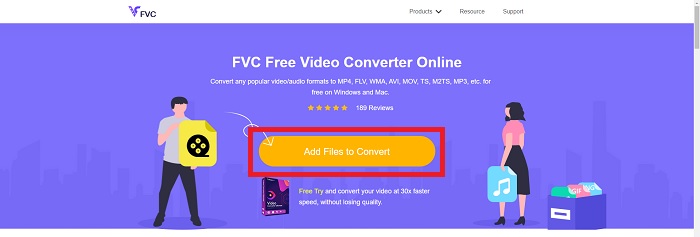
Step 1: This link will take you to the main page of the FVC converter's website.
Step 2: For the first time, click on Add Files to convert to your right to acquire the launcher for your machine. Upon a second download, it will automatically begin. In your folder, locate the file and click Open to begin the download process again.
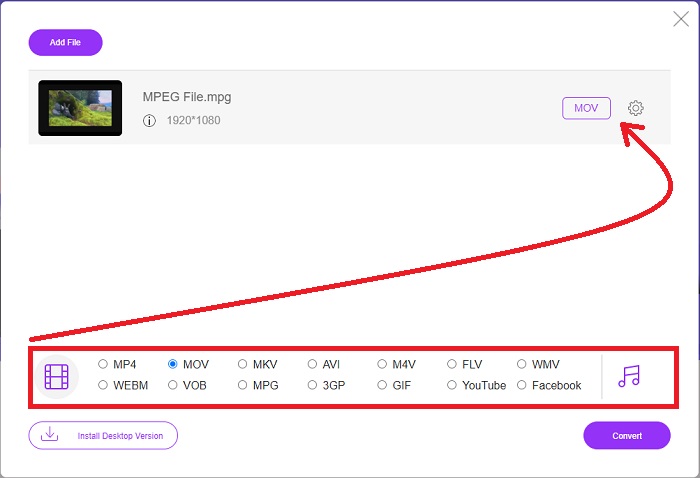
Step 3: To begin the conversion process before it ever begins, select a format from the drop-down option below and click on it.
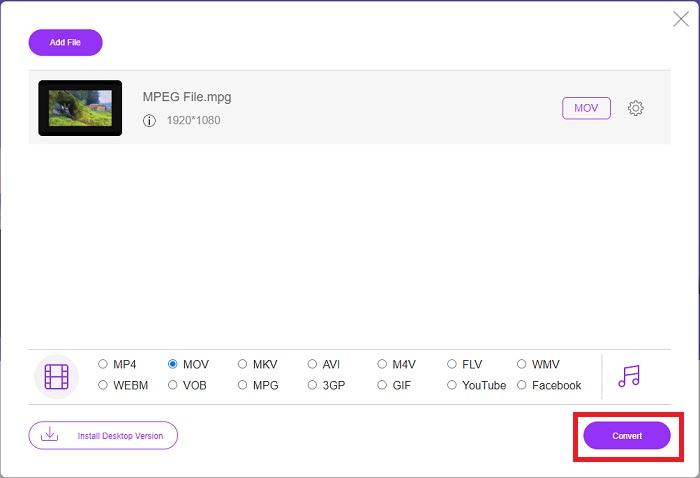
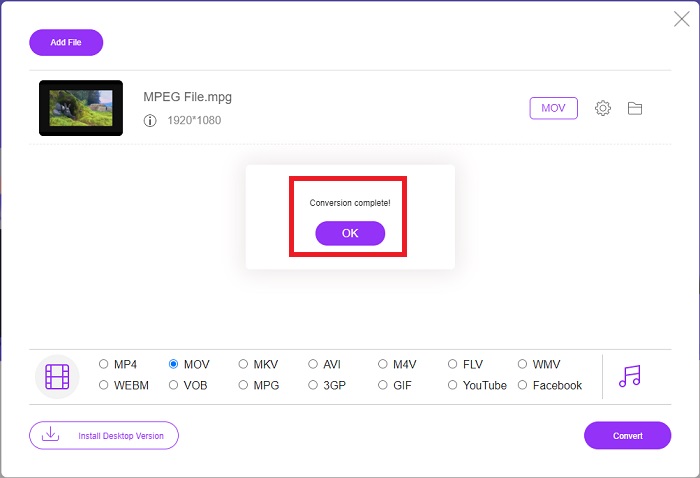
Step 4: After you've picked the MOV format to convert, click Convert to begin the conversion process.
Step 5: A few minutes later, you'll see a folder with the converted file, which you may then open and begin viewing.
方法 2. 使用 CloudConvert
CloudConvert is a file converter that works online. It is possible to play almost any kind of music or video file on our system. Converting files has never been easier with CloudConvert. It is possible to play almost any kind of music or video file on our system. You can also use our web tool without the need to install any software on your computer. With all being said, here are the steps you need to know:
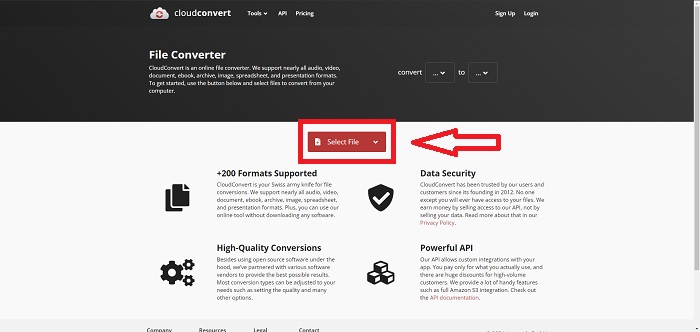
Step 1: At its main interface, you can already set the video format of your video file and the video format your video you want to convert to. Click Select File to upload a file from your computer.
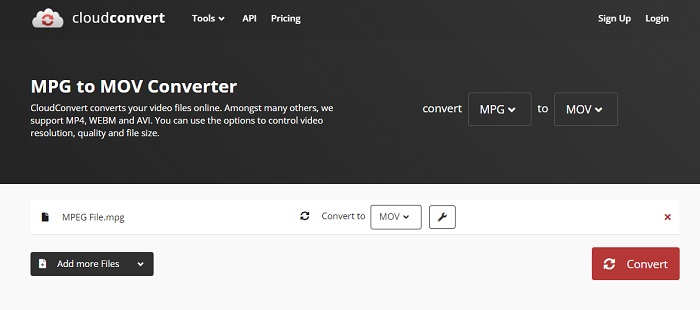
Step 2: You can choose what kind of video format you want to convert by clicking the ellipses beside the Convert button.
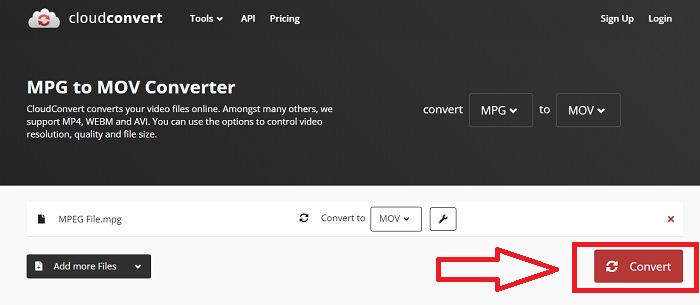
Step 3: After all the adjustments have been made, to start the conversion process, click the Convert button.
第 4 部分。 比較圖表:MPEG 和 MOV
| 文件擴展名 | 影片 | MPEG格式 |
| 文件類型 | 蘋果 QuickTime 電影 | MPEG電影 |
| 由開發 | 蘋果 | 不適用 |
| 優點 | 高質量的電影和 | 少數格式之一 |
| 在多個編解碼器的幫助下,可以更有效地壓縮多媒體。 | 幾乎所有 DVD 播放器都認可;允許更好的壓縮。 | |
| 缺點 | 儘管許多免費視頻播放器可以播放它,但它仍然存在問題,因為它是一種包含各種編解碼器的容器格式。 | 一般來說,MPEG 格式的應用程序和開發人員數量較少,因為它是一個更嚴格的標準。 |
第 5 部分。 有關將 MPEG 轉換為 MOV 的常見問題解答
如何縮小 MOV 文件的大小?
使用 VideoConverter,您只需找到要編輯的 MOV 文件,然後右鍵單擊它以從上下文菜單中選擇“屬性”。然後選擇常規,然後從下拉菜單中繼續高級。要節省存儲空間,請從下拉菜單中選中壓縮內容旁邊的複選框。單擊“確定”將使文件以比原來更小的尺寸保存。
如何壓縮 MOV 文件?
A MOV file can be compressed and archived on Windows by choosing it and pressing and holding the right mouse button until a popup window appears, then selecting Send to from the menu that appears. The compressed (zipped) folder should be chosen as the destination from the drop-down menu. Or you can use a video compressor to compress your MOV files.
MPG 和 MPEG 是一樣的嗎?
MPEG-1 和 MPEG-2 文件擴展名也用於指代 MPG 文件。作為保持音頻和視頻數據同步的一種方式,這兩種 MPG 文件都充當此數據的容器文件。由於其與各種應用程序的兼容性,MPEG-2 已成為壓縮文件的流行選擇。
結論
總結我們討論過的所有事情,在某些媒體播放器上使用不熟悉的視頻格式很難播放,這就是為什麼您需要一個可以信賴的優秀軟件。 Video Converter Ultimate 是本文最推薦的,尤其是在轉換過程中,它的不同和有用的工具可以使您成為專業的編輯器。
-
 如何在Windows,Mac,在線上免費將MPEG轉換為MP4文件
 閱讀並獲取3種免費方法,將MPEG轉換為計算機上的MP4文件。您可以使用在線和桌面視頻轉換器輕鬆地將MPEG轉換為MP4格式。
-
 [2021] 將 MPEG 轉換為 MP3 的最佳工具和簡單方法
 本文主要討論如何使用列表中最可靠的工具將 MPEG 視頻轉換為 MP3。
-
 如何使用簡單的步驟和工具將 AVI 轉換為 MOV
 您想知道如何將 AVI 轉換為可播放的 MOV 嗎?您必須按照本文了解如何操作以及成功轉換的提示。
