


 視頻轉換大師
 屏幕錄影大師
 影片修復
影片修復易於訪問的 XviD 轉換器:如何將 XviD 文件轉換為 MOV 格式
XviD 檔案是最知名、用來與 DivX 競爭的編解碼器之一。此外,這款編解碼器使用的是 MPEG-4 ASP,包含了 B-frames、亮度遮罩(lumi masking)、全域與四分之一像素動作補償(global and quarter pixel motion compensation)、格狀量化(trellis quantization)、自訂量化矩陣,以及 H.263 等功能。也正因如此,XviD 成為比 DivX 更受歡迎的編碼器。假設你在 iOS 裝置上傳輸了一個使用 XviD 編解碼器的檔案,如果檔案無法播放,別感到驚訝,因為該編解碼器並不支援 iOS 等行動裝置及其他設備。雖然看似無解,但任何問題總有解方;我們提供的解決方式是將使用 XviD 的檔案轉換成 AVI 格式。如果你想知道如何將 XviD 檔案轉換成 MOV,請繼續閱讀本文。

第 1 部分。 XviD 和 MOV 介紹
如同前面提到的,你可以使用 XviD 來壓縮檔案,使其體積變小且不損畫質,並且能快速解壓縮。雖然 XviD 是非專有的壓縮器,但這種編解碼器在行動裝置上的相容性有限,尤其是在剪輯方面。因此,如果你想在使用 XviD 編碼的情況下觀看或剪輯影片,就必須先將檔案轉換成 MOV。為什麼是 MOV?因為這種格式可以包含中繼資料(metadata),以及音訊、視訊和文字或字幕等媒體檔案。不僅如此,這種格式還能在 iOS 裝置及其他設備上播放影片。所以,為了解決你在 XviD 檔案上遇到的問題,我們就來了解一下如何使用下方提供的工具,將 XviD 轉換為 MOV。
第 2 部分。 在 Windows 和 Mac 上將 XviD 轉換為 MOV 的最佳轉換器
FVC Video Converter Ultimate
你是否正在尋找一款可以在瞬間就完成檔案轉換的最佳 XviD 轉 MOV 轉檔工具?那麼,FVC Video Converter Ultimate 就是你要找的唯一工具。除了能為使用者提供高達 30 倍更快的轉檔速度外,你還可以對影片進行編輯、合併、裁切等多種操作,讓你的影片看起來比其他作品更出色。儘管這款工具提供了進階功能,你也無需打造一台超級電腦就能下載並使用它。
除此之外,該軟件還包括硬件加速和快速轉換,讓您的轉換體驗更快更好。現在,如果您想學習如何借助此工具將 Xvid 文件轉換為 MOV,那麼讓我們繼續下面的教程。
使用 FVC Video Converter Ultimate 將 XviD 轉換為 MOV 的步驟:
步驟一: 這款軟體可在任何 PC 或 Mac OS 上下載,所以你需要先按下方的下載按鈕。下載完成後,點擊檔案進行安裝,快速完成設定,然後按下 立即開始(Start Now) 以立刻開啟工具。
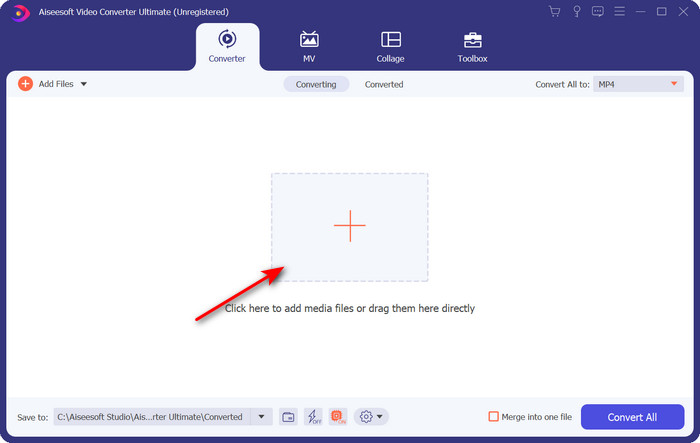
步驟二: 若要匯入 .xvid 檔案,你必須點擊 + 按鈕,在資料夾中找到檔案,然後按下 開啟(Open)。不過,如果 .xvid 檔案超過兩個,我們建議你將檔案直接拖放到介面上。
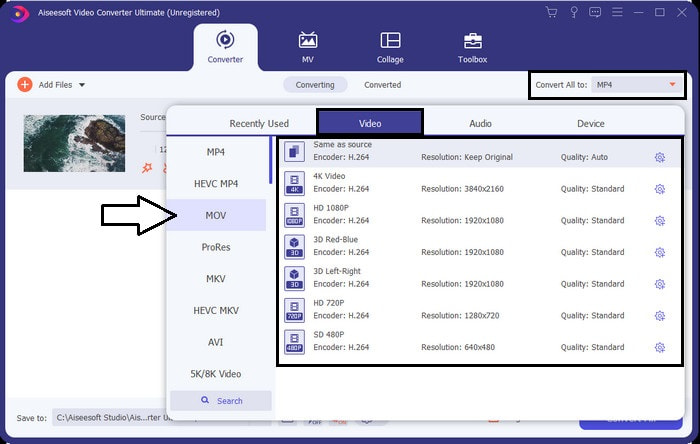
步驟三: 點擊介面右上角的下拉式按鈕,並在清單中找到 MOV 格式。
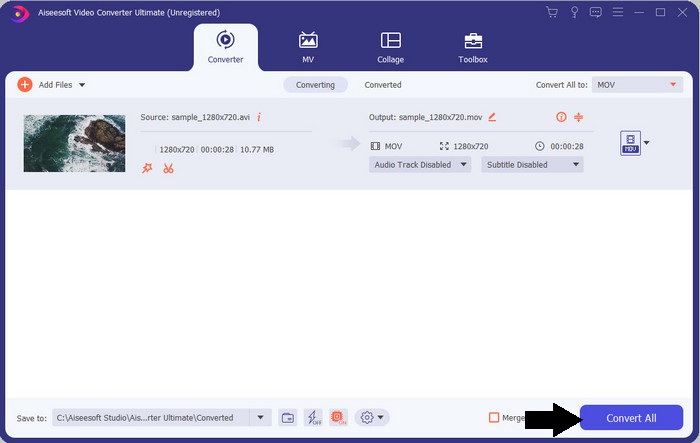
步驟四: 點擊 全部轉換(Convert All),開始將你的 XviD 檔案轉換為 MOV。
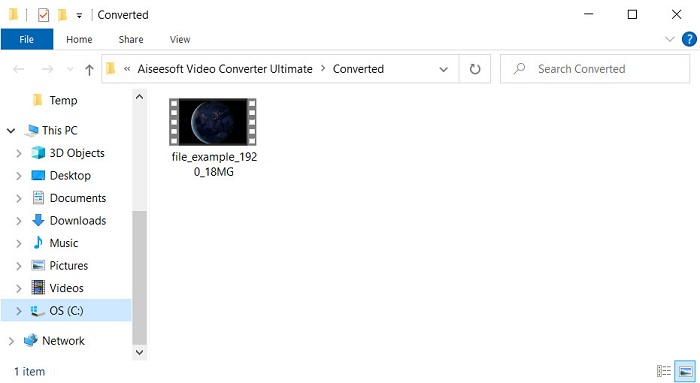
步驟五: 稍等數秒讓轉檔程序完成。螢幕上會跳出一個資料夾,裡面包含 .mov 檔案;點擊檔案即可在本機媒體播放器上播放並享受影片。
第 3 部分。 將 Xvid 轉換為 MOV 的最佳在線轉換器
FVC 免費在線視頻轉換
不想因為硬碟空間不足而再下載軟體,但又只想在線上轉換單一檔案嗎?FVC Free Video Converter Online 可在所有網頁瀏覽器上使用。利用這個工具來轉換 XviD 檔案,只需一分鐘內就能完成。此外,這款工具不需要你登入帳號即可使用,介面上也沒有廣告。這是你在網路上能使用到最乾淨俐落的線上轉檔工具之一。不過,如果你沒有網路連線,就無法使用此工具,因為它仰賴網路運作。另外,這個工具支援中等範圍的格式供你選擇與使用。此外,如果你不想下載任何轉檔程式,那麼你就必須試試這款線上的 XviD 轉 MOV 轉檔工具。
使用 FVC Free Video Converter Online 將 XviD 檔案線上轉換為 MOV 格式的步驟:
步驟一: 若要前往這個線上轉檔工具的主頁面,你必須點擊這個連結。
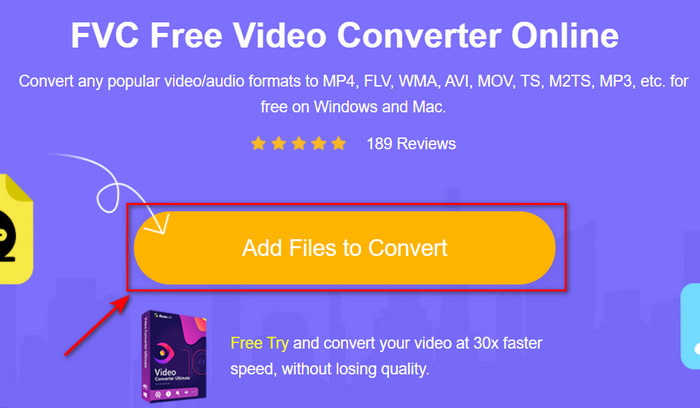
步驟二: 按下 Add Files to Convert(新增要轉換的檔案) 以啟動工具,接著會跳出一個資料夾視窗,讓你找到想要轉換的 XviD 檔案,然後按 開啟(Open) 以繼續。
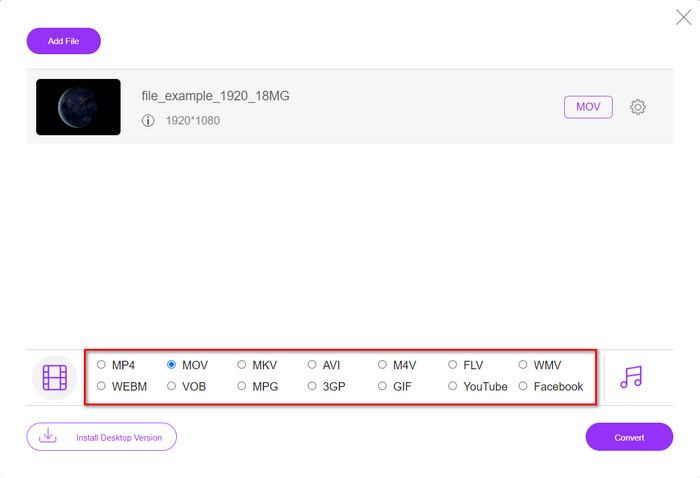
步驟三: 匯入 XviD 檔案後,會顯示一個新的介面,在下方選擇 MOV 格式或你想要的其他格式。
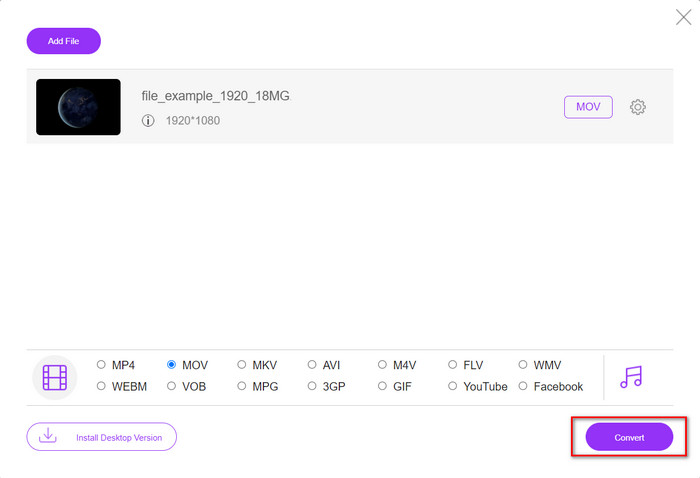
步驟四: 若要開始轉換格式,請點擊 Convert(轉換)。
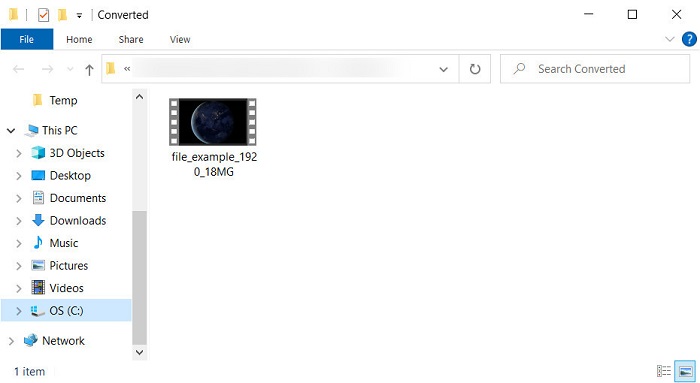
步驟五: 此工具轉換檔案所花的時間會比其他線上轉檔工具更少;完成後會跳出一個資料夾,裡面存有你剛剛轉好的檔案。
第 4 部分。有關 XviD 到 MOV 轉換的常見問題解答
我在哪裡可以觀看 XviD 視頻?
你可以使用 VLC 媒體播放器來播放 XviD 檔案。如果你不想另外下載播放器,可以直接使用 Windows 系統內建的 Windows Media Player。Mac 使用者則可以使用 QuickTime。但若你想觀看高畫質的 XviD 影片,請閱讀本篇文章,我們已整理出所有可用來播放 XviD 檔案的可能播放器。
XviD 是否免費?
XviD 是免費的,任何想要使用和壓縮文件以通過網絡快速傳輸或節省一些空間的人都可以使用它。這一切都歸功於 GPL 自由軟件許可證,所以它是免費的。
為什麼我不能編輯 XviD 視頻?
您無法在此類編解碼器下編輯視頻的主要原因之一是它不受支持。在這種情況下,由於其複雜性,最小的視頻編輯器僅支持這種類型的編解碼器。因此,假設您要編輯此格式的視頻,則必須先考慮對其進行轉換。在這種情況下,必須有一個多功能轉換器,可以將 XviD 文件轉換為 MP4、AVI、MOV 等。然後在轉換文件後,將其上傳到編輯器上進行您喜歡的編輯。
結論
閱讀完本文後,我們對 XviD 的認識更加全面,也能從不同角度來看待 XviD。因此,如果你想在 iOS 裝置上儲存或播放影片,就必須先將檔案轉換成 MOV。正如前面所述,文中提到的這兩款轉檔工具在將檔案轉為 MOV 格式時都有優異表現。雖然這兩款工具看起來都非常出色,但在速度與效能方面,FVC Video Converter Ultimate 無人能及,比任何桌面或網路工具都更勝一籌。不過,如果你想要免費且安全的線上轉檔服務,那就選擇 FVC Free Video Converter Online 吧。
-
 如何使用簡單的步驟和工具將 AVI 轉換為 MOV
 您想知道如何將 AVI 轉換為可播放的 MOV 嗎?您必須按照本文了解如何操作以及成功轉換的提示。
-
 將 AVI 導入並轉換為 iMovie 支持的格式 [2021]
 由於無法在 iMovie 上導入 AVI 文件而遇到問題?如果您閱讀了這篇文章,那麼您已經選擇了解決此問題的正確方法。
-
 如何在Win / Mac上免費在線將TS轉換為AVI / MKV / MOV / WMV
 想要將TS文件快速轉換為AVI / MKV / MOV / WMV?本文顯示了具有完整指南的在線和離線視頻轉換器。也許您可以在這裡獲得最好的免費TS轉換器。
