


 視頻轉換大師
 屏幕錄影大師
 影片修復
影片修復
 安全下載
安全下載如何在PC和Mac上免費將Cisco WebEx ARF轉換為MP4
我在 Mac 上收到同事寄來的一個含有會議錄影的 ARF 檔案,我想把它轉成 MP4,因為我想在 Android 手機上播放。不過,我沒有看到任何可以將 ARF 轉 MP4的方法。若能提供協助,將不勝感激。
AFR文件(高級記錄格式)是Cisco WebEx生成的記錄文件。可以通過鏈接共享ARF文件並直接打開。或者,可以將ARF文件下載到您的本地計算機,然後使用Webex Network Recording Player播放。
是的,您可能發現ARF文件不如MP4流行,並且只能通過WebEx Player打開。
若要輕鬆開啟 ARF 檔案,你需要將 ARF 轉成 MP4。本頁將會用 2 種免費方式示範如何操作。

第1部分。如何在Windows計算機上免費將ARF轉換為MP4
思科WebEx推出了一種官方方法來幫助您將ARF更改為MP4。不需要任何內容,但下載Webex Network Recording Player。
Webex Network Recording Player是在Windows計算機上將ARF文件轉換為MP4,WMV和SWF視頻的軟件。
具體步驟如下:
確保您已經從主機帳戶下載了ARF錄製文件。
步驟 1. 開啟 Network Recording Player,進入 File 功能表,選擇 Open,找到並開啟 ARF 錄影檔。
步驟 2. 在播放 ARF 錄影檔時,選擇 File,再選 Convert Format,並選取 MP4(MPEG-4)。
步驟 3. 在 Save as 對話框中,指定要儲存轉檔後 MP4 檔案的位置,並自訂影片品質、編解碼器等。
然後它將立即或在您希望的預定時間開始轉換ARF文件。
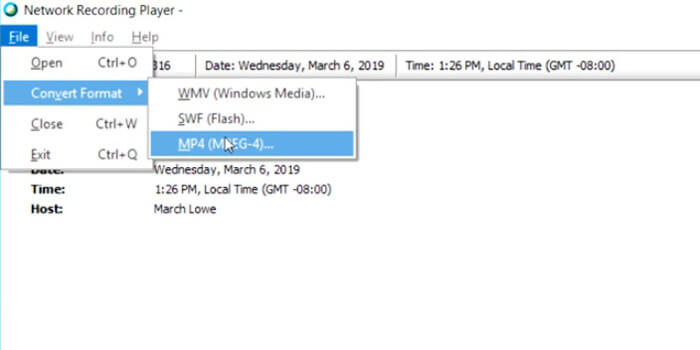
就這樣。之後你就可以用你的MP4 播放器輕鬆開啟這些 MP4 檔案。
在Windows計算機上將ARF轉換為MP4很容易。但是,您應該注意一些缺點:
- 1.只有主機可以下載ARF文件。或者帶有管理員選項的接收器可以下載ARF錄製文件。
- 2.轉換任務可以在Windows計算機上完成,而Mac不可用。
- 3.一些用戶報告說,轉換後的MP4文件與原始ARF文件相比質量較差。
第2部分。如何在Mac / PC上在線免費將ARF保存到MP4
在Mac上播放ARF文件很容易,但是無法轉換ARF文件。要在Mac上轉換ARF視頻,您將需要第三方軟件。諸如HandBrake,VLC,FFmpeg等的主流視頻轉換器不支持ARF轉換。要將ARF導出為MP4,可以採用錄音方式。
Free Screen Recorder 是一款可在 Windows 和 Mac 上使用的線上螢幕錄製軟體,可以錄下你電腦上播放的任何內容,包括影片與音訊。
要將ARF錄製文件保存為Mac上的MP4或Windows上的WMV,只需在Mac上播放視頻文件時使用免費的屏幕捕獲軟件來錄製視頻文件即可。
步驟 1. 線上前往免費 ARF 錄製工具,點擊 Start Recording,接著系統會提示你下載錄製啟動程式。
步驟 2. 成功安裝後,在啟動程式視窗中拖曳框線邊界,調整錄製範圍以涵蓋整個 ARF 檔案的播放視窗。啟用 Speaker 以錄製 ARF 檔案的聲音。
另外 2 個選項,Microphone 和 Camera,可依需要選擇是否開啟。
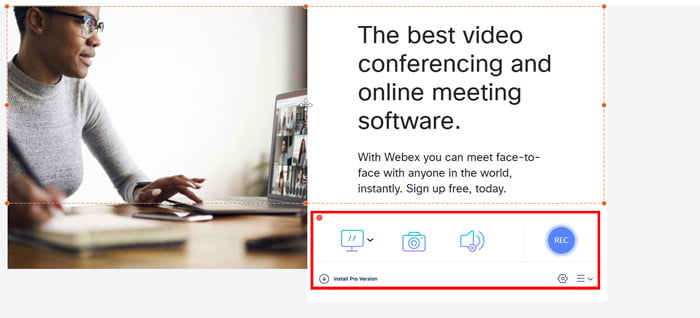
步驟 3. 在 Mac 上使用 Network-Recording Player 播放 ARF 檔案時,點擊 REC 按鈕開始錄製。
單擊停止按鈕以保存和下載錄製的MP4文件。
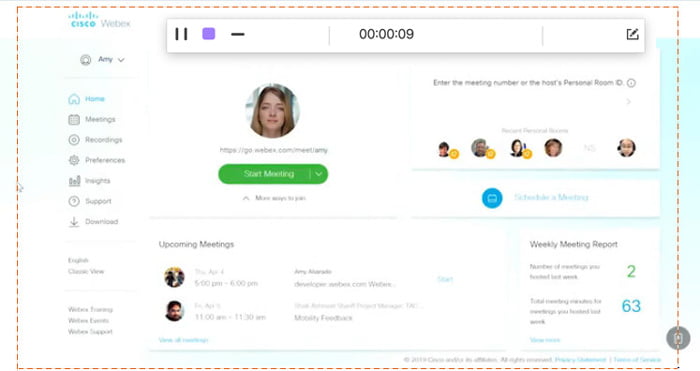
這樣,即使您通過共享鏈接打開ARF文件,也可以輕鬆將其另存為MP4文件。
第3部分。將ARF轉換為MP4的常見問題解答
將ARF轉換為MP4需要多長時間?
將ARF轉換為MP4的時間取決於錄製文件的大小和長度。根據我們的測試,您在Windows上將ARF轉換為MP4的時間比在Mac上錄製的時間更長。
ARF和WRF有什麼區別?
1. WRF 檔是較舊的格式,其儲存的音訊與視訊品質低於 ARF。
2. ARF 檔案只能在 WebEx 會議、工作階段或活動中產生,而 WRF 則是由任何擁有 WebEx Recorder 的使用者在會議之外所建立。
3. ARF 檔案可用 Network-Recording Player 開啟,而 WRF 檔案可透過 WebEx Player 播放。
4. ARF 檔可透過播放器轉換成 WMV、SWF 或 MP4,而 WRF 則可轉換成 WMV。
什麼會打開ARF文件?
如果您收到包含WebEx錄製鏈接的電子郵件,只需單擊鏈接即可將其打開。如果您已下載文件,請獲取Webex Player以打開ARF文件。或者,您可以將ARF轉換為MP4以方便地播放。
結論
當您獲得ARF文件時,很容易直接打開。但是,如果下載ARF文件,則在非WebEx播放器上播放它會變得更加複雜。此頁面共有2種在PC和Mac上將ARF轉換為MP4的方法,因此您可以通用使用ARF文件。
將ARF轉換為MP4時是否遇到任何問題?
還有其他將ARF轉換為MP4的方法嗎?
在下面留下您的評論,讓我知道。
-
 如何免費將MP4轉換為MPEG
 這篇文章是將MP4轉換為MPEG的分步指南。您可以使用前4個免費的視頻轉換器將MP4更改為MPEG-1或MPEG-2。
-
 如何在3個步驟中合併多個MP4文件
 是否想為項目合併原始MP4文件?這篇文章收集了幫助您輕鬆組合Windows,Mac和在線上的MP4視頻的6種最佳方法
- 如何以十大方式免費將WebM轉換為MP4
如何在沒有Web瀏覽器的情況下觀看WebM文件?您需要將WebM轉換為MP4。這是在網上以及在Mac和Windows計算機上將WebM轉換為MP4的十大免費WebM到MP4轉換器。
