


 視頻轉換大師
 屏幕錄影大師
 影片修復
影片修復
 安全下載
安全下載如何在Windows / Mac上將MKV轉換為MP4
播放電影時,您發現它無法打開,因為某些程序不支持MKV格式。然後您可能想知道為什麼會這樣以及如何解決。
無法播放MKV的原因可能是由於設備上缺少某些編解碼器。因此,即使您現在在任何地方都可以看到MKV,但某些設備或程序仍不支持MKV格式。因此,您需要將其轉換為更常見的格式,例如MP4,這是一種更有用的格式,幾乎可以在所有設備上正確加載。
今天我們將為你介紹 2 款免費工具,幫助你將 MKV 檔案轉換為 MP4。

第1部分。如何在線和免費將MKV更改為MP4
如果您不能像我一樣在計算機上安裝太多軟件,建議您嘗試使用基於Web的在線轉換器。
市場上有很多免費的在線視頻轉換器,但老實說,大多數這些所謂的“免費”轉換器都有很多限制。您必須付錢給他們以獲得更好的計劃。只有這樣,您才能快速批量轉換沒有水印的大文件。
那麼,有沒有真正免費,快速且功能強大的視頻轉換器?答案是肯定的。
FVC Free Online Video Converter 是一款高效的 MKV 轉 MP4 視訊轉檔工具,能幫助你無限制地轉換影片。它支援將幾乎所有主流影片格式,在數秒內轉成 MP4、MOV、WMV、AVI 和 FLV 等熱門格式。它也支援批次轉檔,也就是說,你可以一次轉換多個影片,並同時保持其原始品質。
由於 FVC Free Online Video Converter 是一款網頁工具,只要你有穩定的網路與瀏覽器,無論在 Windows 或 Mac 上都可以輕鬆使用。至於操作方式,你只需幾個步驟就能完全掌握這款MKV 轉 MP4 轉檔器。
步驟 1. 在瀏覽器中前往 FVC Free Online Video Converter 的網站。然後點擊 Add Files to Convert 按鈕。如果你之前尚未在電腦上下載過 FVC Launcher,系統會先提醒你下載啟動程式。依照提示下載並安裝啟動程式即可。
下載桌面版以批次轉換檔案。

步驟 2. 安裝完成後,Open File 視窗會自動跳出。現在選擇你想要轉換的 MKV 檔案。順帶一提,如果你想一次轉換多個 MKV 影片,就把所有需要的 MKV 檔案全選起來。
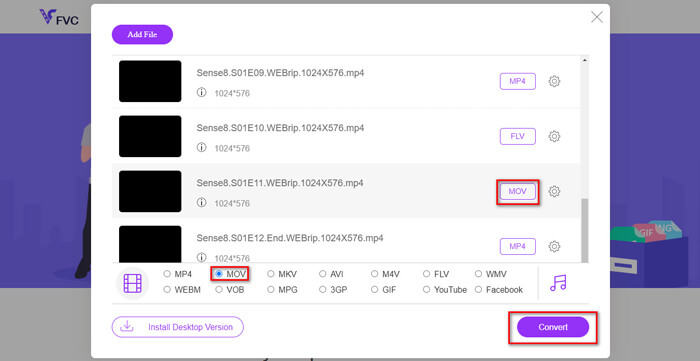
步驟 3. 然後點擊 Open,你就會看到一個已選檔案的清單。在清單下方選擇輸出格式 MP4。
你也可以透過點擊在 Setting 圖示旁邊的格式,分別為不同檔案選擇不同的格式,並在下方變更輸出格式。不過你也可以略過這一步,直接點擊 Convert 按鈕。之後再選擇一個位置來儲存轉換後的影片。
第2部分。如何使用VLC Media Player將MKV轉換為MP4
你也許只知道 VLC 是一款多媒體播放程式,並且可在大多數桌面作業系統上使用。但其實,它同時也是一個隱藏版的視訊轉檔工具。它允許你將 MKV 檔案轉換為 MP4 格式。如果你的電腦上已安裝 VLC,不妨試試看。
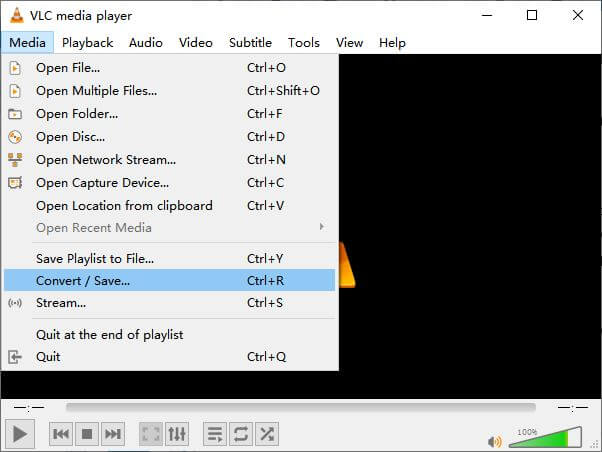
步驟 1. 先在電腦上啟動 VLC Media Player。點擊 Media 功能表,在下拉清單中找到 Convert / Save。
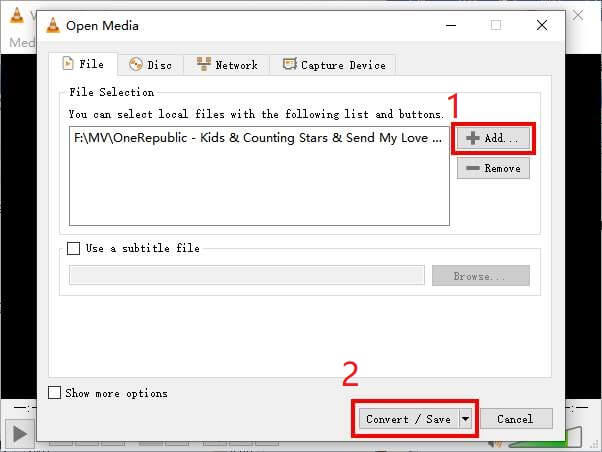
步驟 2. 點擊 + Add,找到你想要轉換的 MKV 影片。然後點擊下方的 Convert / Save 按鈕。
步驟 3. 在 Convert 視窗中選擇 MP4 格式。
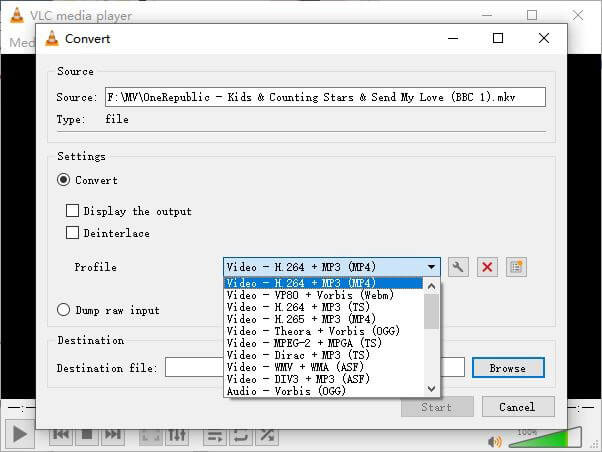
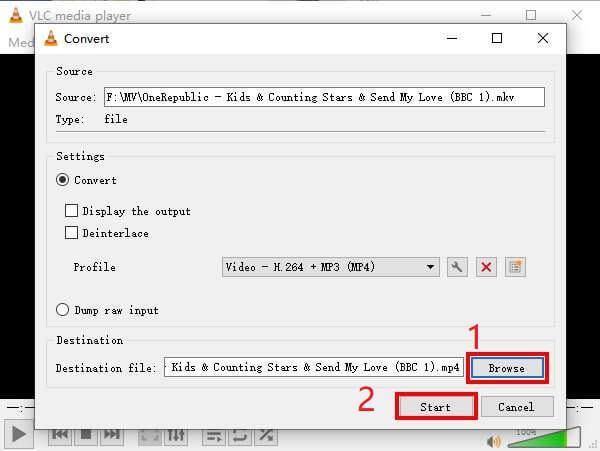
步驟 4. 點擊 Browse 按鈕確認儲存位置。最後點擊 Start 開始轉檔,然後等待取得你的 MP4 影片。
MKV 與 MP4
第3部分。將MKV轉換為MP4的常見問題解答
1. ffmpeg可以將MKV轉換為MP4嗎?
是的,你可以使用 ffmpeg 將 MKV 轉換為 MP4。但對你來說,理解它的運作方式可能有點複雜,儘管最有效的操作只是一串指令字元:ffmpeg -i my_movie.mkv -vcodec copy -acodec copy my_movie.mp4
2. HandBrake可以從MKV導出MP4嗎?
如果你只是在意轉出 MP4 檔案,HandBrake 的確可以幫上忙。不過,它無法將檔案轉成其他格式,例如 WMV、MOV、FLV。HandBrake 的確支援大多數常見的多媒體檔案,但那只是它所支援的輸入來源。至於輸出格式,你只能選擇 MP4(.M4V) 和 MKV。
3.將MKV轉換為MP4是否會失去質量?
當您將MKV文件轉換為MP4時,大多數視頻轉換器的質量都會下降,例如1%或5%。將MKV文件重新編碼為MP4時,很難完全避免數據丟失。但是您可以提高圖像的分辨率,以使導出的MP4視頻的質量接近原始視頻。
結論
有無數視頻轉換器供您選擇。很難獨自找到一個免費高效的轉換器。這篇文章介紹了兩種將MKV轉換為MP4的方法。一個是VLC Media Player,另一個是FVC Free Online Video Converter。
如果只需要一個MP4文件,那麼VLC就足夠了。但是,VLC僅支持有限數量的格式。因此,如果您想要更專業的轉換器,FVC免費在線視頻轉換器似乎是一個更好的選擇。
希望您發現這篇文章有用。並且不要猶豫告訴我們您的意見。
-
 如何在不損失質量的情況下將MP4視頻文件轉換為GIF動畫圖像
 尋找將MP4視頻轉換為GIF動畫的最佳方法嗎?這是在Photoshop,Windows Movie Maker,在線視頻轉換器等中執行此操作的詳細指南。
-
 如何在不損失質量的情況下將MOV轉換為MP4
 要將MOV(Apple QuickTime電影)文件轉換為MP4?這篇文章分享了4種免費方法,可將Windows 10/8/7 / XP和Mac OS X上的MOV視頻文件轉換為MP4格式。
-
 在Mac和Windows上將WMV轉換為MP4的4種簡便方法
 如何將WMV文件轉換為MP4?以下是通過簡單步驟將Mac和Windows上的WMV轉換為MP4的4種簡單方法。

