


 視頻轉換大師
 屏幕錄影大師
 影片修復
影片修復
 安全下載
安全下載4個最佳免費MP4到MKV轉換器,可在單擊內將MP4文件轉換為MKV
如果要在MP4視頻中添加字幕,最好將MP4轉換為MKV。 MKV是Matroska視頻文件,支持無限數量的音頻,圖片和字幕軌道。將MP4轉換為MKV文件並不難。您可以從本文中了解有關4種最佳方法的更多詳細信息。此外,這是添加字幕和輕鬆編輯視頻的終極方法。

第1部分:將MP4轉換為MKV的3種最佳方法
頁首1:如何免費在線將MP4轉換為MKV
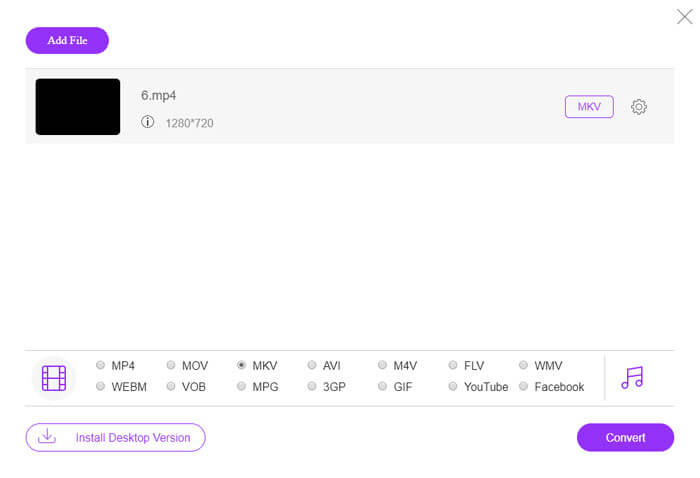
當你想要在線將 MP4 檔案轉換為 MKV 時,FVC Free Online Video Converter 是一款功能多樣的影片轉檔工具,可以免費轉換大多數影片格式,例如 MP4、MKV 等。它也能讓你調整輸出影片與音訊的設定。此外,它支援批次轉檔,讓你能輕鬆同時轉換多個影片或音訊檔。
- 1.將MP4轉換為MKV,AVI,FLV和其他更多媒體格式/預設。
- 2.調整視頻編解碼器,幀速率,視頻格式以及視頻格式。
- 3.轉換很簡單,沒有水印或其他限制。
- 4.提供一個簡單的界面,可在3個步驟中將MP4轉換為MKV文件。
步驟 1. 前往 FVC Free Online Video Converter,點擊 Add Files to Convert 按鈕,將 MP4 檔案加入程式中。若你是第一次使用這個線上 MP4 轉 MKV 轉檔工具,需要先下載安裝程式。
下載桌面版以批次轉換檔案。

步驟 2. 匯入 MP4 影片後,你可以選擇 MKV 作為輸出格式。你可以點擊 Gear 圖示,調整影片與音訊設定,例如影片編碼器、影格率、解析度及其他更多選項。

步驟 3. 之後,你可以點擊 Convert 按鈕,以所需的品質將 MP4 轉換為 MKV。只需幾秒鐘就能在電腦上取得轉好的 MKV。你也可以在儲存到電腦前預覽輸出影片。
頂部2:如何使用VLC Media Player將MP4轉換為MKV
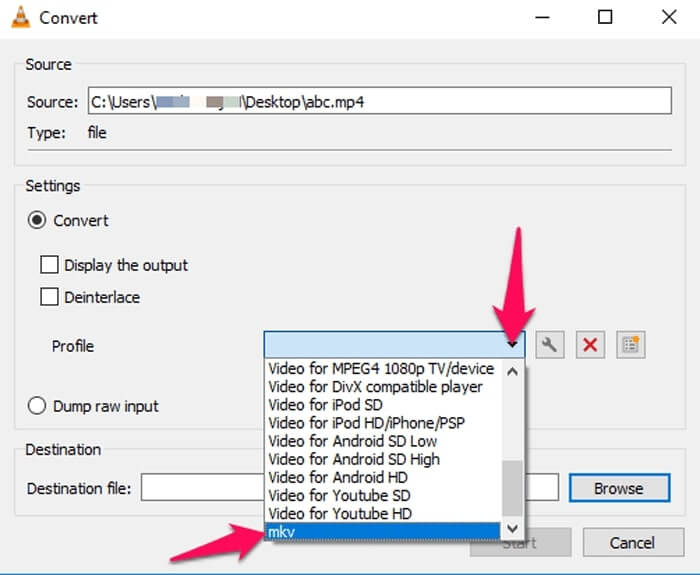
VLC Media Player 不只是 MKV 檔案的媒體播放器,它也內建了大多數影片與音訊格式所需的解碼器。如果沒有直接輸出 MKV 的選項,你也可以尋找一些外掛,依照下列步驟,透過 VLC 將 MP4 轉換成 MKV 檔案。
步驟 1. 啟動 VLC Media Player 並在電腦上打開該程式。點擊 Media 功能表,選擇 Convert/Save... 選項,匯入你需要轉換的 MP4 檔案。
步驟 2. 在「開啟媒體(Open Media)」視窗中,點擊 File 選項,然後點擊 Add 圖示。從資料夾中選擇 MP4 檔案。之後,從 Convert/Save 下拉選單中選擇 Convert 按鈕。
步驟 3. 接著,你可以選擇 MKV 作為輸出格式。點擊 Browse 選項,設定轉檔後檔案的儲存位置。然後選擇 Start 選項開始將 MP4 轉換為 MKV。
頁首3:如何從URL將MP4轉換為MKV
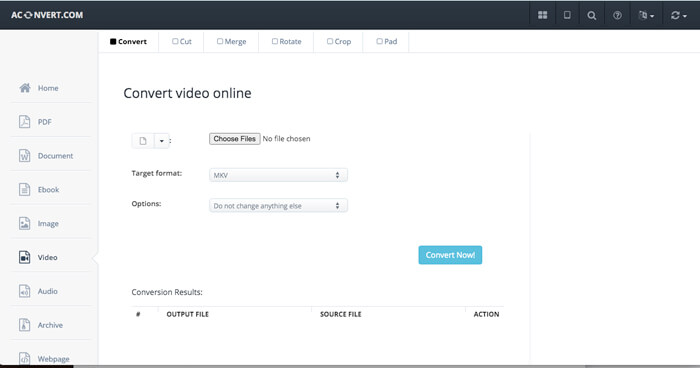
是否可以將在線MP4直接轉換為MKV? AConvert有一系列視頻到MKV的在線轉換器,您可以輸入視頻的URL以轉換為所需的格式。當然,它也使您能夠調整視頻設置。
步驟 1. 在任一瀏覽器中前往 aconvert.com,你可以從左上角選擇 Convert 功能表。點擊箭頭,從下拉清單中選擇 Online File 選項。
步驟 2. 將 Target format 設定為 MKV 格式。接著點擊 Options,調整影片大小、影片位元率、影格率、影片長寬比以及其他設定,以便將 MP4 轉換為 MKV。
步驟 3. 然後點擊 Convert Now! 按鈕開始批次轉檔。輸出檔案會列在 Conversion Results 區段中,你可以將其下載到電腦。
第2部分:將MP4轉換為MKV的終極方法
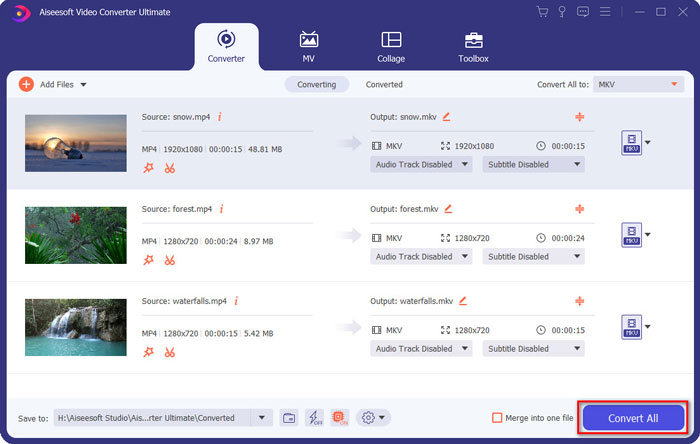
有沒有一種方法可以直接將帶字幕的MP4轉換為MKV? FVC Video Converter Ultimate是一款終極MP4到MKV轉換器,使您可以輕鬆調整視頻/音頻設置,編輯視頻文件,添加字幕/音軌,甚至從DVD翻錄文件。
- 1.以原始質量通過批處理將MP4轉換為MKV。
- 2.調整幀速率,視頻質量,視頻代碼等。
- 3.使用剪輯,旋轉,修剪,剪切,壓縮,視頻濾鏡等編輯視頻。
- 4.內置媒體播放器,可播放任何4K / 1080p HD視頻格式和DVD文件。
步驟 1. 在電腦上下載並安裝此程式,你可以點擊 Add File,再選擇 Add File 或 Add Folders,也可以直接將多個影片和音訊檔拖曳到此程式中。

步驟 2. 接著,你可以選擇 MKV 檔作為輸出格式,並依照需求調整設定檔參數,例如解析度、影格率、音訊編碼及其他更多設定。

步驟 3. 當你需要加入字幕或音軌時,可以點擊音訊聲道或字幕,選擇想要的項目,再點擊 Convert All 按鈕將 MP4 轉換為 MKV。
MP4 與 MKV
第3部分:有關如何將MP4轉換為MKV的常見問題解答
1. MKV的優勢是什麼?
與MP4文件格式類似,MKV是另一種通用容器格式。它可以容納多個不同的軌道,每個軌道使用不同的壓縮格式。您可以編輯字幕,例如SRT,PGS / SUP,VobSub和SSA。將MP4轉換為MKV時,您始終可以自定義具有所需字幕和音軌的視頻。
2.如何輕鬆編輯MKV文件?
當然,您可以簡單地使用專業的MP4到MKV轉換器來編輯視頻/音頻設置,甚至可以編輯音軌和字幕,例如FVC Video Converter Ultimate。此外,您還可以使用免費的入門級MKVToolNix在Windows,Mac和Linux上輕鬆編輯和管理字幕。
3.將MP4轉換為MKV的重要意義是什麼?
如果需要將MP4轉換為MKV,則應注意輸出視頻的大小。通常,MKV文件比MP4大得多,尤其是當您需要添加字幕和音軌時。當您使用在線視頻轉換器時,您可能無法正確轉換整個MKV視頻。
結論
當您要本地化在線流視頻時,可以了解有關輕鬆將MP4轉換為MKV的最佳方法的更多詳細信息。只需檢查3種最常用的在線方法以及本文的最終解決方案即可。如果您對在Windows和Mac上將MP4文件轉換為MKV有任何疑問,可以隨時在本文中發表評論。
-
 如何在不損失質量的情況下將M2TS轉換為MKV
 是否要在保持原始質量的同時將M2TS轉換為MKV?這篇文章向您展示了免費和在線方法無損地將M2TS更改為MKV。
-
 MKV與MP4:有什麼區別以及如何轉換
 如何在MKV和MP4之間選擇?哪種格式對視頻質量更好?在本文中,我們將對MKV和MP4進行詳細比較,以幫助您做出選擇。
-
 如何在Mac / Windows上將MP4轉換為WMV
 這篇文章分享瞭如何在Mac或Windows上將MP4視頻轉換為WMV格式。我們還將為您提供多種選擇,包括桌面軟件和基於Web的在線轉換器。準備知道最好的MP4到WMV轉換工具了嗎?

