


 視頻轉換大師
 屏幕錄影大師
 影片修復
影片修復
 安全下載
安全下載的4種免費方式將MP4轉換為MOV
MP4 是最受歡迎的影片格式之一,獲得大多數播放器、剪輯軟體及裝置的廣泛支援。但在某些情況下,你仍然需要將 MP4 轉換為 MOV。你知道如何將 MP4 轉成 MOV嗎?

當你在 Google 上搜尋如何將 MP4 轉換為 MOV 時,可以看到很多影片轉換程式能幫你完成轉檔,包括一些免費的線上轉檔工具。在這篇文章中,我們會介紹 4 種免費方法,幫助你輕鬆把 MP4 轉成 MOV。
第1部分。如何在Mac / PC上免費將MP4轉換為MOV而不會造成質量損失
即使市面上有大量 MP4 轉 MOV 的轉檔軟體,許多在轉檔過程中都會造成畫質與音質的損失。如果你想在不損失品質的情況下將 MP4 轉換為 MOV,你應該選擇這款 Free Video Converter。
Free Video Converter是專門為處理各種視頻和音頻轉換而設計的。它高度支持幾乎所有的視頻/音頻格式,包括MP4,MOV,MKV,FLV,AVI,WMV,MP3,AAC,FLAC等。它使您可以在保持原始質量的情況下,在Mac或Windows PC上免費將MP4轉換為MOV。
步驟 1. 雙擊上方的下載按鈕,依照指示安裝並執行這款免費的 MP4 轉 MOV 轉檔器(適用於 Mac/PC)。請依照你的系統選擇正確的版本進行下載。
步驟 2. 進入主畫面後,點擊「Add File(s)」匯入想要轉檔的 MP4 檔案。這款免費 MP4 轉 MOV 轉檔器支援批次轉檔功能,可同時轉換一個或多個 MP4 檔案。
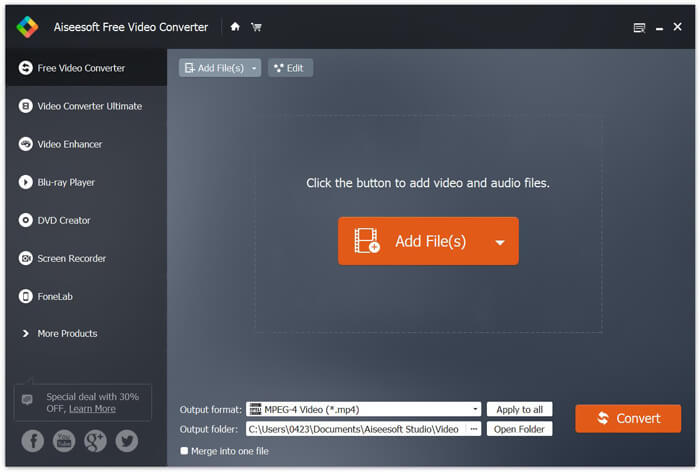
步驟 3. 點擊Output format,從下拉清單中選擇MOV 作為目標格式。接著只要按一下Convert 按鈕,就能開始將 MP4 轉檔為 MOV。
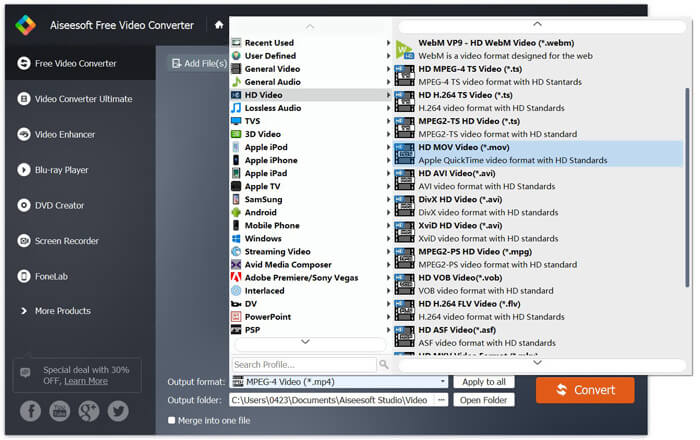
幾秒鐘後,原始MP4便會轉換為MOV格式。除了MOV,您還可以將MP4高質量轉換為MKV,FLV,AVI等。這個免費的視頻轉換器還具有一些基本的編輯功能。在最終的MP4到MOV轉換之前,您可以使用它們來編輯MP4視頻。
第2部分。如何使用在線視頻轉換器將MP4更改為免費的MOV
如上所述,市場上有許多免費的在線視頻轉換器,可以幫助您將MP4轉換為MOV。在本文的此處,我們將介紹兩種有關如何在線將MP4更改為MOV的方法。
1. FVC免費在線視頻轉換器
如果你想在線上免費將 MP4 轉成 MOV,FVC Free Online Video Converter 會是你的最佳選擇。只要 3 個簡單步驟,你就能完成轉檔,並在數秒內取得無損的轉換檔案。
步驟 1. 點擊上方連結並前往 FVC Free Online Video Converter。然後點擊橫幅中間的 Add Files to Convert。接著在電腦上下載並安裝 FVC launcher。
下載桌面版以批次轉換檔案。

步驟 2. 選取並上傳想要轉換的影片後,你需要選擇 MOV 作為轉換後影片檔案的輸出格式。
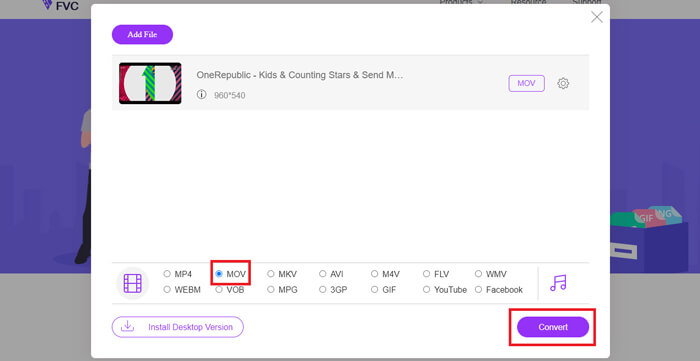
步驟 3. 點擊 Convert。你可以選擇將轉換後的檔案儲存到桌面。之後只要稍作等待,就能取得 MOV 影片。
2. CloudConvert
CloudConvert是一種非常流行且易於使用的在線視頻轉換工具。它具有轉換200多種格式的能力,包括音頻,視頻,文檔,電子書,檔案,圖像,電子表格或演示文稿格式。此外,這個值得信賴的在線轉換器將保護您的數據和隱私。
步驟 1. 開啟瀏覽器,前往 CloudConvert 官方網站。它採用簡潔的介面設計,能為你提供舒適的轉檔體驗。
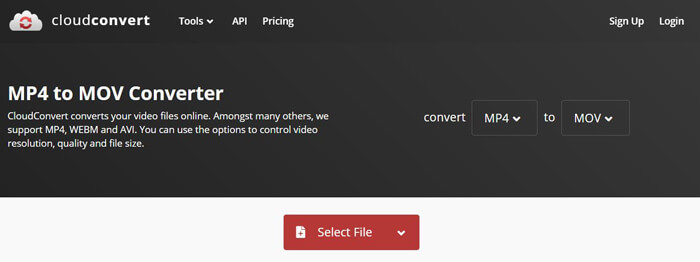
步驟 2. 點擊「Select File」按鈕上傳想要轉換的 MP4 檔案。你可以從電腦、URL、Google Drive、OneDrive 或 Dropbox 新增檔案。在此步驟中,你也可以新增更多檔案一起轉檔。
您應該擔心的一件事是,這個免費的MP4到MOV轉換器僅允許您轉換小於1GB的視頻。您需要購買一個程序包以轉換較大的文件。
步驟 3. 點擊Convert 按鈕開始上傳並轉換 MP4 檔案。接著點擊Download 按鈕,將轉換後的 MOV 影片下載到電腦。

使用CloudConvert在線將MP4轉換為MOV,您需要花費更多時間在視頻的上載,轉換和下載過程中,尤其是在轉換大文件時。
第3部分。如何使用VLC Media Player將MP4轉換為MOV
VLC Media Player 是一款熱門且開源的多媒體播放器。VLC 不僅僅是播放器,也能作為影片轉檔工具,幫助你進行各種格式的轉換。如果你的電腦上已安裝 VLC,就可以依靠它將 MP4 檔案轉成 MOV 影片。
步驟 1. 在電腦上開啟 VLC Media Player。如果你尚未安裝 VLC,可以前往其官方網站免費下載。
步驟 2. 點擊功能表列上的Media 按鈕,然後從下拉清單中選擇Convert/Save 選項。
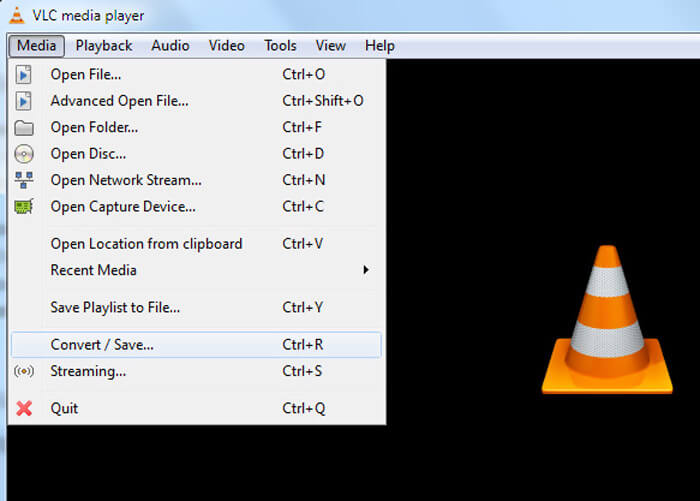
步驟 3. 會跳出新的 Open Media 視窗。在這裡點擊 File > Add 以匯入你想要轉換的 MP4 檔案。
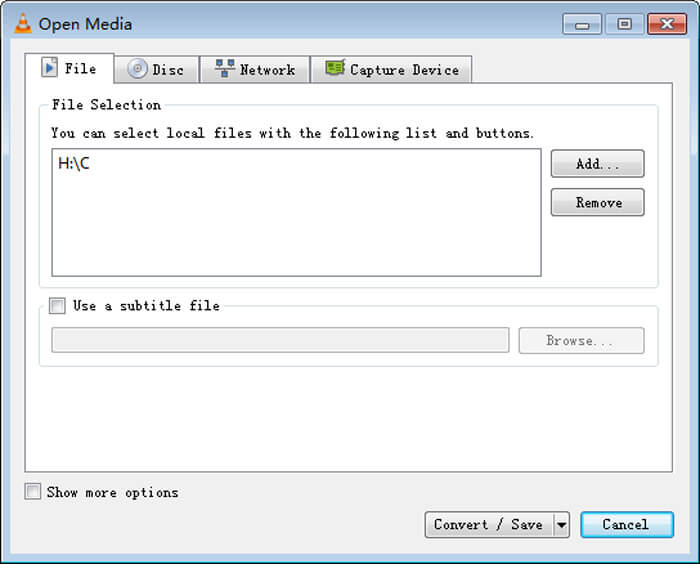
步驟 4. 點擊底部的 Convert/Save 按鈕以確認操作。接著會進入 Convert 視窗,在此你可以選擇轉換後影片的目的資料夾與輸出格式。
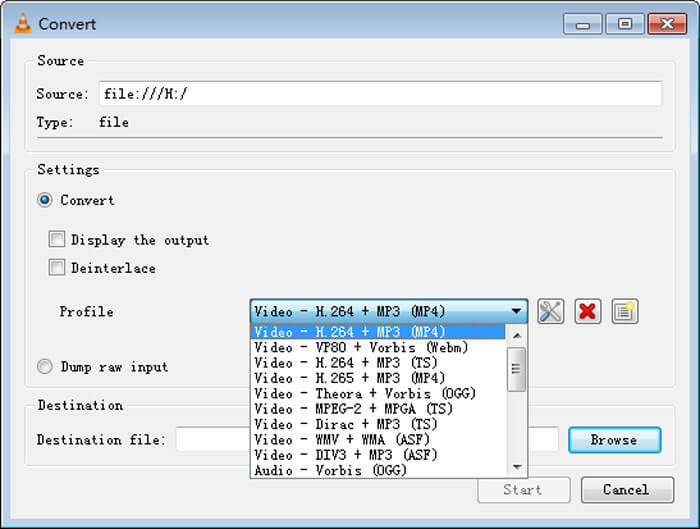
步驟 5. 在 Profile 下拉清單中選擇 MOV 作為輸出格式。然後點擊 Start,即可在 VLC 中開始將 MP4 影片轉換為 MOV。
MP4 與 MOV
第4部分。將MP4轉換為MOV的常見問題解答
問題1. QuickTime可以將MP4轉換為MOV嗎?
如果需要在Mac上將MP4轉換為MOV,可以嘗試使用QuickTime。您可以使用QuickTime Player打開MP4視頻。然後單擊導出按鈕,然後選擇MOV格式。您可以重命名文件,選擇位置和視頻分辨率。然後,您可以單擊“導出”按鈕以在Mac上將MP4免費轉換為MOV。
問題2. MOV或MP4哪個更好?
MP4 是最常見的多媒體檔案儲存格式之一。它是一種數位容器檔案,只是包裹影片的外層,而不是影片本身。與 MP4 類似,MOV 也是一種數位容器檔案,並以 MPEG-4 編解碼器進行編碼。MOV 與 MP4 的主要差異在於,MOV 多用於 Mac 環境,並特別為 QuickTime 所設計;MP4 則是國際標準格式,能被大多數媒體播放器與系統支援。一般來說,MOV 影片的品質通常較高、檔案也較大;MP4 檔案則壓縮率較高、容量較小。因此,你無法單純說 MOV 一定比 MP4 好,或 MP4 一定優於 MOV。
問題3.將MOV轉換為MP4是否會失去質量?
當您要將MOV轉換為MP4或將MP4轉換為MOV時,應選擇一些專業的視頻轉換器。在大多數情況下,轉換後不會出現質量損失。
問題4.是否有免費的MP4到MOV轉換器?
互聯網上有很多免費的視頻轉換器,可以幫助您將MP4轉換為MOV。除了推薦的CloudConvert,您還可以依靠FFmpeg,HandBrake,ZAMZAR,Convert Files等來製作轉換版本。
-
 如何在不損失質量的情況下將MP4視頻文件轉換為GIF動畫圖像
 尋找將MP4視頻轉換為GIF動畫的最佳方法嗎?這是在Photoshop,Windows Movie Maker,在線視頻轉換器等中執行此操作的詳細指南。
-
 MOV VS MP4 –哪個更好
 MOV VS MP4,哪個更好?這篇文章講述了MP4和MOV之間的區別,以便您可以更好地選擇用於視頻文件。
-
 如何在不損失質量的情況下將MOV轉換為MP4
 要將MOV(Apple QuickTime電影)文件轉換為MP4?這篇文章分享了4種免費方法,可將Windows 10/8/7 / XP和Mac OS X上的MOV視頻文件轉換為MP4格式。

