


 視頻轉換大師
 屏幕錄影大師
 影片修復
影片修復
 安全下載
安全下載使用這些簡單的技巧解決 VLC 無法轉換為 MP4 的問題
VLC 媒體播放器是目前最受歡迎的影片播放器之一。它不僅完全免費,而且相容性極佳,支援市面上幾乎所有主流影片格式。除了播放功能外,VLC 還內建了簡單的影片編輯和格式轉換工具,這也是許多用戶選擇將影片轉換為 MP4 格式的原因。
然而,VLC 也存在一些問題。許多用戶反映,使用 VLC 轉換影片格式時,程式在處理完部分影片後就停止了。即使嘗試了多次,轉換過程仍然不完整,這令人擔憂。
我們已深入分析此現象以解決「VLC 無法轉換為 MP4」的問題,並整理出七種可能的解決方案。以下部分將分別介紹這些方法,幫助你順利使用 VLC 完成 MP4 視訊轉檔。

第 1 部分。最佳 VLC 替代方案,可無錯誤轉換任何視頻
如果你已經沒有時間再排查 VLC 無法轉檔為 MP4 的原因,我們建議你直接更換視訊轉檔工具。在眾多同類產品中,FVC Video Converter Ultimate 是極佳的選擇。
它支援超過 1,000 種多媒體格式,轉換速度最高可提升 30 倍,從而節省大量處理時間。此外,FVC Video Converter Ultimate 提供比 VLC Media Player 更基礎的編輯功能更豐富、更直覺的影片編輯工具。雖然 VLC 的即時預覽比較複雜,但 FVC Video Converter Ultimate 讓編輯、旋轉、壓縮和影像品質提升變得輕而易舉。
無論您是視訊處理新手,還是專業的內容創作者,FVC Video Converter Ultimate 都能成為您值得信賴的助手。它支援批量轉換,並且不會在影片中添加浮水印,高效又專業。
以下是使用 FVC Video Converter Ultimate 將影片轉換為 MP4 的方法。
步驟一:在電腦上下載並安裝 FVC Video Converter Ultimate,點擊 新增檔案(Add Files) 上傳你想要轉換的影片。

步驟二:前往 全部轉換為(Convert All to) 分頁,展開下拉清單並選擇 Video > MP4。
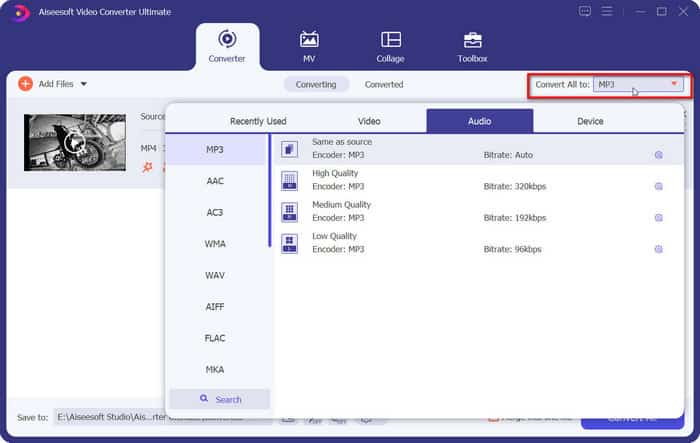
步驟三:回到主介面,點擊 全部轉換(Convert All)。

第 2 部分。 VLC 無法轉換完整視訊錯誤 | 已修復
方法1.檢查輸入視訊文件
首先,請使用其他MP4 視訊播放器(例如 QuickTime、PotPlayer 等)開啟你的原始影片檔,確認是否能正常播放。如果影片已損毀或缺少資料,就可能導致轉檔、剪輯與播放失敗。此時,你必須先修復影片檔,再進行轉檔。
方法2.檢查儲存空間
確保您的裝置有足夠的儲存空間來保存轉換後的影片檔案。對於大尺寸或高品質的視頻,所需的空間會相應增加。建議提前清除無用的快取或舊文件,為轉換任務預留足夠的空間。
方法 3. 避免轉換大文件
請盡量避免使用 VLC Media Player 來轉換過大或解析度過高的影片,這很容易導致 CPU 使用率飆升,甚至程式當機。如果你需要處理大檔案,建議改用更穩定的VLC 替代工具——FVC Video Converter Ultimate。
方法4.檢查輸出路徑和檔名
確保輸出路徑設定正確。此外,請檢查輸出檔案名稱是否規格;檔案名稱必須包含 .mp4 副檔名;否則,檔案可能無法辨識或播放。
方法5.嘗試更改輸出編碼設定
如果你發現使用 H.264 + MP3 (MP4) 編碼時,VLC Media Player 無法轉檔或只轉了一部分檔案,可以嘗試切換到其他編碼格式,例如 H.265 + MP3 (MP4),看看是否能正常完成轉檔。
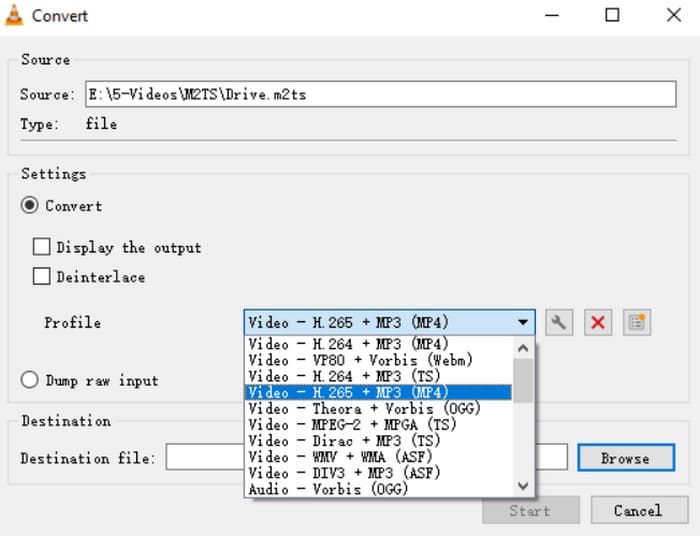
方法6.檢查是否設定了開始時間和結束時間
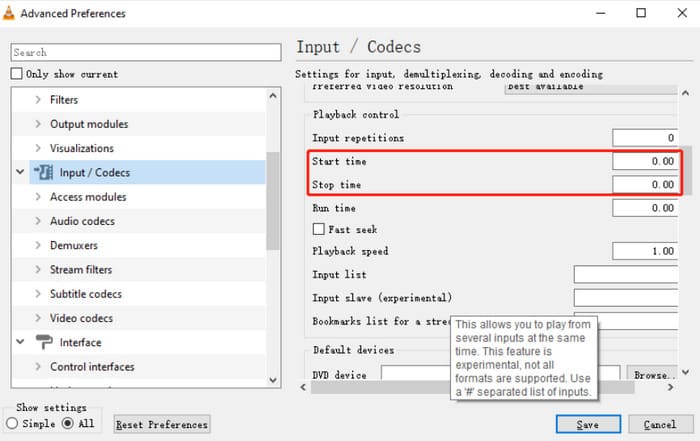
為什麼 VLC 無法轉換成 MP4? VLC 媒體播放器提供了截取部分片段的功能;如果您不小心設定了開始時間和結束時間,它只會轉換所選的部分內容。請進入轉換設定介面,確保這兩個選項為空,並在必要時清除設置,以確保影片轉換完整。
以下是使用 FVC Video Converter Ultimate 將影片轉換為 MP4 的方法。
步驟 1:在裝置上啟動 VLC Media Player。
步驟 2:前往 工具 > 偏好設定。
步驟 3:在偏好設定視窗底部,選擇全部以進入進階設定。
步驟 4:在左側邊欄中前往 輸入/編解碼器,並確認 開始時間與結束時間皆設定為 0。
第 3 部分。 VLC 無法轉換為 MP4 的常見問題解答
為什麼 VLC 無法播放 MP4 檔案?
這可能是由於 VLC Media Player 的編解碼器不適合您影片的播放。您可以下載並安裝缺少的編解碼器。另外,請務必檢查視訊檔案是否損壞。
為什麼 VLC 將 AVI 轉換為 MP4 不起作用?
這與 VLC Media Player 無法轉換 MP4 的原理相同。這都是因為視訊損壞、編解碼器缺失以及 VLC 軟體未及時更新。您可以嘗試本文中的程式。
VLC 轉換速度快嗎?
雖然 VLC Media Player 免費且功能豐富,但其轉換速度卻相當一般,與 FVC Video Converter Ultimate 等專業工具相比略慢。
結論
造成「VLC 無法轉換為 MP4」的原因可能有很多,例如軟體未及時更新、原始影片檔本身已損毀,或輸出設定未正確配置等。以上文章中,我們已為你整理了六種常見的解決方案。然而,如果你沒有時間或耐心逐一檢查,我們建議直接採用最終且更高效的做法——使用 FVC Video Converter Ultimate 進行格式轉換。此工具不僅操作簡單,更加穩定,能一次性完成整個影片的轉檔,而不必反覆嘗試。
-
 AVCHD 與 MP4:選擇哪個更好的回顧
 請參閱這篇 AVCHD 與 MP4 比較文章,以了解哪種影片格式最適合您。深入挖掘以了解它們的描述、差異等。
-
 碎片 MP4:什麼以及如何使其成為傳統 MP4
 你想知道什麼是碎片MP4嗎?讓這篇文章透過簡單而專業的方法將此類 MP4 轉換為傳統 MP4 的指南來回答這個問題。
-
 TS 到 MP4 轉換器:4 個輕鬆轉換的必備工具
