


 視頻轉換大師
 屏幕錄影大師
 影片修復
影片修復
 安全下載
安全下載在Windows Media Player中播放MKV文件的3種方法
無法在 Windows Media Player 開啟 MKV 檔案?
MKV 是一種相當流行的影片格式。你可能會取得許多以 MKV 儲存的高畫質電影、電視節目或其他影片。不過,對於 Windows 使用者來說,預設的影片播放器 Windows Media Player 並不原生支援分離(開啟)MKV 容器。現在回到問題本身,要如何在 Windows Media Center 播放 MKV 檔案?

即使您將 Windows Media Player 升級到最新版本,也不能保證您不會遇到 MKV 播放問題。考慮到這一點,這篇文章想分享 3 種有效的方法來幫助您在 Windows PC 上播放 MKV 文件。
第1部分。如何在Windows Media Player中打開MKV文件
Windows Media Player 無法播放 MKV 檔案,主要是因為編解碼器(codec)不相容。你需要先了解,MKV 實際上是一種媒體容器,用來封裝視訊串流、音訊串流、字幕等內容。你必須為 WMP 提供正確的 MKV 分離器(splitter),以及相應的視訊與音訊編解碼器與濾鏡。以下內容將會引導你在 Windows Media Player 中播放 MKV 檔案。
步驟一: 開啟 Windows Media Player,並用它來開啟 MKV 檔案。你也可以在 MKV 檔案上按右鍵,然後選擇以 WMP 開啟。
步驟二: 這時你會看到一則錯誤訊息顯示 Windows Media Player 無法播放這個檔案。在對話框中按一下 Web 說明 選項。
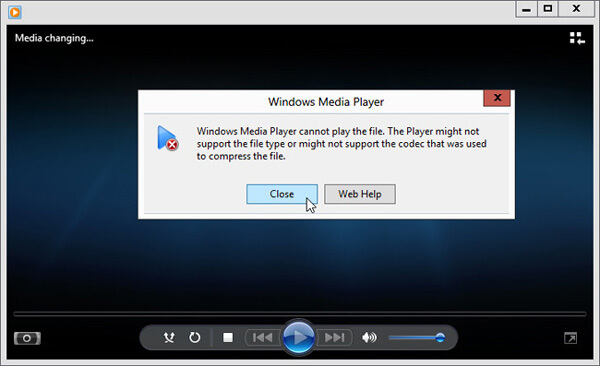
步驟三: 在 遺失編解碼器 底下點擊 編解碼器連結。將該連結複製並貼到瀏覽器中。系統會引導你取得正確的 Windows Media Player MKV 編解碼器。下載完成後,依照指示完成 Windows Media Player MKV 的安裝設定程序。
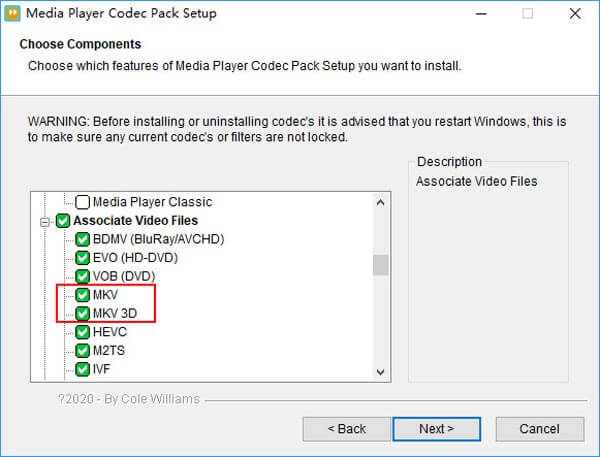
步驟四: 重新啟動 Windows Media Player,然後再試著播放你的 MKV 檔案。

第2部分。在Windows Media Player替代方案中播放MKV文件的更好方法
使用正確的MKV編解碼器,您可以在Windows Media Player中方便地打開MKV文件。但是,許多用戶報告說,在使用WMP播放MKV時仍然存在其他一些播放問題。在這種情況下,您可以選擇Windows Media Player替代品來幫助您播放MKV文件。
FVC Free MKV Player 是一款非常適合作為 Windows Media Player 替代方案的工具。它原生支援幾乎所有常用的影音格式,例如 MKV、MOV、MP4、FLV、AVI、RMVB、MPEG、AAC、MP3、M4A、WMA 等。你可以依靠它來高畫質觀賞 MKV 電影。

步驟一: 開啟瀏覽器並前往這個免費 MKV 播放器網站。點擊 立即播放(Play Now) 按鈕,安裝一個小型啟動程式來播放 MKV。之後,主要的 MKV 播放視窗就會顯示在螢幕上。

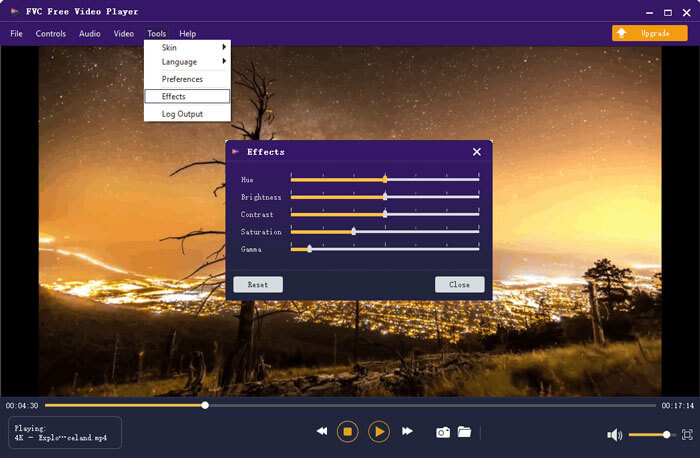
步驟二: 點擊 開啟檔案(Open File) 按鈕以瀏覽並匯入你的 MKV 檔案。接著影片會自動開始播放。由於採用了先進的視訊編碼技術,它能以高畫質順暢播放 MKV 檔案。此外,它也支援 DTS-HD 與 Dolby TrueHD。

您將獲得MKV播放的所有控件。除了播放,暫停,後退,前進,調整音量等基本操作外,還可以調整效果,更改音軌和字幕以及自定義其他設置。
第3部分。轉換MKV以便在Windows Media Player上播放
若要在 Windows Media Player 中播放 MKV 檔案,你也可以選擇將 MKV 轉檔為像 MP4 這類受支援的影片格式。這裡要為你介紹 Free Online Video Converter,協助你在無損畫質的情況下將 MKV 轉為 MP4。
步驟一: 在瀏覽器中前往這個免費的線上 MKV 轉 MP4 轉檔頁面。它相容於各種常見的網頁瀏覽器,包括 Chrome、IE、Safari 和 Firefox。
步驟二: 進入頁面後,點擊 新增檔案以轉換(Add File to Convert) 按鈕。在這個步驟中,你需要安裝一個小型啟動程式來進行 MKV 轉檔。完成後,螢幕上會跳出一個視窗,讓你選擇要轉檔的 MKV 檔案。
步驟三: 你會看到包括 MP4、MOV、AVI、MKV、FLV 等多種常見影片格式列在其中。請確認輸出格式為 MP4,然後點擊 轉換(Convert) 按鈕。
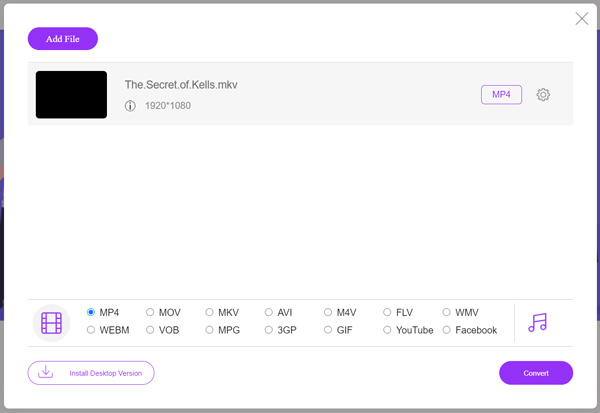
在完成MKV 轉 MP4 之後,你就能用 Windows Media Player 播放該檔案。整個轉檔過程不會造成任何畫面或音訊品質的損失。
第4部分。在Windows Media Player中播放MKV的常見問題解答
問題1.如何在Windows Media Player上更改視頻的格式?
打開Windows Media Player並加載要轉換的視頻文件。單擊頂部菜單上“翻錄”選項卡下的小箭頭。選擇更多選項,然後單擊標有格式的下拉菜單。在這裡,您可以選擇合適的輸出格式並開始轉換。
問題2. Windows Media Player是什麼視頻格式?
Windows Media Player的默認文件格式為WMV,Windows Media Video和WMA,Windows Media Audio。此外,它還支持Advanced Systems Format(高級系統格式)及其自己的基於XML的播放列表格式Windows Playlist。
問題3. Windows 10可以播放MKV文件嗎?
否。Windows10中的內置Windows Media Player 12無法播放MKV文件。您需要安裝MKV編解碼器才能播放。
結論
當 Windows Media Player 無法辨識 MKV 編解碼器時,就會直接顯示錯誤訊息。想在 Windows Media Player 中播放 MKV 檔案,你需要安裝正確的編解碼器。此外,你也可以改用第三方播放器,或是先將 MKV 轉換成其他格式再播放。若你對如何在 Windows Media Player 開啟 MKV 檔案 仍有疑問,歡迎隨時留言給我們。
-
 頂級8 MKV播放器以所需的字幕播放MKV文件
 當您想要以所需的字幕播放MKV視頻時,可以了解有關PC / Mac排名前8位的MKV文件播放器的更多信息,並根據需要選擇所需的播放器。
-
 MKV到MOV-如何將MKV轉換成MOV
 如何在Mac上將MKV轉換為MOV? iMovie可以讀取MKV嗎? MOV格式是什麼意思?這篇文章介紹了2種簡單的方法來幫助您使用免費的在線和專業視頻轉換器將MKV轉換為MOV。
-
 AC3播放器-2021年10個最佳免費AC3播放器的評論
 什麼是最好的AC3播放器? MX Player可以打開AC3嗎?這篇文章列出了適用於Mac,Windows PC,iOS和Android設備的10個免費AC3播放器。
