


 視頻轉換大師
 屏幕錄影大師
 影片修復
影片修復
 安全下載
安全下載關於MP4無法在Google雲端硬盤中播放的3條提示
Google 雲端硬碟(Google Drive) 是一項原生雲端協作服務,讓你可以在任何裝置、任何地點備份並存取所有檔案。它提供 15GB 的免費儲存空間,供 Google 雲端硬碟、Gmail 及 Google 相簿共用,可用來儲存各種類型的資料。你可以將 MP4 檔案上傳到 Google 雲端硬碟,然後直接在雲端硬碟中播放。
一般來說,你只要連按兩下就能輕鬆在 Google 雲端硬碟中播放 MP4。不過,有時會出現某些 MP4 在 Google 雲端硬碟無法播放的錯誤,例如顯示 無法播放這部影片 或 糟糕!播放這部影片時發生問題。

如果你無法用一般方式在 Google 雲端硬碟中播放 MP4 檔案,可以改用下面 3 種其他方法來播放你的雲端硬碟影片。
第1部分。使用新窗口在Google雲端硬盤中播放MP4
當您想在Google雲端硬盤中播放MP4時,可以雙擊它以其內置的視頻播放器開始播放。但是,如果使用此方法無法播放MP4文件,則可以選擇在新窗口中播放Google雲端硬盤視頻。
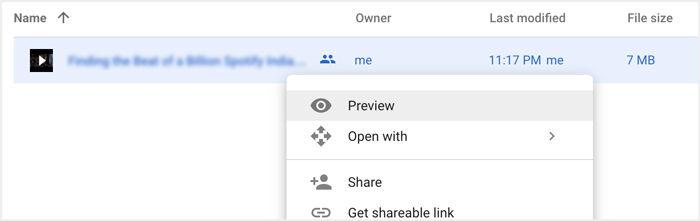
步驟 1: 開啟 Google 雲端硬碟,找到你想觀看的 MP4 影片。以滑鼠右鍵按它,然後選擇 預覽。
步驟 2: 現在你可以點選右上角的三點圖示打開功能選單。從下拉清單裡選擇 在新視窗中開啟。
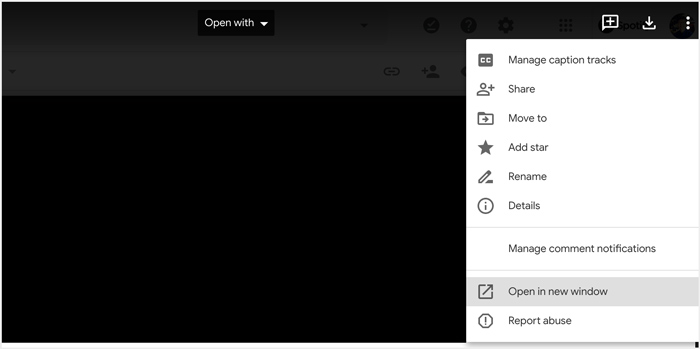
完成所有操作後,Google雲端硬盤中的MP4文件將在新窗口中播放。您可以檢查該視頻是否可以正常播放。
第2部分。刪除帳戶以播放Google雲端硬盤中的MP4文件
在某些情況下,無法在Google雲端硬盤中播放的MP4文件錯誤是由多個Google帳戶引起的。因此,您可以嘗試刪除一些不需要的帳戶以進行修復。
步驟 1: 若要登出不需要的帳戶,你可以前往 Google 網站上的Google 帳戶。你可以在右上角找到它。點擊你的個人頭像,查看所有已登入的 Google 帳戶。
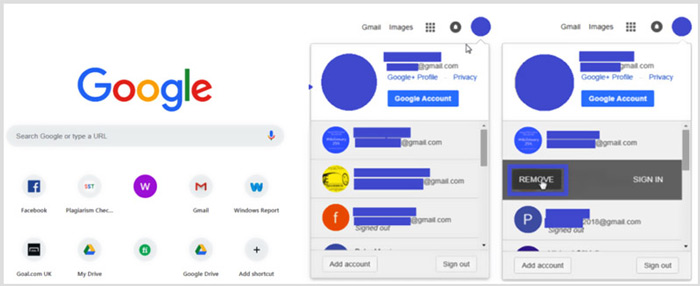
步驟 2: 找到不需要的帳戶,然後選擇移除按鈕。你可以只保留一個有用的帳戶處於登入狀態。完成後,請重新整理 Google 網站,接著回到 Google 雲端硬碟。找到你想看的 MP4 檔案並播放。
第3部分。將視頻轉換為在Google雲端硬盤中播放MP4
儘管 Google 雲端硬碟支援 MP4 格式,但當你的 MP4 檔案在 Google 雲端硬碟中無法播放時,你應該檢查影片檔案大小、解析度及其他相關因素。若要將影片轉成 Google 雲端硬碟支援的檔案,你可以使用專業的 Video Converter Ultimate。它能在不失真的情況下轉換任何影片與音訊檔案。
- 1.將包括MP4在內的所有視頻高質量轉換為Google雲端硬盤支持的文件。
- 2.將8K / 5K / 4K,1080p / 720p HD和SD視頻轉換為500多種格式,例如MP4,MOV,AVI,FLV,MP3,FLAC,AAC等。
- 3.編輯視頻,調整效果,提高質量,壓縮視頻,編輯ID3信息並創建AIF。
- 4.前所未有的硬件加速技術可提供超快的轉換速度。
步驟 1: 若要將影片轉成 Google 雲端硬碟支援的格式,你應先在電腦上免費安裝這款轉檔程式。你可以連按兩下下載按鈕,然後依照指示完成安裝。
步驟 2: 開啟這款 Google 雲端硬碟影片轉換工具,並使用它的 Converter 功能。點選大型 + 號或新增檔案(Add Files)來匯入你的 MP4 檔案。
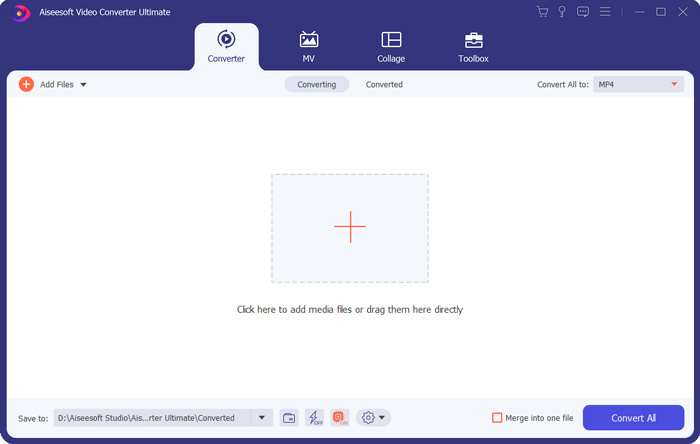
步驟 3: 輸出格式會預設為 MP4。你可以點擊它改選其他合適的格式。
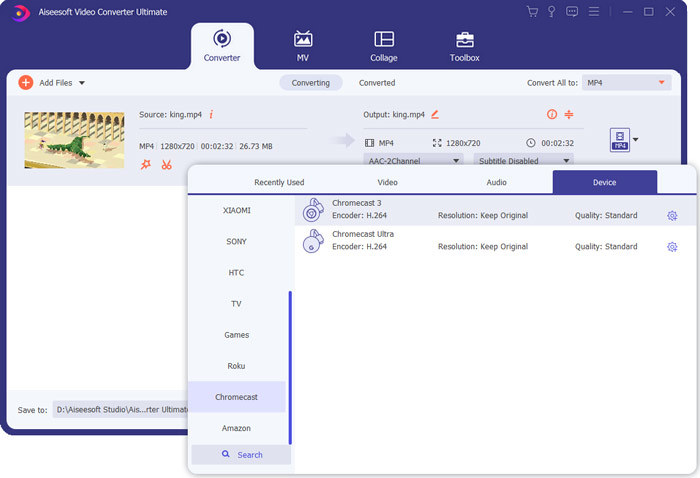
在這一步,你可以點選自訂設定檔(Custom Profile)圖示以自訂更多設定。
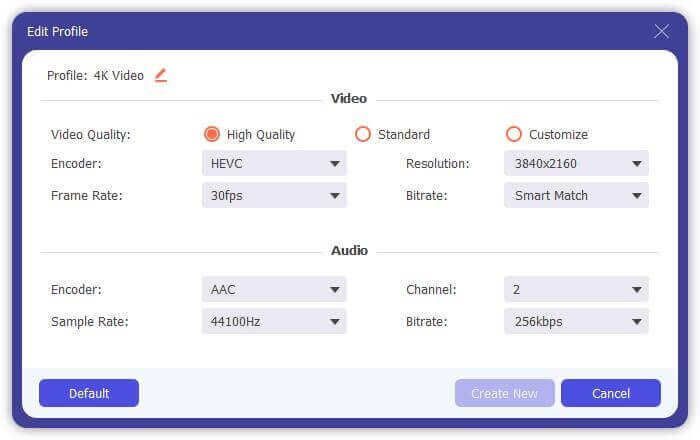
步驟 4: 完成上述所有操作後,你可以點選全部轉換(Convert All)按鈕開始轉檔。在轉換之前,你可以重新命名輸出檔案、選擇正確的目的資料夾、編輯影片,以及調整畫面與聲音效果。
第4部分。在Google雲端硬盤中播放MP4文件的常見問題解答
Google雲端硬盤支持哪種視頻分辨率?
您可以在Google雲端硬盤中存儲和播放視頻。您可以方便地備份任何分辨率的視頻。但您應該知道,Google雲端硬盤的最大播放分辨率為1920x1080。
為什麼我不能在Google雲端硬盤中播放視頻?
許多不同的原因會導致視頻無法在您的Google雲端硬盤中播放。一個主要原因是不受支持的視頻格式。此外,其他一些因素(例如瀏覽器過時,互聯網速度較差,視頻分辨率較高,文件大小較大,路由器的安全設置以及第三方插件等)也會導致Google雲端硬盤視頻播放問題。
在哪裡管理我的Google帳戶?
Google允許您添加和使用一個或多個帳戶。當您要管理自己的Google帳戶時,可以打開Chrome瀏覽器,然後單擊右上角的Google帳戶圖標。在下拉菜單中,點擊管理您的Google帳戶按鈕。
如何將MP4上傳到Google雲端硬盤?
要將包含MP4視頻的文件上傳到Google雲端硬盤,您只需單擊左上角的“新建”圖標,然後選擇“文件上傳”或“文件夾上傳”即可向其中添加文件。
結論
Google 雲端硬碟提供了一種方便的方式來備份、管理與檢視各種類型的檔案。本文主要介紹了 3 個解決部分 Google 雲端硬碟影片播放錯誤的技巧。希望你在閱讀本頁後,能更順利地在 Google 雲端硬碟中播放 MP4。
-
 如何在PC和Mac上免費將Cisco WebEx ARF轉換為MP4
 獲取ARF文件,但不知道如何打開它?這篇文章可以幫助您。以下是2種在Mac和PC上將ARF轉換為MP4的免費方法的詳細信息。
-
 2021 年不容錯過的 5 款 iPhone 最佳視頻播放器
 要在 iPhone 上播放所有格式的視頻並獲得更好的觀看體驗,您應該閱讀本文並了解適用於 iPhone 12/11/X/8/7/6 的最佳 5 視頻播放器。
-
 適用於Android,iOS和計算機的5個最佳免費WAV播放器
 如何在Android手機上播放WAV文件?哪些玩家可以玩WAV?此帖分享了5個針對Android,iPhone,Mac和PC的最佳免費WAV播放器。
