


 視頻轉換大師
 屏幕錄影大師
 影片修復
影片修復
 安全下載
安全下載幫助您在播放時解凍凍結影片的簡單步驟
現在,在線上串流媒體和觀看影片已成為人們的常見消遣方式。我們大多數人花了幾個小時觀看影片。然而,在我們都渴望的無縫視訊觀看體驗中,中斷可能會特別煩人,尤其是當您的視訊突然凍結而音訊繼續不間斷時。這種常見的挫敗感可能會讓人大吃一驚。
不過,你毋須擔心,我們會為你解決問題!在接下來的內容中,你將學到一套修復影片畫面凍結的完整步驟教學。那麼,讓我們立刻開始吧!

第 1 部分. 什麼是凍結視頻
沒有人喜歡在觀看影片的過程中被打擾。然而,影片凍結、停止和暫停等情況是不可避免的,尤其是當影片播放出現問題時。以下是影片凍結的常見原因:
◆ 編解碼器不相容
視訊檔案使用各種編解碼器進行編碼,如果您的播放器不支援所使用的特定編解碼器,則可能會導致凍結問題、視訊無法播放以及更多視訊播放問題。
◆ 驅動程式問題
過時或故障的圖形驅動程式可能會中斷視訊播放,導致令人沮喪的視訊凍結。
◆ 硬體限制
您的電腦硬體(例如 RAM 和 CPU)可能無法滿足流暢視訊串流的要求,從而導致凍結、停止和暫停。
◆ 影片檔案損壞
如果影片檔案損壞或損壞,可能會導致播放問題,包括凍結。
在這樣的不幸時刻,我們將遊標移回先前停止的位置,然後從該位置再次播放。但是,這並不能解決問題,因為影片仍然會從停止處凍結。很煩吧?但要少擔心。在下一節中,我們將探討如何修復它們,特別是透過解凍凍結的影片。
第 2 部分:如何解凍視頻
關於影片卡頓或凍結,有個好消息是:這些問題其實是可以修復的,其中一種方法就是使用 Aiseesoft Video Repair 這款軟體工具。它是一款多功能軟體,可用來修復影片中可能出現的各種問題,包括畫面凍結、停止或暫停等情況。這款應用程式操作簡單、介面友善,並且能輕鬆修復多種格式的影片。
現在,讓我們探討如何解決這個問題並確保無縫的影片觀看體驗。
步驟 1: 若要使用此工具,先按一下「Free Download(免費下載)」並將它安裝到你的電腦上。
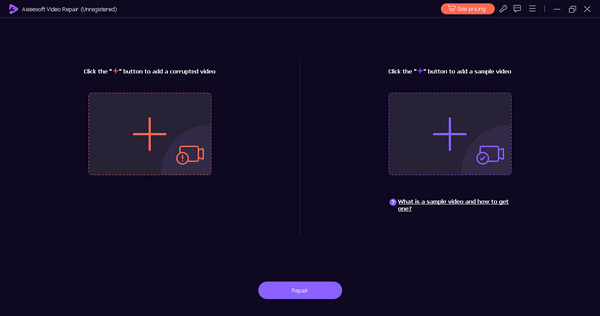
步驟 2: 接著啟動工具。介面上會有兩個按鈕,你會在螢幕左側看到紅色加號按鈕,在右側看到藍色加號按鈕。點擊紅色加號按鈕新增損壞的影片,點擊藍色加號按鈕新增範例影片。
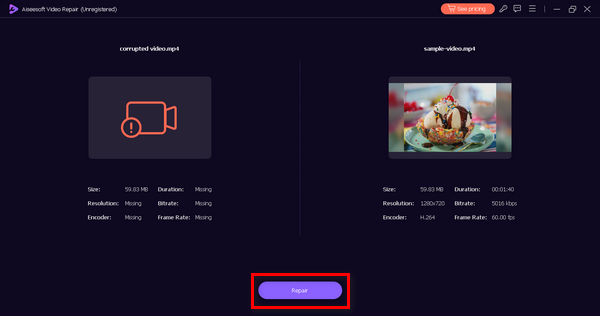
步驟 3: 新增完所有影片檔後,點擊Repair(修復)按鈕,就會開始處理並修復損壞的影片檔案。
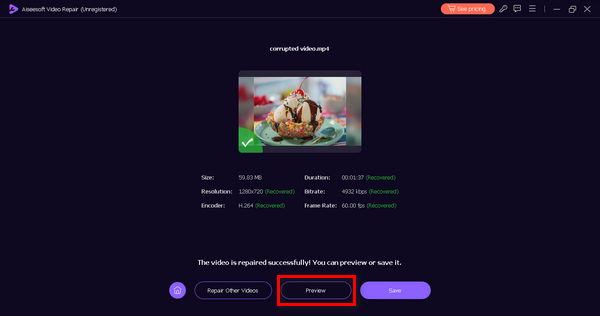
步驟 4: 最後,若要確認修復是否成功,請點擊Preview(預覽)按鈕;如果你對修復結果感到滿意,就可以選擇將檔案儲存下來。
現在您可以輕鬆方便地觀看影片。當涉及修復凍結的影片和損壞的檔案時,Aiseesoft Video Repair 確實很有幫助。由於其用戶友好且直觀的介面,所有技能水平的人都可以使用它,因此您可以立即開始。立即解凍凍結的影片!
第 3 部分:解決影片凍結問題的手動提示
雖然 Aiseesoft Video Repair 等軟體工具非常方便,但您也可以採取手動步驟來修復凍結的影片。以下是三個重要提示:
提示 1. 檢查網路連接
確保您的網路連線穩定並且有足夠的頻寬來流暢地傳輸影片。連接薄弱或不穩定可能會導致凍結問題。
技巧 2. 優化硬體設置
調整電腦的硬體設置,例如增加 RAM 或清理系統,以增強視訊播放過程中的效能。
提示 3. 更新軟體和驅動程式
定期更新您的媒體播放器軟體和圖形驅動程序,以確保與視訊格式的兼容性並保持流暢的播放。
如果您尚未嘗試使用軟體工具解凍凍結的視頻,則可以使用這些手動步驟。但如果它不起作用,您可以使用軟體工具來幫助您解決問題。
第 4 部分:有關凍結影片的常見問題解答
可以使用線上工具免費解凍影片嗎?
是的。有幾種免費的線上工具聲稱可以解凍影片。然而,它們的有效性可能會有所不同。使用線上工具時務必謹慎,因為它們可能會帶來潛在風險,例如惡意軟體或品質下降。若要獲得更可靠、更全面的解決方案,請考慮使用 Aiseesoft Video Repair 等影片修復軟體。
VLC 可以解決視訊卡頓問題嗎?
是的。然而,僅靠 VLC 可能還不夠。建議將 VLC 更新到最新版本,並確保系統的驅動程式和硬體是最新的。如果問題仍然存在,請考慮使用視訊修復軟體或本文提到的手動提示以獲得更全面的解決方案。
更換媒體播放器可以解決影片凍結問題嗎?
是的。更換媒體播放器有時可以幫助解決影片凍結問題,特別是當問題與軟體相容性有關時。某些媒體播放器可能比其他媒體播放器更有效地處理影片文件,切換到其他播放器可能會解決此問題。
可以在 Mac 電腦上使用視訊修復軟體嗎?
是的,視訊修復軟體(包括 Aiseesoft Video Repair)與 Mac 電腦相容。這意味著您可以在 Mac 上享受無縫體驗,就像使用任何其他作業系統一樣。
影片凍結與我的網速有關嗎?
是的。影片凍結可能與您的網路速度有關。不穩定的網路連線可能會導致視訊凍結,因為緩慢的網路可能會導致緩衝問題。如果您經常遇到視訊卡頓的情況,建議檢查您的網路連線。
結論
可以說,觀看與串流影片已成為我們日常生活中不可或缺的一部分,而遇到影片畫面凍結的挫折感,相信每個人都經歷過。不過,如今你可以透過 Aiseesoft Video Repair 等軟體工具,或是自行手動修復的方式來解除影片凍結,讓你重新享受流暢無礙的觀影體驗。
嘗試我們在本文中提供的解決方案和提示,讓影片中斷成為過去。我們走吧!
-
 什麼是綠幕視頻,我們該如何解決它
 您是否有過這樣的經驗:在裝置上觀看影片時,螢幕突然變綠?這是您需要了解的所有內容以及解決方法。
-
 在線壓縮影片以減小影片檔案大小的方法
 如果您正在在線尋找視頻壓縮器,則無需再尋找,因為我們已經為您提供了!以下是您可以使用的一些最方便的工具。
-
 6種經過驗證的解決方案,可修復無法在Chrome上播放的視頻
 要解決視頻無法在Chrome上播放的問題,您需要做的就是閱讀我們的問題排查並逐一執行經過驗證的解決方案。
