


 視頻轉換大師
 屏幕錄影大師
 影片修復
影片修復
 安全下載
安全下載遇到DVD光碟機無法播放問題時該怎麼辦
對許多人來說,光碟是一種較為傳統的影音檔案載體。現今我們更傾向於在線觀賞內容,或使用隨身碟等儲存裝置。然而,這並不代表光碟格式將會消失,它仍然是儲存高品質音訊與視訊的重要載體。若要從光碟讀取資料,我們必須使用光碟機,並將其連接至電腦或遊戲主機,才能開啟 DVD 上的內容。不過,我們經常可能遇到DVD 光碟機無法播放光碟內容,或無法辨識光碟的情況。本文將簡要分析造成此狀況的原因,並提供三種可協助你修復問題的解決方案,其中包含一款最易上手的 DVD 轉檔工具。請依照自身情況,決定哪一種解決方案最適合你。

第 1 部分。 DVD 光碟機無法辨識光碟 - 症狀和原因
首先,我們需要了解您的DVD光碟機無法正常讀取光碟的原因,以便更好地找到後續解決方案。我們將在下文中列出幾種可能的情況。您可以檢查您的設備是否有以下問題。
您的 DVD 未正確插入
這是最直接的原因,也是我們首先要考慮的因素。您需要檢查光碟是否正面朝上插入驅動器,以及光碟表面是否有污漬。這些因素可能會導致磁碟機無法正確讀取 DVD 內容。
您的 DVD 已損壞或不相容
如果您的 DVD 光碟損壞,任何裝置都無法讀取。某些 DVD 光碟機也無法播放有刮痕的光碟。如果您的 DVD 與驅動器不相容或區域碼不匹配,光碟上的電影將無法正常打開。有時,在一台電腦上刻錄的光碟甚至無法在另一台裝置的磁碟機中讀取。
您已安裝或解除安裝 DVD 燒錄程序
如果您在電腦上執行了此操作或解除安裝了 Microsoft Digital Image,則可能會遇到 DVD 光碟機無法辨識光碟的錯誤。這將導致您無法在文件資源管理器中找到 DVD 驅動器圖標,或者那裡會出現黃色感嘆號。
您的DVD光碟機已損壞
如果您確定電腦設定或DVD本身沒有問題,請考慮檢查磁碟機是否有故障。故障磁碟機無法讀取文件,並且可能會損壞原始光碟。
韌體已過期
如果您的電腦上的韌體未及時更新,插入的 DVD 可能無法被現有的 DVD 光碟機讀取。當 DVD 光碟機在您的裝置上無法正常運作時,您可以檢查是否有新版本可供安裝。
第 2 部分。 DVD 光碟機無法辨識光碟 - 解決方案
使用最佳翻錄器翻錄您的 DVD
當我們遇到外接DVD光碟機無法正常讀取DVD光碟的情況時,最直接、最徹底的解決方法是先將DVD內容翻錄到光碟中。獲得數位視訊檔案後,您可以使用任何視訊播放器播放它們。此外,在日常生活中,我們很難隨身攜帶DVD光碟機,因此先翻錄影片以便觀看和分享更加方便。我們誠摯地推薦您使用AnyMP4 DVD Ripper這款DVD翻錄軟體。它是一款功能全面的影片編輯軟體,不僅可以將DVD影片轉換為任何常見的數位多媒體格式,還能在匯出影片之前幫助您修改影片的細節和各種元素。您可以執行裁剪、調整大小、修剪、編輯字幕等操作。 AnyMP4 DVD Ripper的介面簡潔明了,並為初學者提供了非常貼心的指導。我們相信您很快就能完全掌握它的使用方法。
以下是使用 AnyMP4 DVD Ripper 翻錄 DVD 的步驟。
步驟一: 在電腦上下載並安裝 AnyMP4 DVD Ripper。將你的 DVD 放入光碟機中。點擊「載入 DVD」(Load DVD),讓程式載入你的 DVD。
步驟二: DVD 中的影片載入完成後會顯示出來。你可以編輯字幕、解析度、影格率等,並在「輸出格式」(Output Format)分頁中選擇一種視訊格式。

步驟三: 最後,選擇「全部轉檔」(Rip All)以匯出你的影片。
更新或重新安裝DVD光碟機
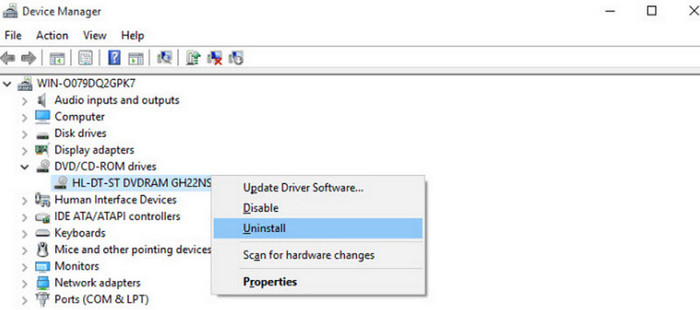
如果您電腦上的光碟機硬體已過時,您可以在裝置的「裝置管理員」中下載並安裝最新版本。完成後,請再次檢查光碟機是否能夠讀取 DVD 的內容。
以下是在您的電腦上重新安裝 DVD 光碟機的步驟。
步驟一: 同時按下鍵盤上的 Windows 鍵與 R 鍵,即可開啟「執行」視窗。
步驟二: 輸入下方指令,然後按下 Enter 鍵,在電腦上啟動裝置管理員。
devmgmt.msc
步驟三: 找到 DVD/CD-ROM drives 區段並展開清單,然後在光碟機名稱上按一下滑鼠右鍵。
步驟四: 在下拉清單中選擇 Uninstall device(解除安裝裝置)。
步驟五: 最後,你需要重新啟動電腦。之後,Windows 會自動重新安裝該裝置。
更換另一個驅動器
您可以將另一張光碟插入現有磁碟機。如果仍然無法讀取任何內容,則驅動器可能有故障。此時,您應該考慮更換新的外接 DVD 光碟機。
如果現有光碟有問題,您可以嘗試用無絨布和水清潔光碟表面以去除灰塵。如果發現任何細小的刮痕,請嘗試用酒精和棉花棒擦拭。如果 DVD 上的刮痕很深,請嘗試拋光,看看能否修復。
第3部分。 DVD光碟機無法播放的常見問題解答
為什麼我無法在 DVD 播放器上播放已燒錄的 DVD?
光碟的光學格式種類繁多,光碟格式不相容可能會導致你遇到的問題。首先,請先確認該光碟是否與DVD 播放器相容。此外,你也應留意光碟表面是否有灰塵或刮痕,若有,最好先加以清潔。
如果我在裝置管理員中找不到我的 DVD 檔案怎麼辦?
這表示您的電腦可能無法辨識插入光碟機的光碟。首先,請檢查光碟機和電腦之間的連接是否穩定。第二種可能是您的 DVD 驅動程式需要更新。您可以在電腦的裝置管理員中進行更新。
DVD 翻錄器可以播放 DVD 嗎?
電腦內建的 DVD 轉檔程式可能無法播放 DVD 上的內容,不過,一些專業的第三方轉檔工具,或是具備 DVD 擷取功能的多合一影片剪輯軟體,通常都會提供影片播放功能。
結論
在本文中,我們已分析DVD 光碟機無法播放或無法讀取光碟內容的可能原因,並提供了 3 種解決方案。如果你已檢查過 DVD 與光碟機本身,確認並非其本身故障,可以嘗試在電腦上重新安裝 DVD 光碟機。當然,你也可以直接將 DVD 中的影片轉檔擷取出來,再重新播放。AnyMP4 DVD Ripper 將會是你最得力的助手。
-
 2025 年如何在 Windows Media Player 上播放 DVD
 為什麼我的DVD無法在Windows Media Player上播放?如何在Windows 7媒體播放器上播放DVD?這篇文章分享了有無WMP播放DVD的3種方式。
-
 [已解決] VLC 無法播放 DVD,如何修復
 VLC 可以播放 DVD 嗎?為什麼 VLC 不能播放我的 DVD?如何讓 VLC 在 Windows 10 上播放 DVD?這篇文章分享了 3 個修復 VLC 不播放 DVD 問題的技巧。
-
 您需要了解的有關DVD播放器格式的所有信息
 這是一份指南,提供有關 DVD 播放器格式的知識,包括如何使用 DVD 播放器格式打開文件以及如何轉換為其他格式。
