


 視頻轉換大師
 屏幕錄影大師
 影片修復
影片修復
 安全下載
安全下載如何在 iPhone 上錄製 MP4:設定和最佳解決方案
iPhone 會以 MP4 格式錄影嗎? 一般來說,iPhone 錄製的影片是 MOV 格式,通常使用上沒有問題。不過,如果你想把這些 iPhone 影片分享給不支援 MOV 的裝置,就會遇到麻煩。因此,不論你是在 iPhone 上觀看、拍攝或編輯影片,了解它所使用的影片格式都很重要。這樣的認知與了解能幫助你選對檔案類型與編解碼器,避免播放問題。所以在本文中,我將示範三個在 iPhone 上以 MP4 錄製影片的簡單方法,讓影片在播放與剪輯時更具相容性。

第 1 部分:iPhone 是否可以錄製 MP4 格式的視頻
許多人,尤其是非 iPhone 用戶,想知道 iPhone 是否可以錄製 MP4 格式。好吧,快速回答這個問題,iPhone 可以以兩種格式錄製影片。但這仍然取決於設定。預設選項是 MOV,這是 Apple 裝置廣泛使用的格式,在某些裝置上運作良好。然而,iPhone 還提供了一種節省空間的選項,稱為高效率或 HEVC。這使用了不同的格式,但您仍然可以直接在 iPhone 上查看這些錄音。
現在,關於螢幕錄製,iPhone內建的螢幕錄影機僅以MOV格式儲存錄製內容。因此,如果您需要 MP4 錄音,並且想要直接在 iPhone 上編輯這些 MP4 視頻,則由於 App Store 的限制,您必須在計算機上求助於專業的屏幕錄像機或編輯軟體。
第 2 部分. 如何在 iPhone 上錄製 MP4 而無需轉換
談到在 iPhone 上以 MP4 格式錄影,這裡有一款專業軟體叫做 FVC 螢幕錄影工具,可以將你 iPhone 上的一切畫面(包括影片)錄下來,並輸出為 MP4。FVC 螢幕錄影工具內建多種錄影模式,其中就包含專為 iPhone 設計的一種。它透過鏡像手機畫面到電腦,然後錄下螢幕上的所有內容,包含系統聲音。它的獨特之處在於提供標註工具,可讓你為錄製的影片加入個人化註記。有了這款 FVC 螢幕錄影工具,你就不必再特地轉檔 iPhone 影片才能得到高品質的 MP4。你只需要依照下方的「如何在 iPhone 上錄製 MP4」步驟操作,就能輕鬆完成。
步驟 1。 首先要做的是在電腦上取得錄影程式。你可以依照下方的 下載 按鈕,在 Windows 桌機或 Mac 上下載。提示:你可以先準備好 iPhone,並將它連上與電腦相同的 WLAN 網路。
步驟 2。 啟動螢幕錄影程式,然後點選 手機 錄影工具。接著選擇 iOS 選項。到 iPhone 的控制中心,點選「螢幕鏡像」功能,然後在裡面選擇螢幕錄影程式。如此即可連線兩台裝置並開始錄影。
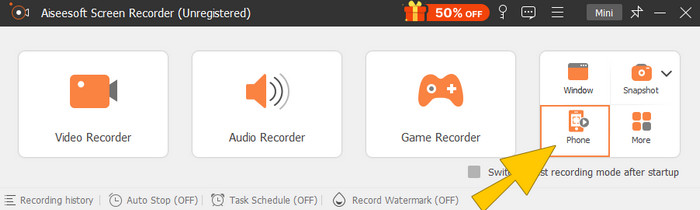
步驟 3。 裝置連線後,你就可以點選 錄製 按鈕開始錄影。完成後再點選 停止 按鈕。
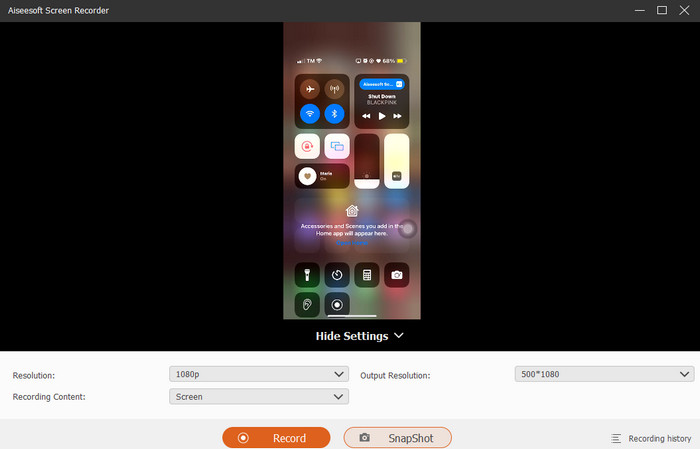
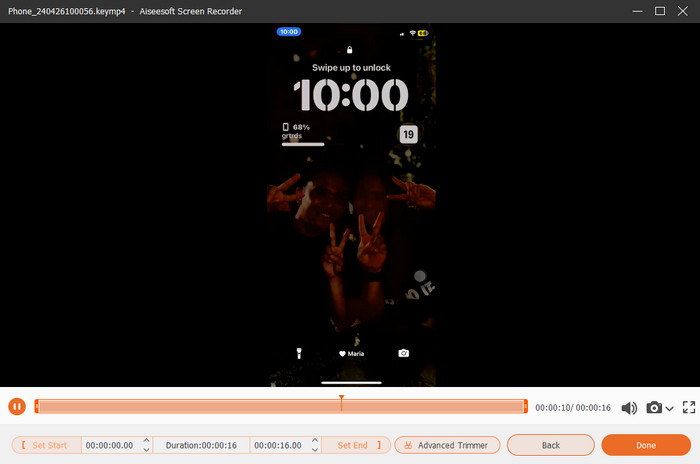
步驟 4。 錄製結束後,工具會帶你進入儲存區,在那裡你可以編輯原始錄影。可進行的編輯包括調整音量、剪輯長度以及擷取畫面截圖。若不需編輯,直接點選「完成」按鈕即可將錄製好的 MP4 儲存下來。
第 3 部分. 如何透過 iPhone 設定錄製 MP4
通常,您用 iPhone 拍攝的影片不會儲存為 MP4 檔案。但是,如果您想要 MP4 格式的文件,則必須調整設置,這可能是最簡單的方法。但是等等,重要的是要注意切換到 MP4 可能會佔用手機上的大量儲存空間。因此,在調整設定之前,請考慮是否值得嘗試。否則,請查看下面提供的步驟。
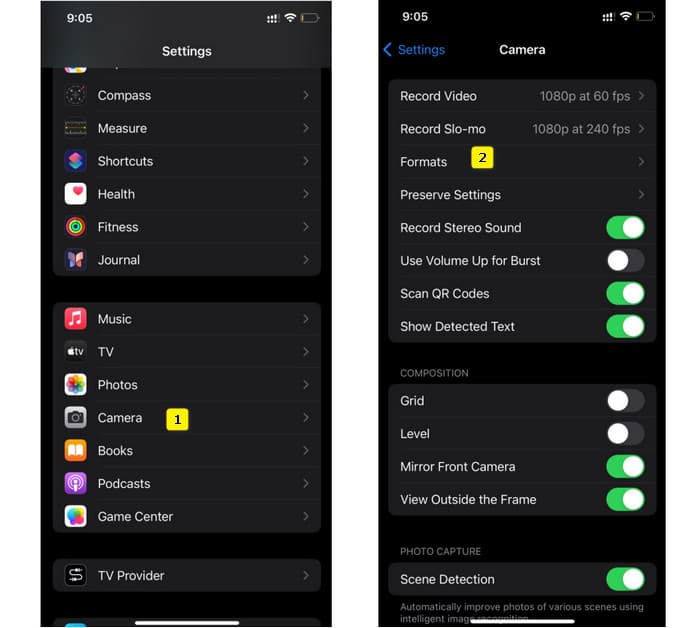
步驟 1。 前往手機的 設定 App,找到「相機」並點進去。
步驟 2。 接著前往 格式 區段並點選,然後將其設定為 最高相容性 選項,讓預設錄影格式為 MP4。
步驟 3。 完成後,你就可以使用 iPhone 內建的螢幕錄製功能開始錄製。
第 4 部分:在線上免費將 iPhone 錄音轉換為 MP4
坦白說,如果你平常不是直接以 MP4 錄影,那最後的解決方式通常就是轉檔。也就是說,你可以使用免費的線上轉檔工具,為你的影片提供更輕鬆、快速的處理方式。來認識一下 FVC 免費線上影片轉檔工具,這是一款免費程式,可讓你將影片與音樂轉成不同格式。它支援熱門的影音檔,並可將它們轉成 MP4、FLV、AVI、WMV、MOV、MKV 等多種格式。即使是高畫質影片,也能在不犧牲品質的情況下快速轉檔!你也可以同時轉換多個影片,大幅節省轉檔時間。更便利的是,你不必另外下載已轉檔的檔案,它只會要求你選擇一個儲存位置,然後直接將輸出檔案存到那裡!那麼,就來試試這個超好用的工具,快速轉檔你的 iPhone 影片吧!
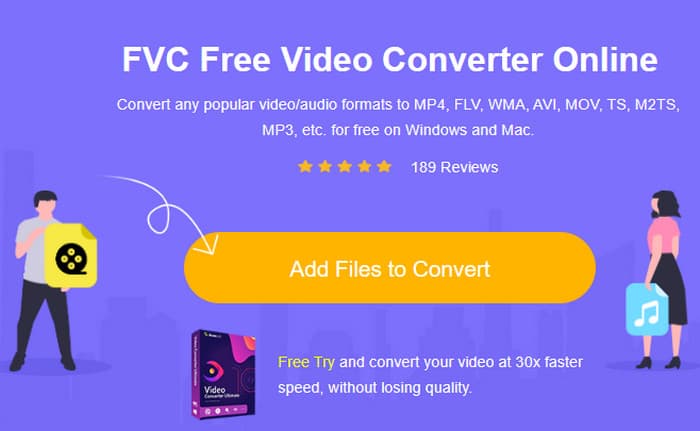
步驟 1。 在桌機的瀏覽器上造訪該工具的官方網站。然後點選 新增檔案以轉換 按鈕以下載啟動程式。下載完成後,再次點選該按鈕以上傳你的 iPhone 影片。
步驟 2。 進入主介面後,若你還想加入更多要轉檔的 iPhone 影片,只需點選 新增檔案 按鈕。接著在下方選擇格式,將它們設定為 MP4。
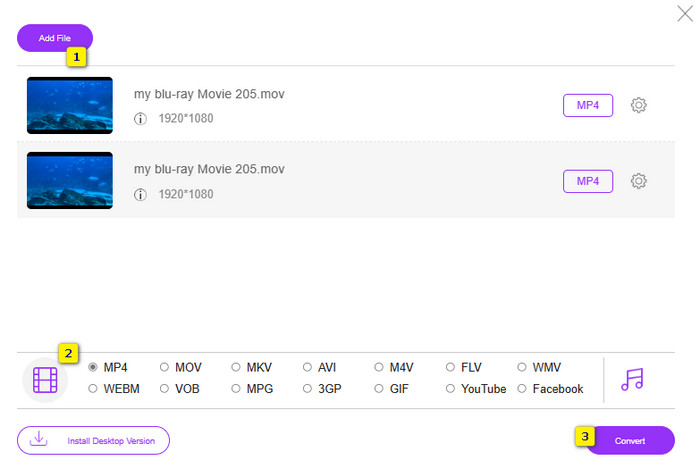
步驟 3。 全部設定完成後,點選 轉換 按鈕並選擇檔案儲存位置。一選定後,轉檔程序就會立即開始。
依照以上步驟,你就能輕鬆免費將 iPhone 的 MOV 影片轉成 MP4。
第 5 部分. 有關 iPhone MP4 錄影的常見問題解答
我可以編輯 iPhone 上錄製的 MP4 影片嗎?
是的,您可以在 iPhone 上編輯 MP4 影片。為此,請使用 App Store 上提供的各種影片編輯應用程式。否則,您可以將影片傳輸到電腦並使用專業的影片編輯軟體進行編輯。
如何將 MP4 影片從 iPhone 傳輸到 PC?
您可以使用多種方法將影片從 iPhone 傳輸到 PC。您可以使用 USB 電纜,將影片上傳到雲端存儲,或使用可協助您傳輸影片的軟體。
iPhone 錄製的 MP4 影片品質和解析度是多少?
這取決於您的 iPhone 型號。 iPhone 通常以 MP4 格式錄製視頻,具有各種分辨率和品質選項。選項範圍從標清到高清,甚至較新型號的 4K。
結論
這些方法可以指導您如何在 iPhone 上輕鬆錄製 MP4。選擇最適合您的,並與您的朋友分享!
-
 如何在Mac / PC /在線上將MP4轉換為MOV
 如何在Mac上將MP4轉換為MOV?有沒有免費的方法可以將MP4轉換為MOV而不會造成質量損失?這篇文章分享了4種簡單的方法來幫助您在Mac,Windows PC和在線上將視頻從MP4轉換為MOV。
-
 教程–將iPhone上的視頻合併到新的4種免費方法
 想要在 iPhone 上將多個視頻合併為一個嗎?閱讀並獲取 4 種簡單方法,支持所有 iPhone 型號和 iOS 版本。
-
 [已解決] 如何通過詳細步驟修復無法在 iPhone 上播放的視頻
 圖庫中的本地視頻無法通過默認視頻播放器在您的 iPhone 上播放?在線 YouTube 視頻總是無法在 iPhone 上播放?在本文中,這裡有 5 個解決方案可以幫助您。
